---
title: "Expected behaviors in routed Outlook Add-in deployments"
slug: "clone-outlook-add-in-routed-key-behaviors-and-nuances"
description: "Expected behaviors in Plain Text Block and Stamping deployments of the Opensense Outlook Add-in: stamping rule fields, shared accounts, and From Switching."
updated: 2026-08-21T15:56:13.000Z
canonical: "https://help.opensense.com/docs/clone-outlook-add-in-routed-key-behaviors-and-nuances"
---
> ## Documentation Index
> Fetch the complete documentation index at: https://help.opensense.com/llms.txt
> Use this file to discover all available pages before exploring further.
# Expected behaviors in routed Outlook Add-in deployments
## Overview
This article covers behaviors specific to routed Outlook Add-in deployments that admins should understand before and after launch. They aren't bugs or errors. They are expected behaviors that need intentional configuration to handle correctly. For issues with the add-in not deploying, or signatures not appearing, see the [Troubleshooting the Outlook Add-in](https://help.opensense.com/docs/outlook-add-in-troubleshooting-guide-2).
:::note[Plain Text Block and Stamping only]
This article applies to the Plain Text Block and Stamping deployment methods. For behaviors specific to Visual Preview, see [Outlook Add-in Visual Preview capabilities and tradeoffs](https://help.opensense.com/docs/outlook-add-in-visual-preview-capabilities-and-tradeoffs).
:::
## Field edits with stamping
When the add-in allows field edits alongside Stamping, you must adjust the plain text block in the stamping mail flow rule. Exclude every field that users can edit in the add-in pane from the plain text block in the rule. Otherwise, the value in the rule overwrites the user's edited value when Opensense processes the email server-side.
The default stamping rule that Opensense deploys includes these fields:
```plaintext
[[#]]
name: %%DisplayName%%
title: %%Title%%
phone: %%Phone%%
email: %%Email%%
mobile: %%MobileNumber%%
[[#]]
```
If any of these fields are unlocked for user editing in the add-in, remove the matching line from the rule. For example, if users can edit their title in the add-in pane, remove `title: %%Title%%` from the rule, so their input isn't overwritten server-side.
## Shared accounts and alias permissions
Any account linked to a user's primary account inherits add-in permissions automatically. So the add-in works when a user switches the **From** address to a linked alias, and the add-in itself needs no extra configuration to activate.
:::caution[Shared mailboxes opened directly]
There is one exception. If a shared mailbox is accessed directly, rather than linked through a primary account, you must add it to the add-in's deployment scope in the Microsoft 365 admin center. Accessing the mailbox directly doesn't inherit permissions from another account. See [Scoping Outlook Add-in users in the Microsoft 365 admin center](https://help.opensense.com/docs/clone-outlook-add-in-scope-users-for-opensense-in-m365-admin).
:::
### Controlling which signature appears on From-switched emails
The **From Switching** setting in Opensense Domain Settings controls whether the add-in looks up the switched account's own data and signature template, or keeps the primary user's signature whichever From address is selected.
- From Switching off
- The primary user's signature stays in place, whichever From address is selected. This is the simplest approach for organizations that want employees to send with their personal signature from every account they have access to.
- From Switching on
- When a user switches the From address, the add-in looks to the switched account for its data and signature template. Use this when shared inboxes or aliases have their own distinct signature requirements. For example, a generic support or team inbox that should show shared branding, not an individual's details.
For a full breakdown of From Switching behavior, including Merge User Fields and shared inbox scenarios, see [Aliases and shared inboxes in Configuring the Outlook Add-in in Domain Settings](https://help.opensense.com/docs/clone-outlook-add-in-domain-settings-with-scenarios-and-best-practices#aliases-and-shared-inboxes).
## Send As and Send on Behalf
Send As and Send on Behalf are two distinct Microsoft 365 permission types. They affect how Opensense processes the sender identity when it routes email. The behavior differs between the two, and can affect which signature is applied.
For a full explanation of how these permissions interact with Opensense routing, see [Send As vs Send on Behalf](https://help.opensense.com/docs/send-as-vs-send-on-behalf).
## Switching to domains not configured in Opensense
If a user switches their **From** address to a domain that isn't configured in Opensense, the add-in may keep and show the previous signature instead of clearing it. To prevent this:
1. Turn on [Remove Signature for Unknown Domain](https://help.opensense.com/docs/clone-outlook-add-in-domain-settings-with-scenarios-and-best-practices#remove-signature-for-unknown-domain) in the add-in's Domain Settings. This clears the signature when the user switches to a domain that Opensense doesn't recognize.
2. Make sure every domain your organization uses is listed under **Internal Domains** in the Opensense portal. If your organization uses multiple primary domains, each domain must be listed in the other's domain settings, so Opensense recognizes them correctly. For the full steps, see [Configuring Internal Domains](https://help.opensense.com/docs/clone-outlook-add-in-domain-settings-with-scenarios-and-best-practices#internal-domains).
## Add-in pane signature preview
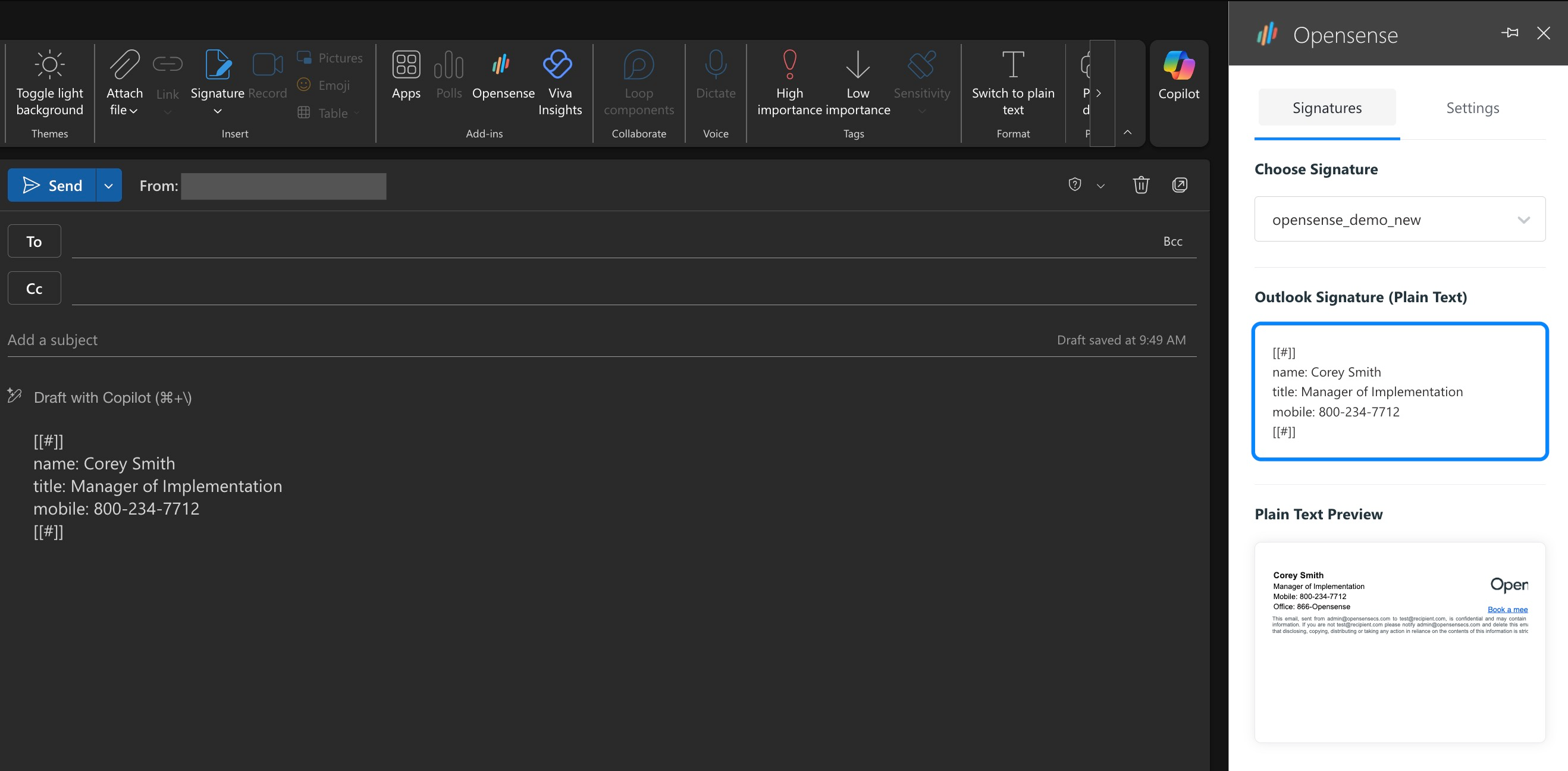
For both Stamping and Plain Text Block deployments, the add-in pane shows a non-clickable preview of the signature recipients will receive after server-side transformation. This needs no extra configuration: it is built into the add-in for both routed methods.
- Plain Text Block
- The compose window contains the
[[#]] token. The add-in pane is where users see the rendered preview.
- Stamping
- Nothing is inserted into the compose window. The add-in pane preview is the only place users can confirm that a signature is active, and see what it looks like.
The preview is read-only. Users can't interact with it or edit it.
## Multiple signature selection
The add-in supports multiple signatures per user, so employees can switch between assigned signatures from the add-in pane. This needs [Multiple Signatures](https://help.opensense.com/docs/clone-outlook-add-in-domain-settings-with-scenarios-and-best-practices#multiple-signatures) turned on in Domain Settings, and signatures properly assigned through routing.
For configuration details and priority behavior, see [Setting up multiple signatures in the Outlook Add-in](https://help.opensense.com/docs/clone-outlook-add-in-multi-signature-selector).
## What's next
- [Outlook Add-in overview](https://help.opensense.com/docs/outlook-add-in-overview-1)
- [Configuring the Outlook Add-in in Domain Settings](https://help.opensense.com/docs/clone-outlook-add-in-domain-settings-with-scenarios-and-best-practices)
- [Troubleshooting the Outlook Add-in](https://help.opensense.com/docs/outlook-add-in-troubleshooting-guide-2)