---
title: "Setting up Custom Compose Fields for the Outlook Add-in"
slug: "custom-compose-fields"
description: "Add dropdown, text, and checkbox fields to the Opensense Outlook Add-in pane: labels and values, padlock behavior, priority, and HTML template examples."
updated: 2026-07-22T17:40:32.000Z
canonical: "https://help.opensense.com/docs/custom-compose-fields"
---
> ## Documentation Index
> Fetch the complete documentation index at: https://help.opensense.com/llms.txt
> Use this file to discover all available pages before exploring further.
# Setting up Custom Compose Fields for the Outlook Add-in
## Overview
Custom Compose Fields let admins add user-facing inputs to the Outlook Add-in pane: dropdowns, checkboxes, and free-text fields. Users fill them in while they compose an email, and the values populate specific fields in the signature template. Common uses include opt-ins, salutations, out-of-office messages, and role-based preferences.
You configure Custom Compose Fields in the Opensense portal, and code them into the HTML signature template. They don't store data in the user's core Opensense profile.
## Requirements and behavior
- Custom Compose Fields must be turned on in [Domain Settings](https://app.opensense.com/beta/manage/domain-settings/outlook) before you use them.
- They need the Outlook Add-in with Plain Text Block or Visual Preview turned on.
:::caution[Not compatible with Stamping]
Custom Compose Fields don't work with the Stamping deployment method. See [Comparing Outlook Add-in deployment methods](https://help.opensense.com/docs/deployment-mode-comparison).
:::
### Field labels and values
Each Custom Compose Field has two parts:
| Part |
What it is |
Format |
Example |
| Field Label |
What the user sees in the add-in pane |
Can include capitals and spaces |
Salutations |
| Field Value |
The variable name used in the HTML template |
All lowercase, with underscores in place of spaces |
salutation_custom |
:::caution[Use unique field values]
Don't use default field names that already exist in user profiles, such as `name` or `title`. Use custom names, like `title_custom` or `title_1`, to avoid conflicts.
:::
### Padlock behavior
- Unlocked
- The field resets to blank on each new compose.
- Locked
- The user's selection persists across future compose sessions on that device. Locking a field doesn't sync the selection to other devices.
:::note[Selections don't sync between devices]
Checkbox, dropdown, and text selections are stored locally on each device. A user who composes email on both a desktop and a mobile device must set their preferences separately on each. Selections made on one device don't appear on another.
:::
## Assignment and priority
You can configure Custom Compose Fields at the domain level or the group level. When both apply to a user, this priority order decides which value is used:
1. User profile
2. Group level
3. Domain settings level
### Group level
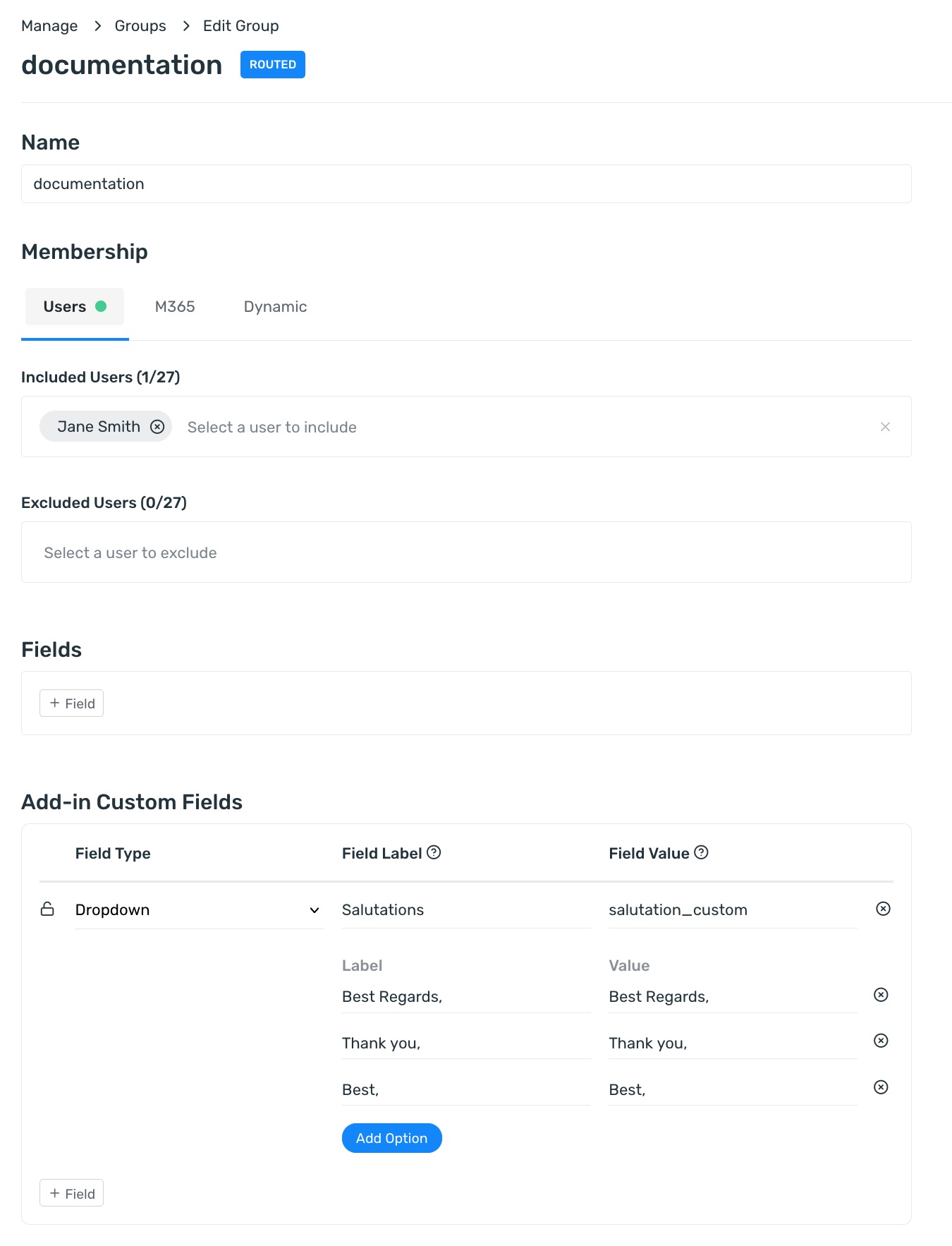
Fields apply only to members of the group, once the group is assigned to a signature in [Routing](https://app.opensense.com/beta/signatures/routing). To add them, go to **Manage** > **Groups**, open the group, and use the **Add-in Custom Fields** section.
 ### Domain settings level
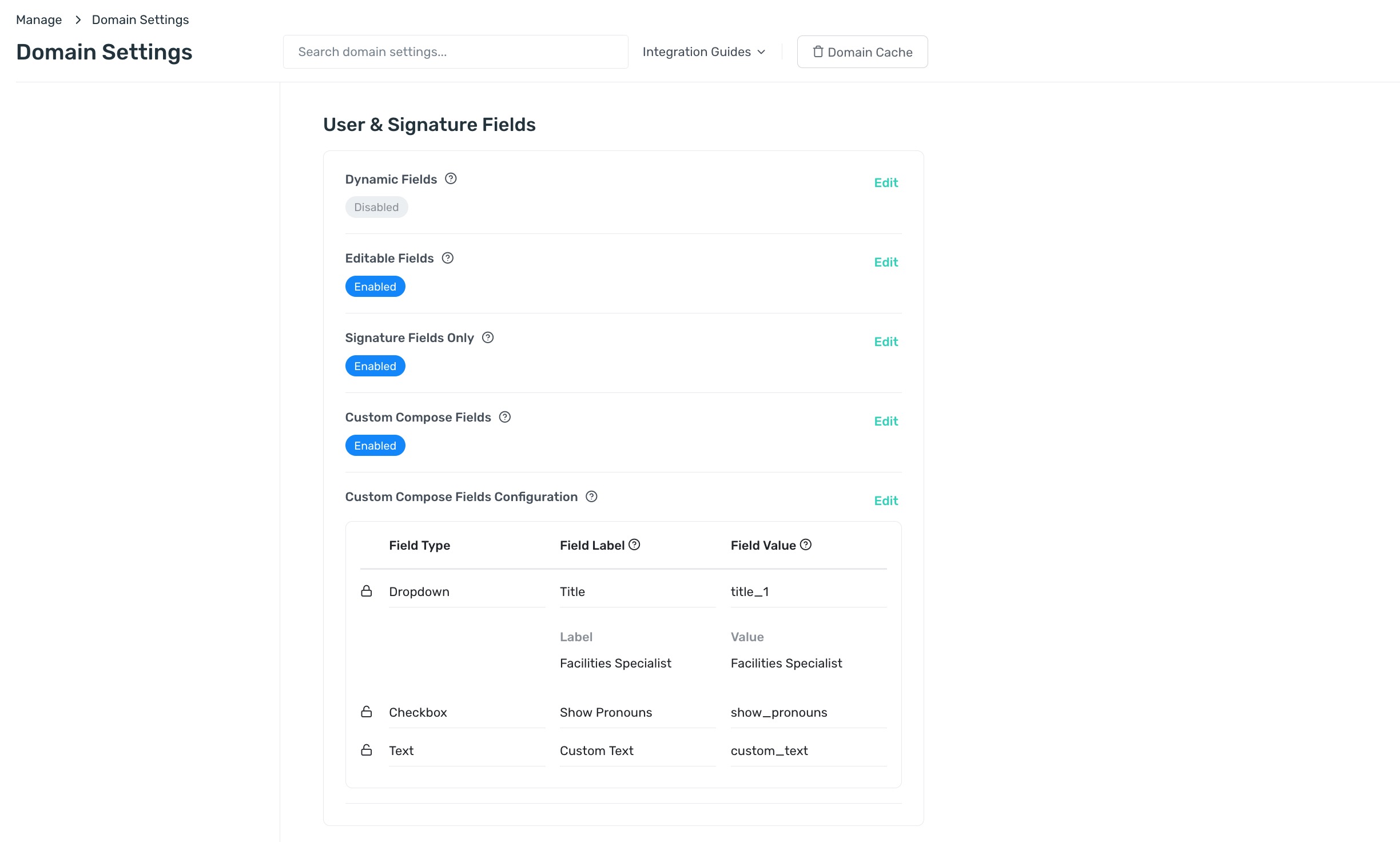
Fields apply to all users scoped to the add-in. To add them, go to **Manage** > **Domain Settings**, and use **Custom Compose Fields Configuration** under **User & Signature Fields**.
## Field types
There are three field types: dropdown, text, and checkbox.
### Dropdown
A dropdown gives users a preset list of options. The first line sets the Field Label and the Field Value to reference in the HTML template. Each option then has its own label and value:
- **Label:** what appears in the add-in dropdown
- **Value:** what the HTML signature template uses
Use it for a region, a salutation, or a title variant.
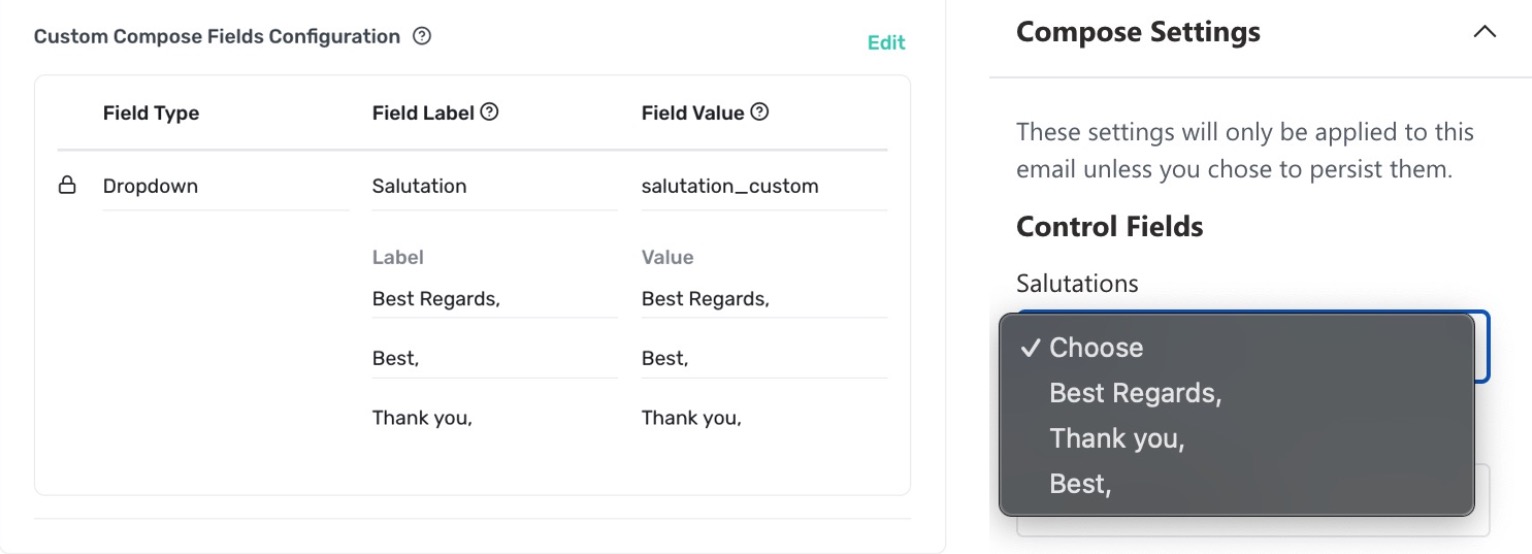
This example shows the salutation only when the user picks one:
```plaintext wrap
{% if salutation_custom != blank %}
|
{{ salutation_custom }}
|
{% endif %}
```
### Text
A text field gives users a free-text input. The value is inserted wherever the field variable is coded in the HTML template. The Field Label names the text box in the add-in pane, and the Field Value is the variable, `{{field_value}}`, coded into the template. You can enforce a character limit in the HTML.
Use it for out-of-office messages or special instructions.
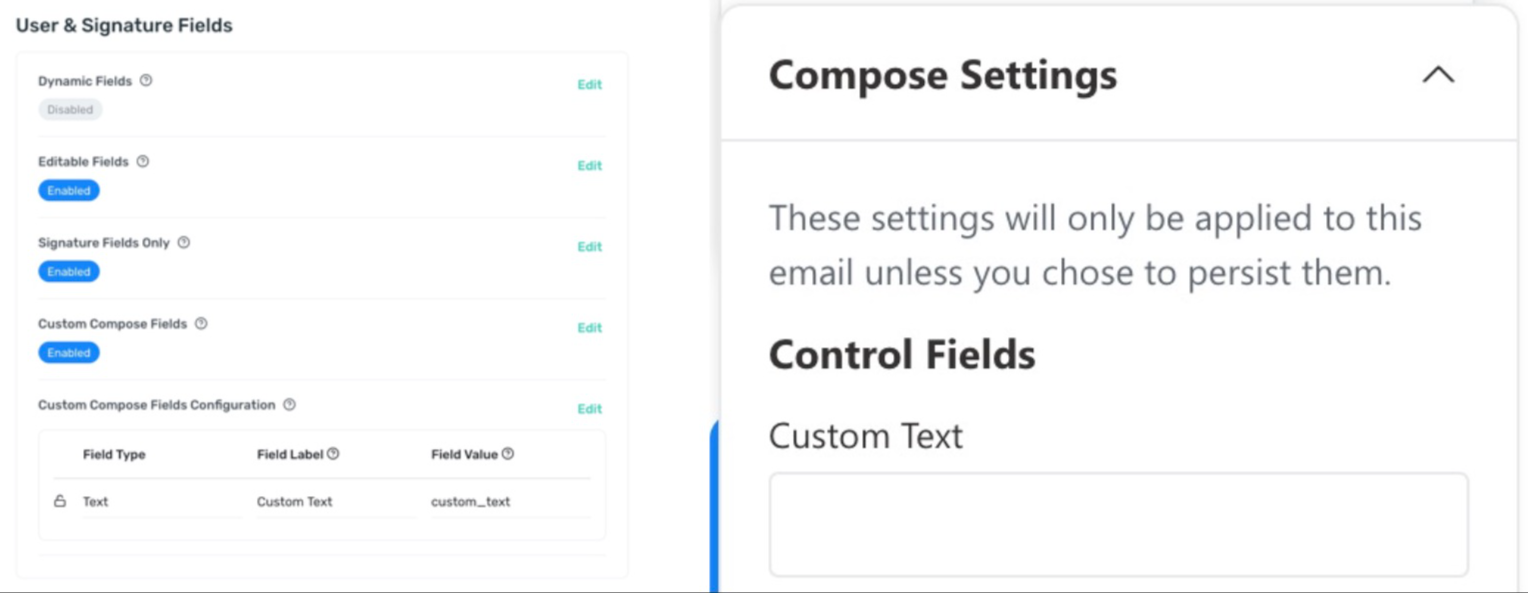
This example limits the text to 50 characters:
```plaintext wrap
{{ custom_text | slice: 0,50 }}
|
```
### Checkbox
A checkbox gives users a true or false toggle. When it is checked, the field value is `true`, and the signature element renders. When it is unchecked, the value is `false`, and the element is hidden. The Field Label names the checkbox in the add-in pane, and the Field Value is the variable, `{{field_value}}`, used in the template.
Checkbox values are booleans, not strings, so you don't need to check for "true" or "false" in the HTML. If the checkbox is off, nothing renders.
Use it for a pronoun, headshot, or disclaimer opt-in.
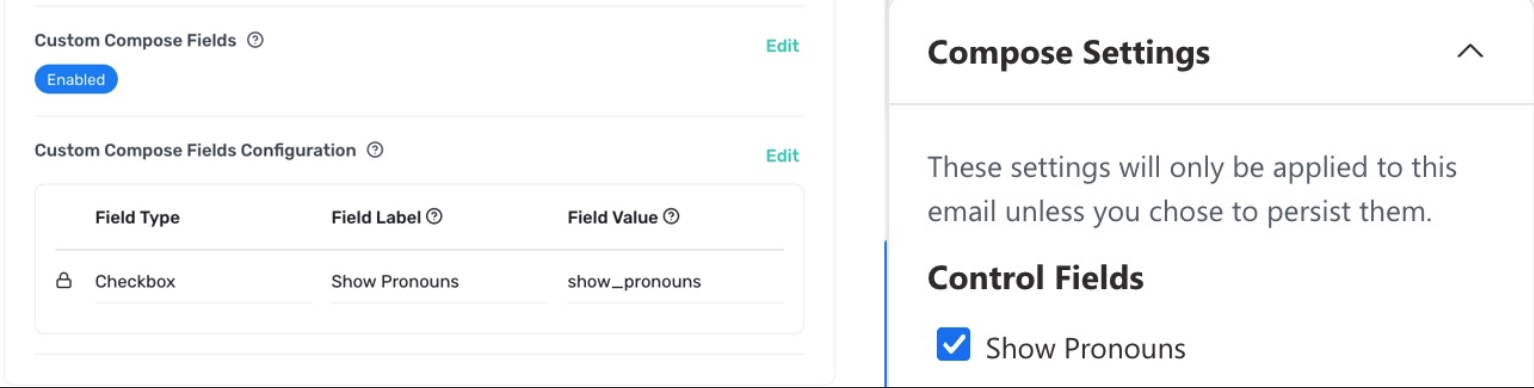
This example shows the user's pronouns only when the box is checked:
```plaintext wrap
{% if show_pronouns %}
|
{{ pronouns }}
|
{% endif %}
```
## Best practices
- Always use unique field values, to avoid conflicts with existing user and group fields.
- Lock fields only when the selection must persist across compose sessions.
- When you assign custom field values at the group level, add an identifier to the group name to show that the group holds custom values. For example: `sales_custom_compose_fields`.
## What's next
- [Outlook Add-in overview](https://help.opensense.com/docs/outlook-add-in-overview-1)
- [Configuring the Outlook Add-in in Domain Settings](https://help.opensense.com/docs/clone-outlook-add-in-domain-settings-with-scenarios-and-best-practices)
- [Expected behaviors in routed Outlook Add-in deployments](https://help.opensense.com/docs/clone-outlook-add-in-routed-key-behaviors-and-nuances)