---
title: "Fixing NDRs when internal senders email Microsoft 365 Groups"
slug: "emailing-into-office-365-groups-triggers-a-ndr-when-emailing-from-internal-sender"
description: "Stop NDRs when internal senders email Microsoft 365 Groups with Opensense routing: allow external senders, or add a mail flow rule that excludes groups."
updated: 2026-10-14T00:00:00.000Z
canonical: "https://help.opensense.com/docs/emailing-into-office-365-groups-triggers-a-ndr-when-emailing-from-internal-sender"
---
> ## Documentation Index
> Fetch the complete documentation index at: https://help.opensense.com/llms.txt
> Use this file to discover all available pages before exploring further.
# Fixing NDRs when internal senders email Microsoft 365 Groups
## Overview
With a mail flow rule like Opensense's, emails from internal senders to Microsoft 365 Groups (formerly Office 365 Groups) can trigger a non-delivery report (NDR). This is a known issue with Microsoft 365. To prevent the NDR, you have two options:
- Create an exclusion rule
- Stops the Opensense rule from applying to emails that internal senders send to groups. Signatures aren't processed on those messages.
## Option 1: Allow external senders
Allow external senders to email the group. This resolves the issue, but it's understandably not the most desirable option.
## Option 2: Create an exclusion rule for internal senders
This mail flow rule stops the Opensense rule from applying to emails that internal senders send to Microsoft 365 Groups, which eliminates the NDR.
:::caution[No signatures on these messages]
The exclusion rule stops signatures from being processed on these messages.
:::
### How the rule works
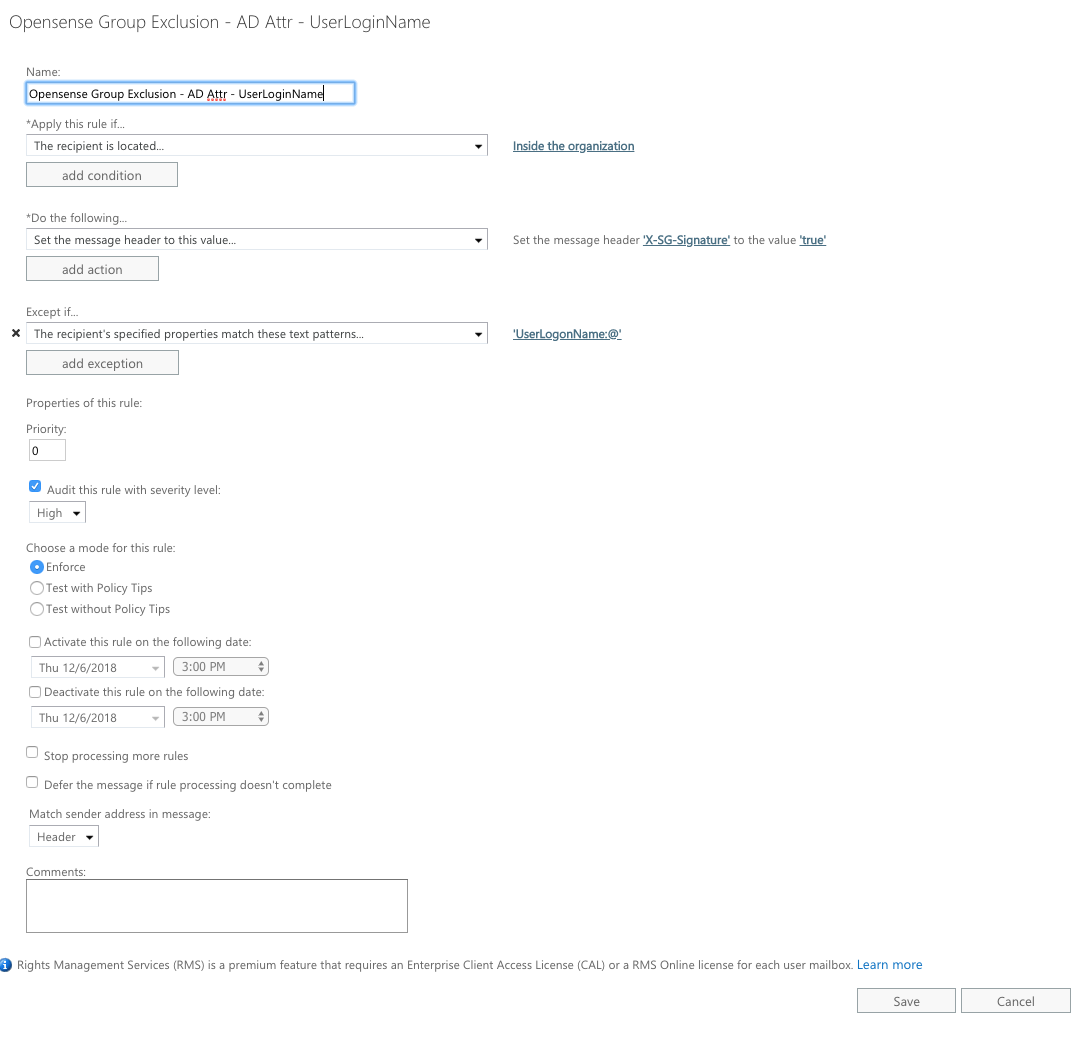
The Opensense rule routes a message to Opensense only when the message doesn't already have the `X-SG-Signature` header (see [How does Opensense work with Microsoft 365?](https://help.opensense.com/docs/how-does-opensense-work-with-office-365)). The exclusion rule sets that header on messages to recipients inside your organization, except recipients whose `UserLogonName` attribute contains `@`, which are user accounts. So the header is set, and the Opensense rule skips the message, when the recipient is a group.
### Create the rule in the Exchange admin center
1. In the [Exchange admin center](https://admin.exchange.microsoft.com), go to **Mail flow** > **Rules**, select **Add a rule**, and then select **Create a new rule**.
2. Name the rule, for example `Opensense Group Exclusion - AD Attr - UserLoginName`.
3. Under **Apply this rule if**, select **The recipient** > **is external/internal**, and then select **Inside the organization**.
4. Under **Do the following**, select **Modify the message properties** > **set a message header**. Set the header `X-SG-Signature` to the value `true`.
5. Under **Except if**, select **The recipient** > **has specific properties matching these text patterns**. Choose the **UserLogonName** attribute, and enter `@`.
6. Set the rule settings as in the example: **Enforce** mode, severity **High**, and **Match sender address in message** set to **Header**.
7. Save the rule, and make sure that it's turned on.
8. Give the rule a higher priority than the Opensense rule (priority 0 in the example), so it runs first.
To create the same rule in Exchange Online PowerShell:
```powershell wrap
New-TransportRule -Name "Opensense Group Exclusion - AD Attr - UserLoginName" -SentToScope InOrganization -SetHeaderName "X-SG-Signature" -SetHeaderValue "true" -ExceptIfRecipientADAttributeMatchesPatterns "UserLogonName:@" -SetAuditSeverity High -Priority 0
```
The example below shows the same rule in the classic Exchange admin center, which Microsoft has replaced with the new Exchange admin center. The labels in the steps above are the current ones.
 If you have any questions or concerns, contact [help@opensense.com](mailto:help@opensense.com).
## What's next
- [How does Opensense work with Microsoft 365?](https://help.opensense.com/docs/how-does-opensense-work-with-office-365)
- [Using Outlook voting buttons with Opensense signatures](https://help.opensense.com/docs/voting-buttons): another case where you may want to keep Opensense off certain emails.
If you have any questions or concerns, contact [help@opensense.com](mailto:help@opensense.com).
## What's next
- [How does Opensense work with Microsoft 365?](https://help.opensense.com/docs/how-does-opensense-work-with-office-365)
- [Using Outlook voting buttons with Opensense signatures](https://help.opensense.com/docs/voting-buttons): another case where you may want to keep Opensense off certain emails.