

Changing images and links in legacy templates (classic UI)
Overview
Section titled “Overview”This article is for pre-2022 templates, built with our legacy HTML syntax: use it if your tags are in $tag; format. If you use Liquid templates, see Changing images and links in Liquid templates (classic UI).
Logo change? New Facebook page? To replace an image or link in your signature, follow these steps. They won’t change the formatting of the signature; they’re only for image and link replacement.
Images must be uploaded to the Opensense.com image bucket before you add them to signature designs (our image bucket ensures maximum deliverability). See Uploading images to Opensense (classic UI).
Replacing an image
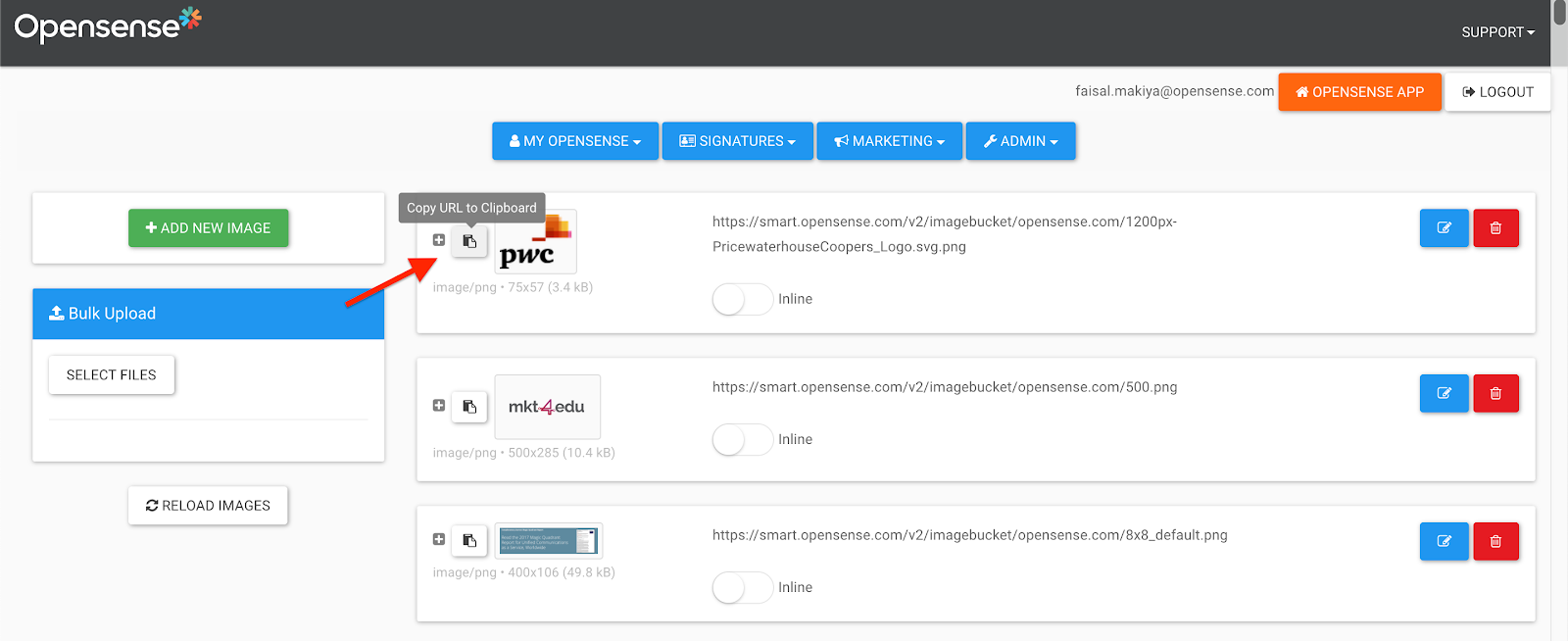
Section titled “Replacing an image”- Open the Marketing menu, and select Images.
- Find the image you want to use (or upload it). Copy the image link, or select the Copy URL to Clipboard button.
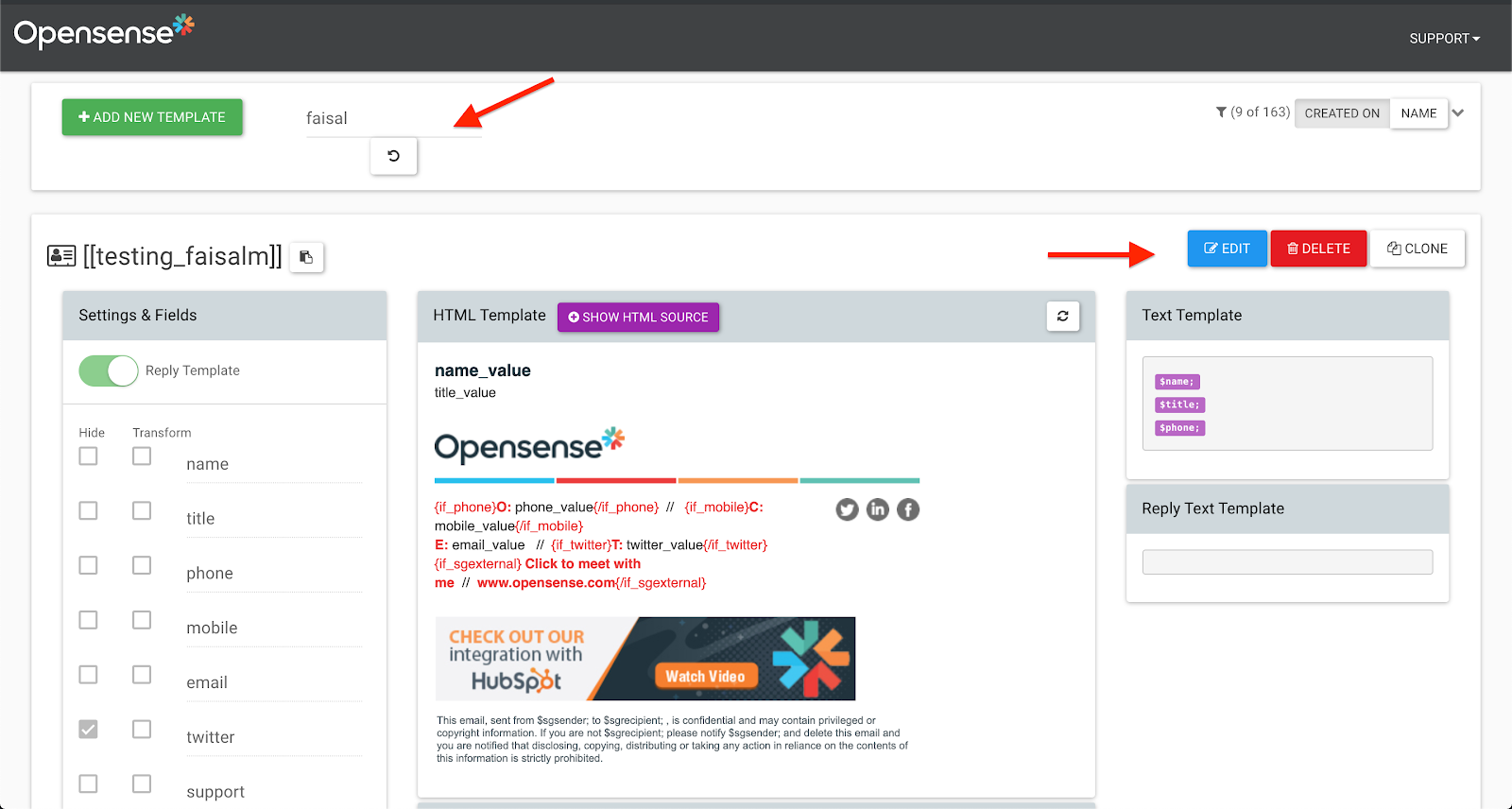
- Open the Signatures menu, and select Designer Studio.
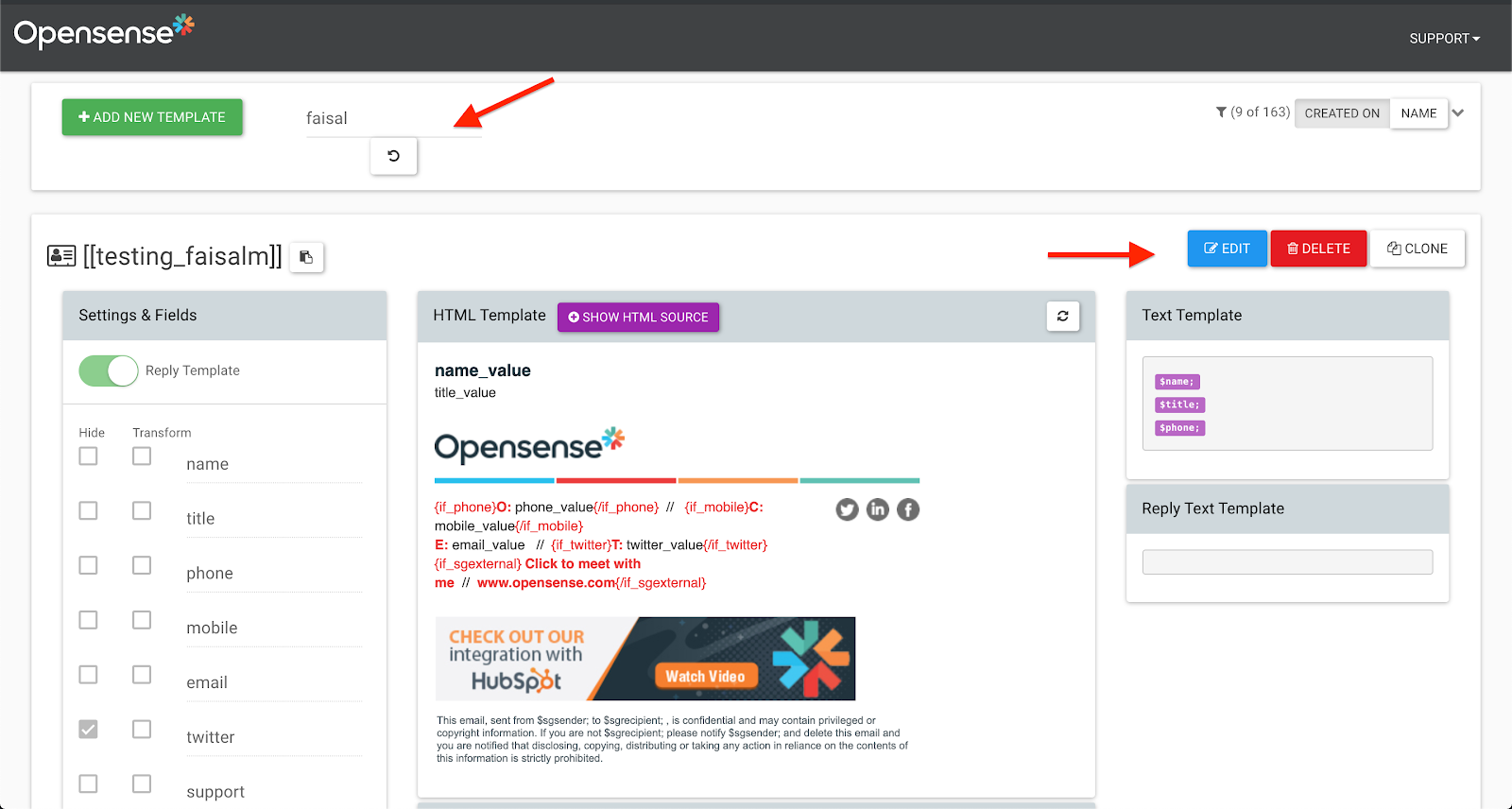
- In Designer Studio, search for your signature template.
- Select Edit.
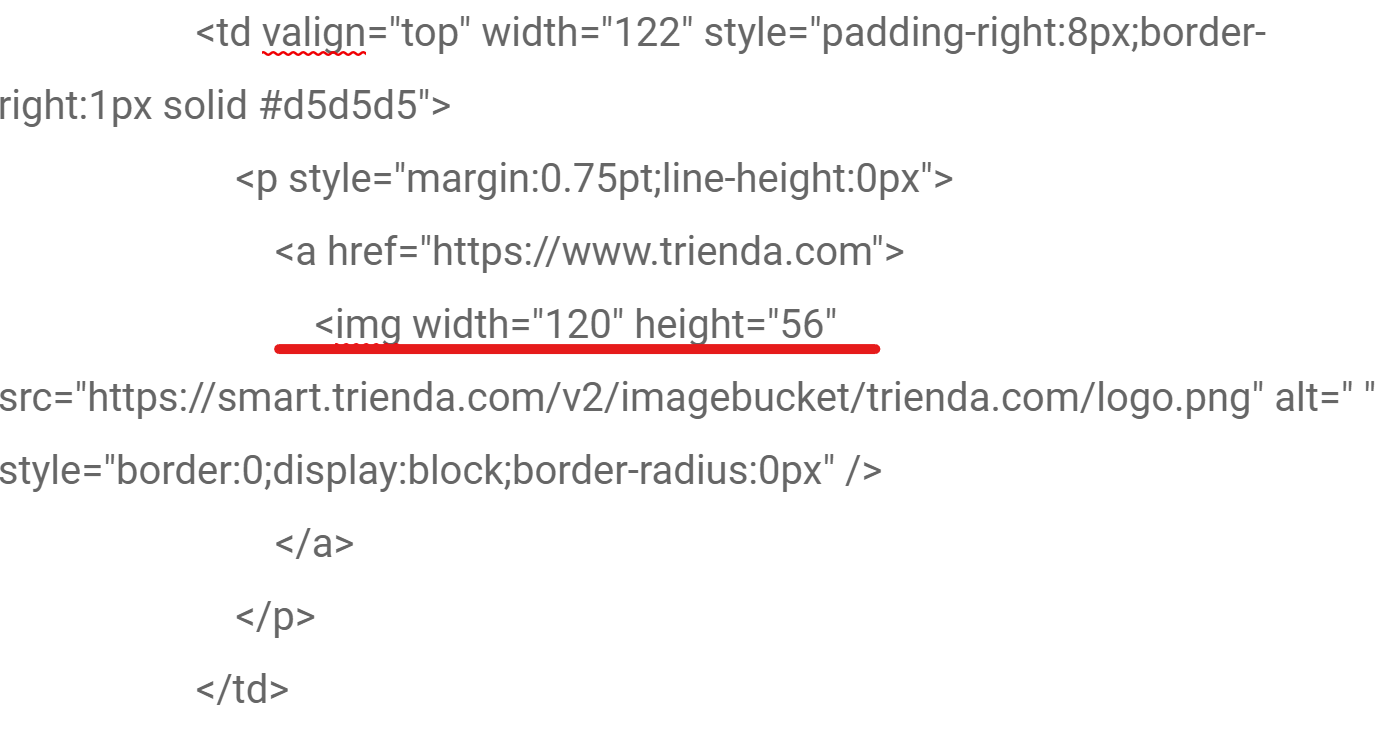
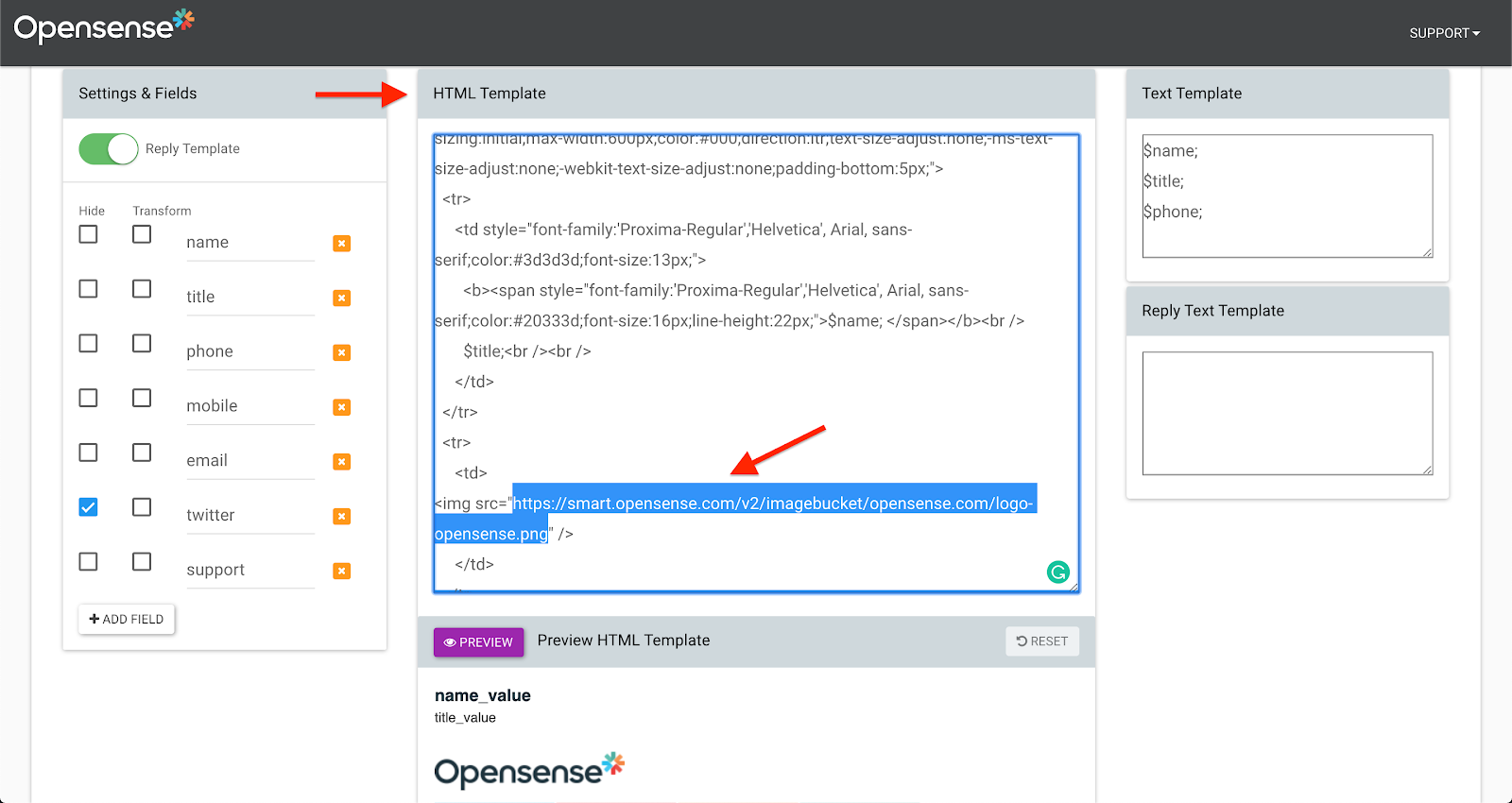
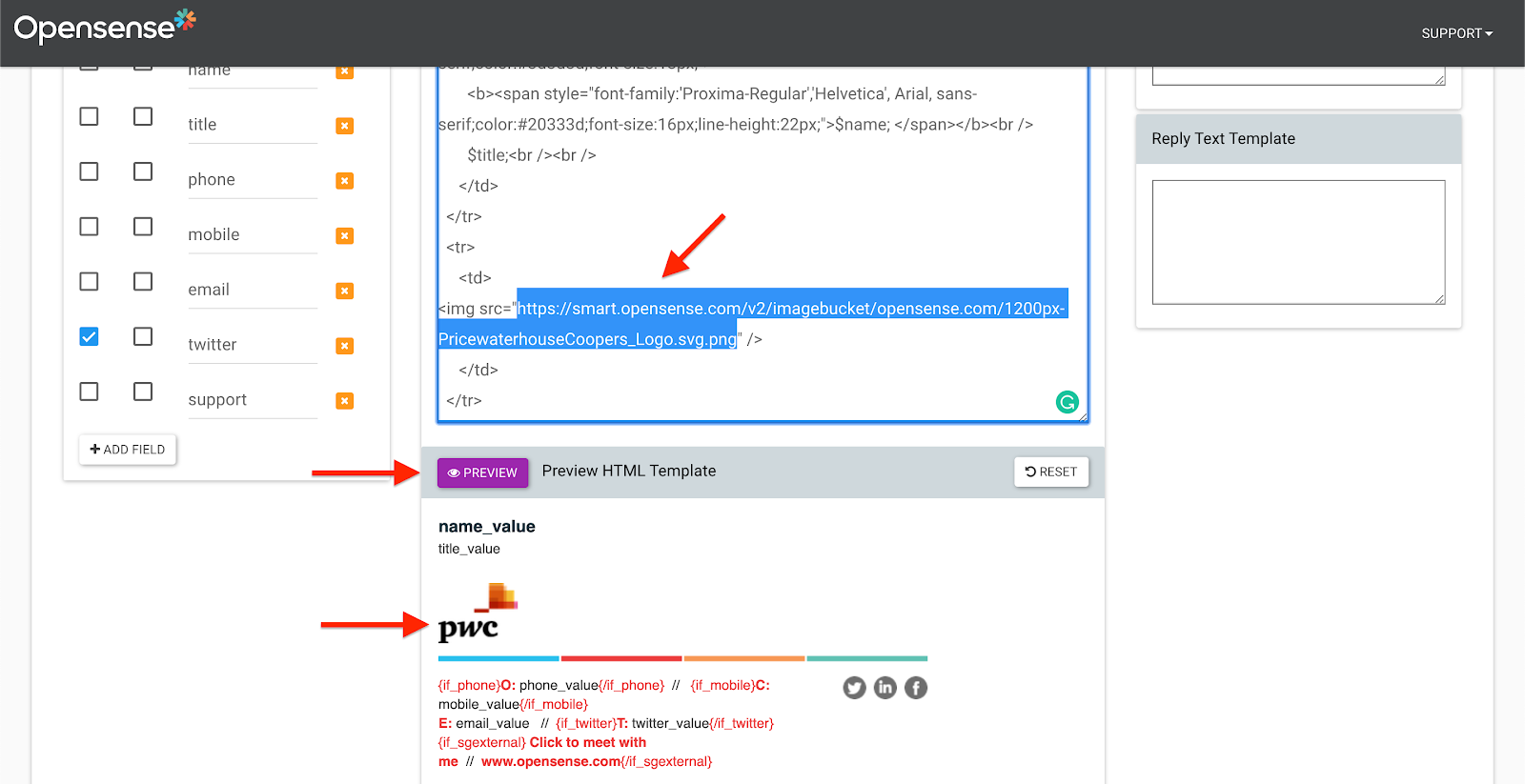
- The HTML Template box appears. Find the URL of the image you want to replace: press Ctrl+F (Cmd+F on a Mac), and search for
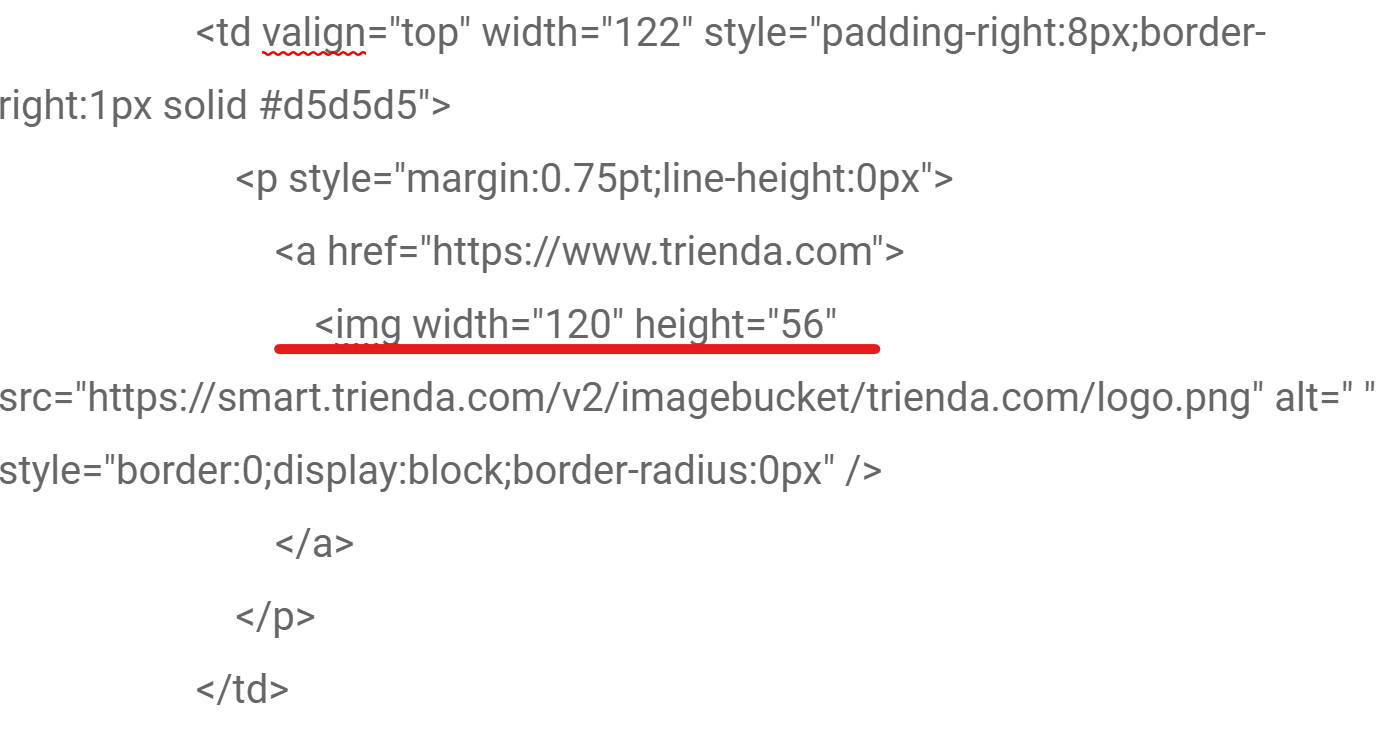
src. - Highlight the URL of the image you want to change. Highlight only the text between the quotation marks.
- Paste the URL you copied in step 2. It replaces the URL you highlighted in the HTML Template box.
- Select the signature Preview button.
- If necessary, adjust the image height, so the image is proportional.
- Select the Preview button again.
- When you’re happy with the image replacement, select Save.
Replacing a link
Section titled “Replacing a link”- Open the Signatures menu, and select Designer Studio.
- In Designer Studio, search for your signature template.
- Select Edit.
- The HTML Template box appears. Find the URL you want to replace.
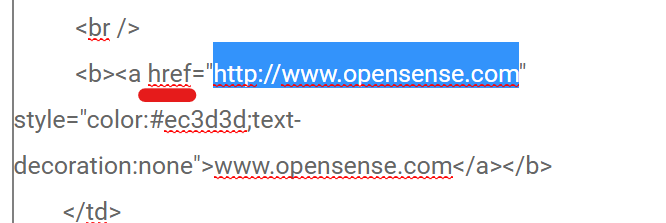
- In the HTML editor, the URL is next to the
hrefattribute. Press Ctrl+F (Cmd+F on a Mac) to search for the URL to replace. - Highlight the link you want to replace, and paste the URL you want.
- When you’re done, select Save.
What’s next
Section titled “What’s next”For further help, contact Opensense Support at help@opensense.com.