

Exporting a Pusher CSV from Compliance (classic UI)
Overview
Section titled “Overview”To push the Opensense signature to employees in bulk from your directory data, you need a CSV file in the right format. You can export employee data from the Opensense Compliance page.
Exporting the CSV
Section titled “Exporting the CSV”- Sign in to the Opensense platform.
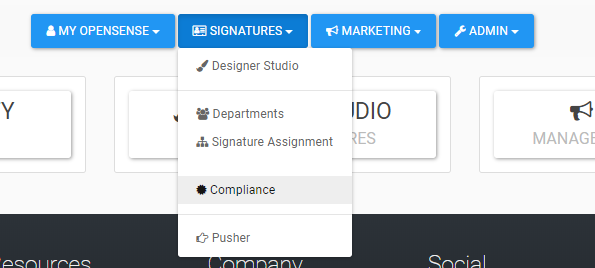
- Open the Signatures menu, and select Compliance.
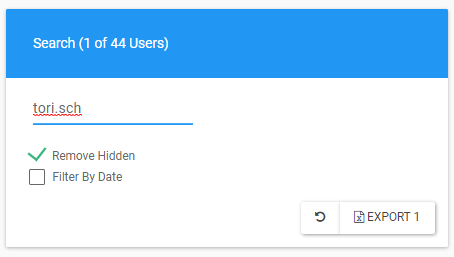
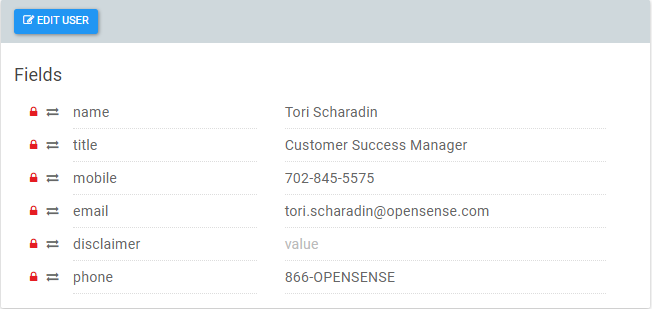
- Check that the employee profile fields in Compliance are the ones you want in your signature design, such as name, title, and phone, and that the data is correct. To spot-check an employee, search for their email address.
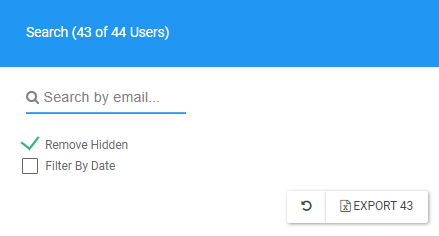
- Clear the search bar, then click Export (the button shows the number of users, for example Export 43) to download a CSV of all users and their information.
- Open the CSV, and highlight all columns from column B up to the column with the Hubspot header.
- Use the CSV in the Pusher to push signatures in bulk. See How to use the Opensense Pusher (classic UI). To push to only some users, delete the rows of users who are not part of the push.
What’s next
Section titled “What’s next”- How to use the Opensense Pusher (classic UI): push the signatures with your CSV.
- How to use the Pusher tool: the Pusher in the New UI.