---
title: "Running a directory sync manually"
slug: "forced-sync-from-a-directory"
description: "Pull directory changes into Opensense right away by running a sync yourself, in the New UI (Manage > Users) or the classic UI (Compliance > Sync Tools)."
updated: 2025-03-07T19:59:17.000Z
canonical: "https://help.opensense.com/docs/forced-sync-from-a-directory"
---
> ## Documentation Index
> Fetch the complete documentation index at: https://help.opensense.com/llms.txt
> Use this file to discover all available pages before exploring further.
# Running a directory sync manually
## Overview
If your account uses automatic syncing, Opensense syncs your directory on a schedule (see [How often Opensense syncs user data](https://help.opensense.com/docs/automatic-sync-frequency)). To pull changes in right away, run a sync yourself.
:::caution[Field mappings come first]
A directory sync only works when field mappings are in place. To link your directory, talk to your Opensense rep, or contact the [Help Desk](mailto:help@opensense.com).
:::
## In the New UI
1. Go to **Manage** > **Domains**, select the ellipsis (**...**) on the domain card, and then select **Manage Domain**.
2. Go to **Manage** > **Users**.
3. Go to **Actions** > **Run Sync**, select the directory source and users, and then select **Start Sync**.
## In the classic UI
1. In the **Signatures** menu, select **Compliance**.
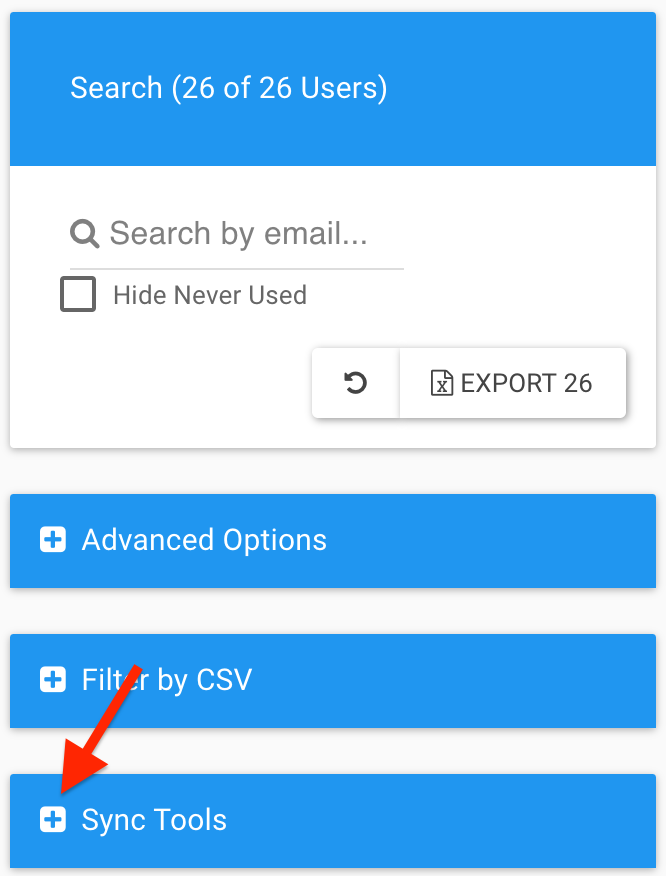
2. On the left of the screen, select **Sync Tools**.
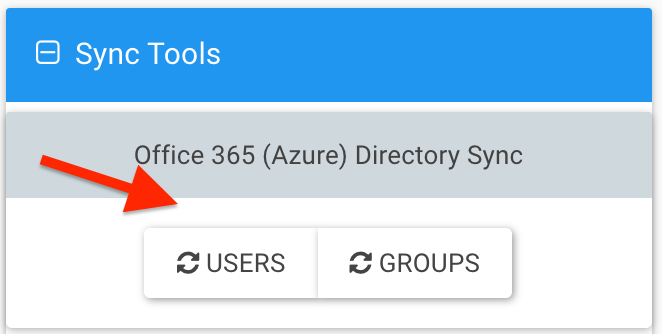
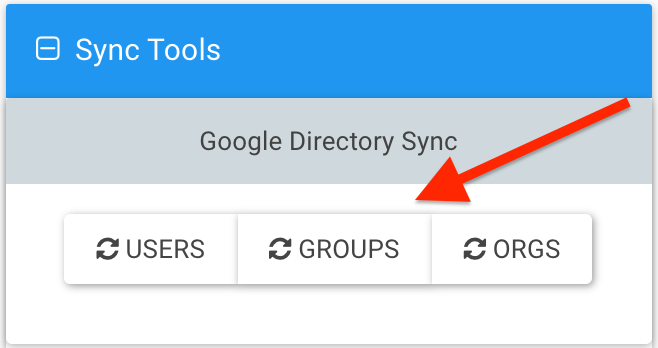
 3. Depending on your setup, different sync choices appear. Sync all of them to fully update Opensense. We recommend syncing **Groups** first, then **Users**.
Syncs take time. Wait until each sync is complete before you go on to the next step.
4. When the sync is finished, refresh your browser.
The new data now shows in **Compliance**.
:::tip[Sync timed out, or showed an error?]
The system may be in the middle of an [automatic sync](https://help.opensense.com/docs/automatic-sync-frequency). Wait 30 minutes, and refresh your browser to see if the sync history updates. If you're not sure whether your account is set up with automatic syncing, contact the [Help Desk](mailto:help@opensense.com).
:::
## What's next
- [Why Active Directory changes take time to reach Opensense](https://help.opensense.com/docs/delay-in-ad-to-aad)
- [Choosing how to edit user data](https://help.opensense.com/docs/editing-user-data-guide)
3. Depending on your setup, different sync choices appear. Sync all of them to fully update Opensense. We recommend syncing **Groups** first, then **Users**.
Syncs take time. Wait until each sync is complete before you go on to the next step.
4. When the sync is finished, refresh your browser.
The new data now shows in **Compliance**.
:::tip[Sync timed out, or showed an error?]
The system may be in the middle of an [automatic sync](https://help.opensense.com/docs/automatic-sync-frequency). Wait 30 minutes, and refresh your browser to see if the sync history updates. If you're not sure whether your account is set up with automatic syncing, contact the [Help Desk](mailto:help@opensense.com).
:::
## What's next
- [Why Active Directory changes take time to reach Opensense](https://help.opensense.com/docs/delay-in-ad-to-aad)
- [Choosing how to edit user data](https://help.opensense.com/docs/editing-user-data-guide)