---
title: "Google Add-on overview"
slug: "google-add-on-info"
description: "What the Opensense Google Add-on does in Gmail: editing signature fields, auto-push, alias support, field locks, sync protection, and deployment options."
updated: 2026-03-11T19:27:00.000Z
canonical: "https://help.opensense.com/docs/google-add-on-info"
---

> ## Documentation Index
> Fetch the complete documentation index at: https://help.opensense.com/llms.txt
> Use this file to discover all available pages before exploring further.

# Google Add-on overview

## Overview

The Opensense Google Add-on brings email signature management directly into Gmail. Users can view and update their signature fields without leaving their inbox, and changes sync immediately to Opensense. When auto-push is turned on, updated signatures are pushed back to Gmail automatically.

The add-on appears automatically in the Gmail sidebar once a Google Workspace Super Administrator deploys it. Users don't need to install or configure anything, and there's no propagation delay.

## How it works

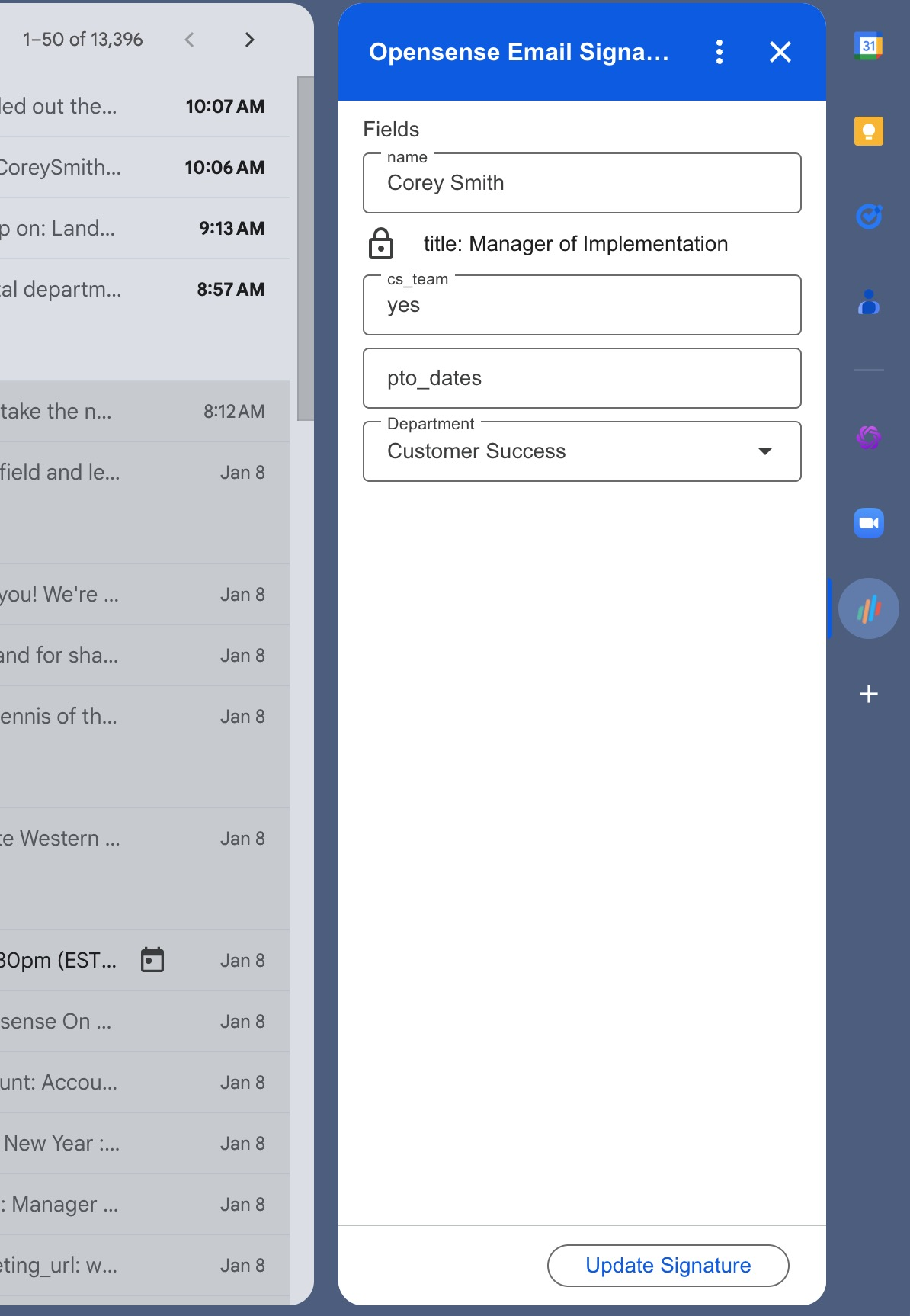
When a user opens the add-on in Gmail, it shows the signature fields from their Opensense profile. Users can edit unlocked fields, and select **Update Signature** to save their changes. Updates sync immediately to Opensense, with no propagation delay.

<img src="https://help.opensense.com/media/image-21-529b292049f3.png" alt="The Opensense add-on panel in Gmail, with editable name, cs_team, pto_dates, and Department fields, a locked title field, and an Update Signature button" width="400" height="578" loading="lazy" decoding="async">

When a user updates an unlocked field and saves it, the sync with the original data source (such as Google Directory or Okta) is broken for that field. See [Sync protection](#sync-protection).

If auto-push is turned on for the user's group, the updated signature is pushed to their Gmail signature settings automatically. Depending on the group configuration, the signature appears as either a Plain Text Preview (PTP) or a Visual Preview. See [Auto-push](#auto-push).

## Alias support

The add-on supports users with multiple email aliases. When a Google Workspace admin assigns alternate email addresses to a user's profile, a drop-down appears at the top of the add-on, so the user can switch between addresses and manage the signature fields for each one.

Each alias has its own profile in Opensense. Profile data is shared across aliases, except for the email address, which matches the selected alias. When a user switches aliases in the drop-down, the fields update to show the relevant profile and assigned signature template.

To turn on alias support, make sure **Sync Aliases** is turned on in the Opensense portal, under **Manage** > **Domain Settings** > **Directory/Sync** > **Google Workspace**.

## Key features

### Auto-push

Auto-push updates the user's Gmail signature automatically when they save changes in the add-on. You configure it per group in the Opensense portal, under **Manage** > **Groups**. Each group can use one of two push types:

<div class="kb-deployment-compare kb-deployment-compare--plain">
  <div class="kb-deployment-compare__viewport" role="region" aria-label="Auto-push types compared" tabindex="0">
    <table>
      <colgroup><col class="kb-deployment-compare__feature-col"></colgroup>
      <thead>
        <tr>
          <th scope="col">Push type</th>
          <th scope="col"><span class="kb-deployment-compare__method">Plain Text Preview (PTP)</span></th>
          <th scope="col"><span class="kb-deployment-compare__method">Visual Preview</span></th>
        </tr>
      </thead>
      <tbody>
        <tr>
          <th scope="row">What Gmail shows</th>
          <td>A tokenized text block, which transforms into the full HTML signature when the email is sent through Opensense routing</td>
          <td>The full HTML signature, in Gmail's signature settings. Users see the complete signature before sending.</td>
        </tr>
        <tr>
          <th scope="row">When templates change</th>
          <td>Signatures always reflect the latest template design</td>
          <td>More likely to go stale when templates are updated</td>
        </tr>
        <tr>
          <th scope="row">Can users change the content before sending?</th>
          <td>No. Users can't modify the signature content.</td>
          <td>Yes. Users can modify the HTML before sending.</td>
        </tr>
      </tbody>
    </table>
  </div>
</div>

### Signature Fields Only

By default, the add-on shows all fields from the user's Opensense profile. When **Signature Fields Only** is turned on, the add-on shows only the fields that exist in the user's assigned signature template. This keeps the interface focused, and prevents confusion when templates use a subset of the available profile data.

You configure this setting in the Opensense portal, under **Manage** > **Domain Settings** > **Google Add-on**.

### Custom Compose Fields

Custom Compose Fields let administrators add preset input options that appear in the add-on for users to select: drop-downs, checkboxes, or free-form text inputs. The selected values populate specific fields in the user's signature.

When a user updates a Custom Compose Field and selects **Update Signature**, that field's sync with the original data source is broken, to keep the user's selection.

Custom Compose Fields need setup in both the signature template and the user profiles. The fields must be added to the user profile to appear in the add-on, and integrated into the HTML template to show in the signature. To make sure they're configured properly, contact the Opensense onboarding team during implementation, or Opensense Support ([help@opensense.com](mailto:help@opensense.com)) if you've already launched.

You configure this setting in the Opensense portal, under **Manage** > **Domain Settings** > **Google Add-on**.

### Field locks

Administrators can lock specific fields to enforce compliance. Locked fields are visible in the add-on, but appear greyed out, and can't be edited. This keeps required information, like legal disclaimers or standardized job titles, consistent across the organization.

### Sync protection

When a user updates any unlocked field and selects **Update Signature**, the sync with the original data source (such as Google Directory or Okta) is intentionally broken for that field. This prevents the user's changes from being overwritten on the next automatic directory sync.

This lets organizations keep large-scale directory sync, while supporting controlled exceptions for individual users who need to customize specific fields.

## Deployment options

The add-on can be deployed organization-wide, or limited to specific groups or organizational units (OUs). IT teams can roll out the add-on gradually, target specific departments, or give selective access based on business needs. For the deployment summary and permissions, see [Google Add-on deployment overview (change request)](https://help.opensense.com/docs/opensense-google-add-on-cr-guide).

## Troubleshooting

Most issues with the add-on are resolved with these steps:

1. Refresh the Gmail browser tab.
2. Clear your browser cache, and reload Gmail.
3. Sign out of Gmail, and sign back in.

If the add-on shows an error, or doesn't load after these steps, contact Opensense Support at [help@opensense.com](mailto:help@opensense.com).


## What's next

- [Google Add-on launch guide](https://help.opensense.com/docs/google-add-on-launch-guide): roll the add-on out to users.
- [Google Add-on deployment overview (change request)](https://help.opensense.com/docs/opensense-google-add-on-cr-guide)
- [Pushing Visual Preview signatures to Gmail with the Pusher](https://help.opensense.com/docs/opensense-pusher-tool-for-google-add-on)
- [How does Opensense work with Google Workspace?](https://help.opensense.com/docs/how-does-opensense-work-with-google-workspace)
