---
title: "Changing images and links in legacy templates (classic UI)"
slug: "how-to-change-images-and-links-pre-2022-legacy"
description: "Replace an image or link in a legacy $tag; template in the classic Designer Studio, without changing its formatting. Upload images at twice their size."
updated: 2024-01-16T21:34:36.000Z
canonical: "https://help.opensense.com/docs/how-to-change-images-and-links-pre-2022-legacy"
---
> ## Documentation Index
> Fetch the complete documentation index at: https://help.opensense.com/llms.txt
> Use this file to discover all available pages before exploring further.
# Changing images and links in legacy templates (classic UI)
:::note[Classic UI]
This article covers the classic Opensense UI. For the New UI, see [How to use the signature editor](https://help.opensense.com/docs/how-to-use-the-signature-editor).
:::
## Overview
This article is for pre-2022 templates, built with our legacy HTML syntax: **use it if your tags are in `$tag;` format.** If you use Liquid templates, see [Changing images and links in Liquid templates (classic UI)](https://help.opensense.com/docs/how-to-change-images-and-links-new-liquid-templates).
Logo change? New Facebook page? To replace an image or link in your signature, follow these steps. They won't change the formatting of the signature; they're only for image and link **replacement**.
Images must be uploaded to the Opensense.com image bucket before you add them to signature designs (our image bucket ensures maximum deliverability). See [Uploading images to Opensense (classic UI)](https://help.opensense.com/docs/how-to-upload-images-to-opensense).
:::tip[Upload images at twice their size]
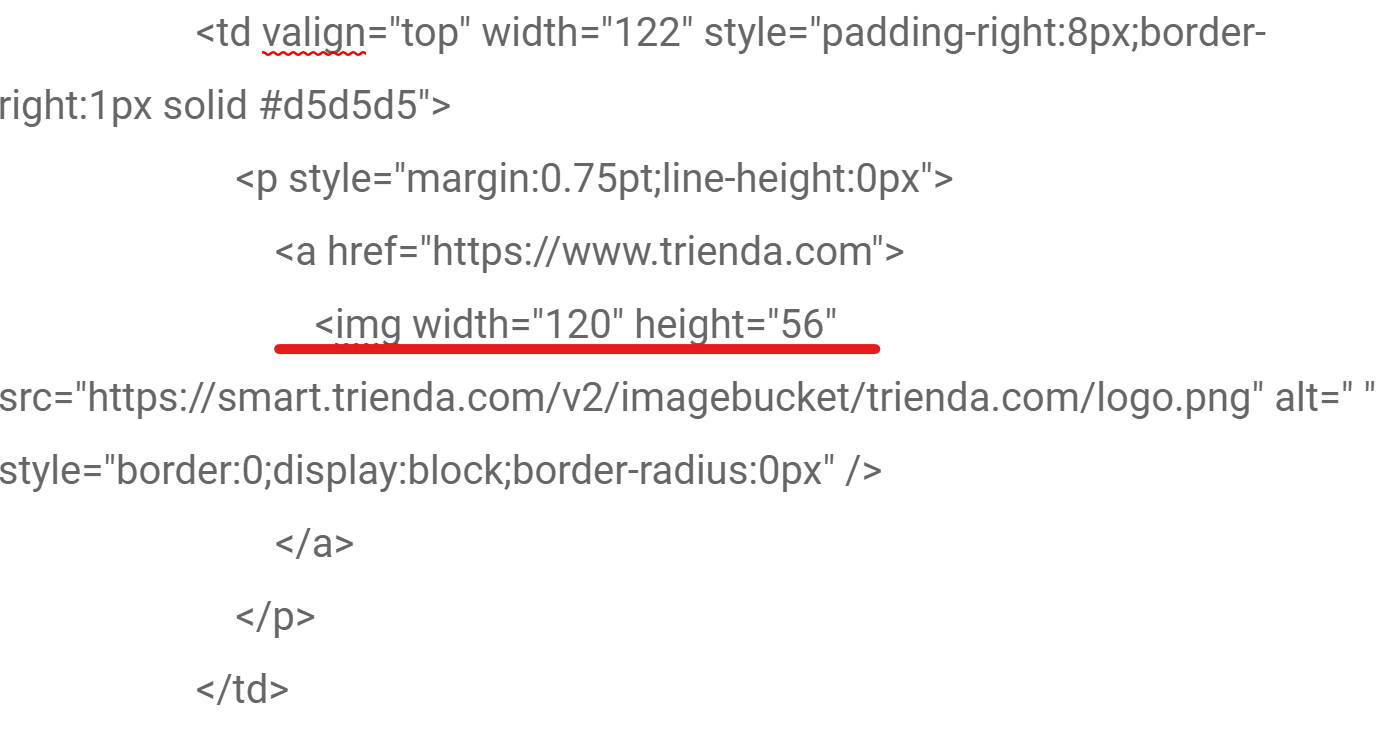
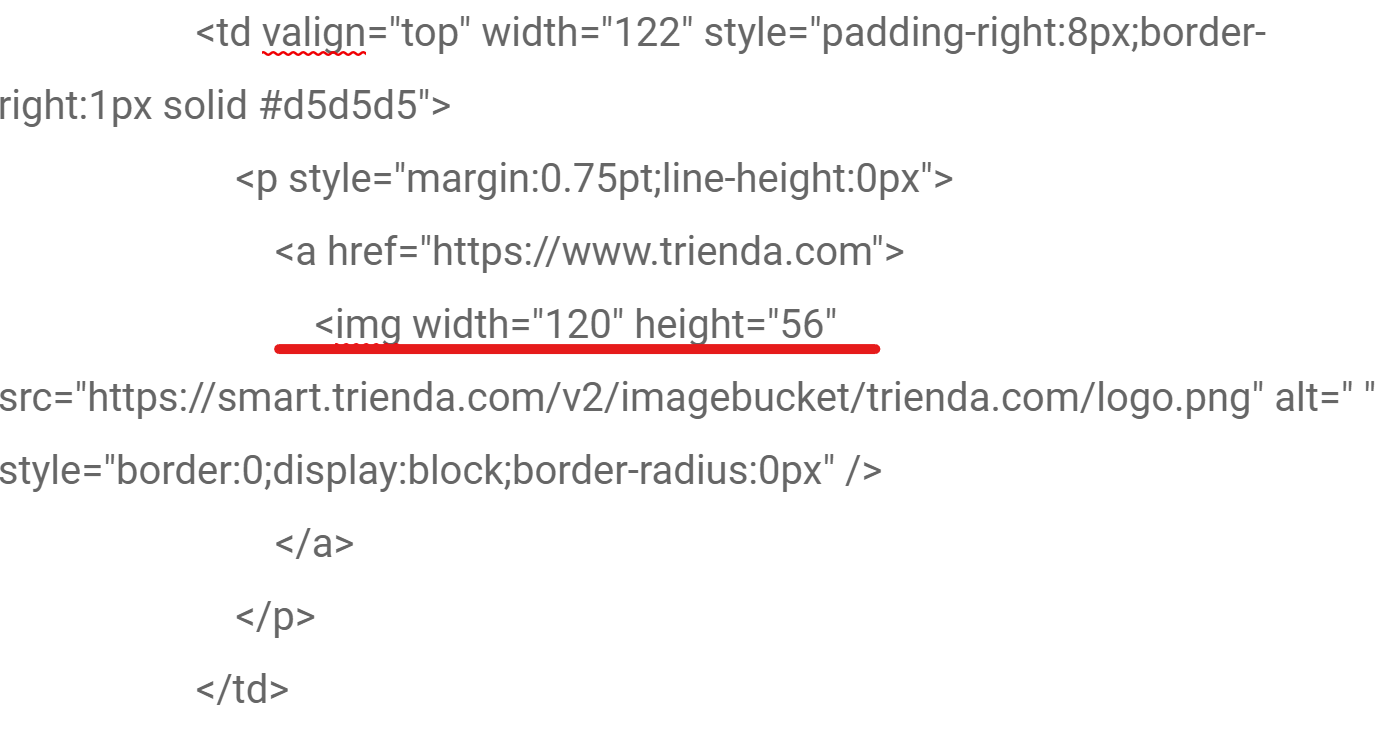
We recommend uploading images at 2x the image size in the HTML. For example, if the image width in the HTML is "120", upload your image to **Images** (**Marketing** menu > **Images**) with a width of 240 px, for the recommended retina resolution.
:::
## Replacing an image
1. Open the **Marketing** menu, and select **Images**.
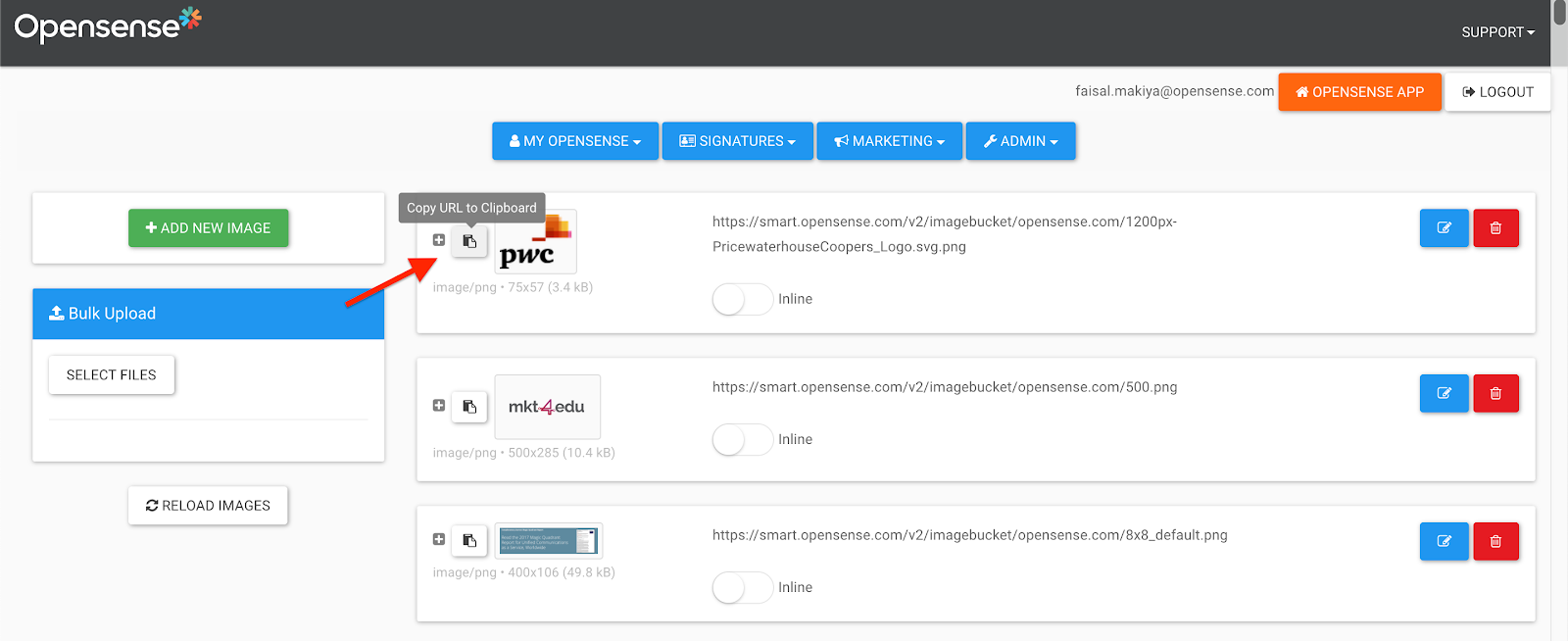
2. Find the image you want to use (or [upload it](https://help.opensense.com/docs/how-to-upload-images-to-opensense)). Copy the image link, or select the **Copy URL to Clipboard** button.
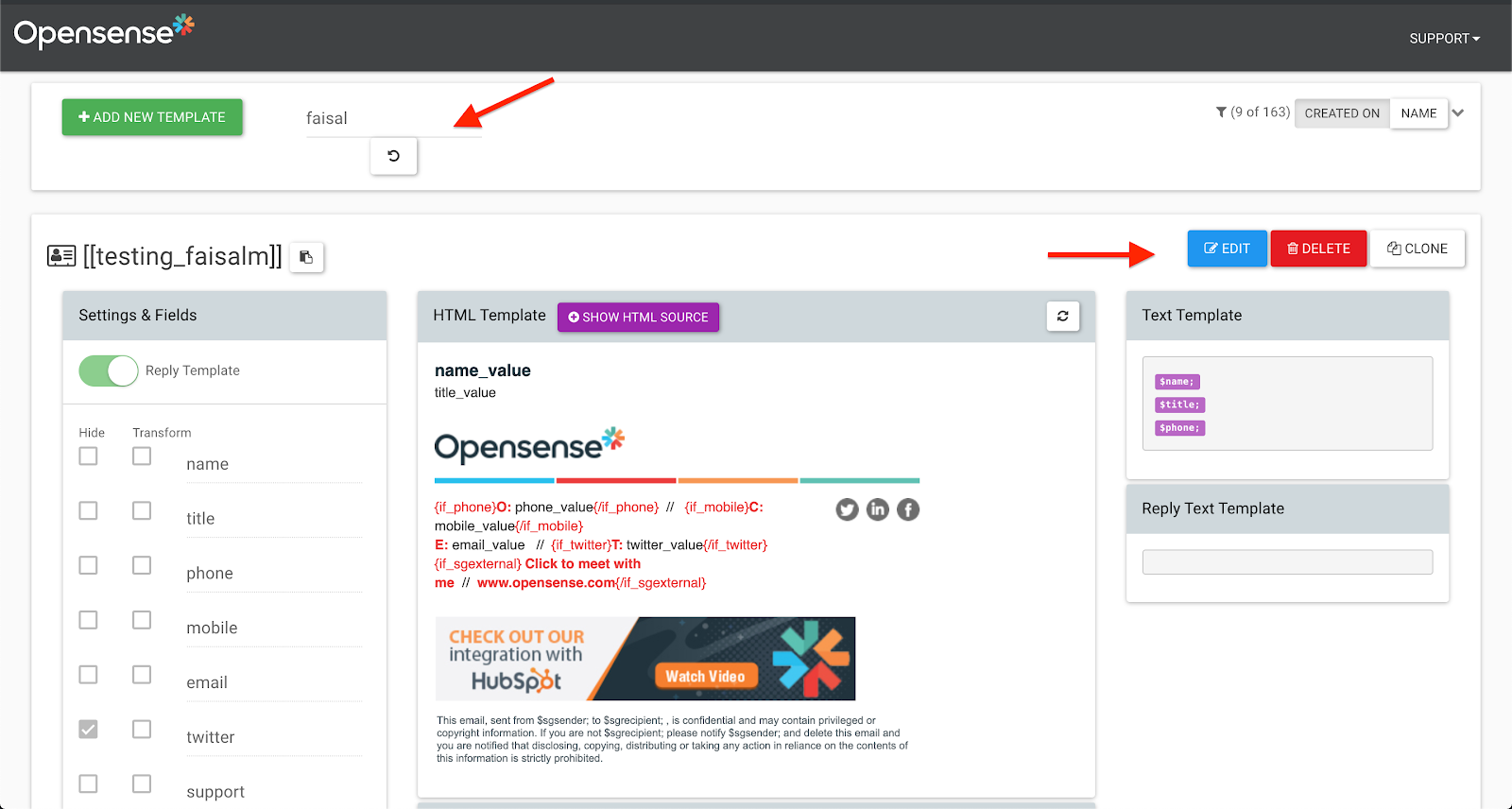
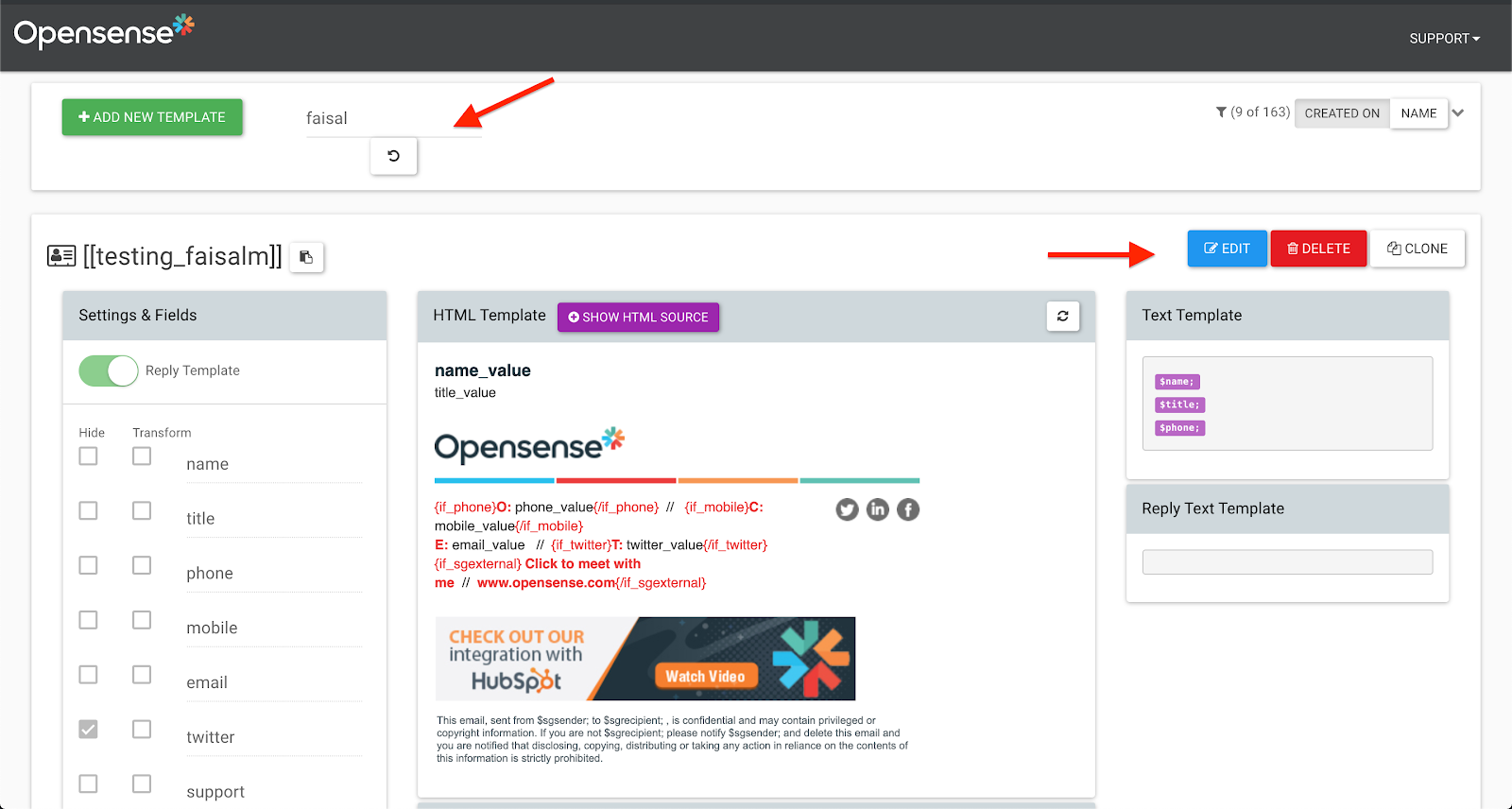
3. Open the **Signatures** menu, and select **Designer Studio**.
4. In Designer Studio, search for your signature template.
5. Select **Edit**.
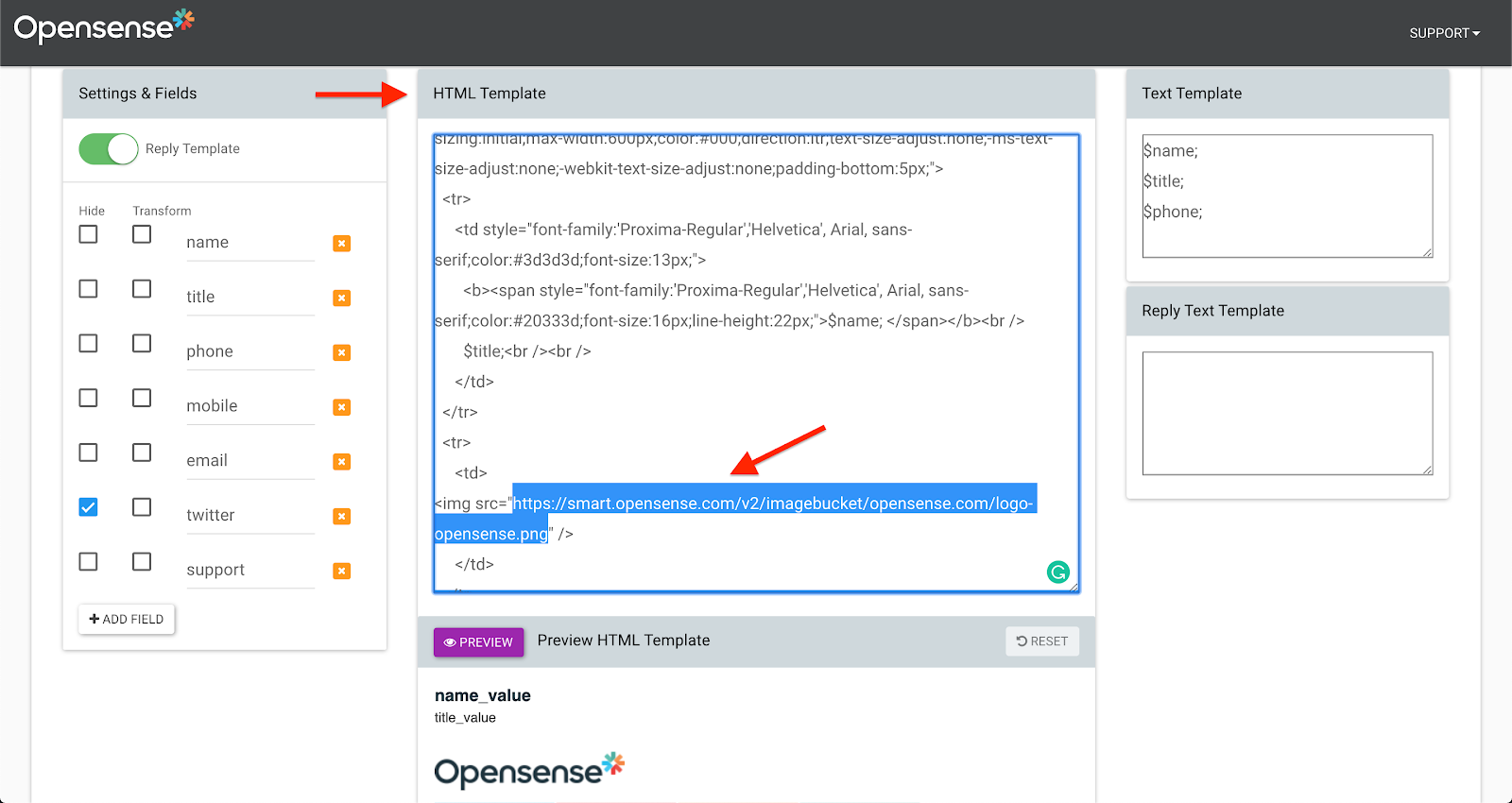
6. The **HTML Template** box appears. Find the URL of the image you want to replace: press Ctrl+F (Cmd+F on a Mac), and search for `src`.
7. Highlight the URL of the image you want to change. **Highlight only the text between the quotation marks.**
8. Paste the URL you copied in step 2. It replaces the URL you highlighted in the **HTML Template** box.
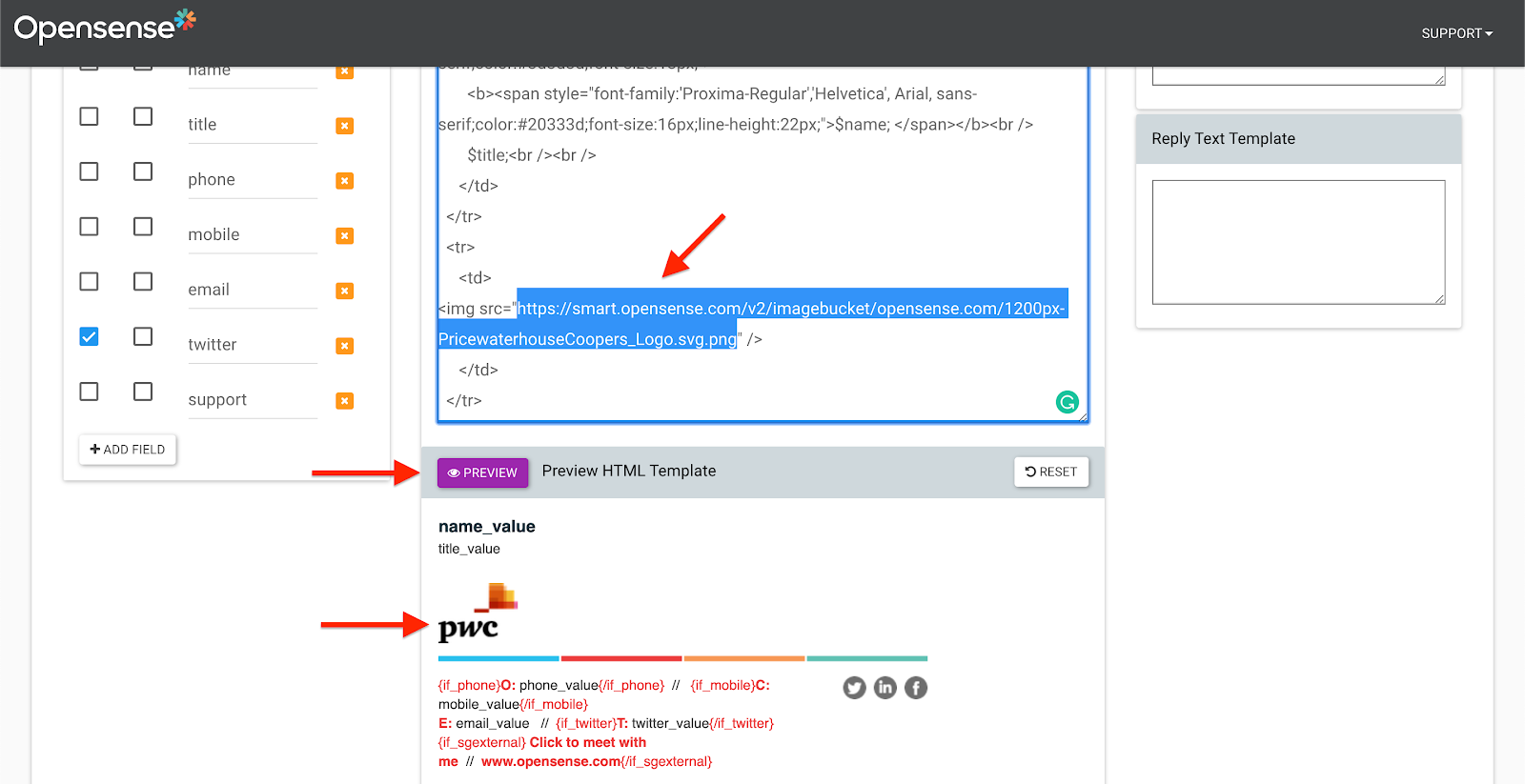
9. Select the signature **Preview** button.
10. If necessary, adjust the image height, so the image is proportional.
11. Select the **Preview** button again.
12. When you're happy with the image replacement, select **Save**.
## Replacing a link
1. Open the **Signatures** menu, and select **Designer Studio**.
2. In Designer Studio, search for your signature template.
3. Select **Edit**.
4. The **HTML Template** box appears. Find the URL you want to replace.
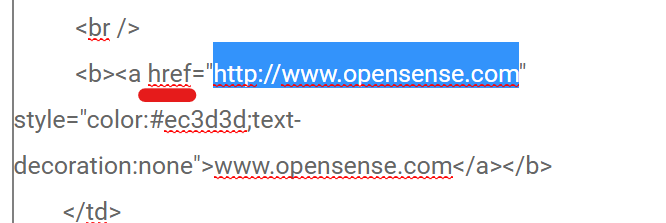
5. In the HTML editor, the URL is next to the `href` attribute. Press Ctrl+F (Cmd+F on a Mac) to search for the URL to replace.
6. Highlight the link you want to replace, and paste the URL you want.
7. When you're done, select **Save**.
## What's next
- [Designer Studio for legacy templates (classic UI)](https://help.opensense.com/docs/designer-studio-pre-2022-legacy)
- [Uploading images to Opensense (classic UI)](https://help.opensense.com/docs/how-to-upload-images-to-opensense)
For further help, contact Opensense Support at [help@opensense.com](mailto:help@opensense.com).