- Turn on profile photo editing
- In the Admin console, go to Directory > Users, select More options, and then select Allow users to edit profile. Under Profile editing, check the Photo box, and select Save. (Some consoles show Profile editing under Directory > Directory settings.)
- Check that contact sharing is turned on
- Go to Directory > Directory settings > Sharing settings > Contact sharing, and make sure Enable contact sharing is checked. This lets users in your organization see each other's profile photos. External visibility depends on users uploading their own photos and setting visibility to Anyone.
- Review organization-managed restrictions
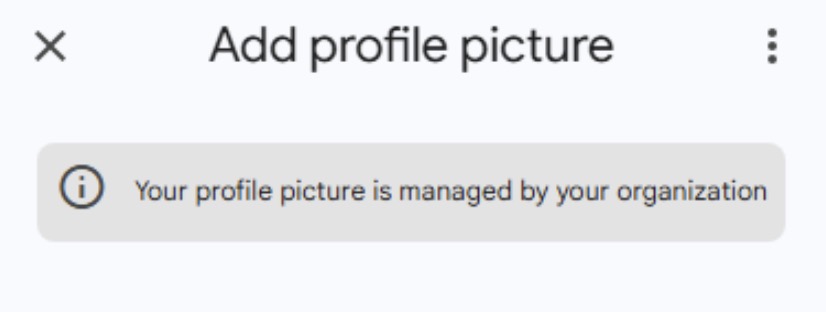
- If users see a lock icon, or a "managed by your organization" message, check for any organizational unit (OU) policies or delegated management settings that may restrict photo edits or visibility changes.
:::note[Propagation time]
Admin changes typically take effect within minutes, but may take up to 24 hours to propagate across all Google services.
:::
## Troubleshooting
 ## Step 2: Upload or change your photo
1. Select the camera icon. The **Change profile picture** window opens.
2. Upload an image from your device.
3. Crop it as needed, and select **Set as profile photo**.
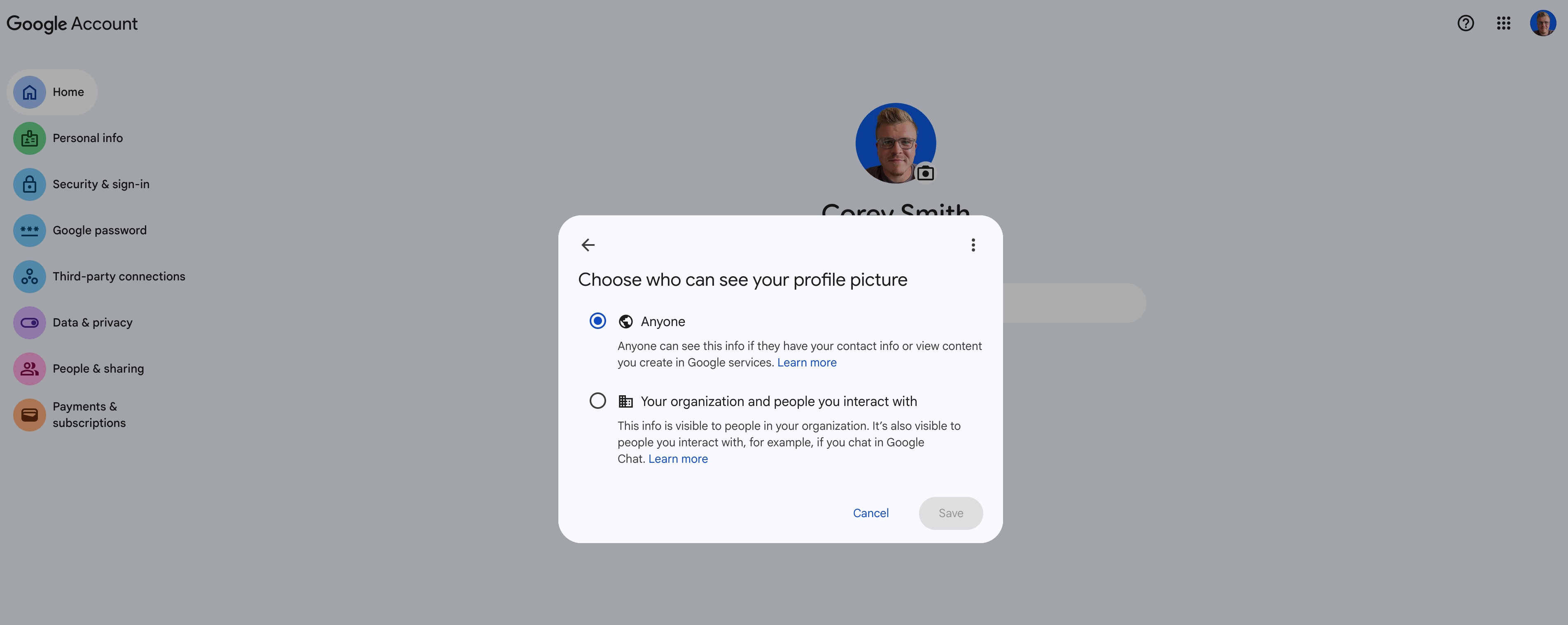
4. In the **Choose who can see your profile picture** dialog, select **Anyone**, and then select **Save**.
:::tip[Use a professional headshot]
This is your corporate email, so we strongly recommend a high-quality, professional headshot. The recommended size is 250 × 250 pixels.
:::
## Step 3: Check that it worked
Send an email to an external address you've never contacted before. Check that your headshot appears, rather than a blue or gray silhouette.
Changes may take 15 to 30 minutes to propagate. If your photo still doesn't appear, try clearing your browser cache, signing out and back in, or asking the recipient to refresh their view.
## For administrators
If users can't complete the steps above, Google Workspace admins should check these settings:
## Step 2: Upload or change your photo
1. Select the camera icon. The **Change profile picture** window opens.
2. Upload an image from your device.
3. Crop it as needed, and select **Set as profile photo**.
4. In the **Choose who can see your profile picture** dialog, select **Anyone**, and then select **Save**.

:::tip[Use a professional headshot]
This is your corporate email, so we strongly recommend a high-quality, professional headshot. The recommended size is 250 × 250 pixels.
:::
## Step 3: Check that it worked
Send an email to an external address you've never contacted before. Check that your headshot appears, rather than a blue or gray silhouette.
Changes may take 15 to 30 minutes to propagate. If your photo still doesn't appear, try clearing your browser cache, signing out and back in, or asking the recipient to refresh their view.
## For administrators
If users can't complete the steps above, Google Workspace admins should check these settings: