---
title: "How to use the Pusher for Google Workspace (classic UI)"
slug: "how-to-use-the-pusher-for-g-suite-customers"
description: "Classic UI: push plain text signature blocks to Google Workspace users, by email or into Gmail, Salesforce, or Outreach. Prepare the CSV, preview, and push."
updated: 2024-01-14T03:41:57.000Z
canonical: "https://help.opensense.com/docs/how-to-use-the-pusher-for-g-suite-customers"
---
> ## Documentation Index
> Fetch the complete documentation index at: https://help.opensense.com/llms.txt
> Use this file to discover all available pages before exploring further.
# How to use the Pusher for Google Workspace (classic UI)
:::note[Classic UI]
This article covers the classic Opensense UI. For the New UI, see [How to use the Pusher tool](https://help.opensense.com/docs/how-to-use-pusher).
:::
## Overview
Opensense Pusher is a deployment tool that pushes each user's custom plain text signature block to them. You choose the plain text signature block, upload a CSV file of employee contact information for their signatures, and push the signatures in a notification email, or directly into an integrated app such as Gmail, Outreach, Outlook Web, or Salesforce.
For more information, or for help, contact [help@opensense.com](mailto:help@opensense.com).
## Step 1: Choose the signature template
1. Sign in to the Opensense portal, and select **Pusher** in the **Signatures** menu.
2. In **1. Signature Template**, select the signature you want to roll out.
3. For a standard signature push, leave **Banner Only** and **Push Visual** cleared.
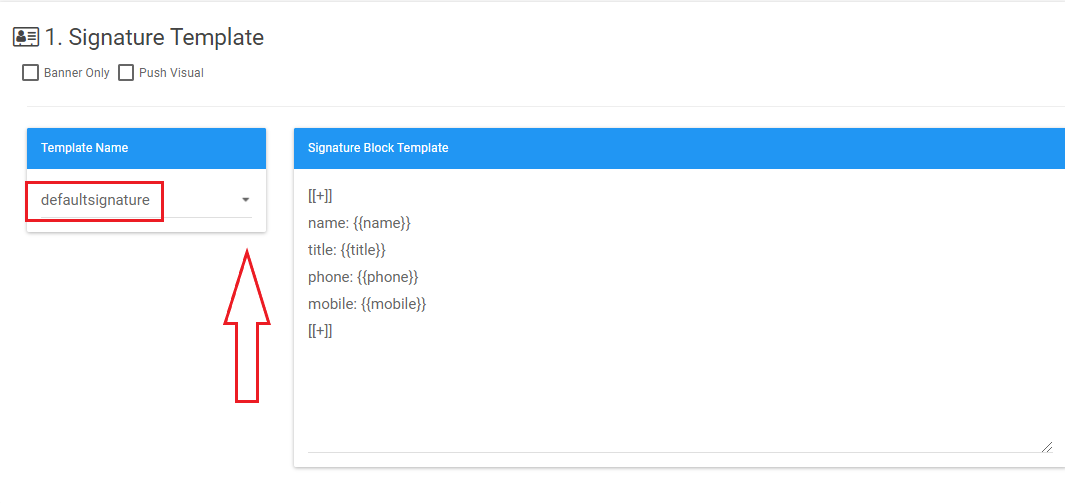
- Banner Only (optional, uncommon)
- Adds only a banner to existing signatures. This may cause inconsistent formatting.
- Push Visual (optional, uncommon)
- Shows a graphic signature in the compose window for individual users. Users can no longer edit their information, and new signature designs don't update automatically.
## Step 2: Upload the CSV file
Before you upload the CSV file, make sure it's formatted like this:
- Column A, row 1 is always `username`. The username is everything before the @ in the person's email address. Make all of column A lowercase, or the push fails.
- The other column headers must match the field names in step 1's plain text block exactly, character for character. For example, `title` is the column header for employee job titles.
- The data merges with the signature template exactly as it's formatted in the CSV, so formatting matters (for example, firstname lastname and Firstname Lastname show differently).

Then click **Choose File**, and upload the CSV file with employee information.
## Step 3: Preview and push
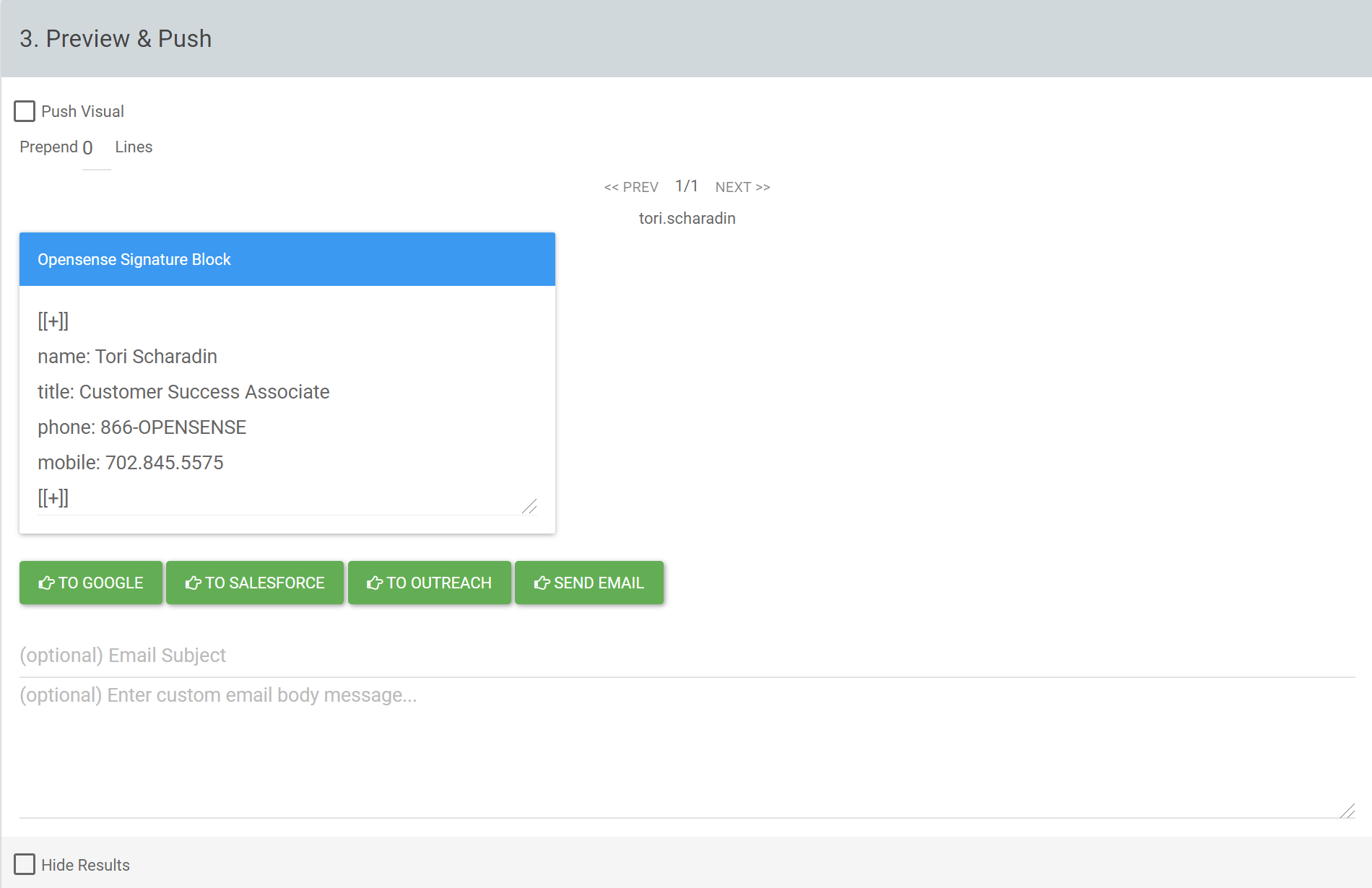
1. Check the preview of every person's signature before you push.
2. Push the signatures to one of these destinations:
- Send Email
- Sends each person an email with their custom plain text signature block. They copy and paste it into the signature settings of any email client they use.
- To Google
- Pushes signatures automatically to each person's Gmail account. Users open a new Gmail window, or refresh, to see the change. Users don't need to do anything else.
- To Salesforce
- Pushes signatures automatically to each person's Salesforce account. Users don't need to do anything.
- To Outreach
- Pushes signatures automatically to each person's Outreach account. Users don't need to do anything.
:::note[Integration required]
Pushing directly to Google, Salesforce, or Outreach needs an integration. Contact [help@opensense.com](mailto:help@opensense.com).
:::
## What's next
- [How to use the Pusher tool](https://help.opensense.com/docs/how-to-use-pusher): the Pusher in the New UI.
- [Launching Opensense signatures to Gmail users](https://help.opensense.com/docs/end-user-launch-experience-g-suite): tips for the launch.
- [Fixing a 403 error when pushing signatures to a Gmail alias](https://help.opensense.com/docs/gmail-pusher-alias-403-error)