---
title: "How to use the signature editor"
slug: "how-to-use-the-signature-editor"
description: "A reference for the Opensense signature editor: signature blocks, field types, preview tools, change review, reply templates, and saving."
updated: 2025-03-07T05:12:17.000Z
canonical: "https://help.opensense.com/docs/how-to-use-the-signature-editor"
---

> ## Documentation Index
> Fetch the complete documentation index at: https://help.opensense.com/llms.txt
> Use this file to discover all available pages before exploring further.

# How to use the signature editor

## Overview

The signature editor is where you build and change a signature. This article explains each part of the editor. For a step-by-step walkthrough, see [Editing a signature](https://help.opensense.com/docs/editing-a-signature).
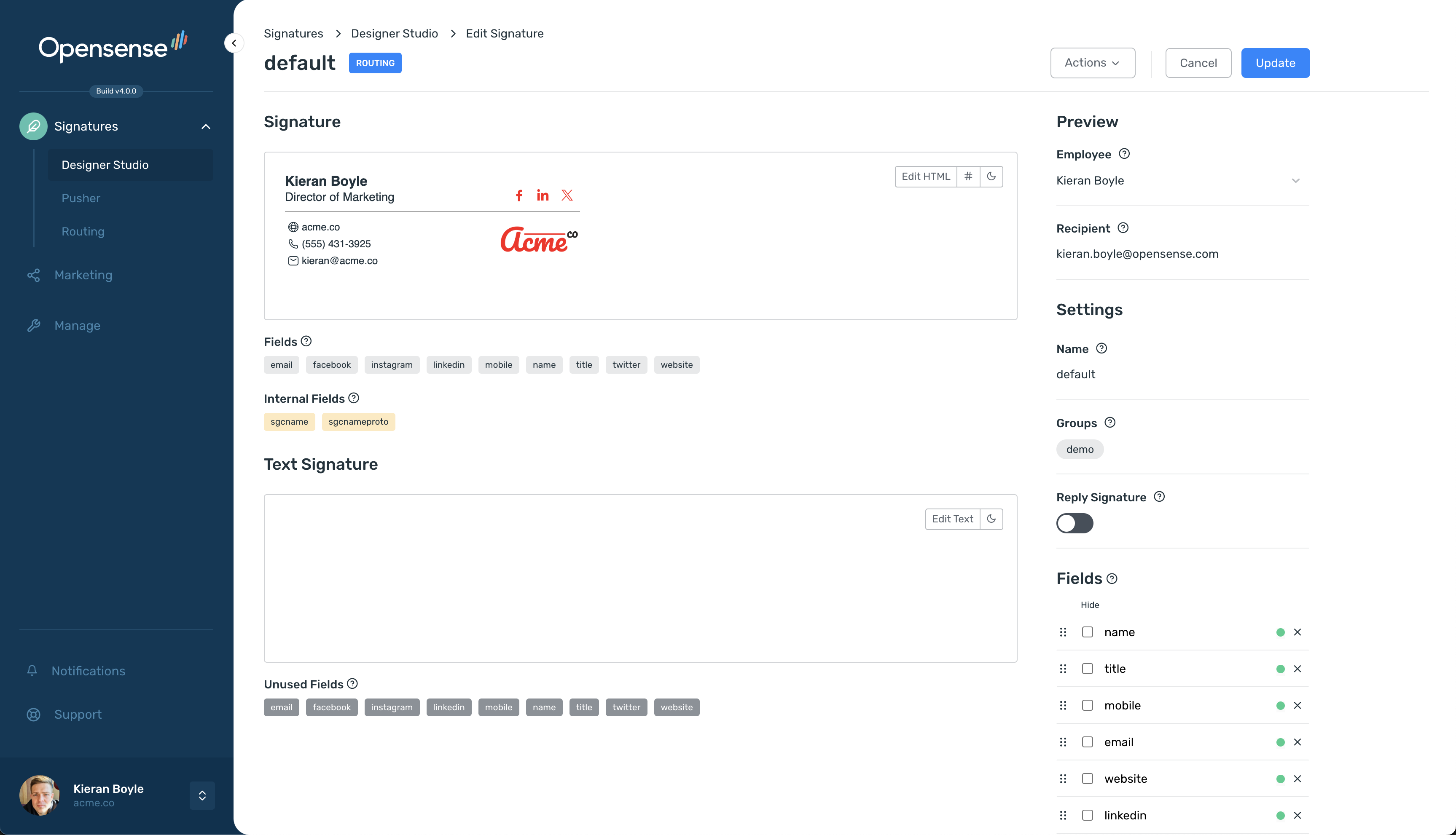
![Signature editor with the signature and text signature blocks on the left and the Preview, Settings, and Fields panes on the right](https://help.opensense.com/media/signature-editor-3-e7836ca57077.png)

## Signature blocks

Each signature starts with two blocks: one for HTML and one for plain text. If you turn on a reply signature, the editor adds a second HTML block and a second plain text block for replies.

Each block lists the fields it uses, so you can review the signature's contents and catch problems before they reach production.
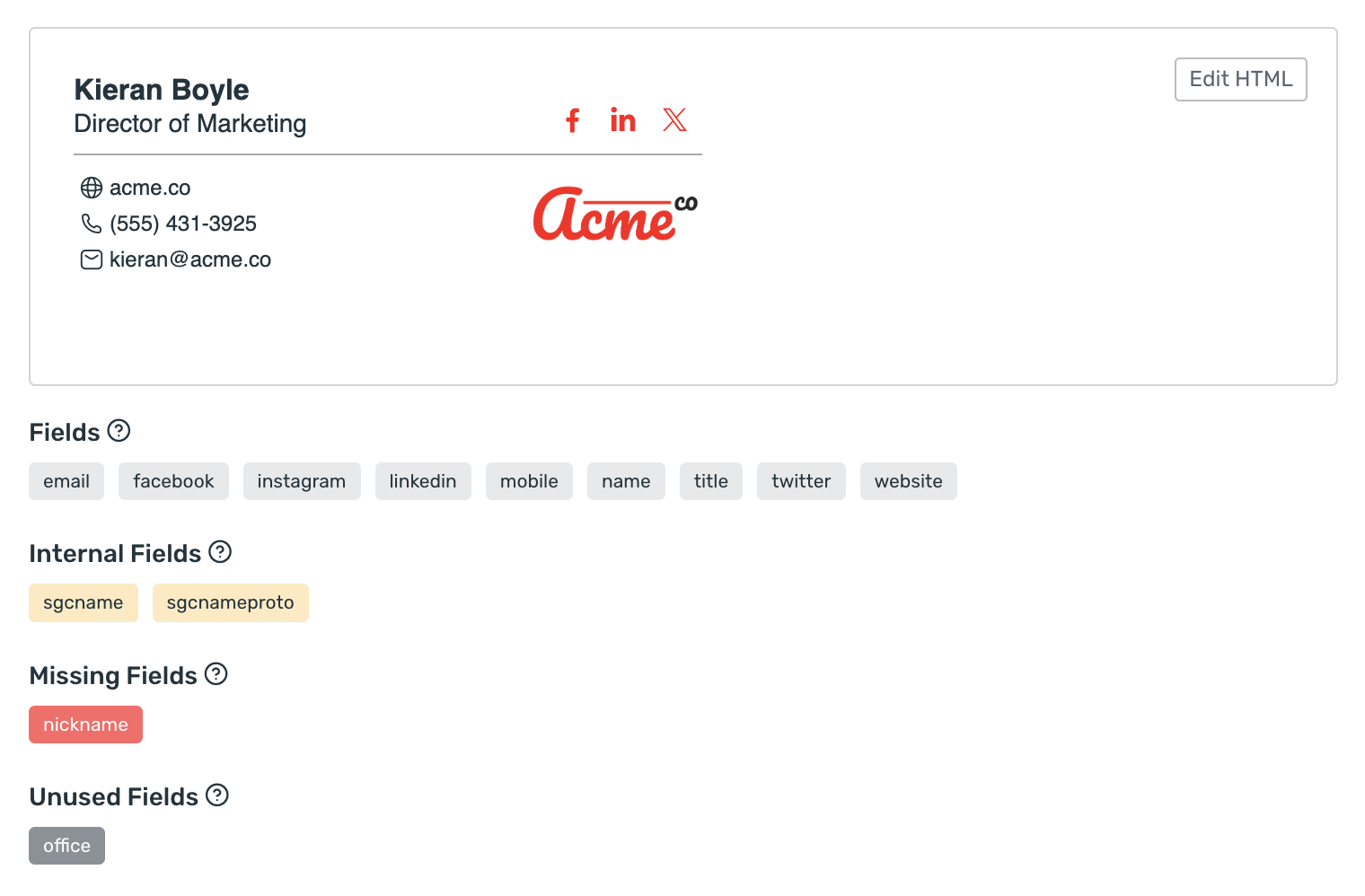
![Signature block preview with its Fields, Internal Fields, Missing Fields, and Unused Fields groups listed below](https://help.opensense.com/media/signature-block-12eac338bcf2.png)

### Field types

A block shows up to six field groups. Each group appears only when it has entries.

<dl class="kb-insights-summary">
  <div><dt>Fields</dt><dd>Signature fields used in the template. They are defined in the <strong>Signature Fields</strong> list in the lower-right corner of the editor.</dd></div>
  <div><dt>Internal Fields</dt><dd>Global fields provided by Opensense and available in every signature. They reference dynamic information such as the sender, the recipient, and the domain.</dd></div>
  <div><dt>Missing Fields</dt><dd>Fields used in the template that <strong>have not been added</strong> to the signature fields list.</dd></div>
  <div><dt>Unused Fields</dt><dd>Fields in the signature fields list that are <strong>not used</strong> in the template.</dd></div>
  <div><dt>Ads</dt><dd>Ad campaigns used in the template.</dd></div>
  <div><dt>Plugins</dt><dd>Plugins used in the template.</dd></div>
</dl>

## Editing templates

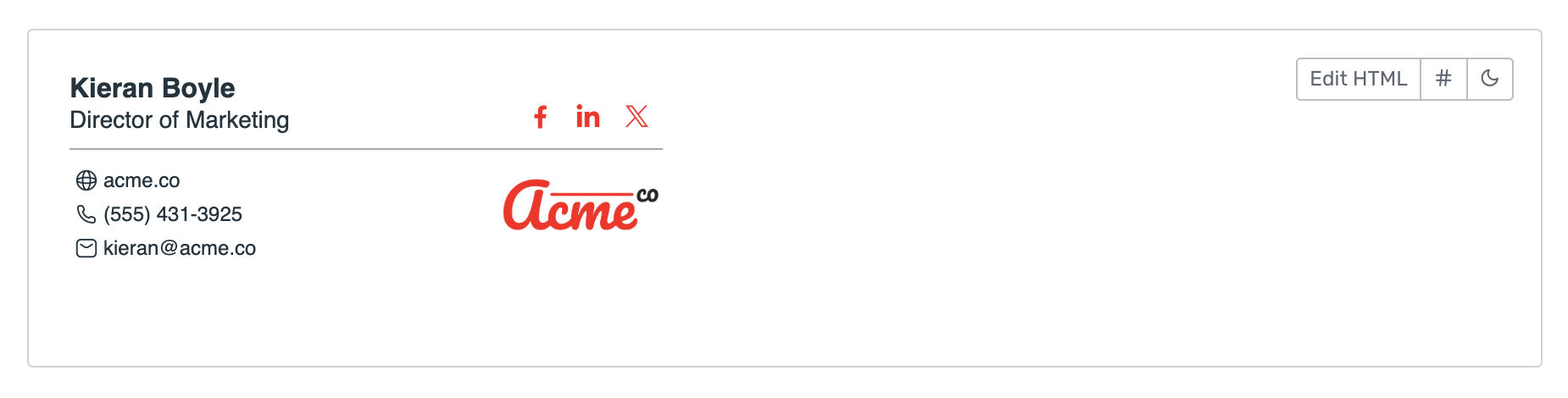
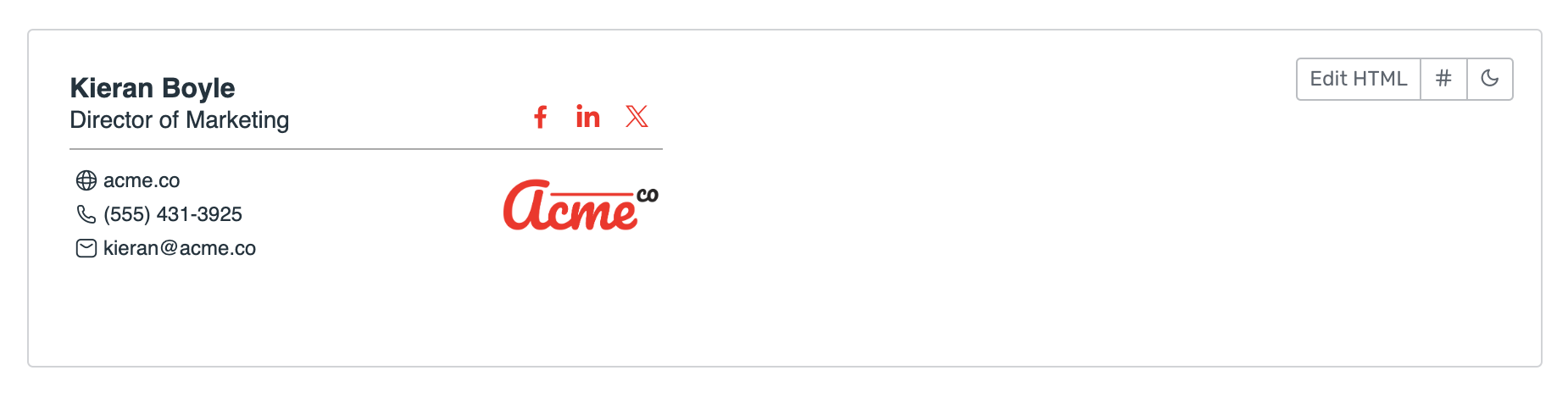
1. Click **Edit HTML** at the upper right of the signature preview.
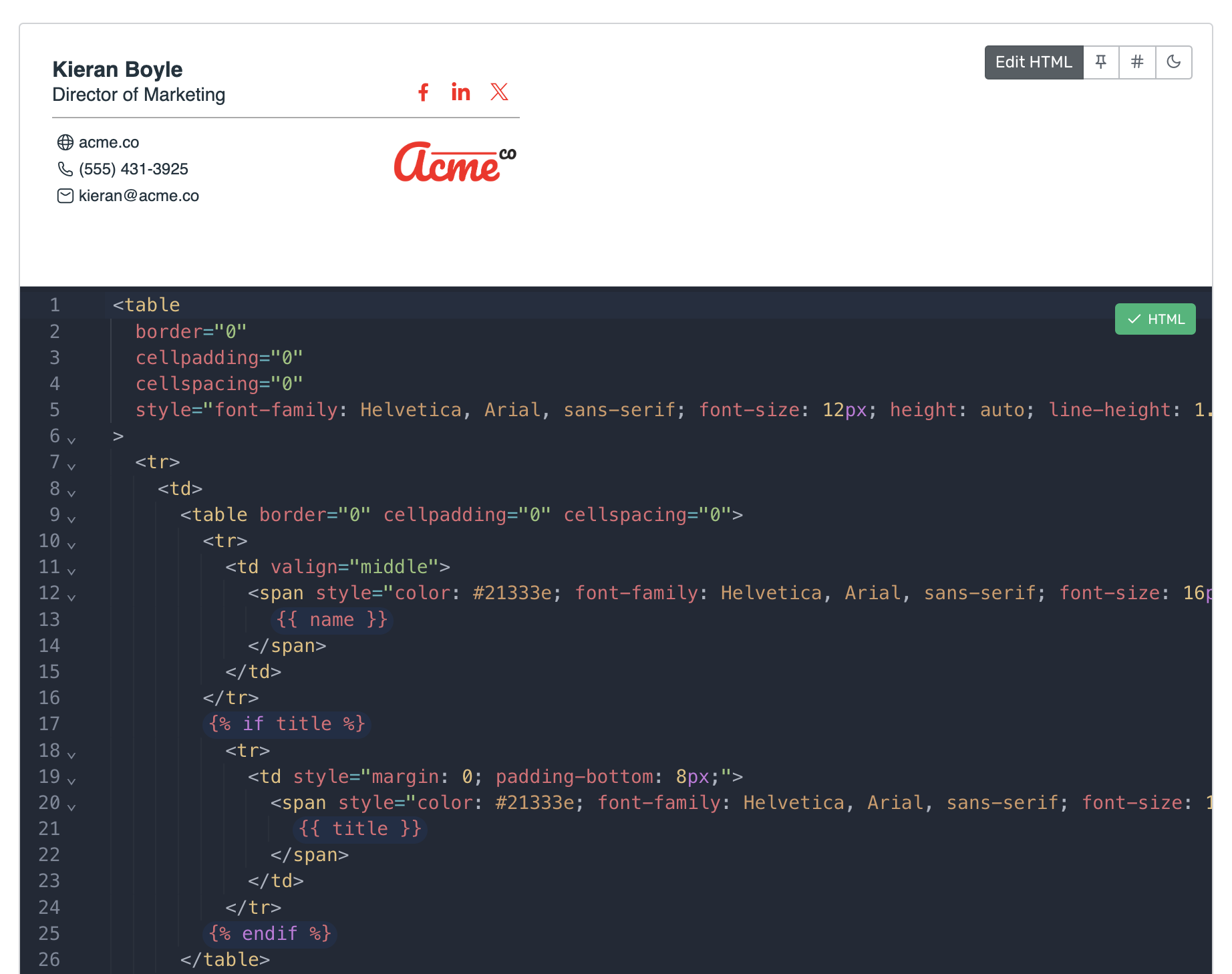
2. Change the HTML and CSS in the editor that opens below the preview. The preview refreshes after each change.

<div class="kb-media-carousel" data-kb-media-carousel aria-label="Steps to open the HTML editor">
  <div class="kb-media-carousel__viewport">
    <figure class="kb-media-frame"><div class="kb-media-frame__visual"><img src="https://help.opensense.com/media/signature-preview-only-1-756c60ce7b03.png" alt="Signature preview with the Edit HTML, hash, and moon buttons at the upper right" width="1850" height="470" loading="lazy" decoding="async"></div><figcaption><strong>Click Edit HTML</strong> · Upper right of the signature preview</figcaption></figure>
    <figure class="kb-media-frame"><div class="kb-media-frame__visual"><img src="https://help.opensense.com/media/signature-source-4-3d1e23222579.png" alt="HTML editor open below the signature preview" width="1844" height="1458" loading="lazy" decoding="async"></div><figcaption><strong>Edit the code</strong> · The editor opens below the preview</figcaption></figure>
  </div>
</div>

The editor has these features:

<dl class="kb-insights-summary">
  <div><dt>Autocomplete</dt><dd>Suggests HTML tags, variables, and elements to speed up coding and reduce typos.</dd></div>
  <div><dt>Autolint</dt><dd>Flags errors instantly, so you catch mistakes early.</dd></div>
  <div><dt>Autoformat</dt><dd>Keeps code clean and organized.</dd></div>
  <div><dt>Autopreview</dt><dd>Updates the preview in real time as you edit.</dd></div>
  <div><dt>Syntax highlighting</dt><dd>Color-codes HTML for easier reading and navigation.</dd></div>
  <div><dt>Change review</dt><dd>Shows all your changes before you save. See <a href="#change-review">Change review</a>.</dd></div>
</dl>

## Features and helpers

The preview toolbar next to **Edit HTML** and the code editor include these helpers.

### Preview pinning

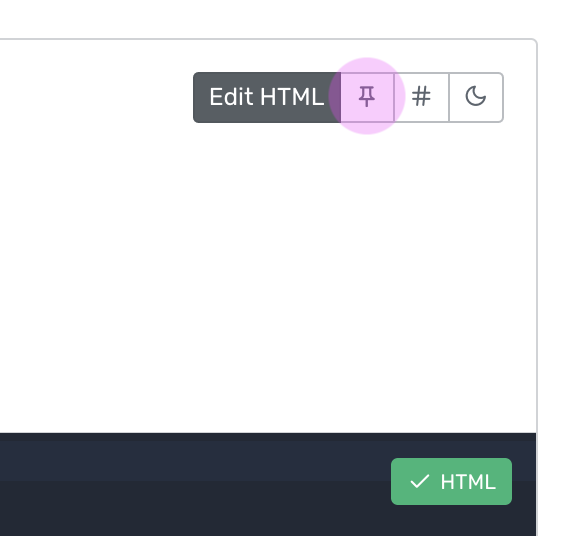
Click the pin icon next to **Edit HTML** to keep the signature preview in view as you scroll. The preview follows you as you edit, so you can check rendering changes instantly.

<figure class="kb-media-frame kb-media-frame--compact"><div class="kb-media-frame__visual"><img src="https://help.opensense.com/media/preview-pinning-1-0dd35b999905.png" alt="Preview toolbar with the pin icon highlighted next to Edit HTML" width="570" height="536" loading="lazy" decoding="async"></div><figcaption><strong>Pin</strong> · Keeps the preview in view</figcaption></figure>

### Unparsed template preview

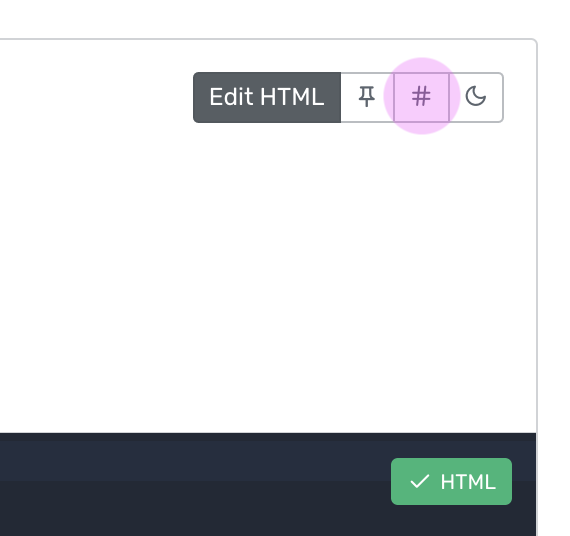
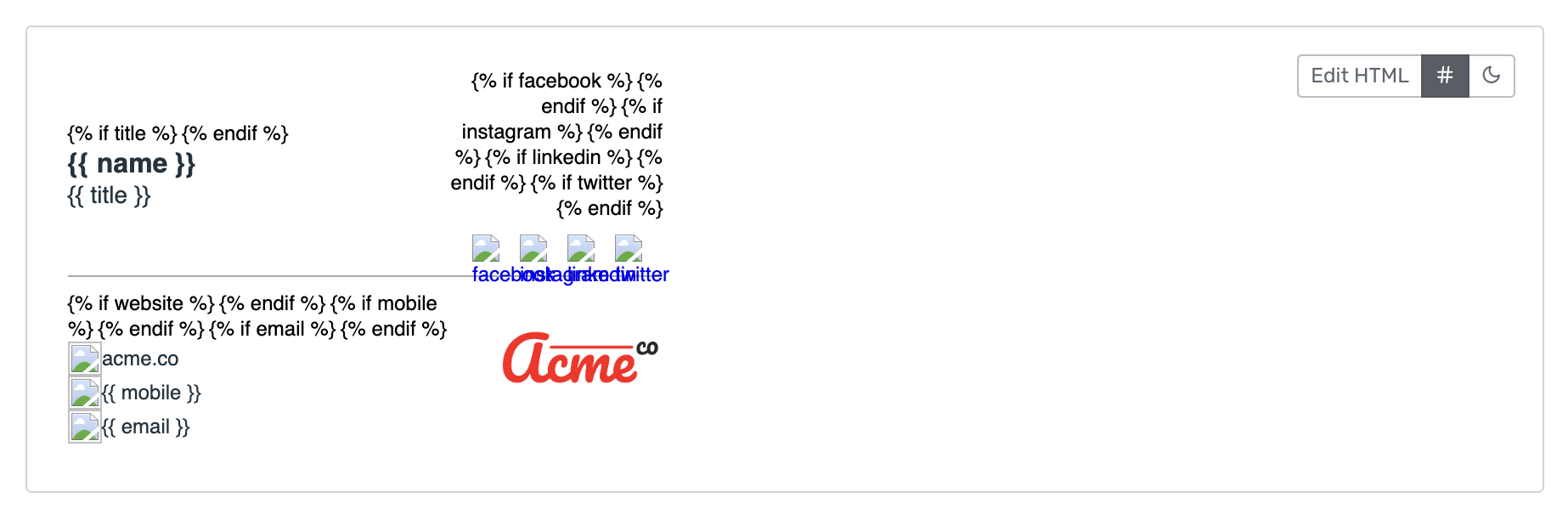
Click the hash (**#**) icon to see the raw template code before variables are replaced with data. Use it to troubleshoot the signature or to review its conditional content.

<div class="kb-media-carousel" data-kb-media-carousel aria-label="Unparsed template preview">
  <div class="kb-media-carousel__viewport">
    <figure class="kb-media-frame"><div class="kb-media-frame__visual"><img src="https://help.opensense.com/media/preview-unparsed-52bce1b4d70e.png" alt="Preview toolbar with the hash icon highlighted" width="570" height="536" loading="lazy" decoding="async"></div><figcaption><strong>Click the hash icon</strong> · Next to Edit HTML</figcaption></figure>
    <figure class="kb-media-frame"><div class="kb-media-frame__visual"><img src="https://help.opensense.com/media/signature-preview-only-2-3fc2353a8fe3.png" alt="Signature preview with variables replaced by sample data" width="1850" height="470" loading="lazy" decoding="async"></div><figcaption><strong>Original</strong> · Variables replaced with data</figcaption></figure>
    <figure class="kb-media-frame"><div class="kb-media-frame__visual"><img src="https://help.opensense.com/media/signature-block-unparsed-4cb79d3907a7.png" alt="Unparsed signature preview showing raw Liquid tags such as name and title conditions" width="1846" height="612" loading="lazy" decoding="async"></div><figcaption><strong>Unparsed</strong> · Raw template before variables are replaced</figcaption></figure>
  </div>
</div>

### Dark mode preview

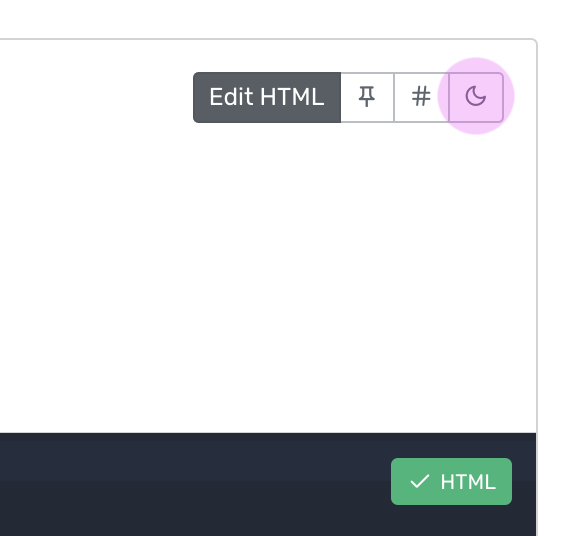
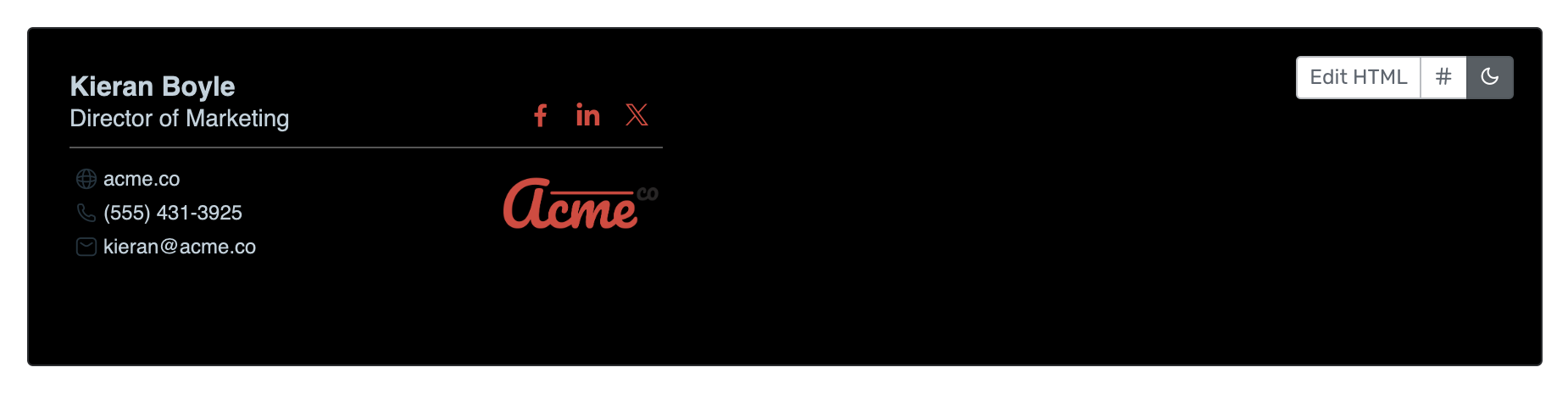
Click the moon icon to simulate how email clients adjust colors in dark mode. It may not match every client exactly, but it shows roughly how the signature will look.

<div class="kb-media-carousel" data-kb-media-carousel aria-label="Dark mode preview">
  <div class="kb-media-carousel__viewport">
    <figure class="kb-media-frame"><div class="kb-media-frame__visual"><img src="https://help.opensense.com/media/preview-darkmode-9f5da6b44fe8.png" alt="Preview toolbar with the moon icon highlighted" width="570" height="536" loading="lazy" decoding="async"></div><figcaption><strong>Click the moon icon</strong> · Next to Edit HTML</figcaption></figure>
    <figure class="kb-media-frame"><div class="kb-media-frame__visual"><img src="https://help.opensense.com/media/signature-preview-only-2-3fc2353a8fe3.png" alt="Signature preview with variables replaced by sample data" width="1850" height="470" loading="lazy" decoding="async"></div><figcaption><strong>Original</strong> · Variables replaced with data</figcaption></figure>
    <figure class="kb-media-frame"><div class="kb-media-frame__visual"><img src="https://help.opensense.com/media/signature-block-darkmode-5610e47639cd.png" alt="Signature preview on a dark background, simulating an email client in dark mode" width="1850" height="466" loading="lazy" decoding="async"></div><figcaption><strong>Dark mode</strong> · Simulated dark mode colors</figcaption></figure>
  </div>
</div>

### Code linting

Code linting checks for syntax errors and common issues as you edit, so you catch mistakes early and keep the template formatting consistent.
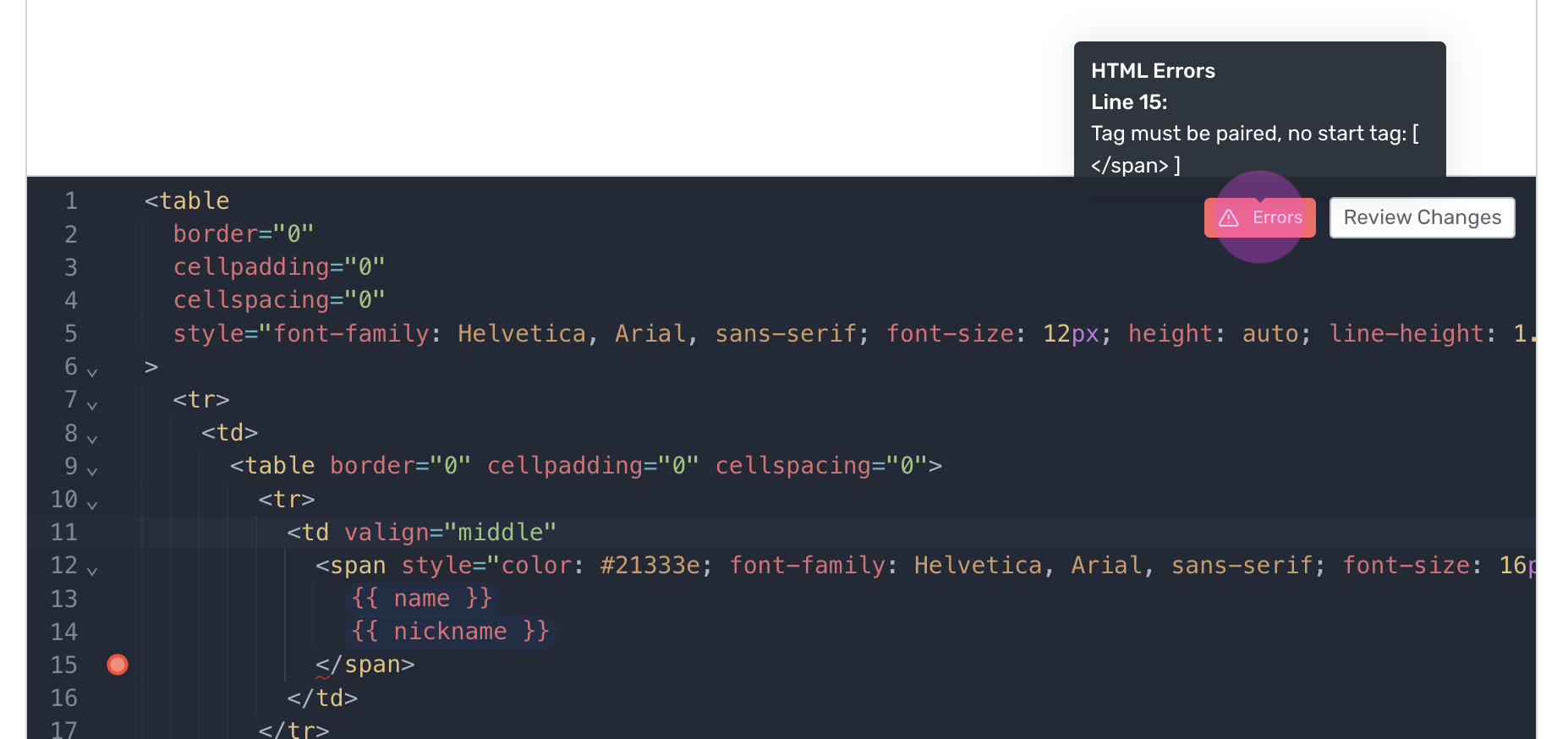
![HTML editor showing a lint error marker on line 15 and an HTML Errors tooltip](https://help.opensense.com/media/lint-errors-de63feaa48d8.png)

### Change review

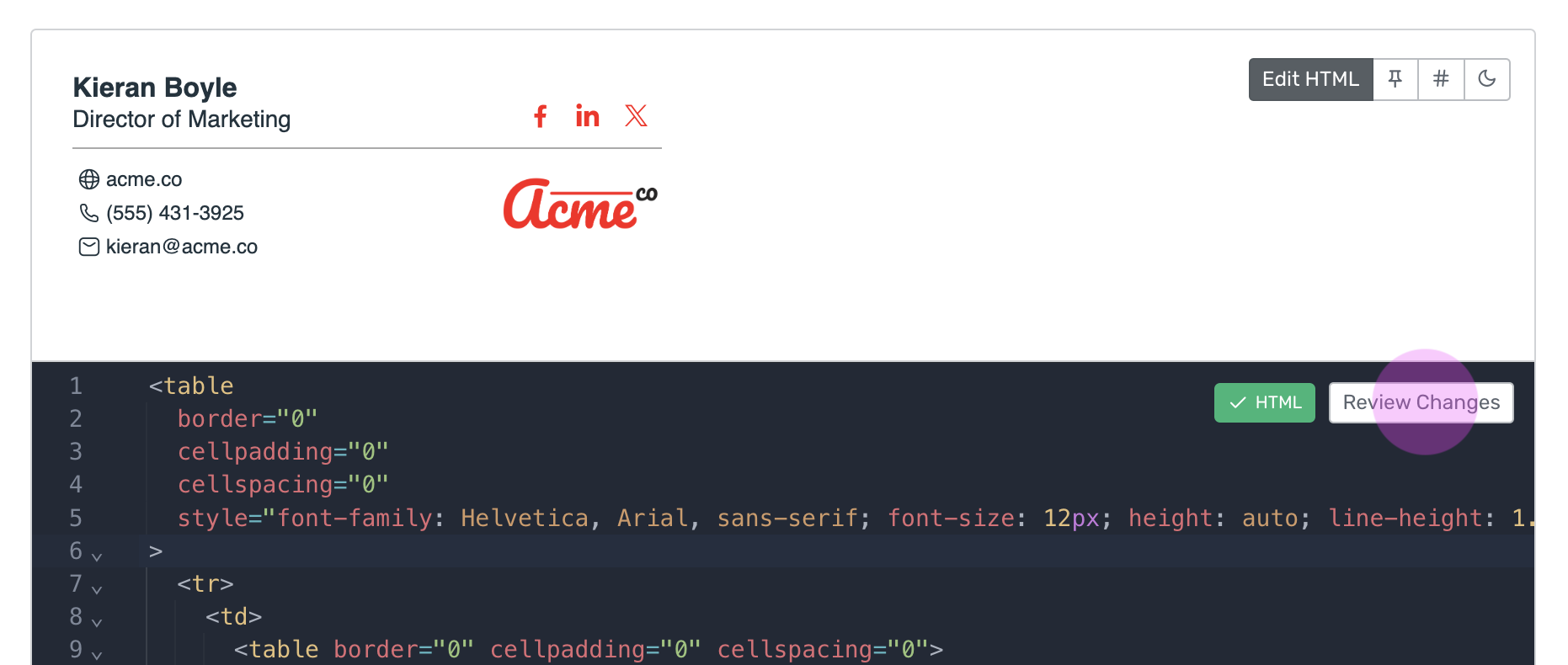
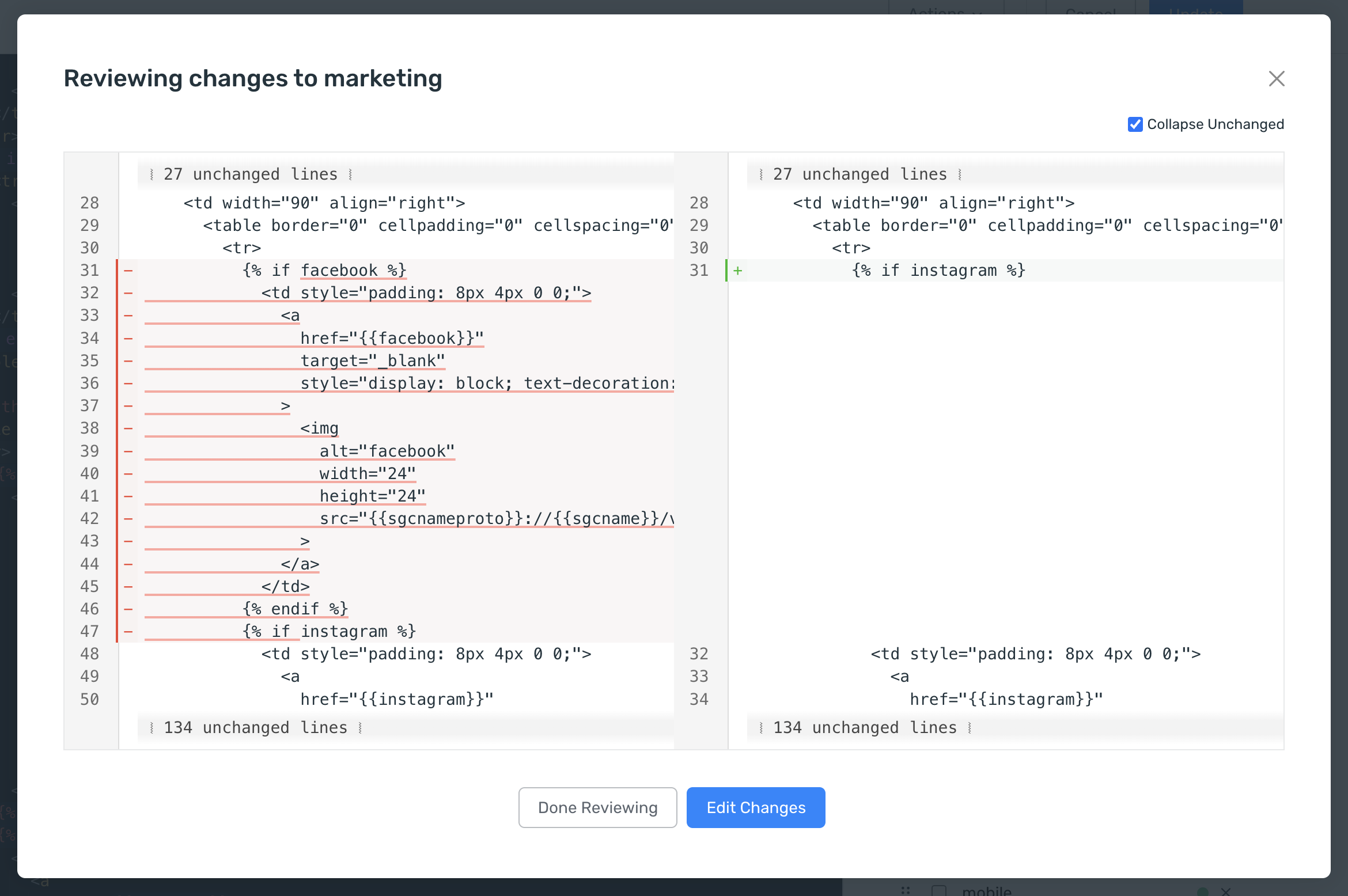
**Review Changes** opens a side-by-side comparison of your edits and the original template, with additions and deletions highlighted. The button appears only after you change the content of the signature.

In the review, you can collapse unchanged lines, revert individual changes, or reset all template changes with **Edit Changes**.

<div class="kb-media-carousel" data-kb-media-carousel aria-label="Change review">
  <div class="kb-media-carousel__viewport">
    <figure class="kb-media-frame"><div class="kb-media-frame__visual"><img src="https://help.opensense.com/media/review-20changes-20button-1-d5420527cd31.png" alt="HTML editor with the Review Changes button highlighted next to the HTML status" width="1862" height="790" loading="lazy" decoding="async"></div><figcaption><strong>Click Review Changes</strong> · Appears after you edit the signature</figcaption></figure>
    <figure class="kb-media-frame"><div class="kb-media-frame__visual"><img src="https://help.opensense.com/media/review-changes-modal-1-6e793d51edc9.png" alt="Review window comparing the original and edited template side by side, with removed and added lines highlighted" width="2340" height="1556" loading="lazy" decoding="async"></div><figcaption><strong>Review the changes</strong> · Original and edited template side by side</figcaption></figure>
  </div>
</div>

## Signature fields

Signature fields hold the information in a signature, such as name, title, and contact details. The fields list is in the lower-right corner of the editor.
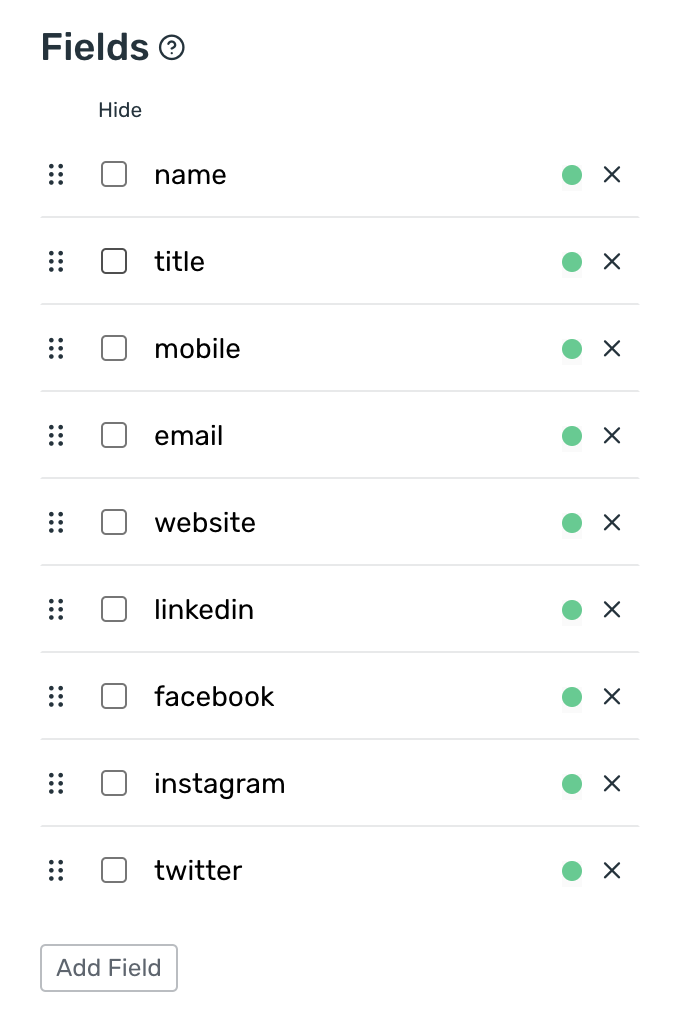
![Fields list with a drag handle, a Hide check box, and a remove icon on each field, and the Add Field button at the bottom](https://help.opensense.com/media/params-e9a62fe629cf.png)

<dl class="kb-insights-summary">
  <div><dt>Add a field</dt><dd>Click <strong>Add Field</strong> at the bottom of the fields list and name the field. You can use it in the signature right away.</dd></div>
  <div><dt>Remove a field</dt><dd>Click the <strong>x</strong> at the far right of the field entry.</dd></div>
  <div><dt>Hide a field</dt><dd>Select the check box at the start of the field entry. Hidden fields are left out of the signature fields list when you work with the APIs.</dd></div>
  <div><dt>Reorder fields</dt><dd>Drag the handle at the far left of the field entry. The order controls how fields are presented, which matters most for Plain Text Block (PTP).</dd></div>
</dl>

:::caution[Removing a field does not change the HTML]
Removing a field deletes it from the fields list only. Remove the field from the signature HTML yourself.
:::

## Previewing your changes

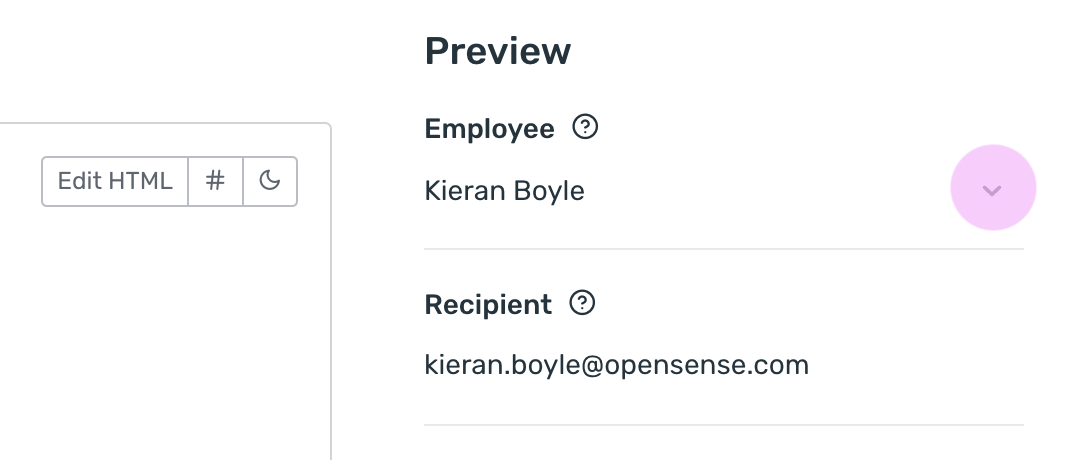
The preview refreshes automatically when you change the HTML or the fields. To test how the signature renders for a specific sender and recipient, use the **Preview** pane on the right.
![Preview pane with the Employee drop-down and the Recipient field](https://help.opensense.com/media/preview-options-3-1a40e6b715c7.png)

<dl class="kb-insights-summary">
  <div><dt>Employee</dt><dd>Lists all users in your domain. Search by name or email address, then select a user to confirm that the signature shows or hides the right content for them.</dd></div>
  <div><dt>Recipient (optional)</dt><dd>Enter an email address to check the rendering, mainly when the signature uses dynamic fields or logic that targets specific domains or users.</dd></div>
</dl>

## Enabling reply templates

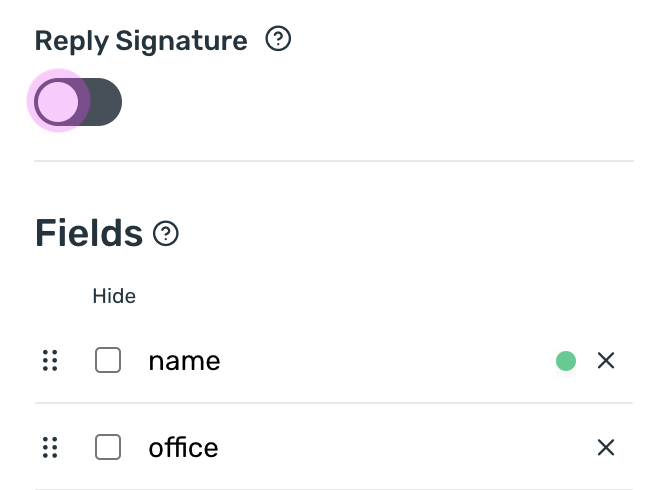
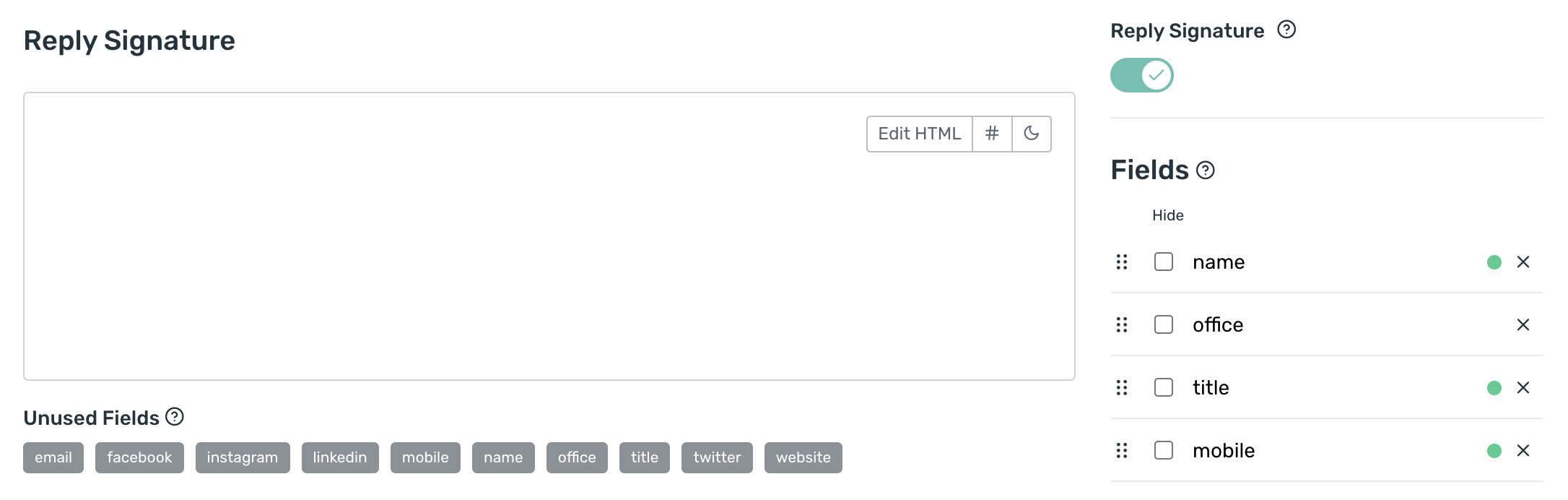
1. In the right pane, turn on the **Reply Signature** toggle.
2. Design the reply signature in the two new blocks: one for HTML and one for plain text.

<div class="kb-media-carousel" data-kb-media-carousel aria-label="Steps to turn on a reply signature">
  <div class="kb-media-carousel__viewport">
    <figure class="kb-media-frame"><div class="kb-media-frame__visual"><img src="https://help.opensense.com/media/reply-signature-switch-1-59341fdc9a5d.png" alt="Reply Signature toggle turned on in the right pane" width="670" height="490" loading="lazy" decoding="async"></div><figcaption><strong>Turn on Reply Signature</strong> · In the right pane</figcaption></figure>
    <figure class="kb-media-frame"><div class="kb-media-frame__visual"><img src="https://help.opensense.com/media/reply-signature-block-1-30cf0b224443.png" alt="Reply Signature block added to the editor, with its own Edit HTML button and Unused Fields" width="2172" height="692" loading="lazy" decoding="async"></div><figcaption><strong>Design the reply</strong> · New HTML and plain text blocks</figcaption></figure>
  </div>
</div>

## Saving your changes

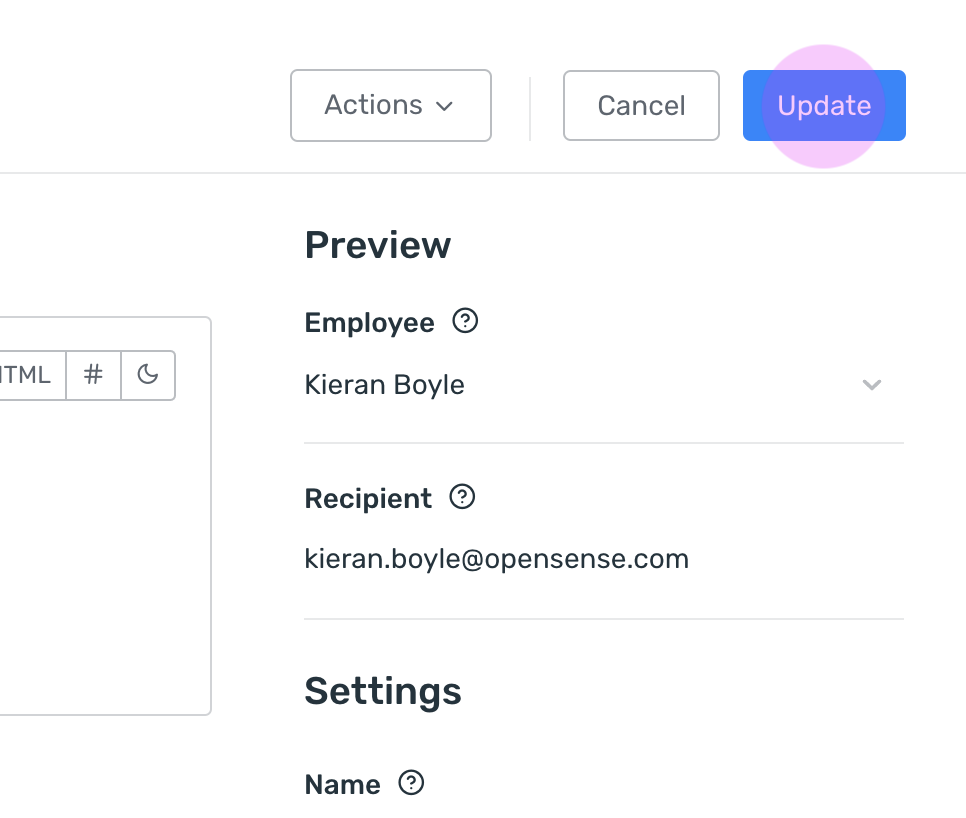
Click **Update** at the upper right of the page to save your changes.
![Top of the editor with the Actions, Cancel, and Update buttons, and Update highlighted](https://help.opensense.com/media/update-2-0d1c32104c03.png)

## What's next

- [Editing a signature](https://help.opensense.com/docs/editing-a-signature): the step-by-step walkthrough for opening, changing, and saving a signature.
- [HTML and field types (Liquid templates)](https://help.opensense.com/docs/html-field-types): conditional fields, hidden fields, and other template logic.