---
title: "Connecting HubSpot to Opensense"
slug: "hubspot-integration"
description: "Connect HubSpot to Opensense, then add the sgenads and sgentags contact properties, so HubSpot workflows can choose the banner each recipient sees."
updated: 2026-10-14T00:00:00.000Z
canonical: "https://help.opensense.com/docs/hubspot-integration"
---
> ## Documentation Index
> Fetch the complete documentation index at: https://help.opensense.com/llms.txt
> Use this file to discover all available pages before exploring further.
# Connecting HubSpot to Opensense
## Overview
The HubSpot integration gives you real-time campaign personalization in the space under your outbound email signature, from within HubSpot workflows. For example:
- Example 1
- Personalized banners for events, that go out only to senior management roles or higher.
- Example 2
- Event registrants get a "Thank you" banner with relevant information, such as speaker spotlights, on random rotation.
## Connecting HubSpot
:::note[Before you start]
You need HubSpot admin privileges.
:::
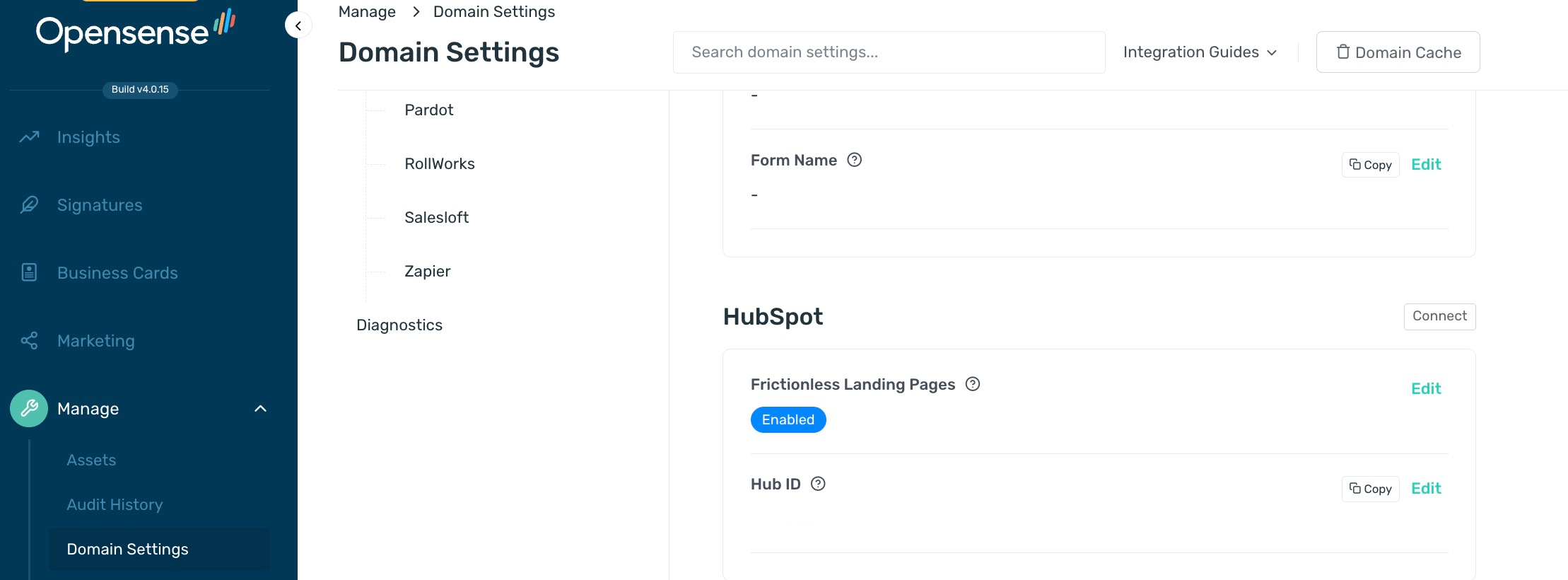
1. In the Opensense portal, open the **Manage** menu, and select **Domain Settings**.
2. In the Domain Settings menu, select **Integrations** > [**HubSpot**](https://app.opensense.com/beta/manage/domain-settings/integrations#integrations-hubspot).
3. Select **Connect**.
4. HubSpot asks you to grant Opensense access to the HubSpot API. Grant it.
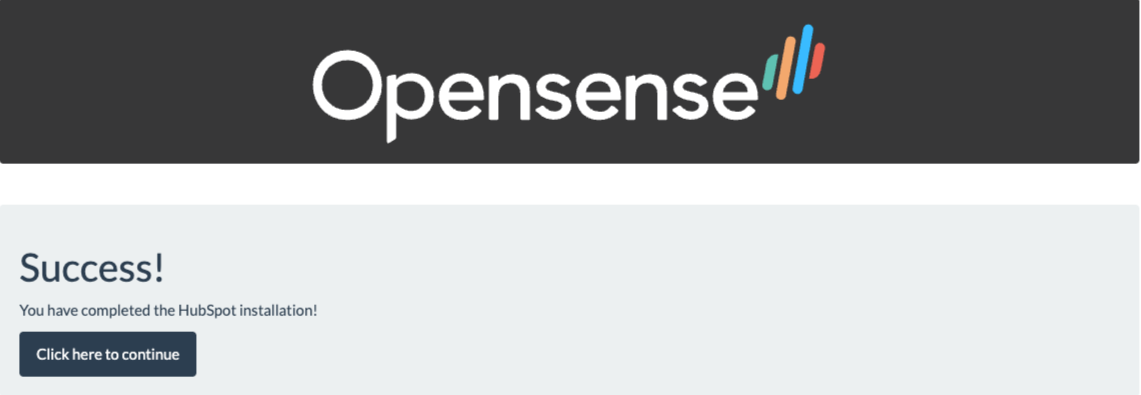
5. When access is granted, a landing page confirms the installation. Select **Click here to continue** to go to the Opensense portal, or close the browser tab.
:::note[What connecting turns on]
When you grant the permissions, Opensense automatically turns on **Frictionless Landing Pages** and imports your **Hub ID**.
:::
## Adding the Opensense properties in HubSpot
Opensense reads two custom contact properties, `sgenads` and `sgentags`. Create both:
1. In HubSpot, select the settings icon in the top navigation bar.

2. In the left sidebar, select **Properties**.
3. In the **Select an object** menu, select **Contact properties**.
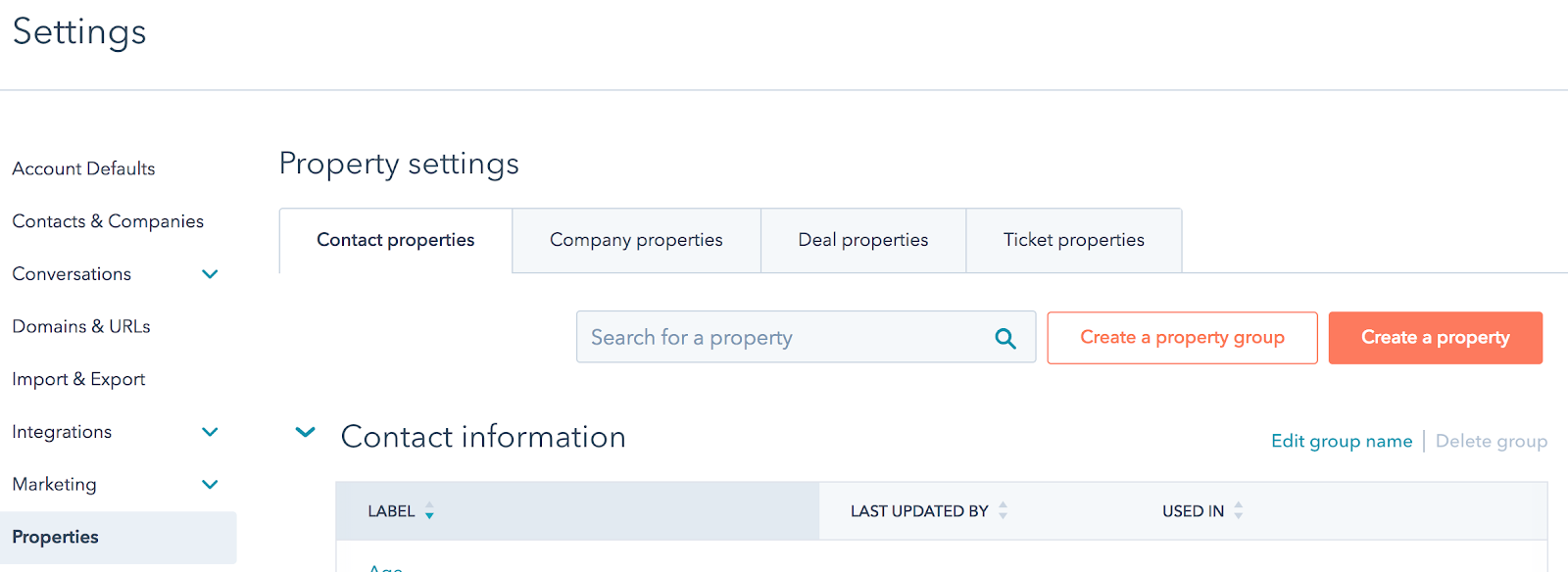
The screenshot shows an older layout of HubSpot's property settings, with the objects as tabs and the button named **Create a property**.
4. Select **Create property**, and enter the values below. To add the description, select **Edit more options**.
5. Select **Create**.
6. Repeat for the second property.
| Setting |
sgenads |
sgentags |
| Label | sgenads | sgentags |
|---|
| Description | Opensense Ads (Static) | Opensense Ads (Campaign Tag) |
|---|
| Object type | Contact | Contact |
|---|
| Field type | Single-line text | Single-line text |
|---|
| What the workflow writes | The name of the banner to display. This assigns one dedicated, static banner, which is less dynamic than sgentags. | A banner tag value shared by multiple banners. The contact sees any banner tagged with the same value as their sgentags field. |
|---|
Use a [HubSpot workflow](https://help.opensense.com/docs/create-a-hubspot-workflow) to update these contact properties.
## Testing and training
When you've finished these steps, contact your Opensense account manager (or the [help desk](mailto:help@opensense.com)) for testing and training.
## What's next
- [Assigning Opensense tags with a HubSpot workflow](https://help.opensense.com/docs/create-a-hubspot-workflow)
- [Targeting with CRM or marketing automation platforms](https://help.opensense.com/docs/targeting-with-crm-or-marketing-automation-platforms)
For further help, contact Opensense Support at [help@opensense.com](mailto:help@opensense.com).