---
title: "Setting up group targets for campaigns"
slug: "initial-setup"
description: "Set up group targets before you run banner campaigns: check the allusers group, add group targets for senders or recipients, and set their priority."
updated: 2025-05-08T21:16:31.000Z
canonical: "https://help.opensense.com/docs/initial-setup"
---
> ## Documentation Index
> Fetch the complete documentation index at: https://help.opensense.com/llms.txt
> Use this file to discover all available pages before exploring further.
# Setting up group targets for campaigns
## Overview
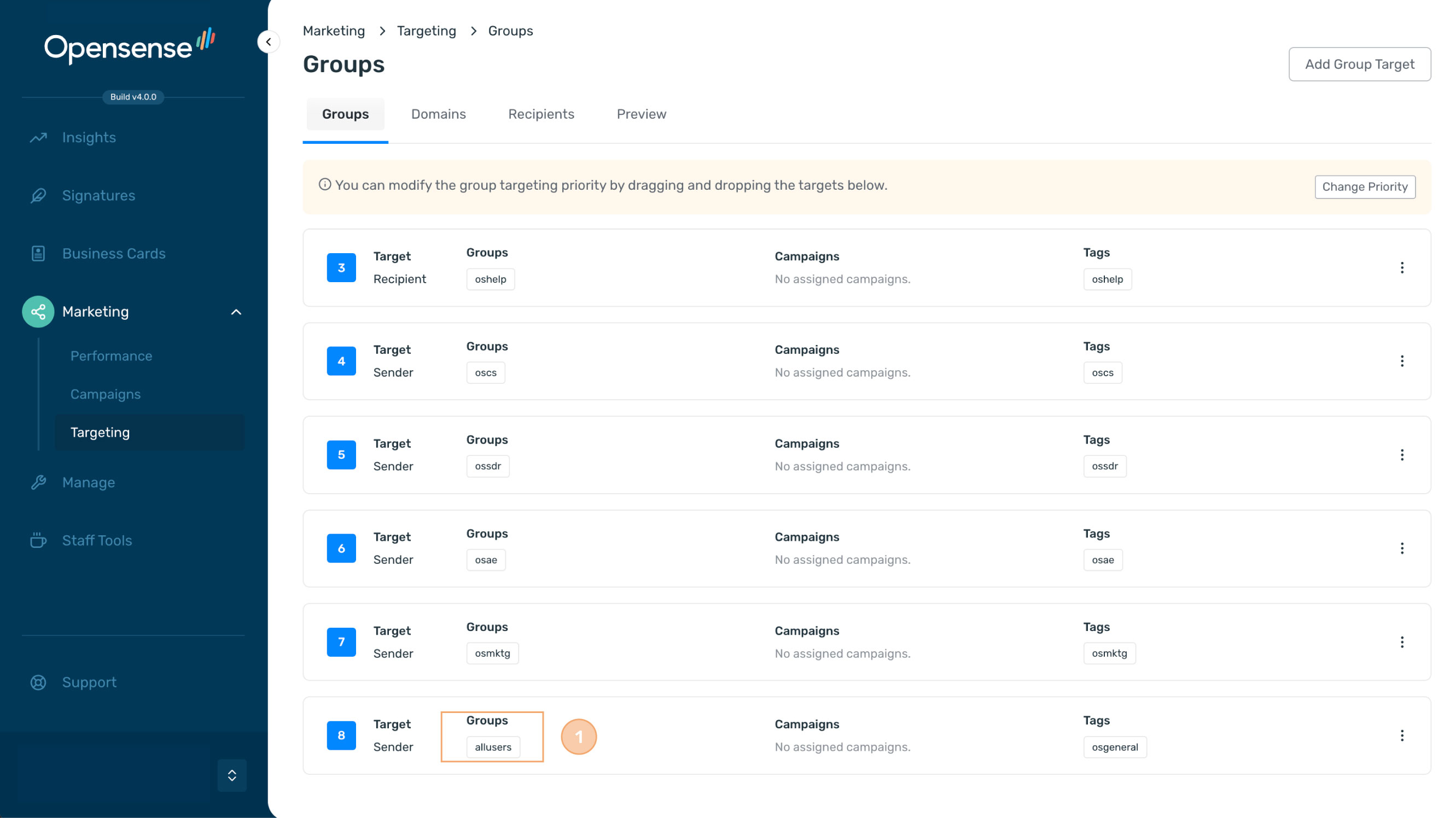
Before you run banner campaigns, set up group targets, so that banners show correctly when your team sends email. A group target links a group of users to campaigns or to tags. The pre-made **allusers** group shows banners for all users in your organization.
If targeting is already set up, go to [Creating a banner campaign](https://help.opensense.com/docs/creating-banner-campaign).
## Checking your group targets
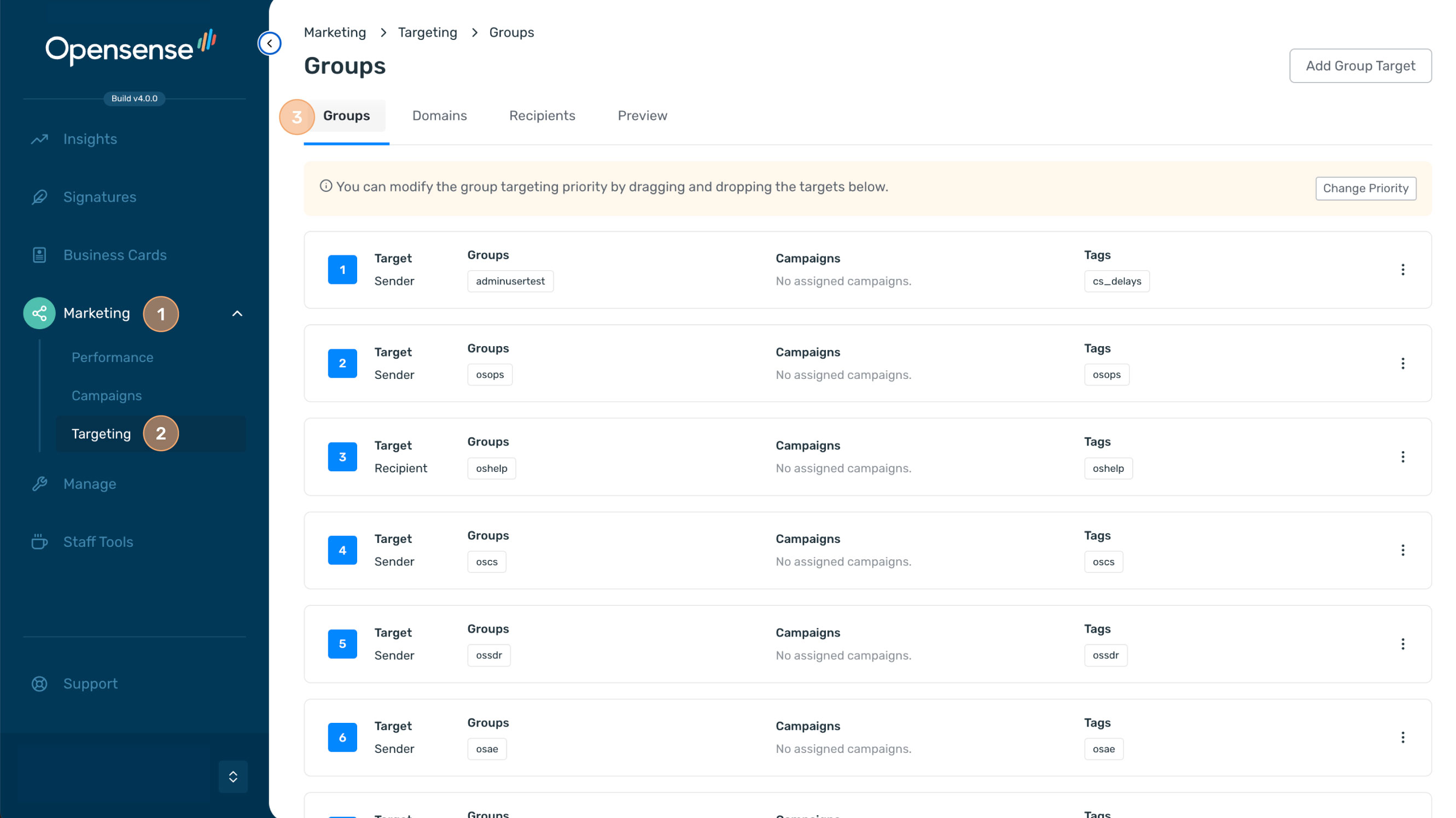
1. In the navigation pane, select **Marketing** > **Targeting**.
2. Select the **Groups** tab.
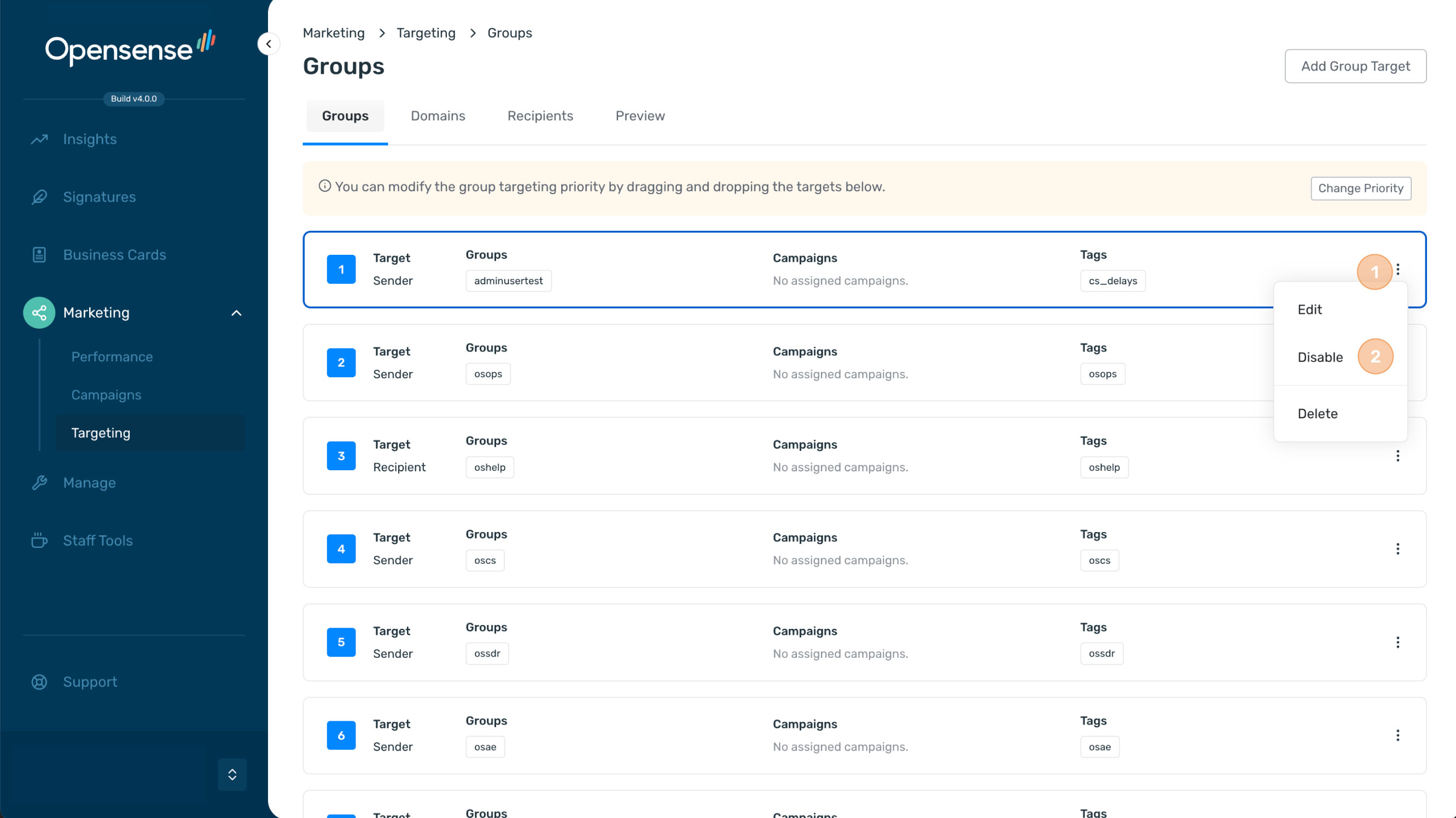
Each row is a group target. It shows the priority number, the target type, the groups, the campaigns, and the tags. Active group targets have a blue number, and disabled ones have a gray number.
If an active group target such as **allusers** is listed, you are ready to create campaigns. By default, the **allusers** group shows banners for all users, so use it for company-wide campaigns. To have teams such as Marketing or Sales send different banners, [add a group target](#adding-a-group-target) for each team.
## Adding a group target
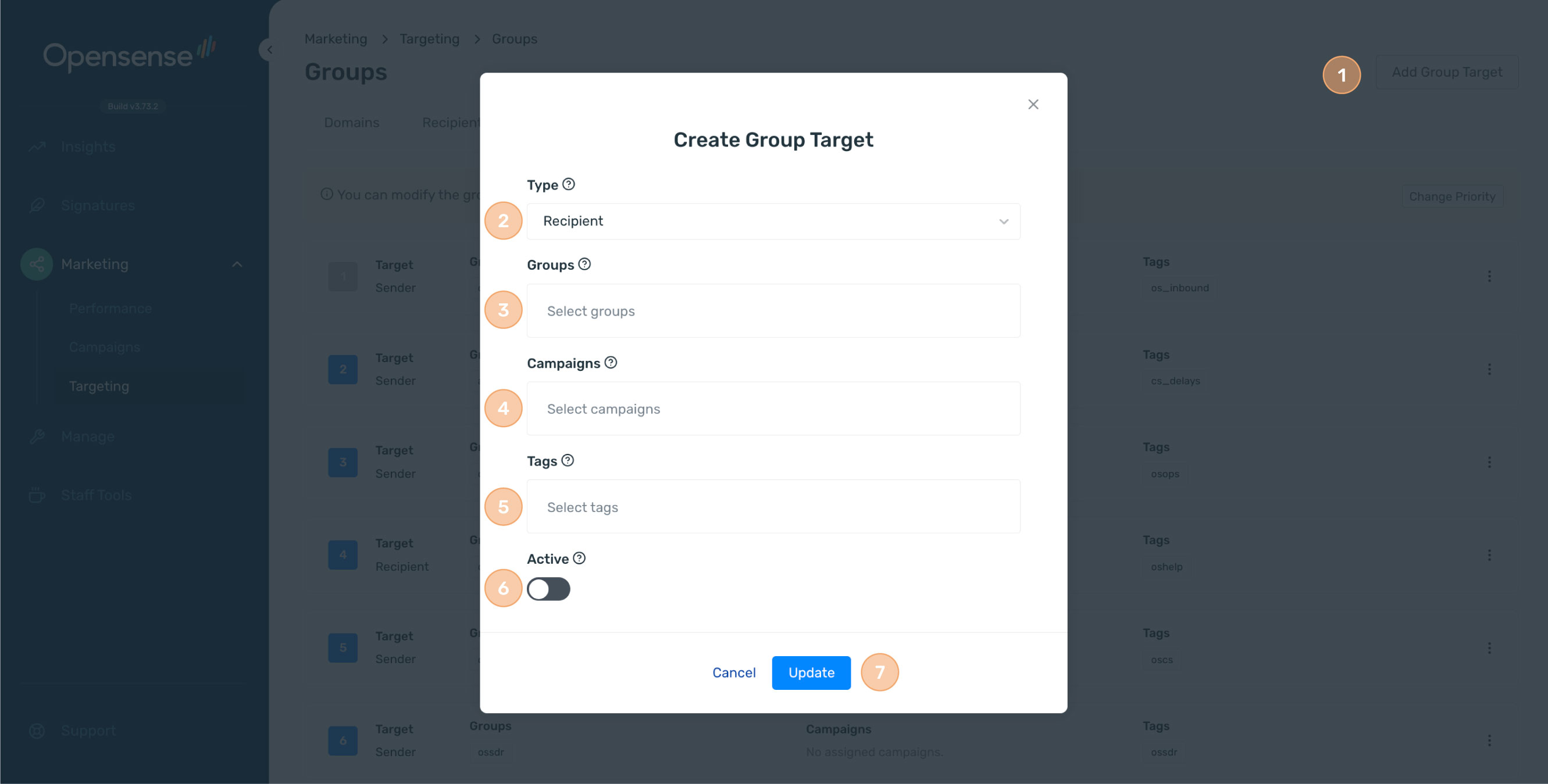
1. Click **Add Group Target** at the upper right.
2. In **Type**, select **Sender** for an external banner campaign, or **Recipient** for an internal banner campaign.
3. In **Groups**, select the group. If you have no groups, see [Creating a department and adding users (classic UI)](https://help.opensense.com/docs/creating-a-department-and-adding-users).
4. Optional: in **Campaigns**, select the campaigns for this group.
5. Optional: in **Tags**, enter the tags for this group, for example `abcevent` for an event or `customersuccess` for your customer success team. Each group target needs at least one campaign or one tag.
6. Turn on **Active**.
7. Click **Update**.
To show a campaign's banner to this group by tag, add the same tag to the banner, for example `customersuccess`.
## Setting the priority
If you have more than one group target, set their priority. When a user is in more than one group, Opensense uses the group target with the highest priority to choose the banner.
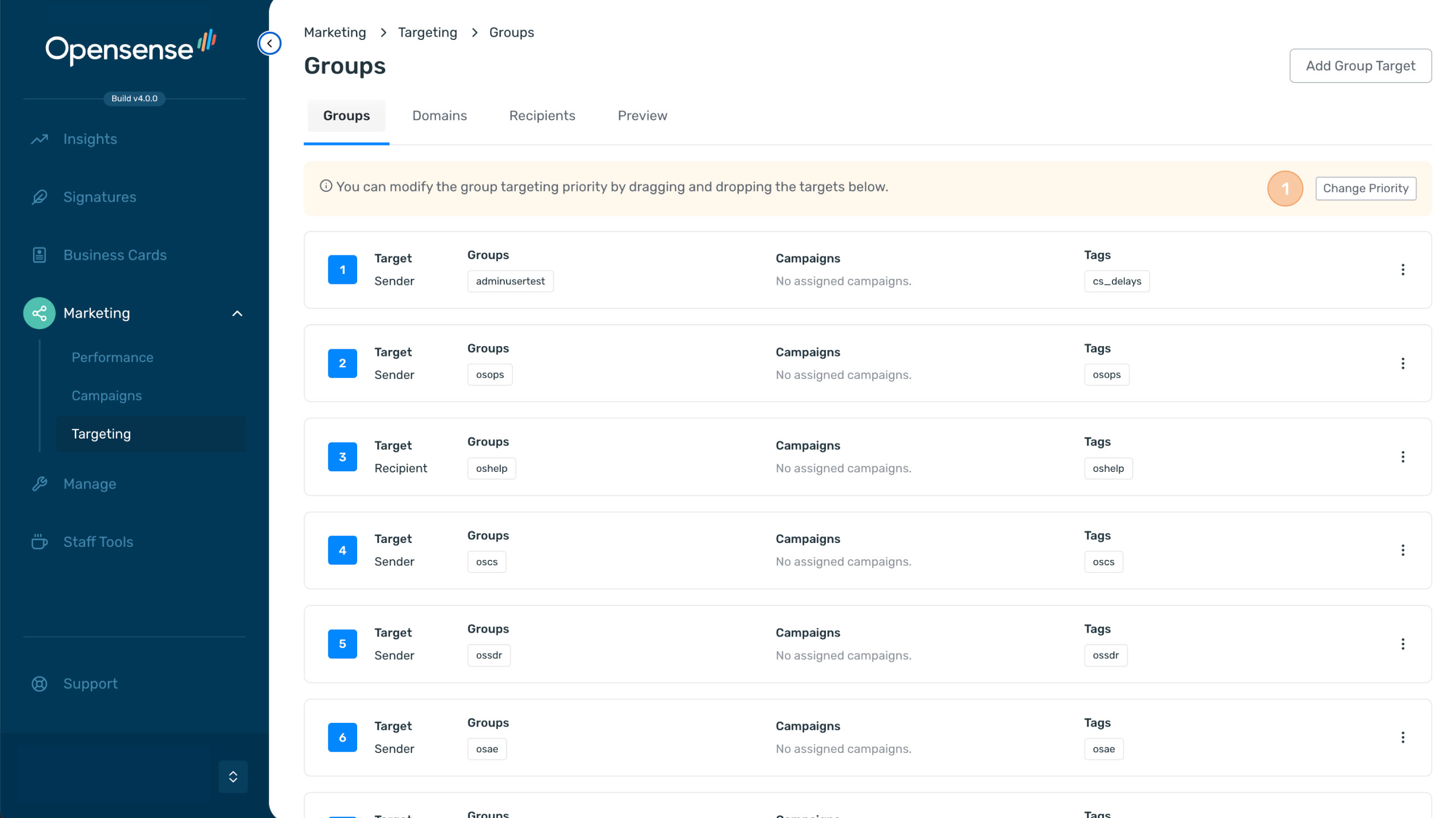
1. Click **Change Priority** in the banner above the list.
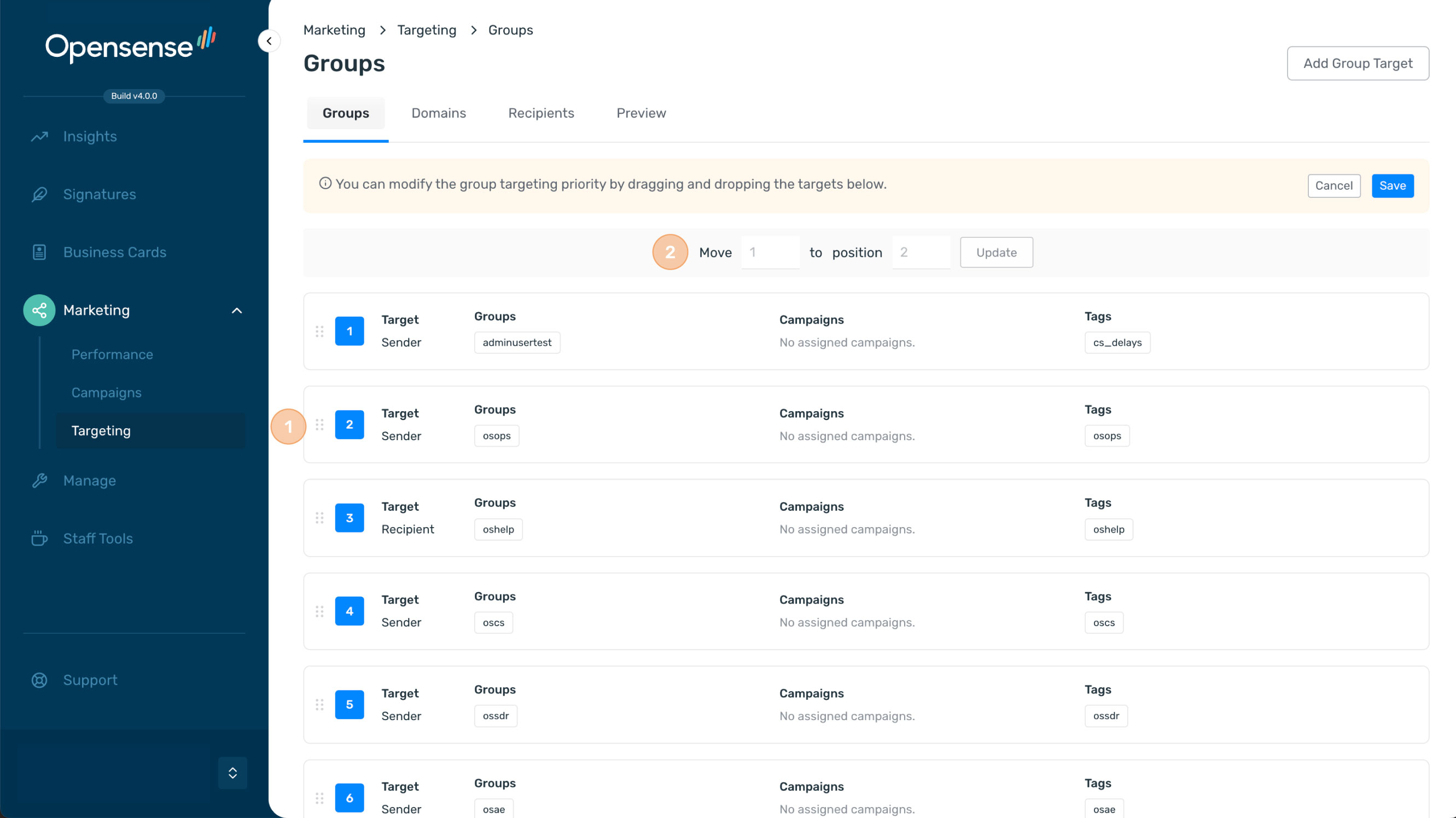
2. Drag a group target to its new position. You can also enter its number in **Move** and the new number in **to position**, then click **Update**.
3. Click **Save**.
:::caution[Internal campaigns]
Do not use the **allusers** group for internal-only campaigns. Always give **Recipient** (internal campaign) group targets a higher priority than **Sender** (external campaign) group targets.
:::
:::caution[Disable group targets that have no banners]
If a user is in more than one group or department, only the banner for the group with the highest priority shows. If that group has no active banner, the user gets no banner. For example, when an event ends, disable the event's group target.
:::
## Enabling or disabling a group target
A gray number means that the group target is disabled. To enable it, click the actions menu (**⋮**) on its row and select **Enable**. To disable an active group target, select **Disable** in the same menu.
## What's next
- [Creating a banner campaign](https://help.opensense.com/docs/creating-banner-campaign): create a campaign and add your banner.
- [Targeting banner campaigns](https://help.opensense.com/docs/introduction-to-targeting-and-segmentation): target banners by domain, recipient, department, and more.
- [Setting up automatic group membership](https://help.opensense.com/docs/configure-automatic-group-membership): add users to groups automatically, based on profile fields.