

Setting up Okta directory sync
Overview
Section titled “Overview”Connect your Okta directory to Opensense, so your organization’s users and groups sync automatically. Once it’s set up, Opensense pulls directory data daily, to keep your email signature employee data up to date.
Before you start
Section titled “Before you start”You need:
- Super Admin access in Okta (required to create API tokens)
- A way to share credentials securely with the Opensense implementation team
Step-by-step guide
Section titled “Step-by-step guide”
Step 1: Go to the API token settings
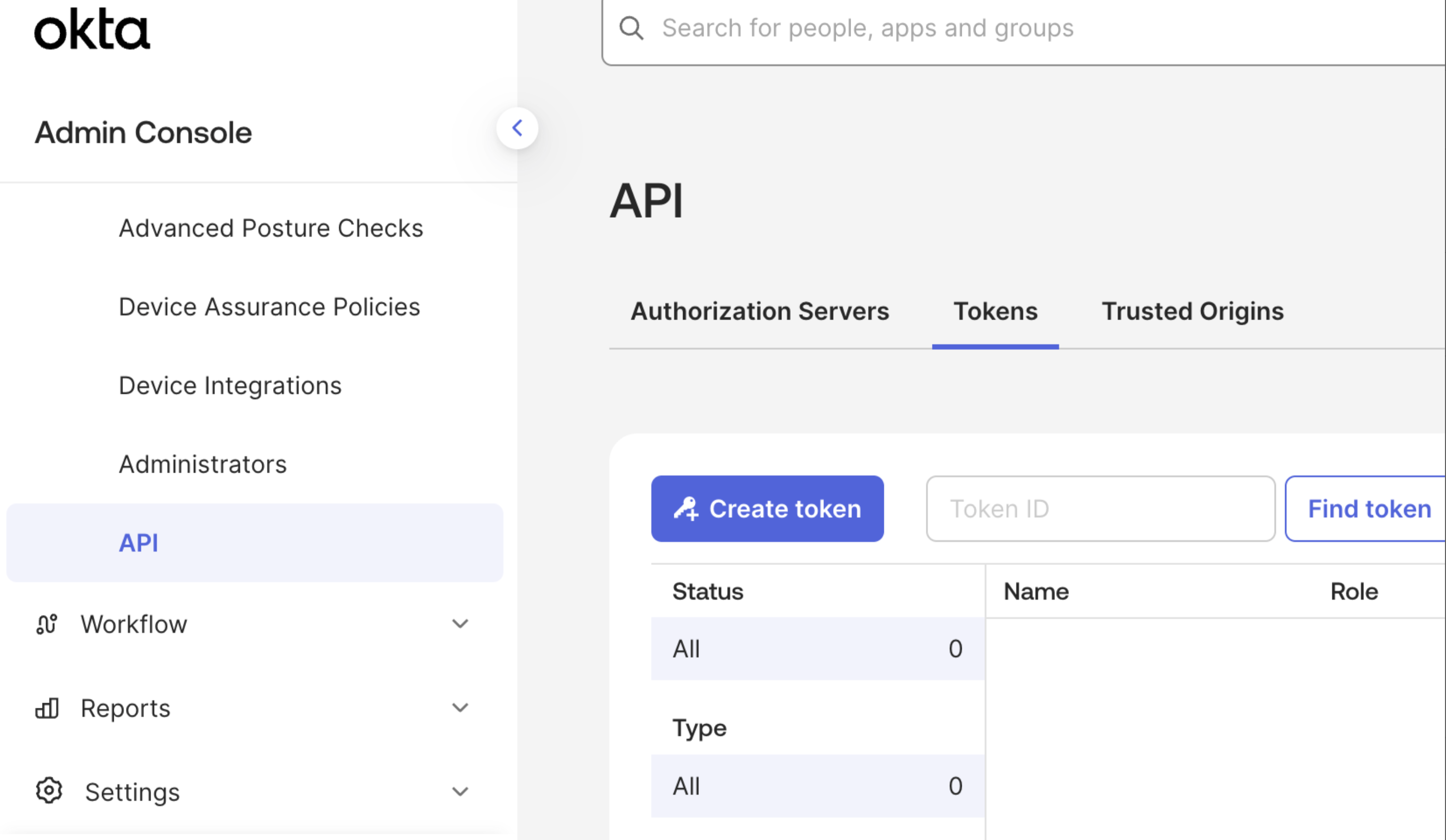
Section titled “Step 1: Go to the API token settings”- Sign in to the Okta Admin Console as a Super Admin.
- Go to Security > API.
- Select the Tokens tab.
You see the API Tokens page, with a Create token button.
Step 2: Create an API token
Section titled “Step 2: Create an API token”- Select Create token.
- Enter a name for the token (for example, “Opensense Directory Read”).
- For API calls made with this token must originate from, select Any IP.
- Select Create token.
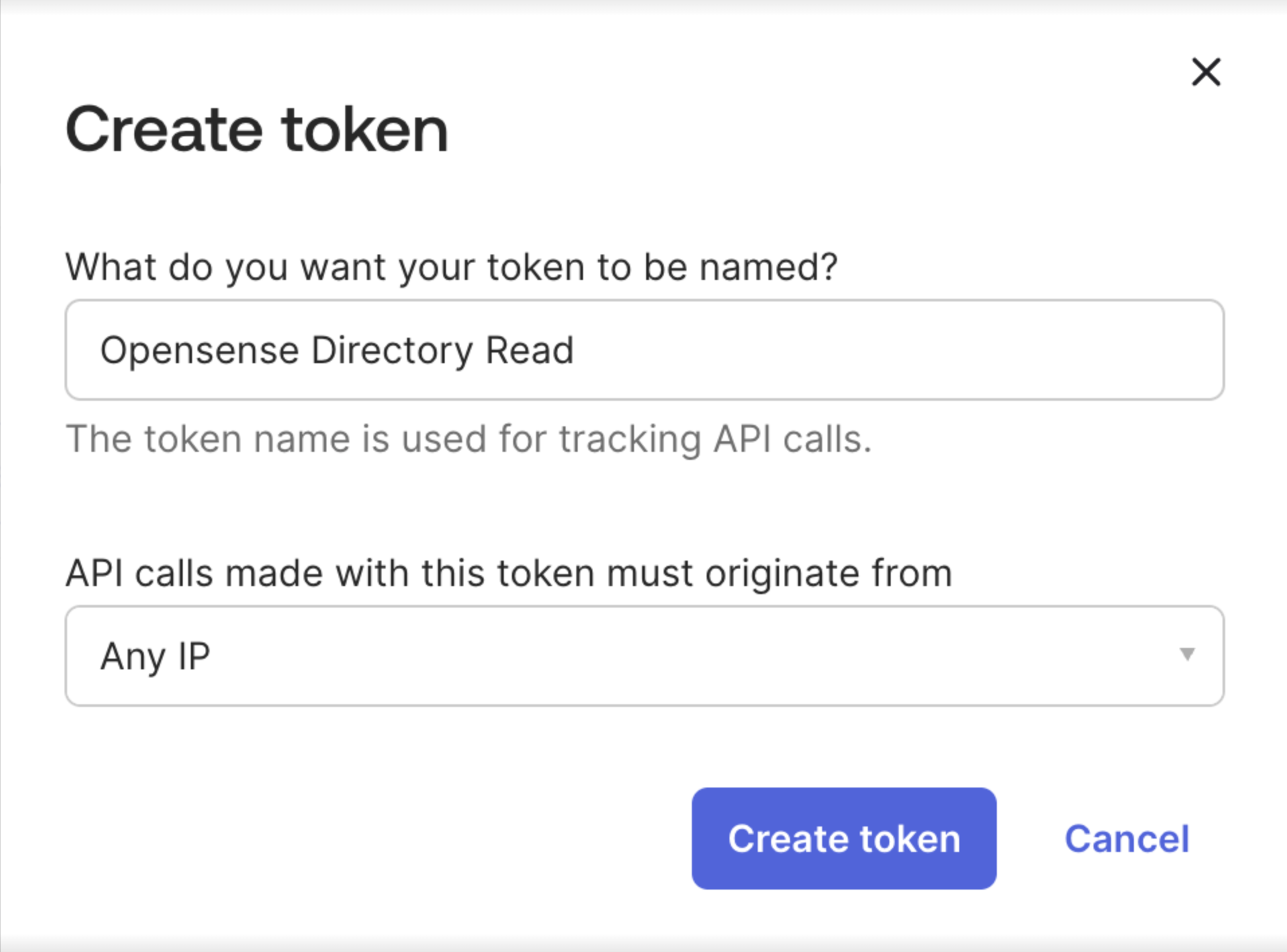
A dialog shows “Token created successfully!”, with your Token Value.
Step 3: Copy and save the token
Section titled “Step 3: Copy and save the token”- Select the copy icon next to the Token Value, to copy it.
- Save the token in a secure location.
- Select OK, got it.
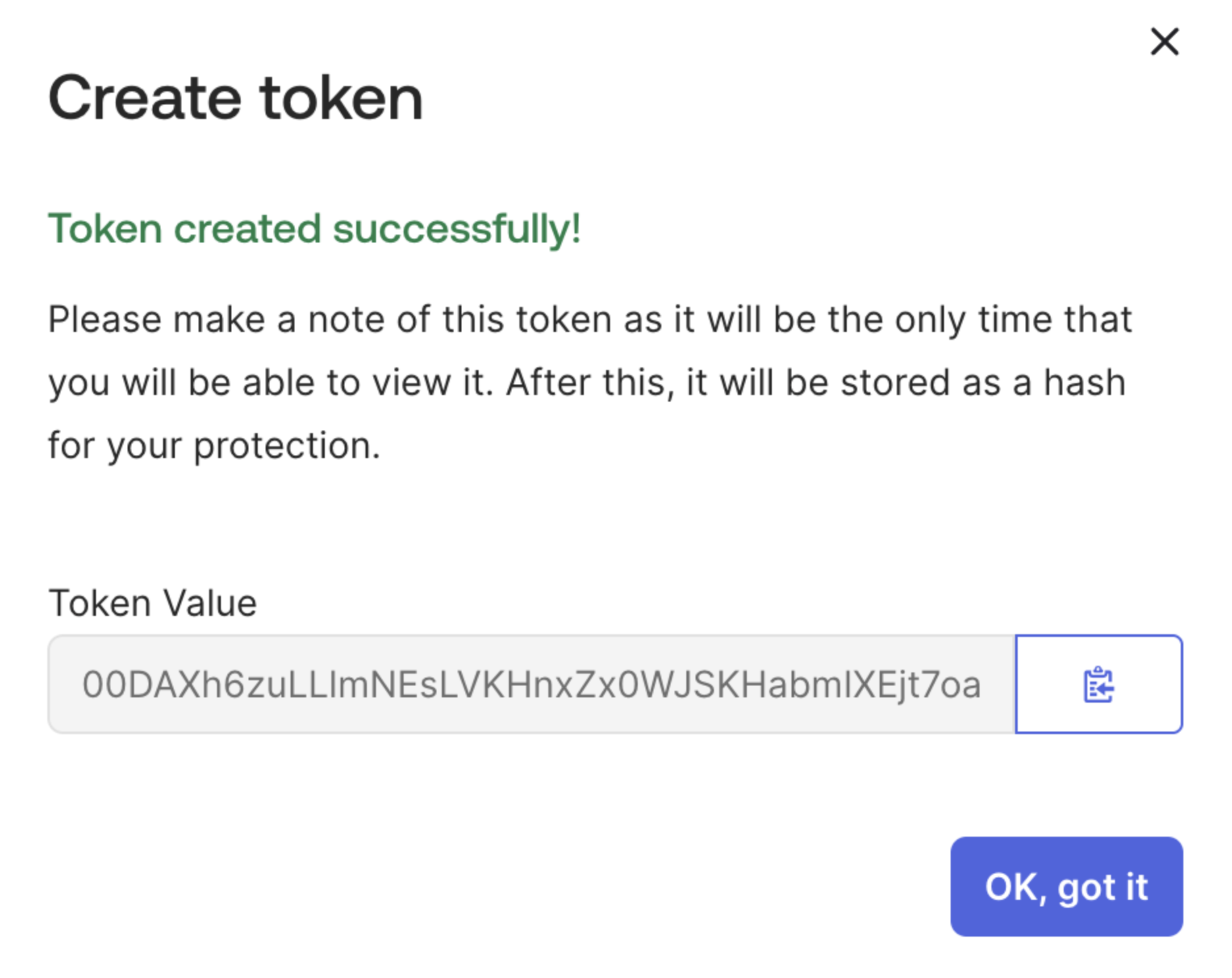
You now have the API token saved securely.
Step 4: Get your Instance URL
Section titled “Step 4: Get your Instance URL”Your Instance URL is your Okta domain. You can find it in your browser’s address bar while you’re signed in to the Admin Console. For example:
https://yourcompany.okta.comhttps://login.yourdomain.com
You now have both the Instance URL and the API token saved.
Step 5: Give the credentials to Opensense
Section titled “Step 5: Give the credentials to Opensense”Share this information securely with your Opensense implementation team:
- Instance URL
- Your Okta domain URL, for example
https://yourcompany.okta.com - API Token
- The token value you copied
Step 6: Check the connection
Section titled “Step 6: Check the connection”Once Opensense configures your credentials, check that the sync works:
- In Opensense, select Manage in the navigation bar.
- Select Users.
- Select Action in the upper-right corner.
- Select Run Sync.
- Confirm that Okta appears as a source, and that the sync completes successfully.
Users and groups from Okta appear in Opensense. After the initial setup, the sync runs automatically once a day.
Troubleshooting
Section titled “Troubleshooting”Invalid token
Cause: the API token was entered incorrectly, or was revoked, or has expired.
- In Okta, go to Security > API > Tokens.
- Check whether your token is in the list, and active.
- If the token is missing or inactive, create a new token, and share it with Opensense.
API tokens are valid for 30 days, and renew automatically each time Opensense syncs. Because syncs run daily, tokens stay active. A token only expires if it isn't used for 30 or more days in a row.
Access denied
Cause: the token was created by an admin without enough permissions.
- Check that a Super Admin created the token.
- If not, have a Super Admin create a new token.
- Share the new token with Opensense.
Sync delays
Cause: the automated sync runs once a day, so new users or groups may not appear right away.
- In Opensense, go to Manage > Users.
- Select Action > Run Sync to start a sync manually.
- If issues continue, contact Opensense Support.
Still having issues?
Section titled “Still having issues?”Contact Opensense Support at help@opensense.com. Include:
- Screenshots of any error messages
- Your Instance URL (don’t show your API token in screenshots)
- The steps you’ve already tried