

Opensense admin introduction (classic UI)
Naming conventions and syntax
Section titled “Naming conventions and syntax”Opensense uses one naming convention across the platform. Follow it for templates, fields, banners, and tags:
Allowed
- Lowercase letters
- Numbers
- Underscores
Not allowed
- Uppercase letters
- Special characters
- Spaces
To copy names into a signature, use this syntax:
- Banner names
[[ad:bannername]]- Tag names
[[adtags:tagname]]
Designer Studio: creating and editing signature designs
Section titled “Designer Studio: creating and editing signature designs”Accessing Designer Studio
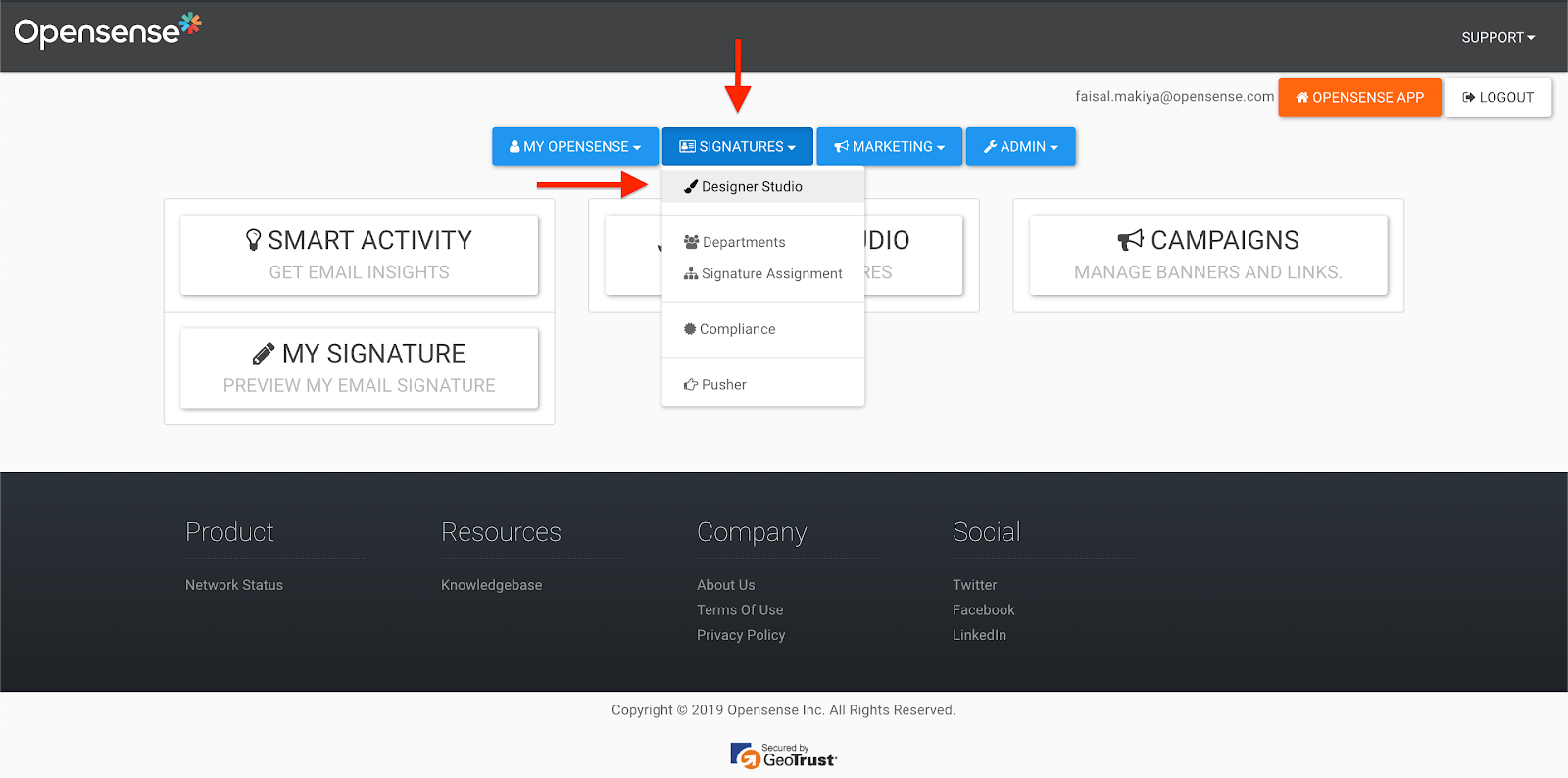
Section titled “Accessing Designer Studio”Open the Signatures menu, and select Designer Studio.
Creating and editing a signature template
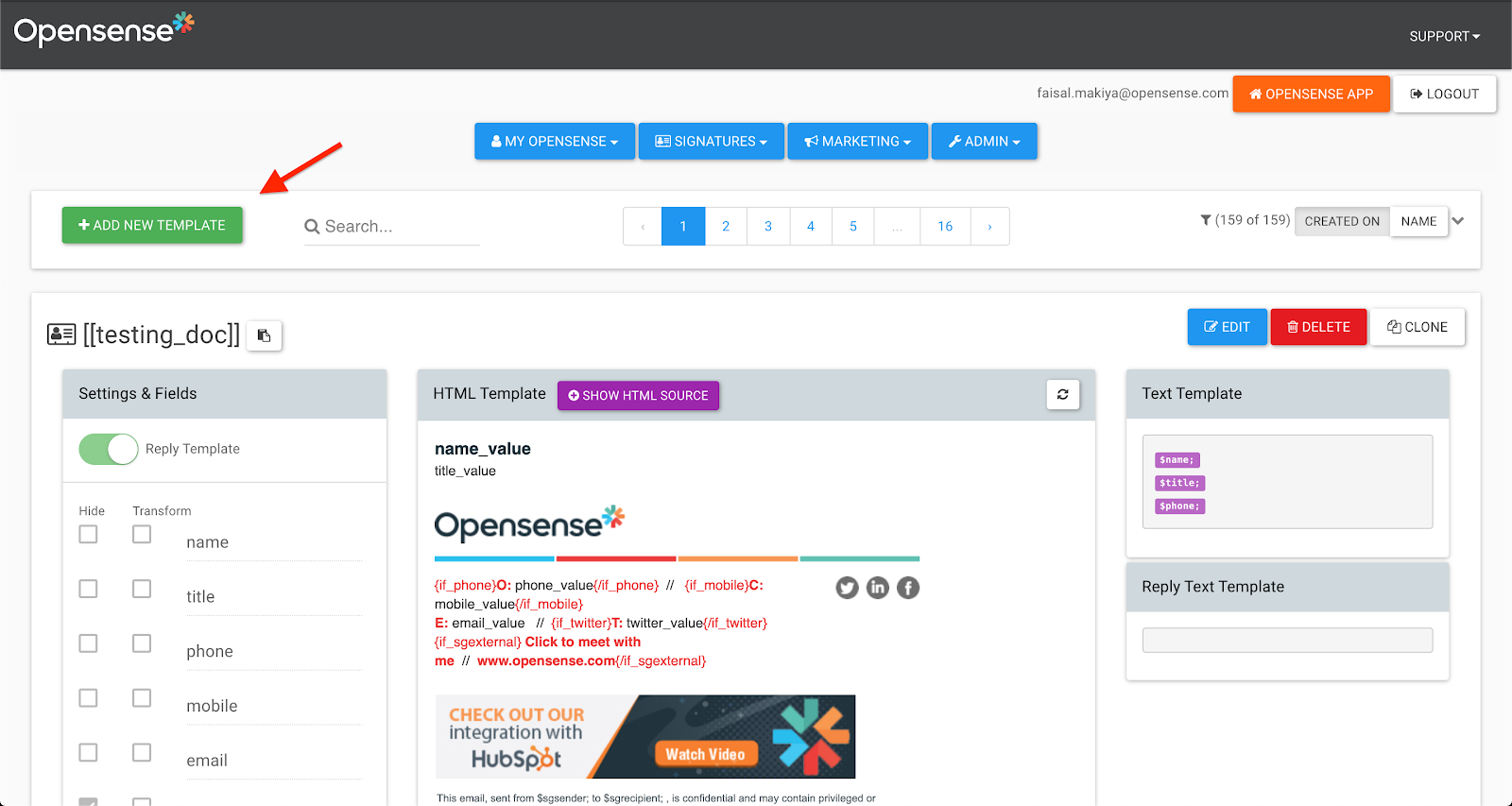
Section titled “Creating and editing a signature template”- Select the green Add New Template button.
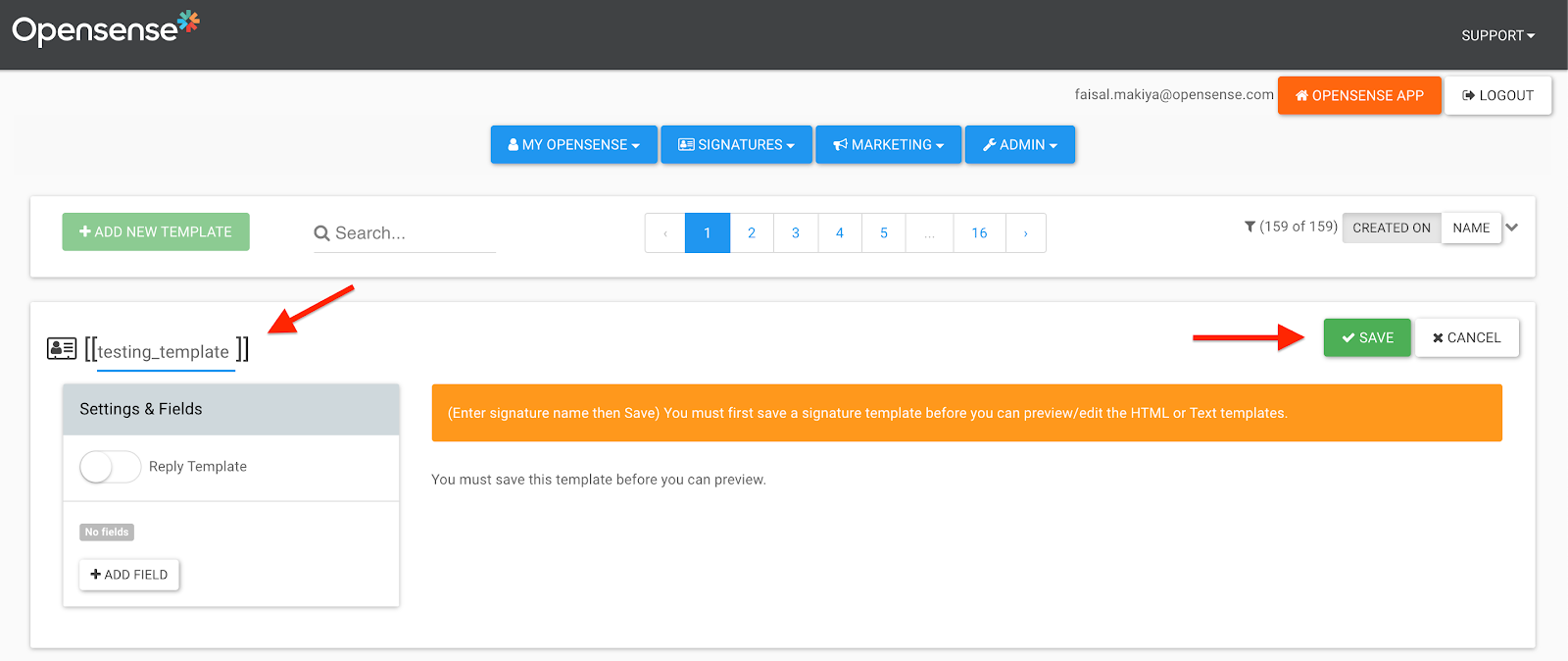
- Name your template (see Naming conventions and syntax), and select Save.
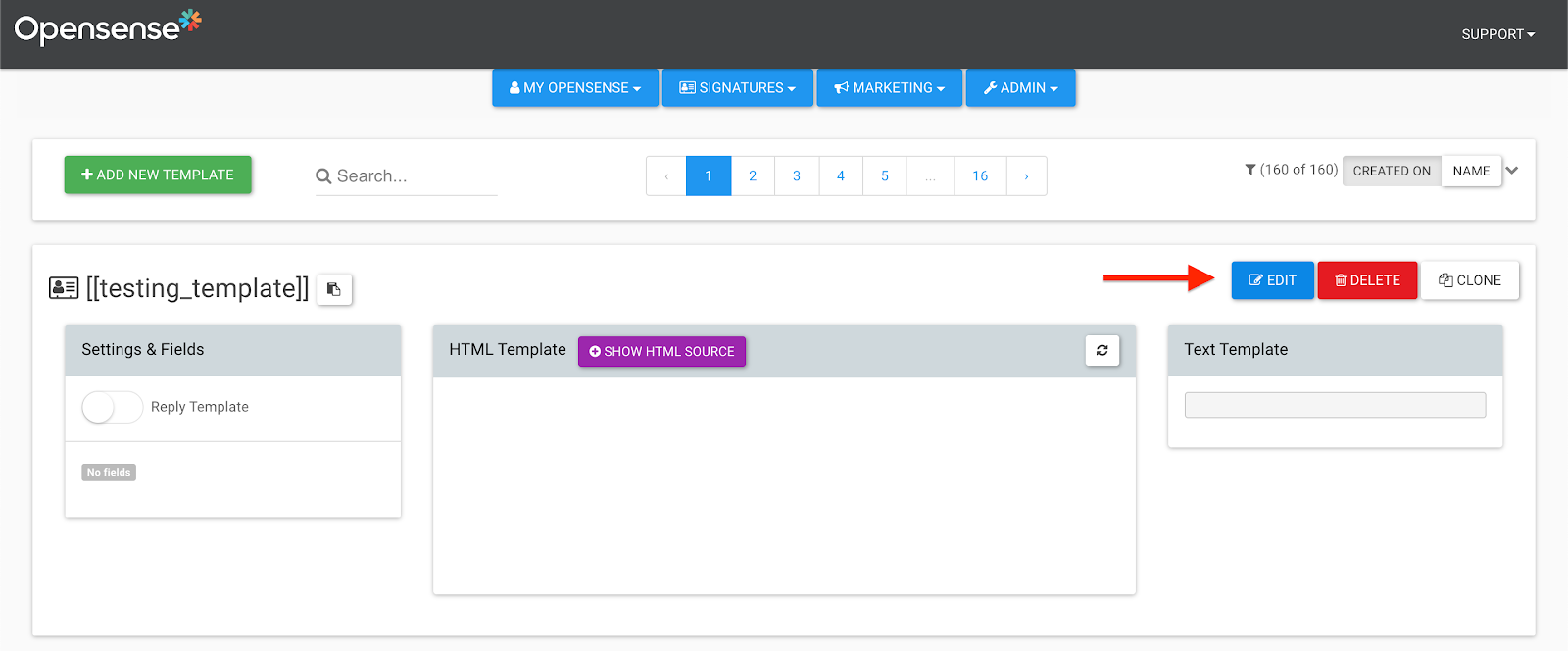
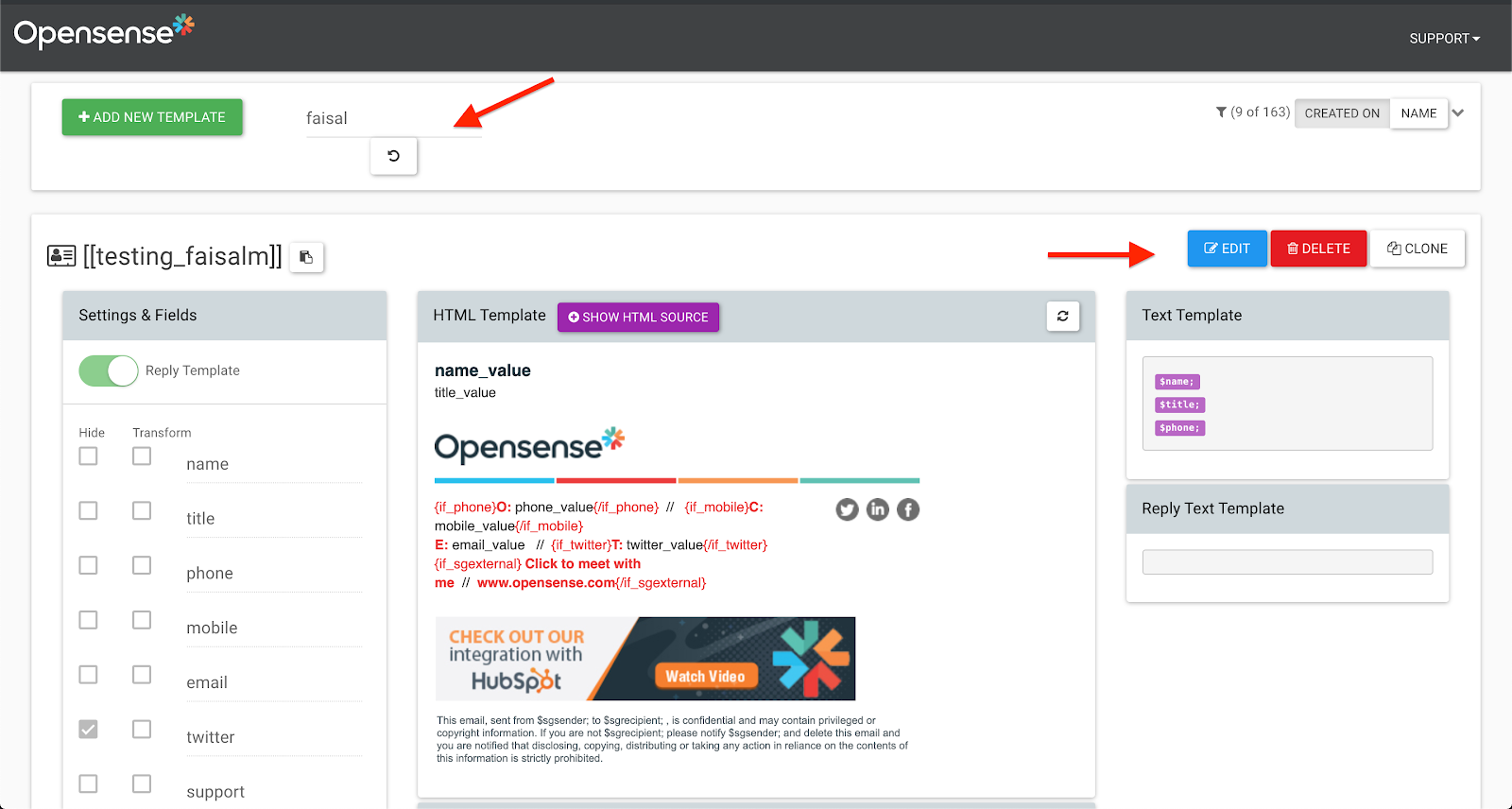
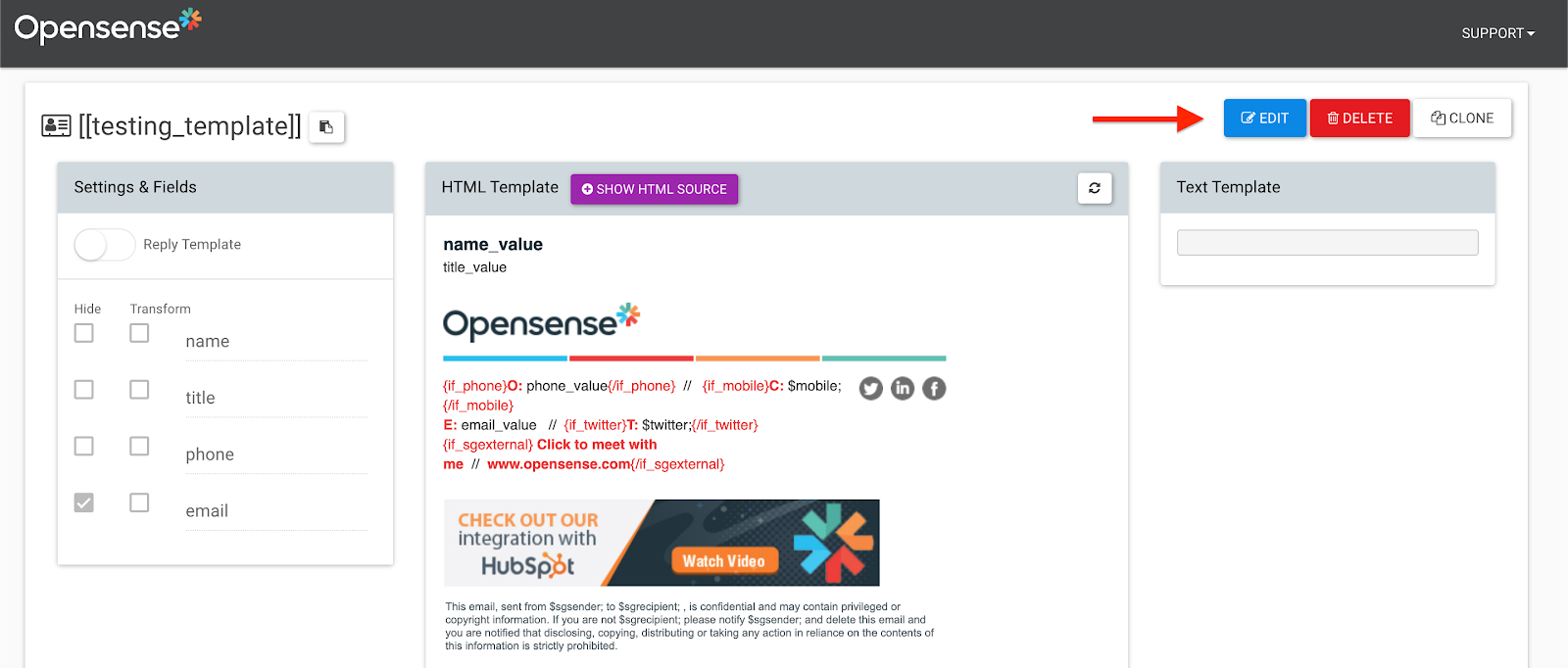
- To edit your signature template, select Edit.
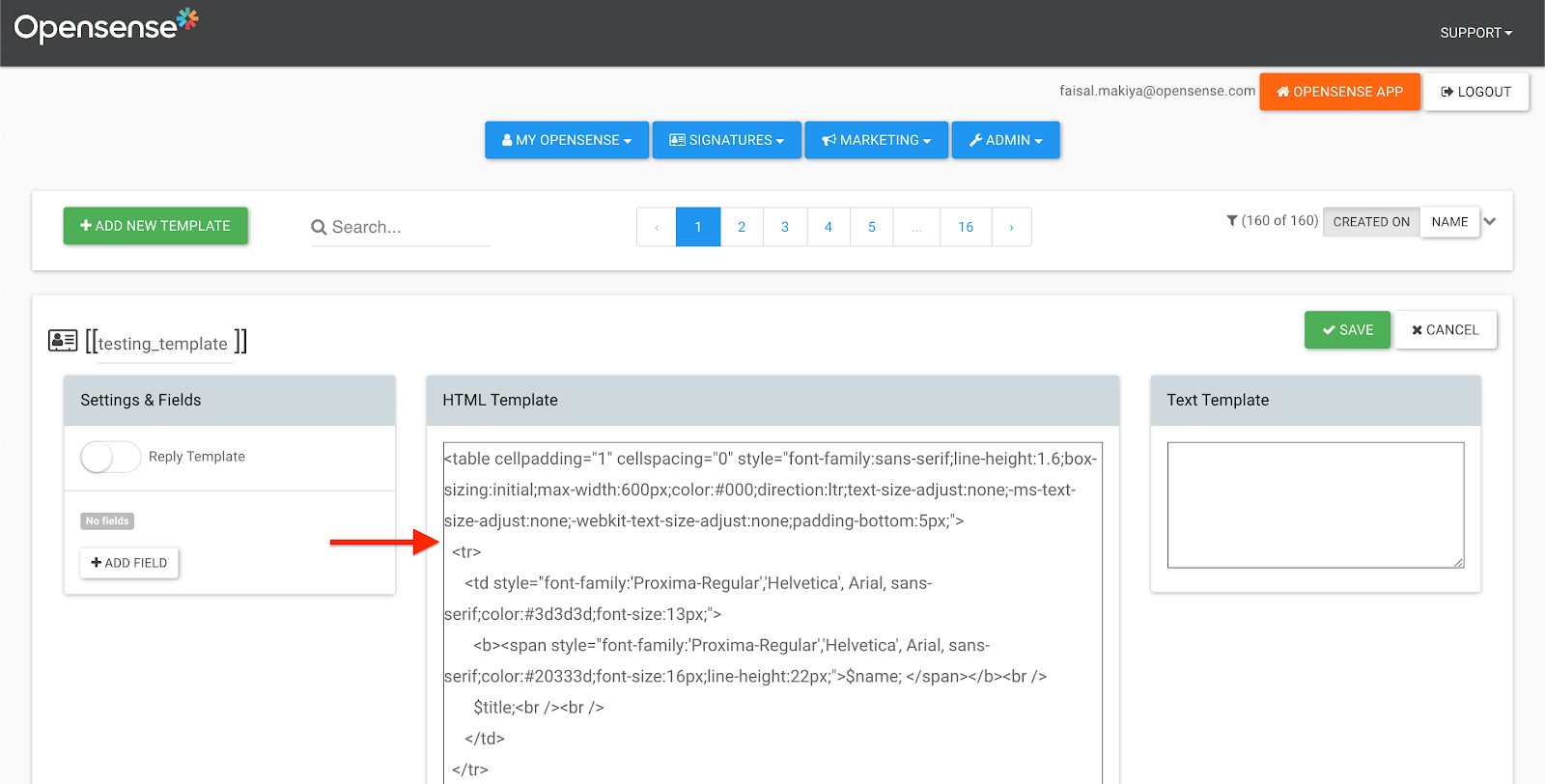
- Add or edit your HTML in the HTML Template box.
Replacing an image
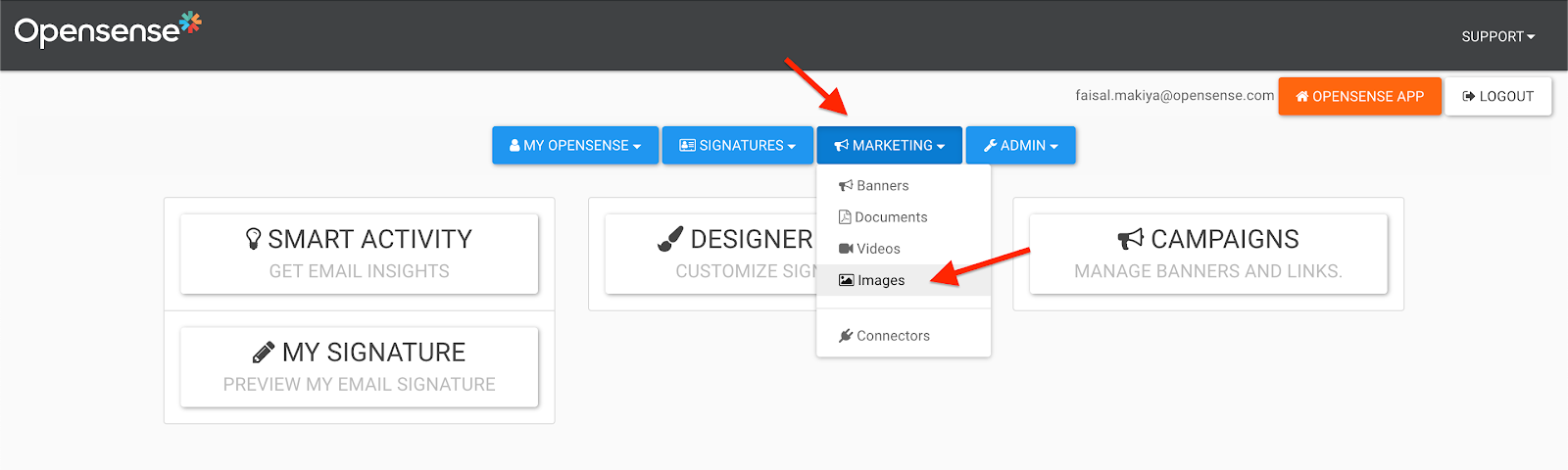
Section titled “Replacing an image”- Open the Marketing menu, and select Images.
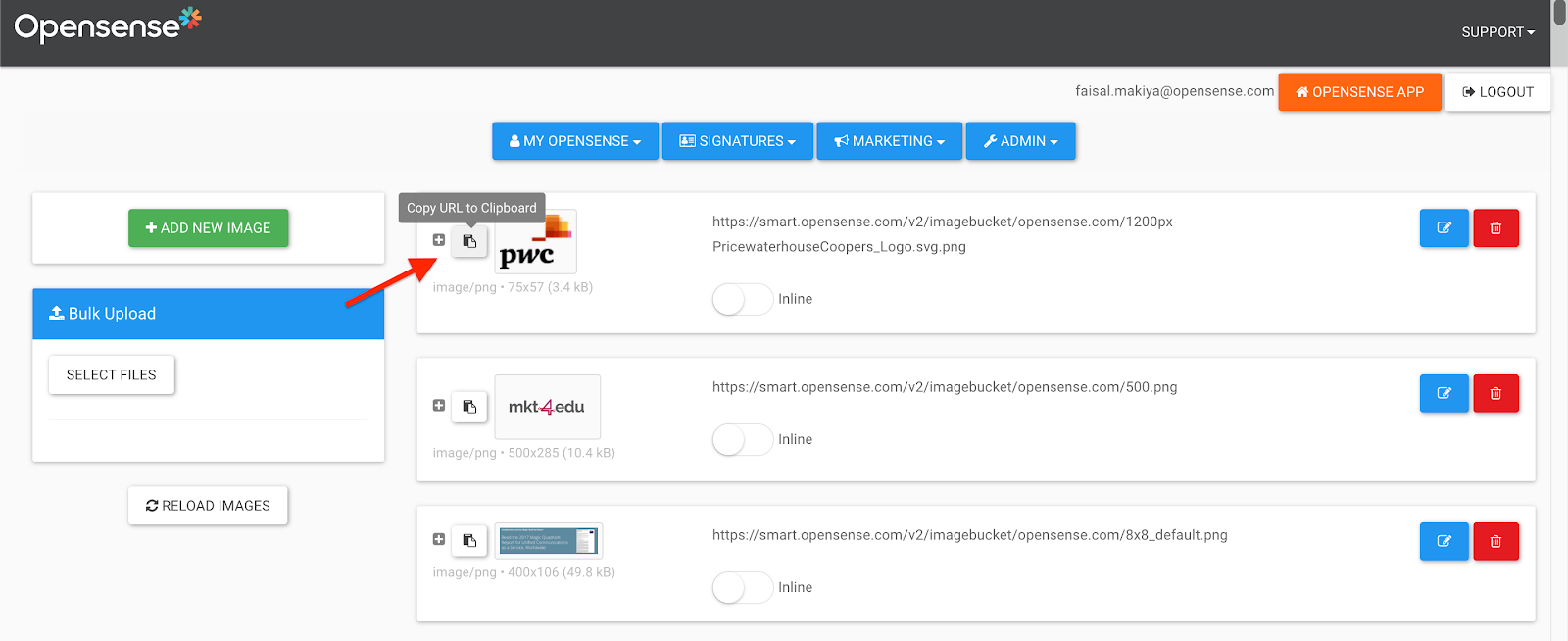
- Find the image you want to use, and select its copy button
 (Copy URL to Clipboard) to copy its URL.
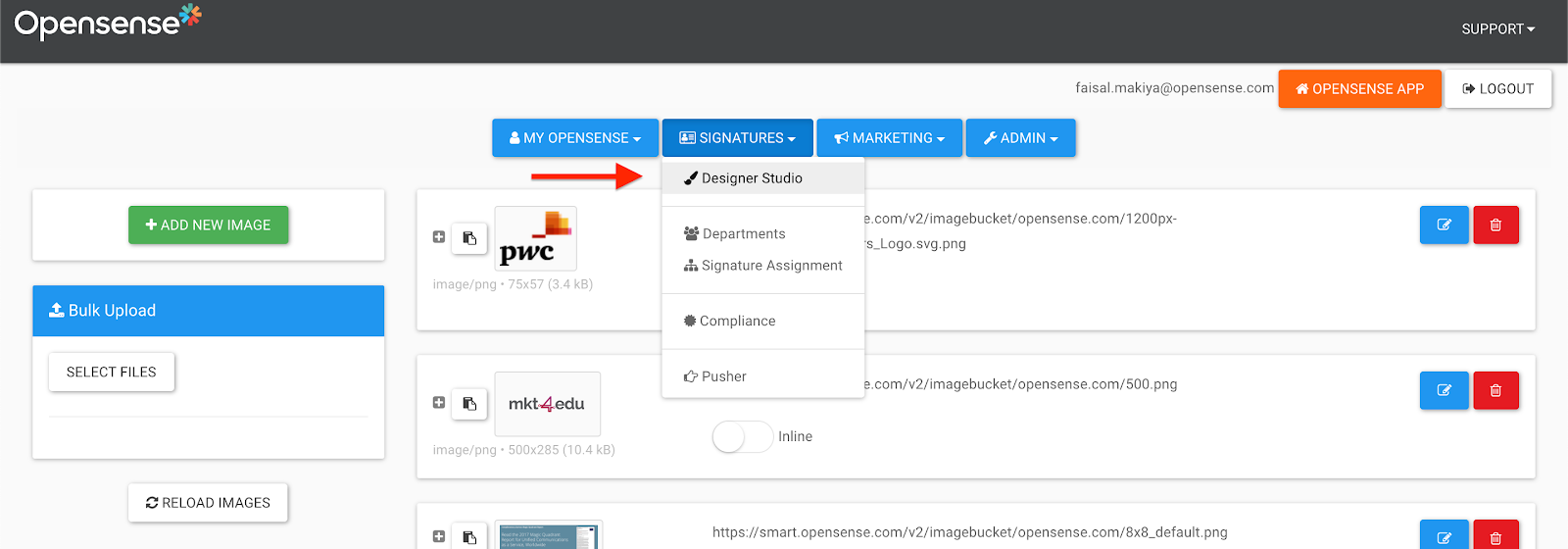
 - Open the Signatures menu, and select Designer Studio.
- In Designer Studio, search for your signature template, and select Edit.
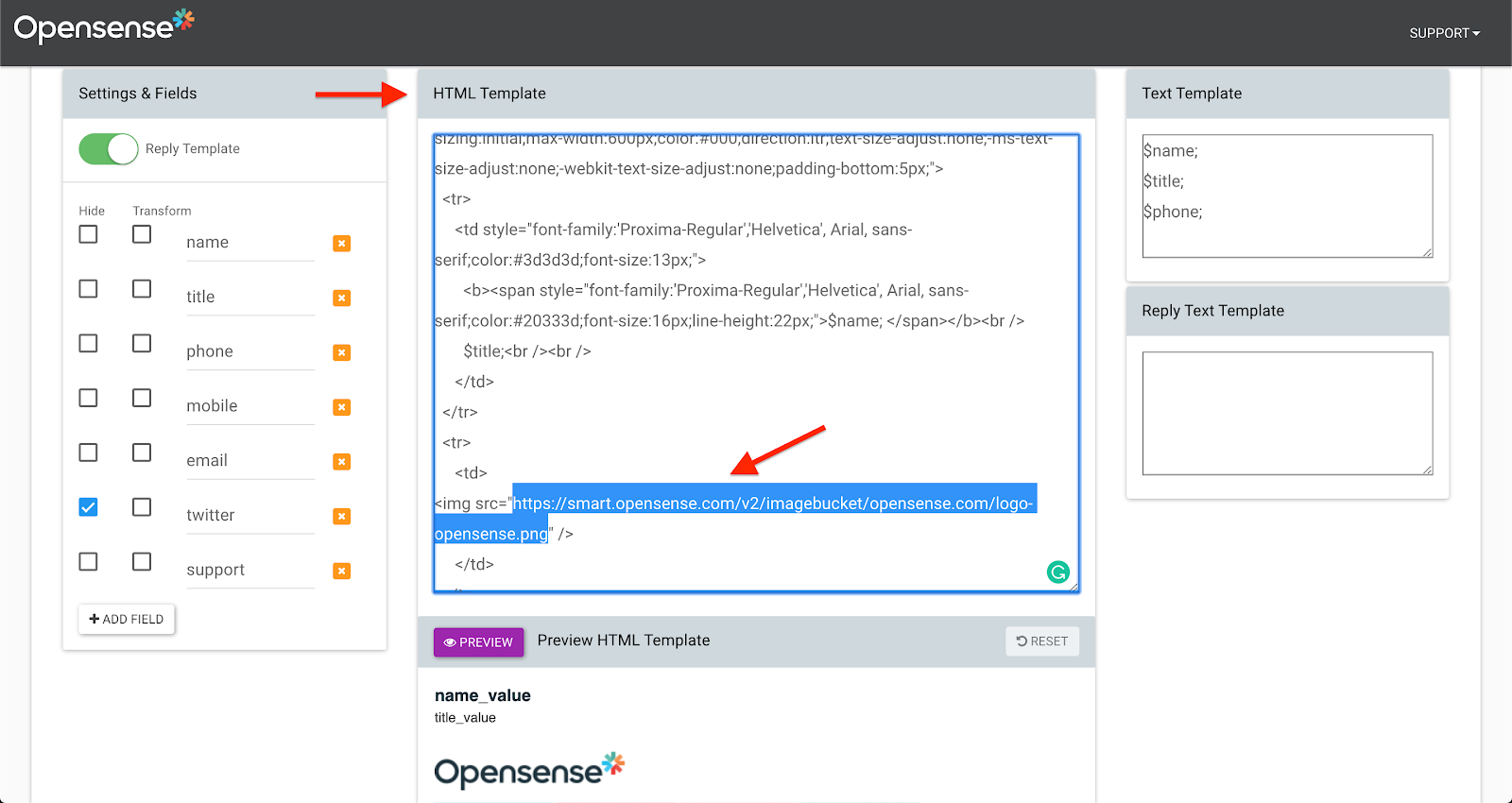
- In the HTML Template box, find the URL of the image you want to replace.
- Highlight the URL of the image you want to change. Highlight only the text between the quotation marks.
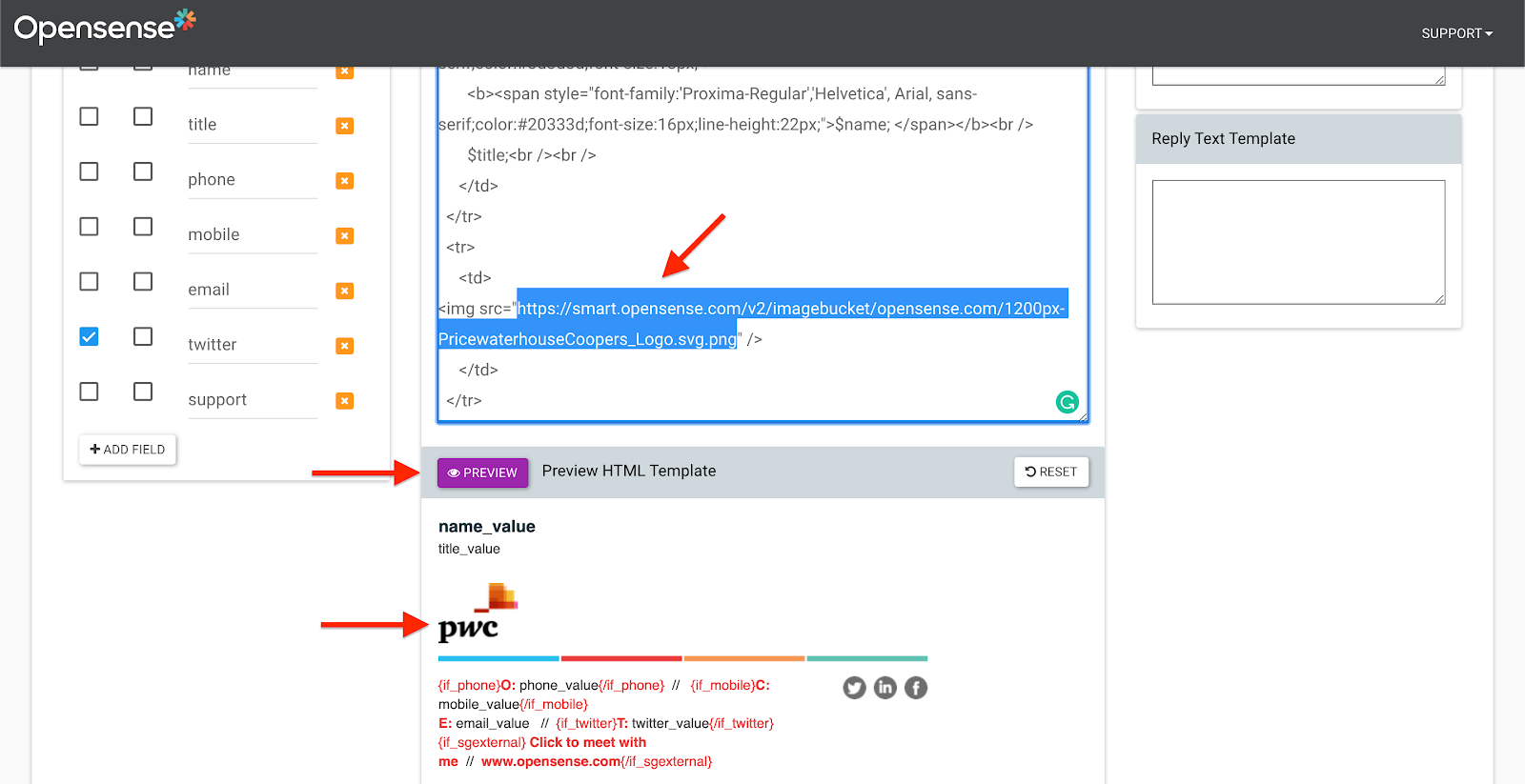
- Paste the URL you copied in step 2 over the highlighted URL.
- Select the purple Preview button.
- When you’re happy with the result, select the green Save button.
Replacing a link
Section titled “Replacing a link”-
In a signature’s HTML editor, find the link after the
hrefattribute.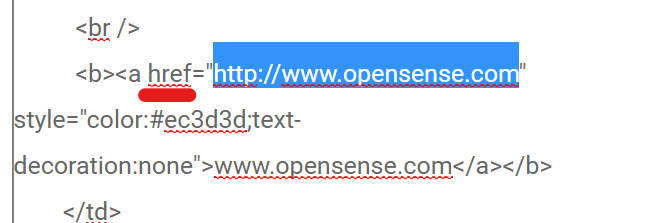
-
Highlight the link you want to replace, and type or paste the URL you want recipients to visit when they select it.
-
When you’re done, select the green Save button.
Adding fields
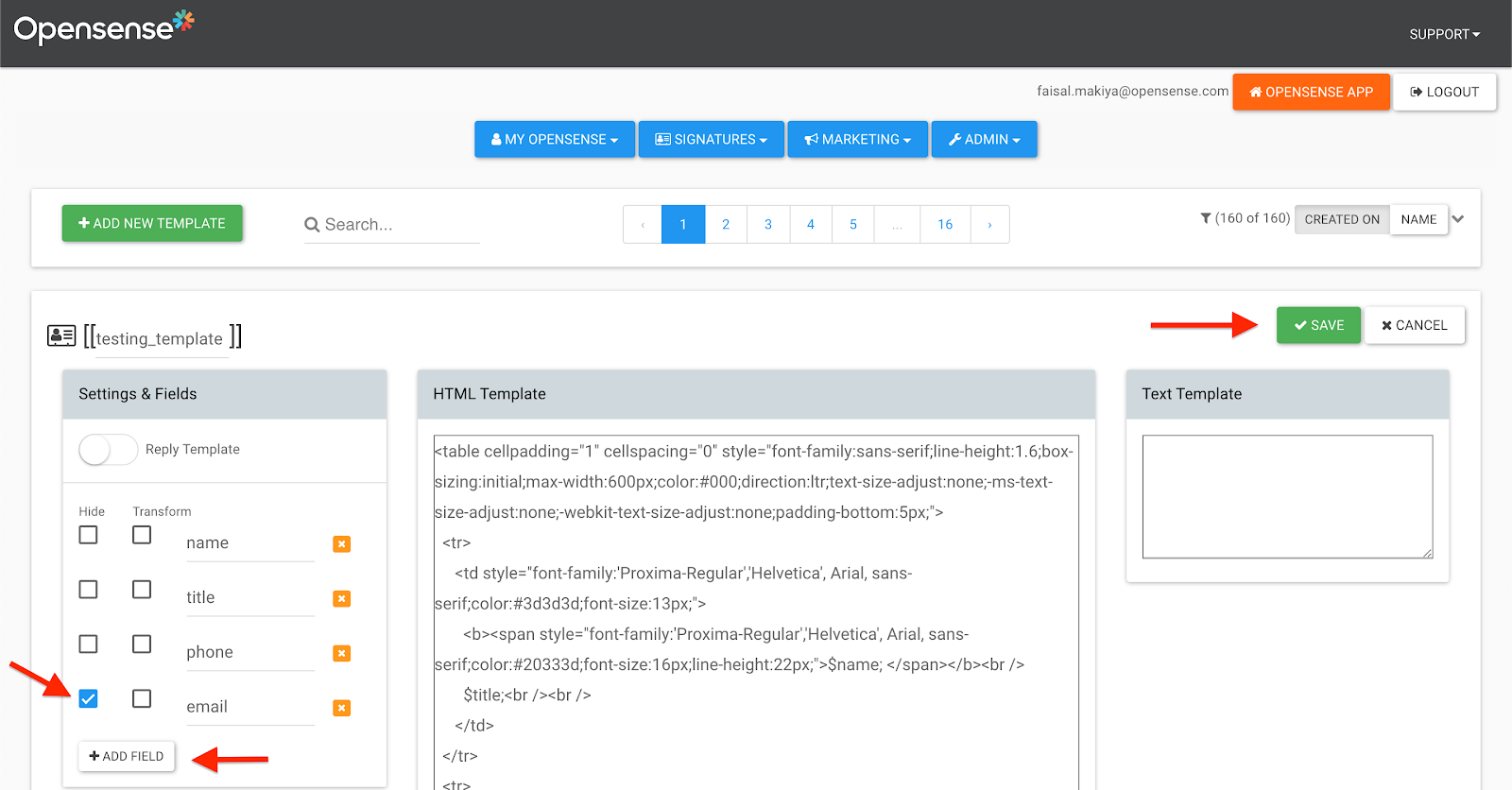
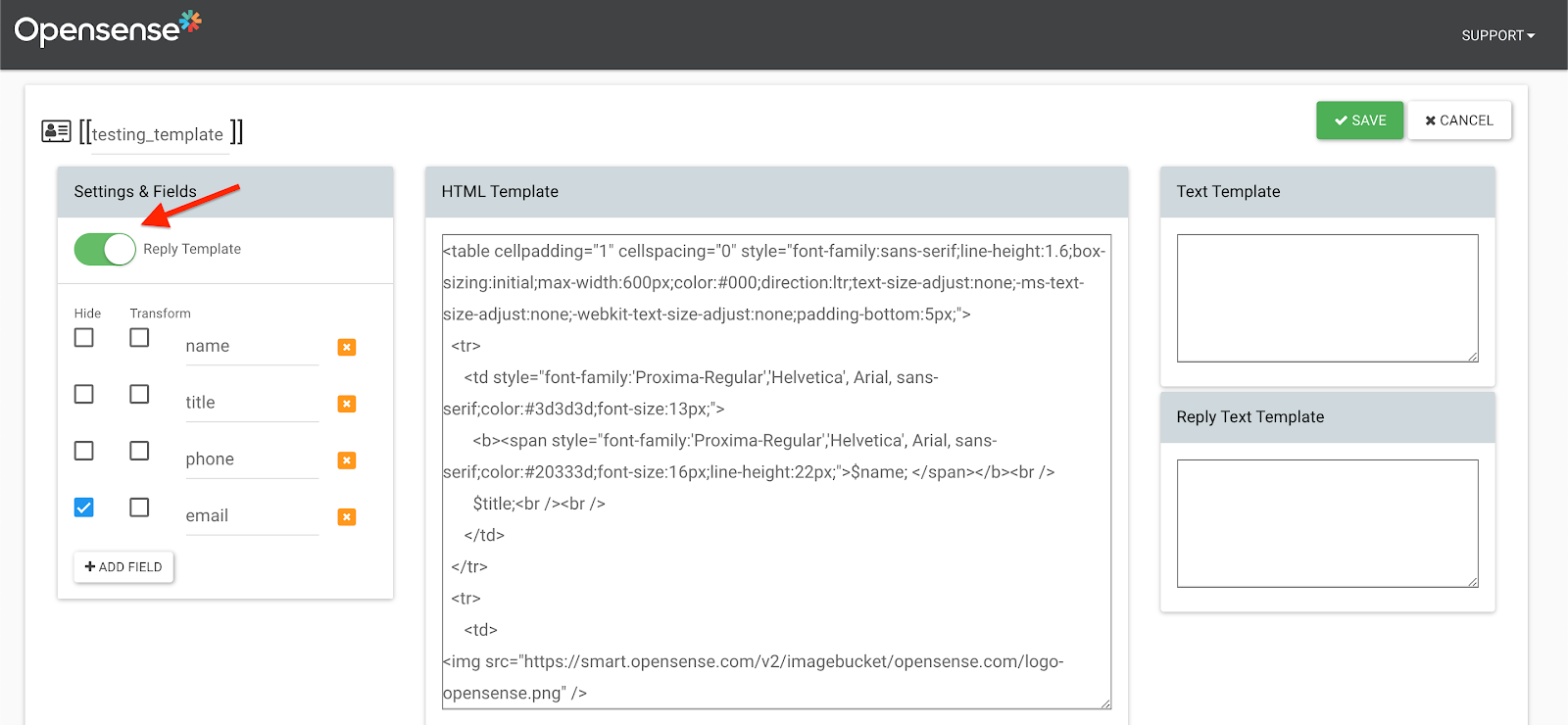
Section titled “Adding fields”Select + Add Field, and type your field names. To hide a field in your plain-text signature block, select its Hide box. When you’re done, select Save.
Name your fields with the naming conventions. You also need to add these custom fields to your HTML templates (for example, $title;).
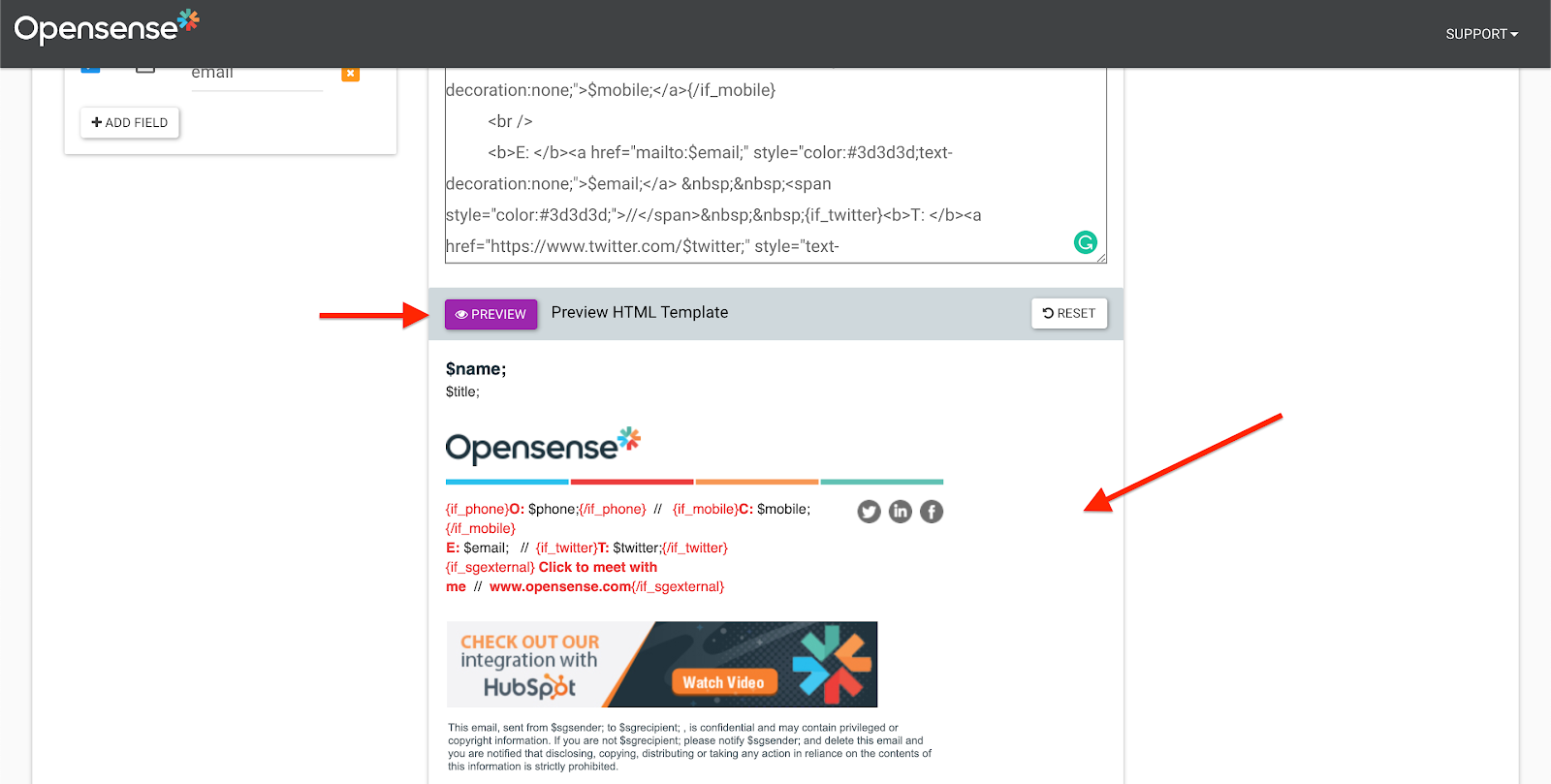
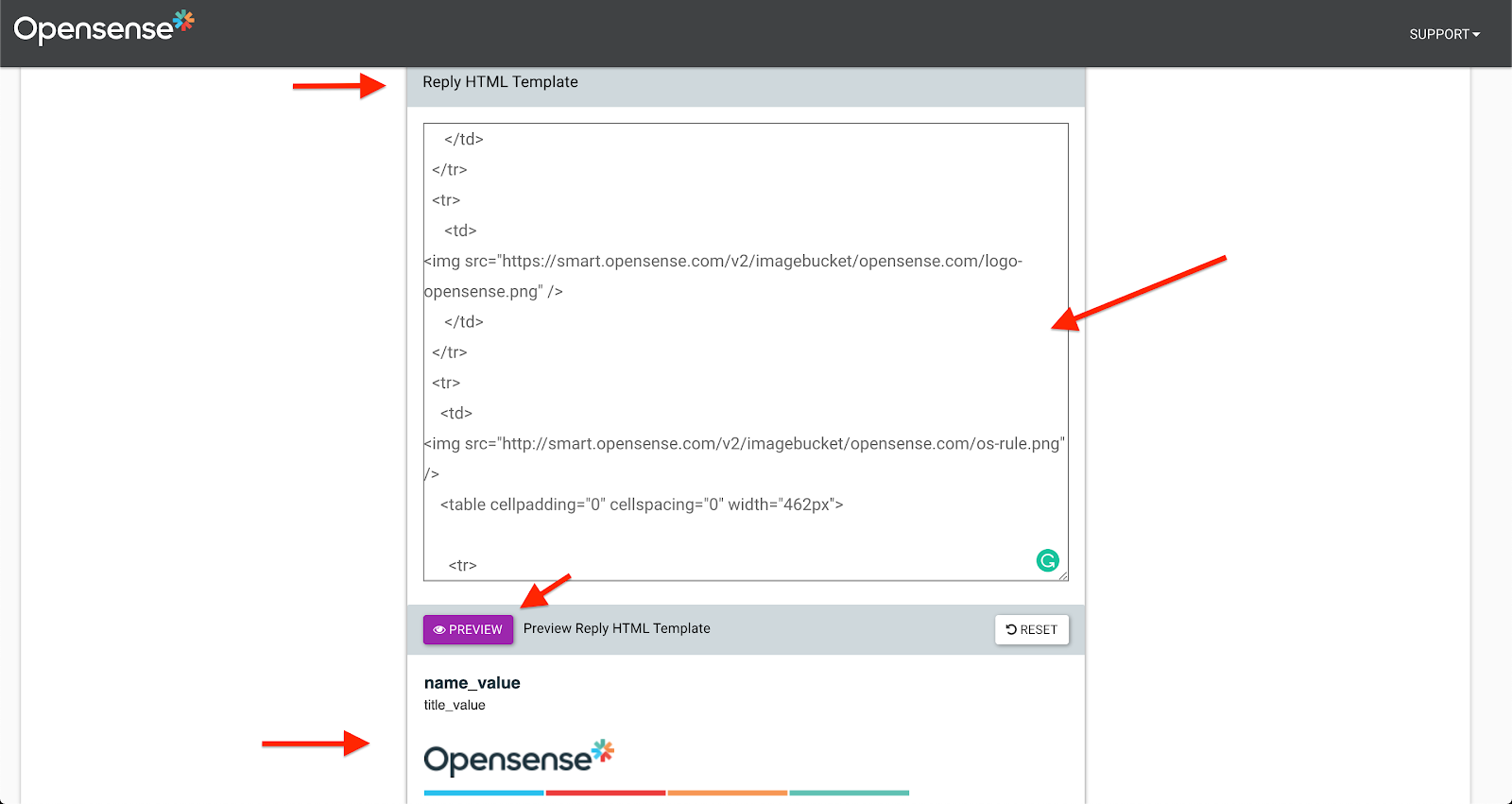
To preview any edits before you save, select the purple Preview button.
Cloning a signature template
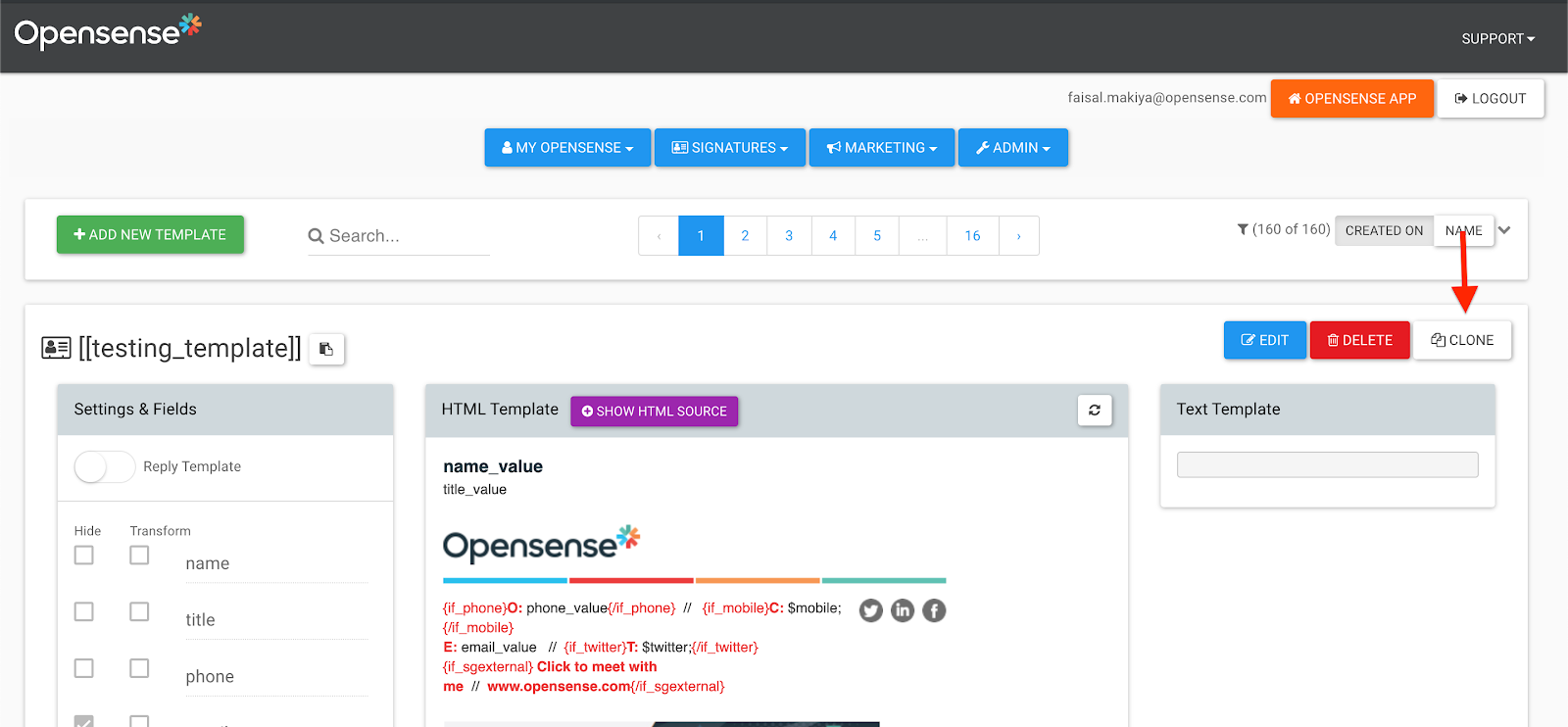
Section titled “Cloning a signature template”- Select Clone.
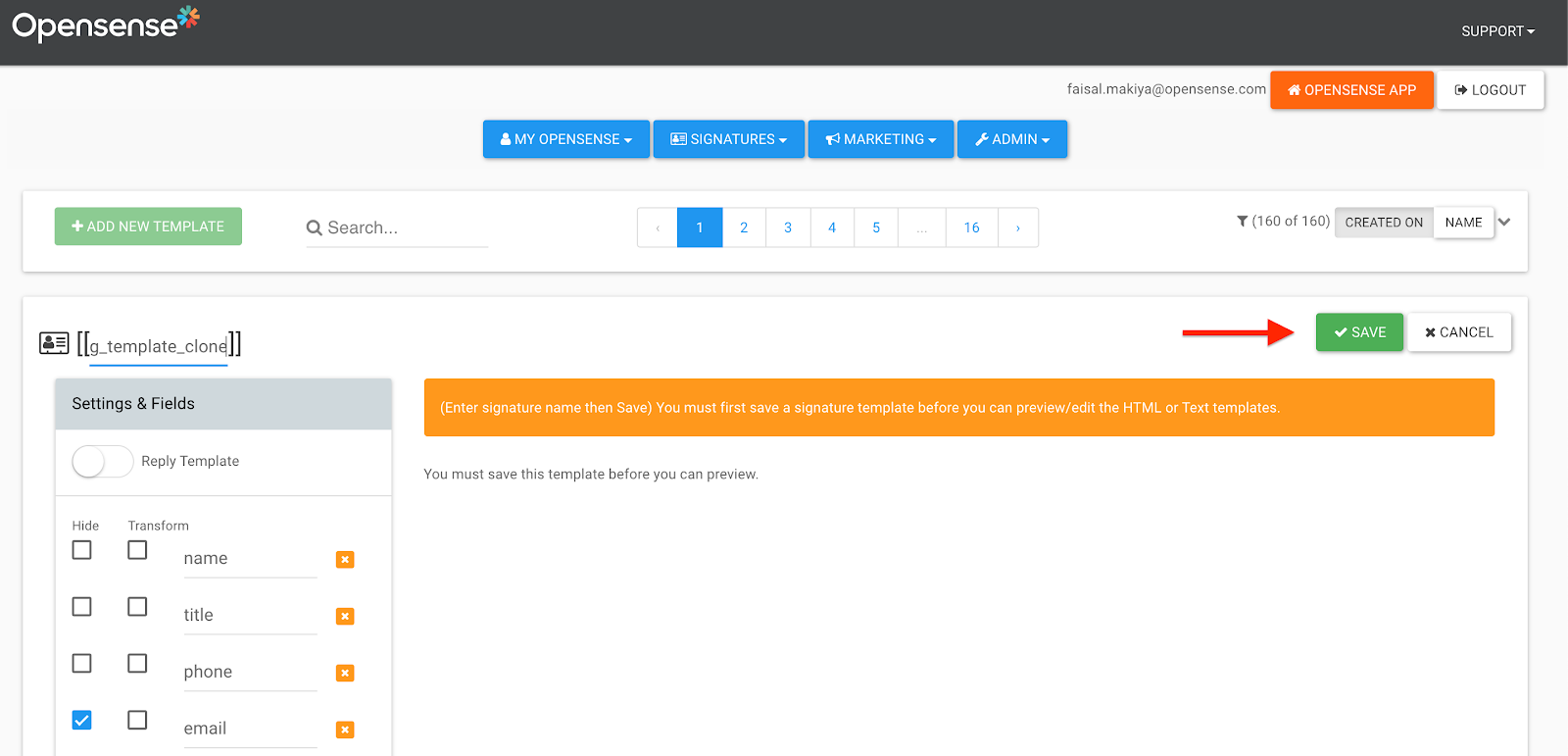
- Name the clone (see the naming conventions), and select Save.
Creating or editing a reply template
Section titled “Creating or editing a reply template”- Select Edit on the signature you want to add a reply template to.
- Turn on the Reply Template toggle, so it shows green.
- Scroll down to the Reply HTML Template box, and add your HTML to create your reply template. To preview it, select the purple Preview button.
- When you’re done, select Save.
Adding a plain-text signature
Section titled “Adding a plain-text signature”The plain-text template is used if an email recipient doesn’t allow HTML (uncommon).
-
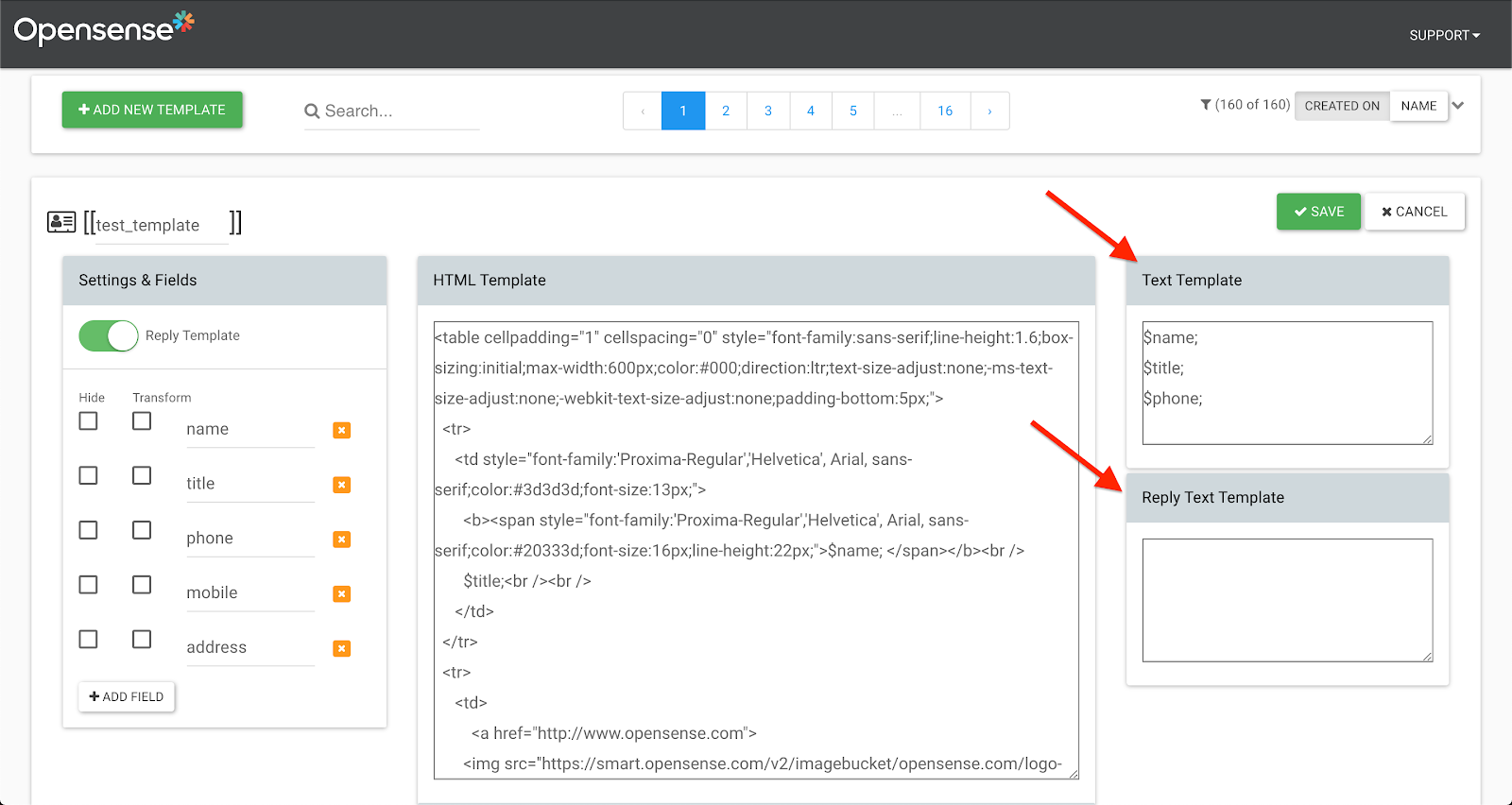
In Designer Studio, go to your signature template, and select the blue Edit button.
-
In the Text Template and Reply Text Template boxes, type the fields you want in your plain-text signature template (see the naming conventions).
-
When you’re done, select the green Save button.
Departments: managing groups of users
Section titled “Departments: managing groups of users”
Creating a department
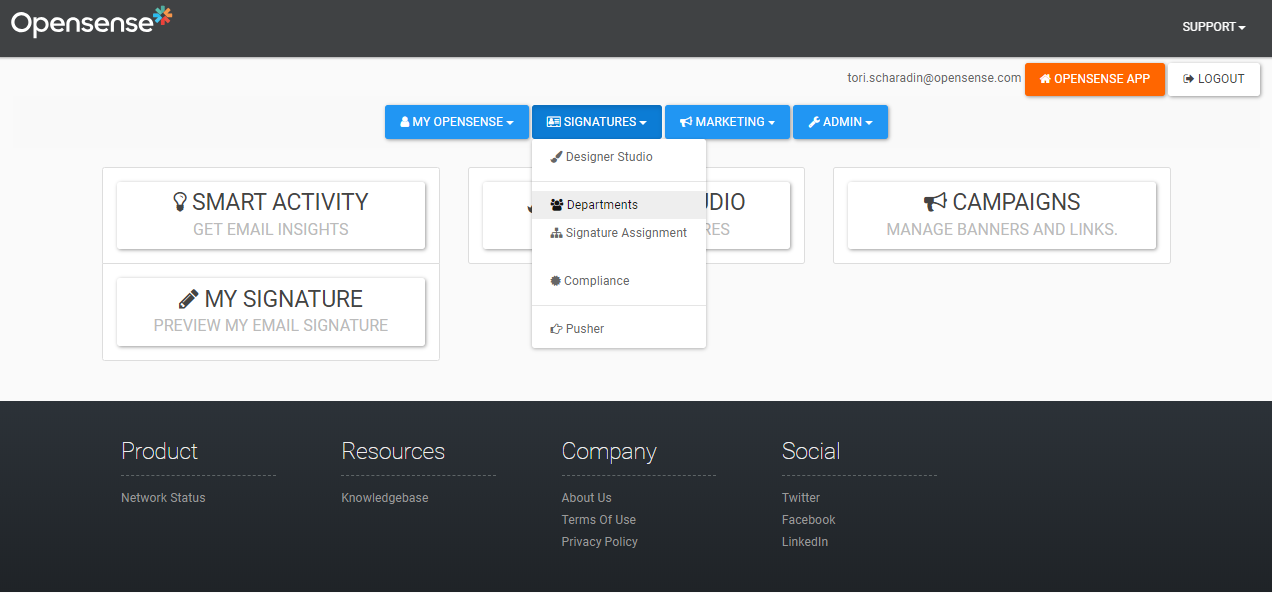
Section titled “Creating a department”- After you sign in to Opensense, open the Signatures menu, and select Departments.
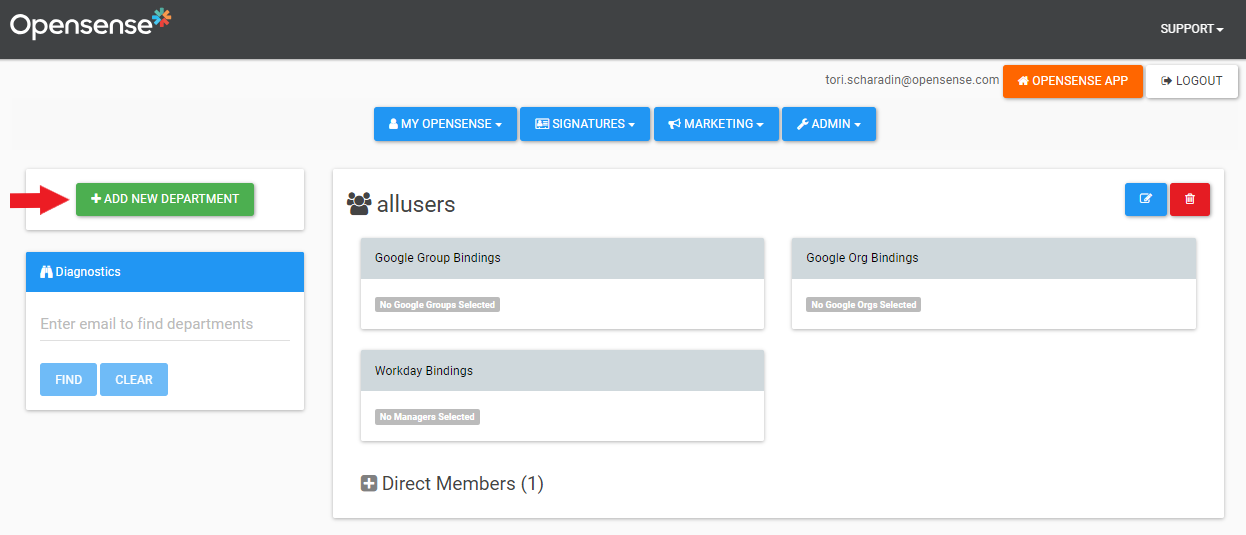
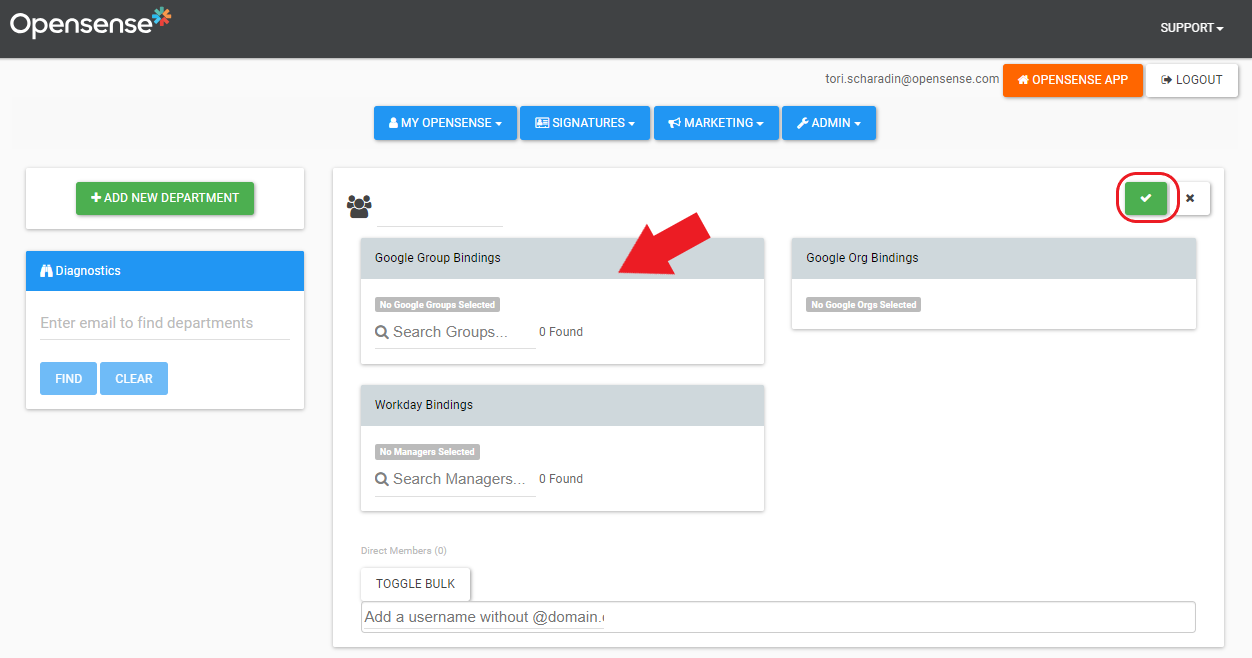
- Select the green Add New Department button.
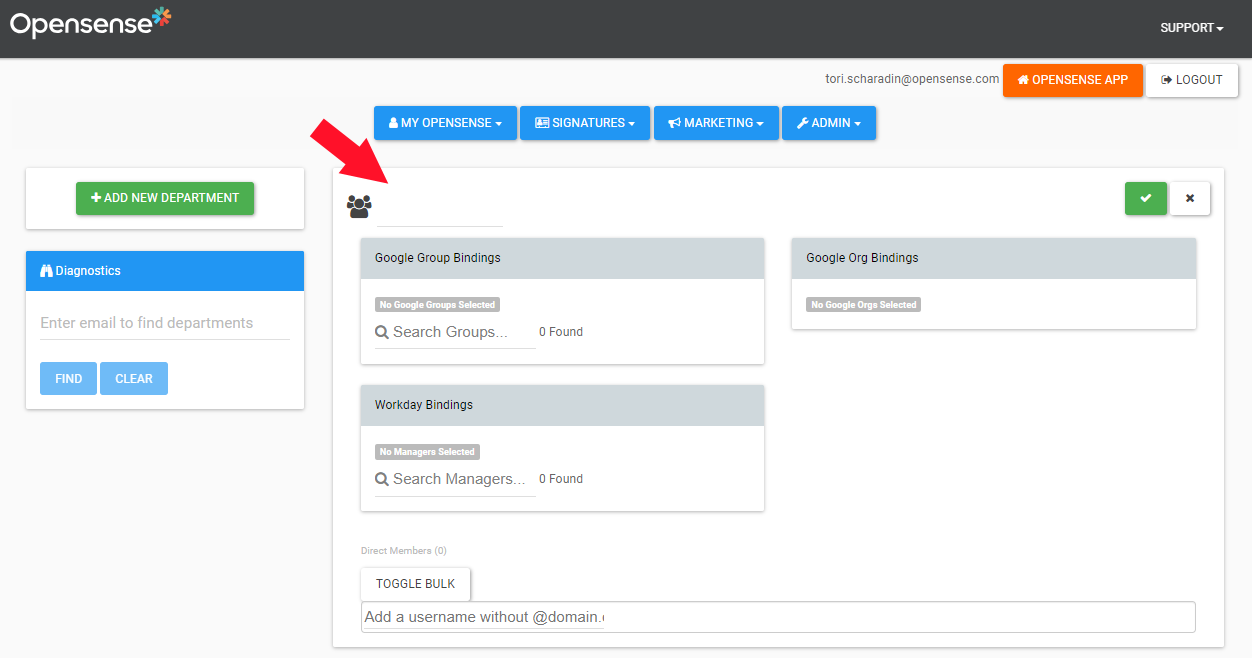
- Next to the icon with three people
 , name the department.
 - Select the green check button in the upper-right corner of the screen.
Adding users to departments
Section titled “Adding users to departments”- One user at a time
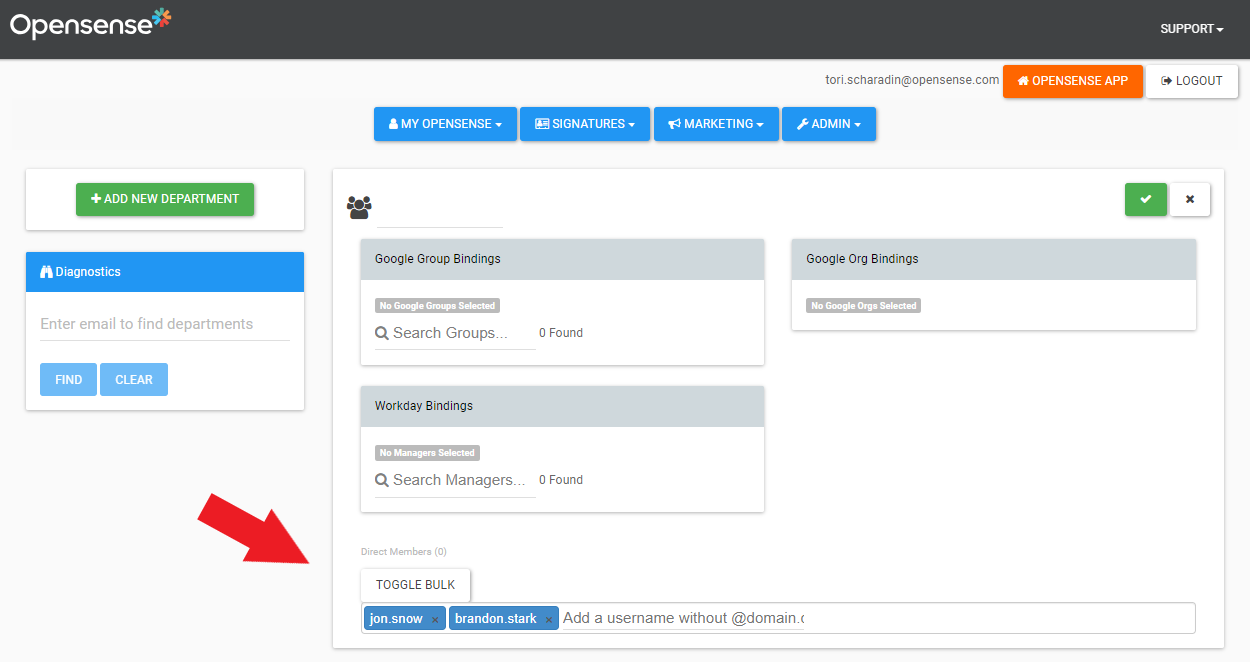
- In the Add a username without @domain.com box, type the user's email address without the
@domain.com. Tip: press Tab after each username. - In bulk
- Select the Toggle Bulk button, and paste users, for example from a CSV column.
Binding a department to your directory
Section titled “Binding a department to your directory”If a department is bound to a directory group, any changes to the directory group are reflected in Opensense automatically, once they sync.
- On the Departments page (Signatures > Departments), select Add New Department, and name the department.
- Depending on the binding, find your existing directory group, and choose it.
- Select the green button in the upper right to save.
For more about syncing, see Running a directory sync manually.
Signature assignment: assigning a signature to a department
Section titled “Signature assignment: assigning a signature to a department”
Creating a signature route
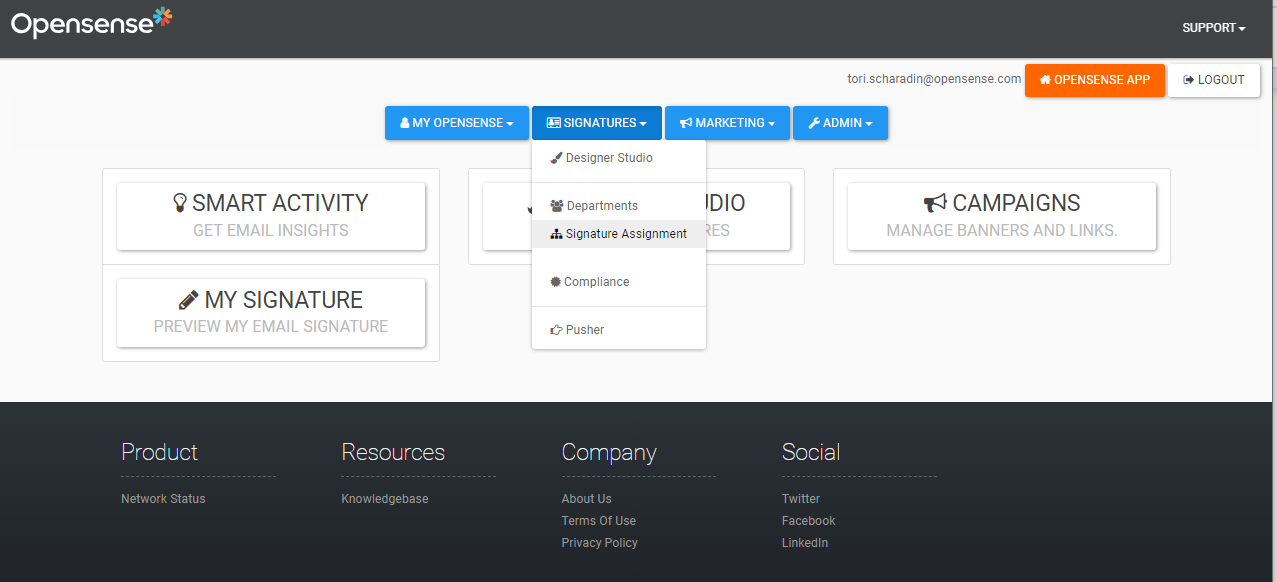
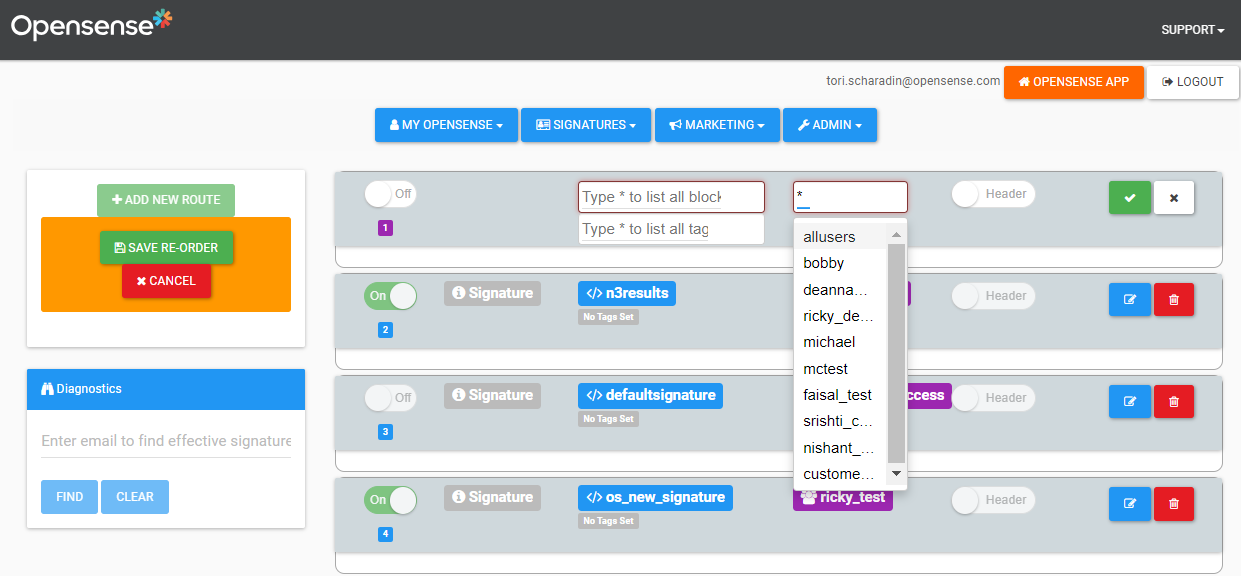
Section titled “Creating a signature route”- After you sign in to Opensense, open the Signatures menu, and select Signature Assignment.
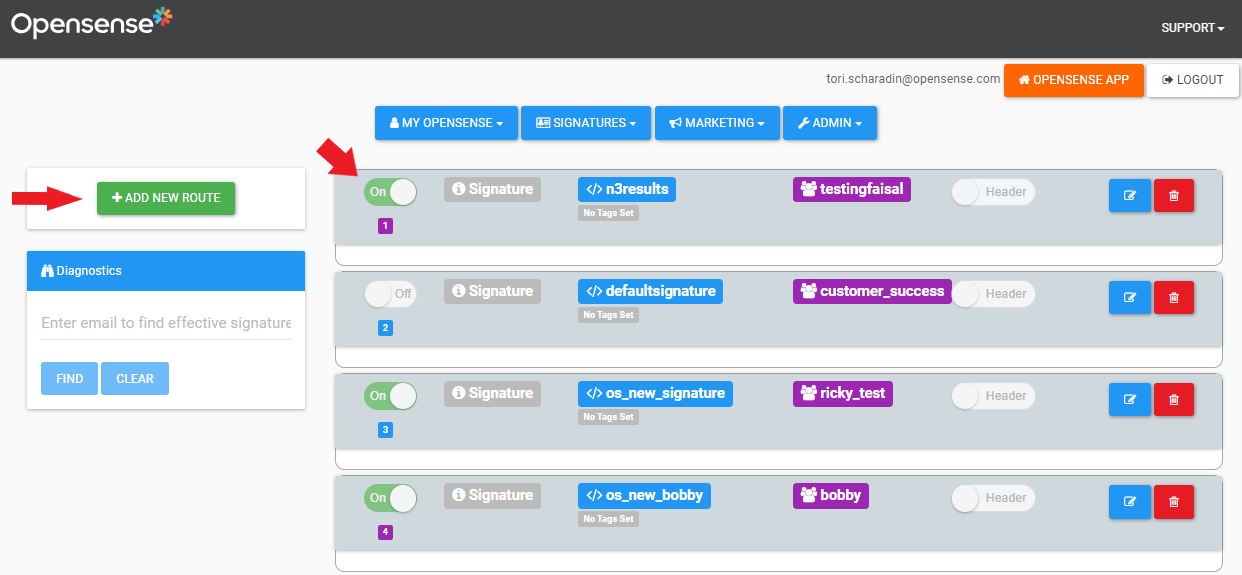
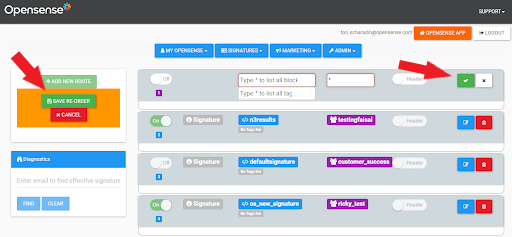
- Select Add New Route, and turn the slider On.
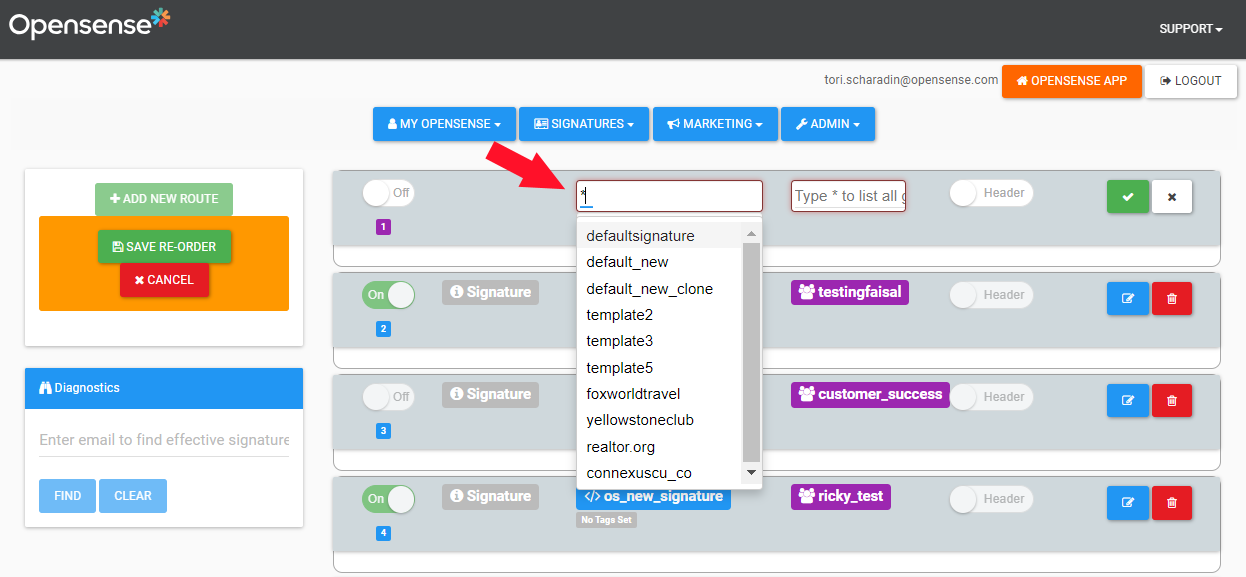
- In the left box (for signature blocks and templates), type the signature template you want to use. Or type
*to see all your templates, and select one. - In the right box (for groups and departments), type the group or department to assign the signature template to. Or type
*to see all the departments, and select one. - When you’ve chosen your signature template and group or department, select the green check button
 .
.
Activating a signature route
Section titled “Activating a signature route”-
Select the blue pencil button
 .
. -
Switch the toggle from Off to On.
-
Select the green check button
 .
. -
Every department assigned to the route now gets the selected signature. If a department is assigned to multiple routes, only the highest-priority route is active.

The priority number under the toggle switches shows each route’s priority. Drag and drop the signature routes to change their priority. Users who are in more than one department get the highest-priority signature template.
Portal access: elevating and toggling permissions
Section titled “Portal access: elevating and toggling permissions”
Granting admin access in Opensense
Section titled “Granting admin access in Opensense”-
Sign in at www.opensense.com.
-
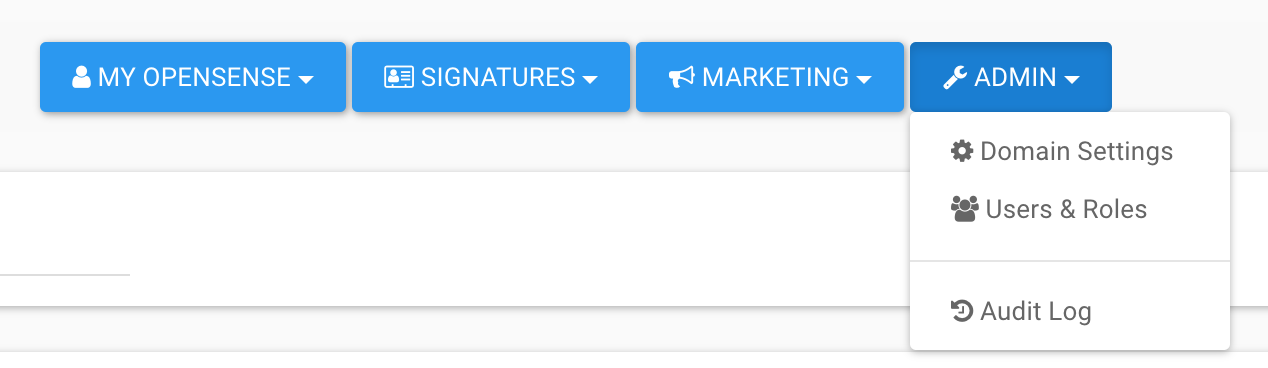
Open the Admin menu, and select Users & Roles.
-
Select the blue pencil button
 to edit the user.
-
Turn permissions on or off, and select the green check button
 .
.
Types of access in Opensense
Section titled “Types of access in Opensense”By default, new Opensense users get the minimum User permissions. A domain admin must assign permissions to any new user.
- User
- On by default for anyone who uses an Opensense signature or signs in to Opensense. It gives access to the Opensense menu. You don't need to configure it.
- Signature
- Gives access to the Signatures menu, to manage signatures in Designer Studio, Compliance, the Pusher tool, and more.
- Marketing
- Gives access to the Marketing menu, to manage marketing features like banners.
- Domain Admin
- Gives access to the Admin menu. Domain Admins can assign the permissions above.
What’s next
Section titled “What’s next”- Finding which signature design templates are active
- How do I update permissions for the Opensense platform?: roles in the New UI.
For further help, contact Opensense Support at help@opensense.com.