---
title: "Troubleshooting the Outlook Add-in"
slug: "outlook-add-in-troubleshooting-guide-2"
description: "Fix common Opensense Outlook Add-in issues: the add-in not appearing, missing or stale signatures, fields not saving, and Quick Reply on Outlook Mobile."
updated: 2026-10-14T00:00:00.000Z
canonical: "https://help.opensense.com/docs/outlook-add-in-troubleshooting-guide-2"
---

> ## Documentation Index
> Fetch the complete documentation index at: https://help.opensense.com/llms.txt
> Use this file to discover all available pages before exploring further.

# Troubleshooting the Outlook Add-in

## Overview

This guide covers common issues with the Opensense Outlook Add-in, including deployment failures, signature behavior problems, and field editing errors. Issues are grouped by symptom, ordered from most to least common.

For issues specific to GCC High environments, see [Opensense Outlook Add-in integration with GCC High environments](https://help.opensense.com/docs/opensense-add-in-integration-with-gcc-high-environments).

## Symptoms

Use this guide if you're experiencing any of these:

- The add-in doesn't appear at all, or appears in some Outlook clients but not others. See [Add-in not appearing or not working](#solution-add-in-not-appearing-or-not-working).
- The signature is missing, stale, or doesn't match your settings when composing.
- Field values in the add-in pane aren't saving, or are showing blank. See [Field edits not populating data](#solution-field-edits-not-populating-data).
- The signature doesn't appear while using Quick Reply on Outlook Mobile. See [Quick Reply on Outlook Mobile](#solution-signature-doesnt-appear-during-quick-reply-on-outlook-mobile).

:::caution[Clear the add-in cache first]
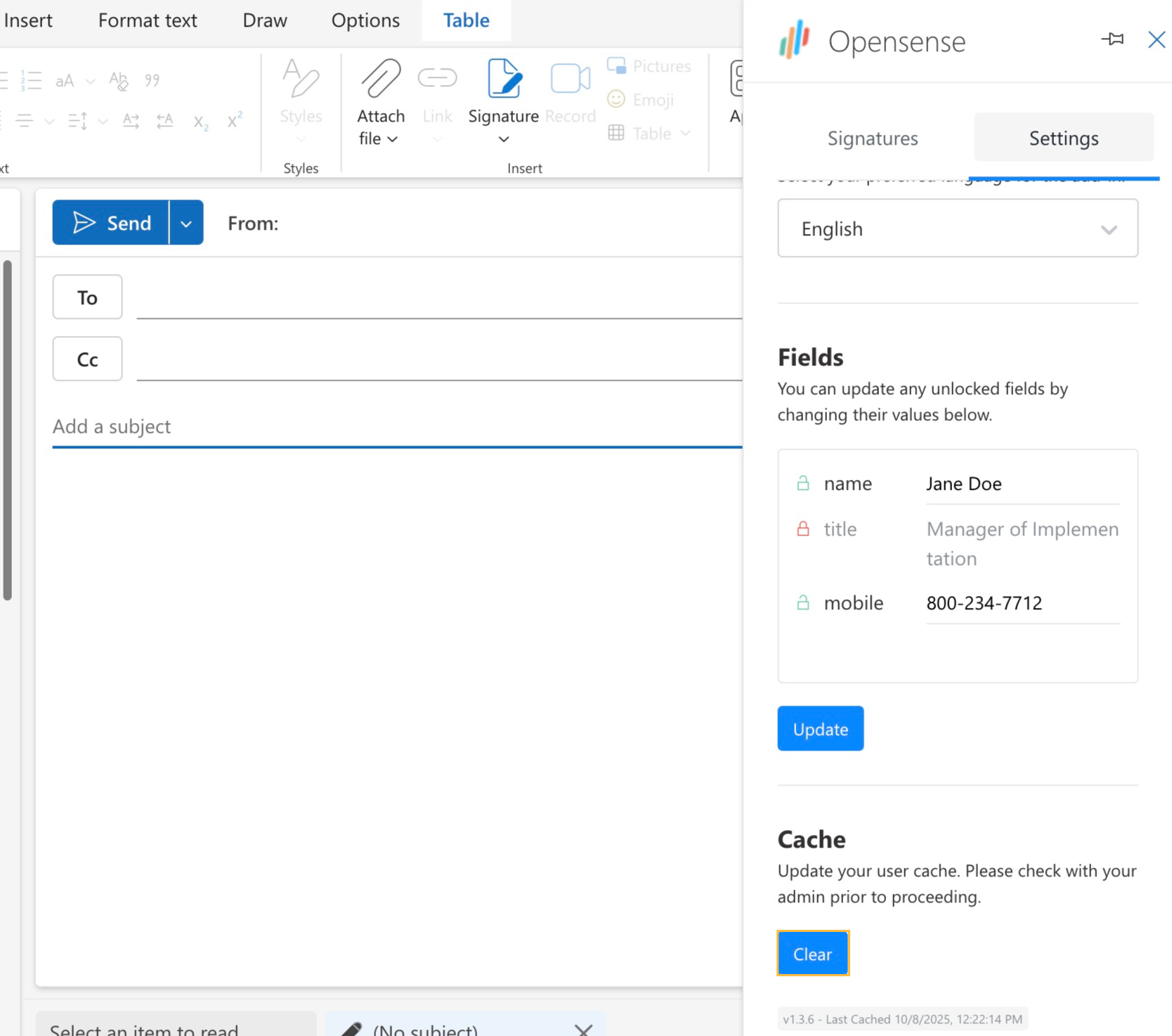
Clearing the add-in cache resolves most inconsistent behavior (wrong signature, stale fields, auto-insert failures). Open the **Opensense add-in** pane, go to **Settings**, find **Cache**, and then select **Clear**. The current add-in version shows at the bottom of the pane on every screen. Try this first for any behavior that seems off.
:::

<img src="https://help.opensense.com/media/image-1787338138945-5c5f09685d19.png" alt="Outlook compose window with the Opensense add-in pane open on the Settings tab: Language, editable Fields with an Update button, and the Cache section with its Clear button highlighted, above the add-in version" width="600" height="530" loading="lazy" decoding="async">

## Before you begin

Confirm that the affected user meets all the environment and license requirements before you work through the steps below. For the full list of supported Outlook versions, license requirements, and unsupported environments, see [Outlook Add-in supported environments](https://help.opensense.com/docs/supported-environments-for-the-opensense-outlook-add-in).

Also confirm that:

- The user has an active Exchange Online mailbox. Newly created accounts may take several hours to fully provision.
- The user is signed in with organizational credentials, not a personal Microsoft account.

## Understanding Classic Outlook vs. New Outlook and OWA

Classic Outlook (the traditional desktop application) and New Outlook or Outlook on the web (OWA) load and run add-ins differently. This matters when troubleshooting: a problem may appear in one client but not the other, and the cause is different in each case.

<div class="kb-deployment-compare kb-deployment-compare--plain">
  <div class="kb-deployment-compare__viewport" role="region" aria-label="How each Outlook client runs add-ins" tabindex="0">
    <table>
      <colgroup><col class="kb-deployment-compare__feature-col"></colgroup>
      <thead>
        <tr>
          <th scope="col">Client</th>
          <th scope="col"><span class="kb-deployment-compare__method">Runtime</span></th>
          <th scope="col"><span class="kb-deployment-compare__method">Add-in loaded through</span></th>
        </tr>
      </thead>
      <tbody>
        <tr>
          <th scope="row">Classic Outlook (desktop)</th>
          <td>Desktop app; add-ins run in Microsoft Edge WebView2</td>
          <td>Exchange Web Services (EWS)</td>
        </tr>
        <tr>
          <th scope="row">New Outlook (desktop)</th>
          <td>Browser-based (Chromium)</td>
          <td>Microsoft REST / Graph API</td>
        </tr>
        <tr>
          <th scope="row">Outlook on the web (OWA)</th>
          <td>Browser-based</td>
          <td>Microsoft REST / Graph API</td>
        </tr>
      </tbody>
    </table>
  </div>
</div>

If a user reports that the add-in works in New Outlook or OWA but not in Classic Outlook, start by clearing the Outlook cache folders, as described in [Step 3](#step-3-rename-the-add-in-cache-folders).

:::caution[Classic Outlook and the EWS retirement]
Microsoft is retiring EWS in Exchange Online. Since October 1, 2026, Microsoft has been turning off EWS for organizations that haven't set up EWS access, and EWS will be off for every organization in April 2027. When EWS is off, web add-ins, including Opensense, may not work in Classic Outlook on Microsoft 365 Apps for Windows builds earlier than 16.0.19725. If the add-in works in New Outlook and OWA but not in Classic Outlook, ask your IT administrator whether EWS is turned off for your organization, and update Microsoft 365 Apps to build 16.0.19725 or later. See Microsoft's [Exchange Web Services requirements](https://learn.microsoft.com/en-us/microsoft-365/baseline-security-mode/baseline-security-mode-settings#exchange-web-services-requirements).
:::


## Solution: Add-in not appearing or not working

Work through these steps in order. Stop when the issue is resolved.

### Step 1: Check Outlook on the Web (OWA)

OWA is the fastest way to tell whether the issue is a deployment problem or a client-side problem. Check OWA before you do anything else.

<dl class="kb-insights-summary">
  <div><dt>Appears in OWA, but not in the Outlook desktop app</dt><dd>The deployment has reached the user, so the issue is client-side. Continue to <a href="#step-2-check-optional-connected-experiences">Step 2</a>.</dd></div>
  <div><dt>Doesn't appear in OWA</dt><dd>The deployment hasn't propagated to the user's profile. Skip to <a href="#step-4-verify-deployment-in-microsoft-365-admin-center">Step 4</a>.</dd></div>
  <div><dt>Appears in OWA and New Outlook, but not in Classic Outlook</dt><dd>The issue is specific to the Classic Outlook client. Continue to <a href="#step-2-check-optional-connected-experiences">Step 2</a>.</dd></div>
</dl>

### Step 2: Check Optional Connected Experiences

If **Optional connected experiences** is turned off, it may stop the add-in from loading, even when it's deployed correctly. Confirm this quick setting before you move on to clearing caches.

1. Open the Outlook desktop app.
2. Select **File**, and then select **Office Account**.
3. Under **Account Privacy**, select **Manage Settings**.
4. Check the box for **Turn on optional connected experiences**.
5. Select **OK** to save, and then restart Outlook.

You can also reach the same settings from **File** > **Options** > **Trust Center** > **Trust Center Settings** > **Privacy Options** > **Privacy Settings**. In New Outlook, go to **View** > **View settings** > **General** > **Privacy and data**, and then select **Privacy settings**.

Your organization's Group Policy or Microsoft 365 Apps admin policy may control this setting. If the checkbox is greyed out, contact your IT administrator to turn on Optional connected experiences at the tenant level.

:::tip[Add-in back?]
If the add-in appears after you restart, turning on Optional connected experiences resolved the issue. No further steps are needed.
:::


### Step 3: Rename the add-in cache folders

Clearing both cache folders resolves the vast majority of add-in disappearance and auto-insert failures. On Windows, complete both parts before you restart Outlook.

#### Windows

Part 1, the **HubAppFileCache** folder:

1. **Close Outlook completely**, and confirm that it isn't running in the background.
2. Open File Explorer (Windows key + E).
3. Click the address bar, paste `%localappdata%\Microsoft\Outlook`, and press Enter.
4. Right-click the **HubAppFileCache** folder, select **Rename**, and add `_old` to the end of the name (for example, `HubAppFileCache_old`).

Part 2, the **Wef** folder:

1. In File Explorer, click the address bar, paste `%localappdata%\Microsoft\Office\16.0`, and press Enter.
2. Rename the **Wef** folder to `Wef_old`.

When both folders are renamed, restart Outlook, and check whether the add-in appears.

#### Mac

1. Quit Outlook completely.
2. Open **Terminal**, and run this command to clear the Wef cache:

   ```sh wrap
   rm -rf ~/Library/Containers/com.microsoft.Outlook/Data/Library/Application\ Support/Microsoft/Office/16.0/Wef
   ```

3. Restart Outlook, and check whether the add-in appears.

:::tip[What to do next]
If the add-in appears after you restart, a stale cache was the cause, and no further steps are needed. If the add-in loads but produces no signature, skip to [Step 5](#step-5-verify-the-opensense-configuration). If the add-in still doesn't appear at all, continue to [Step 4](#step-4-verify-deployment-in-microsoft-365-admin-center).
:::

### Step 4: Verify deployment in Microsoft 365 Admin Center

Do this step if the add-in didn't appear in OWA in [Step 1](#step-1-check-outlook-on-the-web-owa), or if more than 72 hours have passed since deployment and the add-in still hasn't appeared. An IT administrator needs to complete it.

A **new add-in deployment** can take up to 24 hours to appear for assigned users. **Changes made after the initial deployment**, including turning the add-in on or off or changing the user scope, can take up to 72 hours to propagate. Confirm how long it has been since the add-in was assigned or changed before you go on.

1. In the Microsoft 365 admin center, go to **Settings** > **Integrated apps**.
2. Find the Opensense Outlook Add-in, and confirm that its deployment status is **Active**.
3. Confirm that the affected users are in the deployment scope.

### Step 5: Verify the Opensense configuration

This step applies when the add-in loads but produces no signature. These issues are less common than client-side or deployment issues, but are worth checking if the earlier steps haven't resolved the problem. Select the symptom that matches.

<div class="kb-faq">
  <details id="error-or-blank-signature-when-switching-from-address">
    <summary><span class="kb-faq__question">Error or blank signature when switching the From address</span></summary>
    <div class="kb-faq__answer">
      <p><strong>Likely cause:</strong> the sending domain isn't in the Opensense Internal Domains list.</p>
      <p>Add the domain to the list. For the full steps, see <a href="https://help.opensense.com/docs/clone-outlook-add-in-domain-settings-with-scenarios-and-best-practices#internal-domains">Configuring Internal Domains</a>. Clearing the cache won't resolve a <code>400 Unauthorized</code> error with a present Azure Token.</p>
    </div>
  </details>
  <details id="add-in-pane-is-blank-with-no-error">
    <summary><span class="kb-faq__question">Add-in pane is blank, with no error</span></summary>
    <div class="kb-faq__answer">
      <p><strong>Likely cause:</strong> no signature is routed to the user.</p>
      <ol>
        <li>Go to <strong>Signatures</strong> &gt; <strong>Routing</strong>, and confirm that a route covers the user.</li>
        <li>Use <strong>User Signature Lookup</strong> in the <strong>Resources</strong> drop-down to confirm that the user is mapped to a template.</li>
        <li>If there's no result, add the user to a group with a route, or update the All Users route to point to the correct HTML template.</li>
      </ol>
    </div>
  </details>
  <details id="user-does-not-appear-in-opensense">
    <summary><span class="kb-faq__question">User doesn't appear in Opensense</span></summary>
    <div class="kb-faq__answer">
      <p><strong>Likely cause:</strong> directory sync hasn't run yet for a newly created user.</p>
      <ol>
        <li>Go to <strong>Manage</strong> &gt; <strong>Domains</strong>, select the ellipsis (<strong>...</strong>) on the domain card, and then select <strong>Manage Domain</strong>.</li>
        <li>Go to <strong>Manage</strong> &gt; <strong>Users</strong>.</li>
        <li>If the user is missing, go to <strong>Actions</strong> &gt; <strong>Run Sync</strong>, select the directory source and users, and then select <strong>Start Sync</strong>.</li>
      </ol>
      <p>If the user still doesn't appear after the sync, contact <a href="mailto:help@opensense.com">help@opensense.com</a>.</p>
    </div>
  </details>
</div>

### Step 6: Confirm user assignment method and scope

Microsoft Centralized Deployment supports three assignment methods. Each behaves differently, with its own considerations.

<div class="kb-deployment-compare kb-deployment-compare--plain">
  <div class="kb-deployment-compare__viewport" role="region" aria-label="Centralized Deployment assignment methods" tabindex="0">
    <table>
      <colgroup><col class="kb-deployment-compare__feature-col"></colgroup>
      <thead>
        <tr>
          <th scope="col">Assignment method</th>
          <th scope="col"><span class="kb-deployment-compare__method">Behavior</span></th>
          <th scope="col"><span class="kb-deployment-compare__method">Considerations</span></th>
        </tr>
      </thead>
      <tbody>
        <tr>
          <th scope="row">Entire organization</th>
          <td>Applies to all users in the tenant</td>
          <td>Use only if all outbound email should get an Opensense signature</td>
        </tr>
        <tr>
          <th scope="row">Group</th>
          <td>Applies to members of the assigned group; membership changes apply automatically</td>
          <td>Microsoft's recommended approach. Top-level groups only (no nested groups).</td>
        </tr>
        <tr>
          <th scope="row">Individual users</th>
          <td>Applies to explicitly assigned users only; new users must be added manually</td>
          <td>Users are more often missed during onboarding, and there are no automatic updates when users join or leave</td>
        </tr>
      </tbody>
    </table>
  </div>
</div>


### Step 7: Re-grant admin consent and reset the user's scope

If a user was assigned the add-in but it never appeared, or if they were recently re-added to the scope, their profile may be stuck. Removing and re-adding the user resets the deployment queue for that account, without affecting anyone else. For how to remove and re-add a user in the group, see [Scoping Outlook Add-in users in the Microsoft 365 admin center](https://help.opensense.com/docs/clone-outlook-add-in-scope-users-for-opensense-in-m365-admin#step-2-add-users-to-the-scoped-group).

1. Remove the user from the add-in's deployment scope.
2. Wait 30 to 60 minutes for Microsoft 365 to process the removal.
3. Re-add the user to the scope.
4. In the [Microsoft Entra admin center](https://entra.microsoft.com), go to **Entra ID** > **Enterprise apps** > **All applications**, and find **Opensense Email Signatures**. Under **Security**, select **Permissions**, and then select **Grant admin consent** for your organization. (This was formerly the Azure AD admin center, under **Enterprise Applications**.) For full steps, see [Step 3 of the scoping article](https://help.opensense.com/docs/clone-outlook-add-in-scope-users-for-opensense-in-m365-admin#step-3-re-grant-admin-consent).

:::caution[Re-grant after every scope change]
Re-grant admin consent any time users or groups are added to, or removed from, the deployment scope. This is especially important after the initial deployment, and after any scope change.
:::


### Step 8: Verify org-level add-in enablement

If no add-ins appear for any users in the tenant, the org-level add-in setting may be turned off. Ask your Exchange administrator to run this in Exchange Online PowerShell:

```powershell
Get-OrganizationConfig | fl AppsForOfficeEnabled
```

If it returns `False`, run this to turn add-ins back on:

```powershell
Set-OrganizationConfig -AppsForOfficeEnabled:$True
```

:::danger[Don't set this to False]
Setting `AppsForOfficeEnabled` to `False` turns off all add-ins for all users across the organization, overriding all admin and user role settings. Don't set it to `False` in a tenant where add-ins are expected to work.
:::

## Solution: Field edits not populating data

If field values aren't saving, or fields appear blank, the cause is usually a partial sync between the add-in and the Opensense backend, not real data loss.

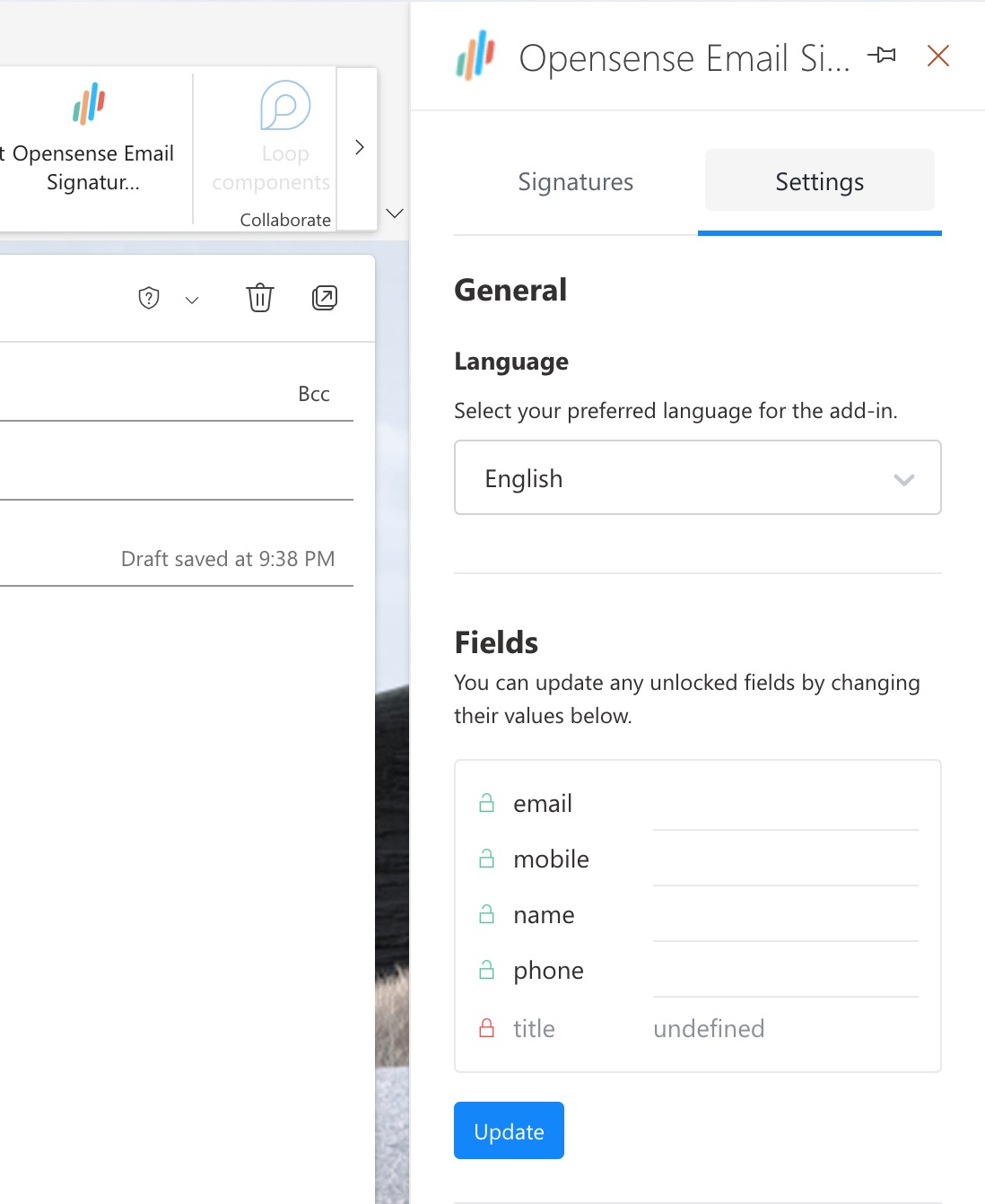
1. Check whether field editing is restricted for this user. Fields controlled by the Opensense admin show a lock icon, and can't be edited, whatever the user enters. If all fields are locked, contact your Opensense admin.
2. If fields are editable but values aren't saving, avoid clicking quickly through the **Settings** tab while it loads. This can put the add-in in a partial load state before user data has fully synced from the backend.
3. If all field values are blank, don't update them yet. Go back to the **Signatures** tab, let the add-in fully load, and then return to the **Settings** tab. If values are still blank after a full load, go to **Settings** > **Cache** > **Clear** to force a fresh sync from the Opensense backend.

<img src="https://help.opensense.com/media/imag2-49c26e4726c4.jpg" alt="The Opensense add-in pane on the Settings tab with blank email, mobile, name, and phone fields, and a locked title field showing undefined" width="440" height="538" loading="lazy" decoding="async">

:::caution[Blank values overwrite data]
Saving blank field values overwrites any existing data for that user. Always confirm that the add-in has fully loaded before you make edits.
:::

:::tip[How to verify the fix]
Field values populate correctly in the **Settings** tab, and persist after you close and reopen the add-in pane.
:::

## Solution: Signature doesn't appear during Quick Reply on Outlook Mobile

When you reply with Quick Reply in Outlook Mobile, the signature doesn't appear while you type. This is expected behavior, not a bug. The signature is applied automatically when the message is sent: you briefly see it insert as the message goes out, and the recipient receives it normally.

:::note[Signature in the Sent folder?]
If a user reports a missing signature specifically when using Quick Reply, but the signature is in the Sent folder afterward, no further action is needed. This is a limitation of the Quick Reply interface itself, not the add-in.
:::

## Still having issues?

If the add-in hasn't appeared after 72 hours, and you've completed all the steps above, contact both Microsoft and Opensense support.

### Contacting Microsoft support

- Ask for engineering to review the tenant-level logs for the affected user accounts.
- Include the affected users' email addresses, and the date the issue started.

### Contacting Opensense support

Email [help@opensense.com](mailto:help@opensense.com), and include:

- The Microsoft support ticket number (if you have one)
- The affected users' email addresses
- Company name and domain
- The date the issue started
- The Outlook client and version (Classic Outlook, New Outlook, OWA, Mac, Mobile)
- Which clients the add-in works in, and which it doesn't
- The assignment method used (individual users, group, entire organization)
- A description of the issue, and the steps already tried


## What's next

- [Outlook Add-in overview](https://help.opensense.com/docs/outlook-add-in-overview-1): deployment methods and the Outlook Mobile account-switching limitation
- [Scoping Outlook Add-in users in the Microsoft 365 admin center](https://help.opensense.com/docs/clone-outlook-add-in-scope-users-for-opensense-in-m365-admin)
- [Configuring the Outlook Add-in in Domain Settings](https://help.opensense.com/docs/clone-outlook-add-in-domain-settings-with-scenarios-and-best-practices): SVG image limitations and Internal Domains
- [Expected behaviors in routed Outlook Add-in deployments](https://help.opensense.com/docs/clone-outlook-add-in-routed-key-behaviors-and-nuances)
- [Setting up multiple signatures in the Outlook Add-in](https://help.opensense.com/docs/clone-outlook-add-in-multi-signature-selector): mobile signature selection and Allow Default Override behavior
- [Allowing Opensense traffic through your network proxy or firewall](https://help.opensense.com/docs/opensense-proxy-firewall)