---
title: "Removing users from the Compliance view (classic UI)"
slug: "removing-users"
description: "Classic UI: hide users from the Compliance page with Mark Removed, switch views to show removed users, and un-remove them. Users can't be deleted."
updated: 2024-01-14T01:15:12.000Z
canonical: "https://help.opensense.com/docs/removing-users"
---
> ## Documentation Index
> Fetch the complete documentation index at: https://help.opensense.com/llms.txt
> Use this file to discover all available pages before exploring further.
# Removing users from the Compliance view (classic UI)
:::note[Classic UI]
This article covers the classic Opensense UI. In the New UI, user profiles are under **Manage** > **Users**.
:::
## Overview
Removing users is an optional feature that visually cleans up the **Compliance** page. Users **can't** be deleted from Compliance, but removing them takes their profile out of the default view. You can show removed users again, and un-remove them, at any time.
## Removing a user
1. In the **Signatures** menu, select **Compliance**.
2. On the left of the screen, use the **Search** box to find the user by their email address.
3. When you've found the user, select **Mark Removed**.
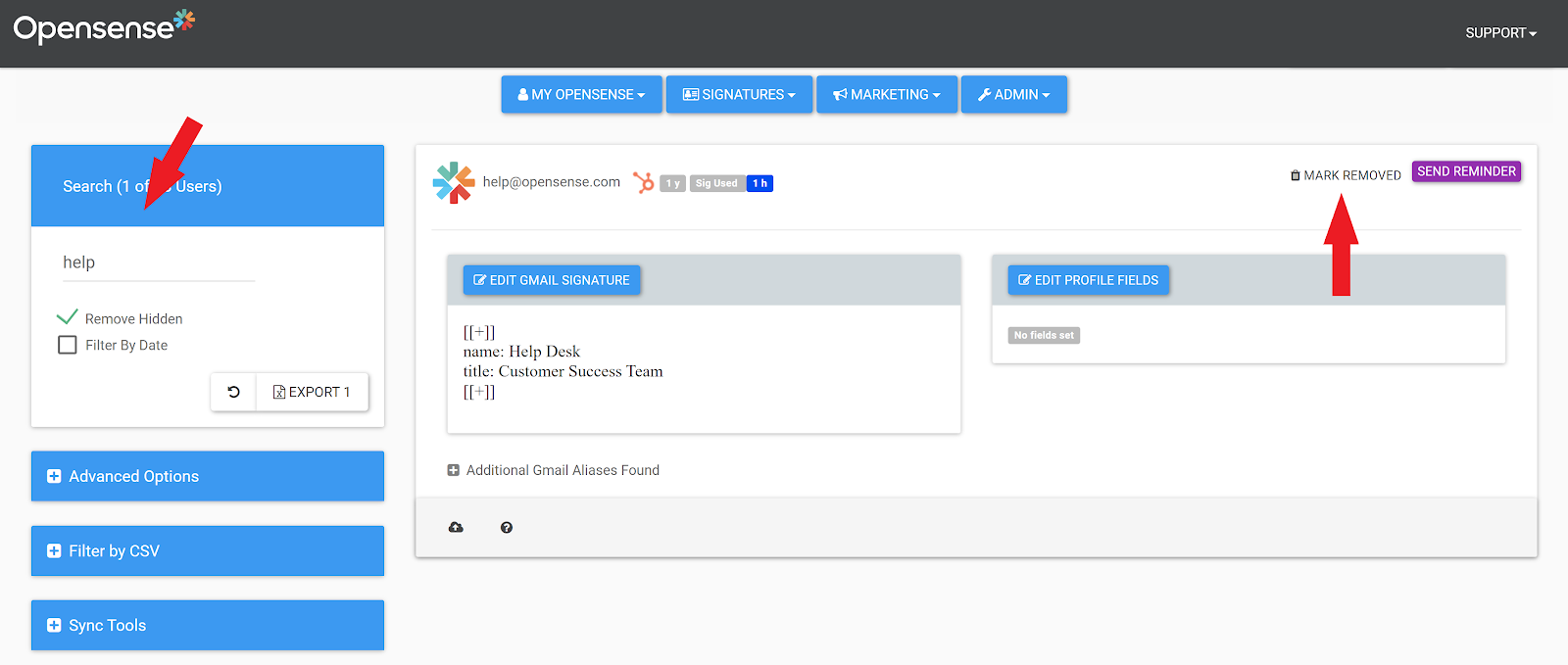
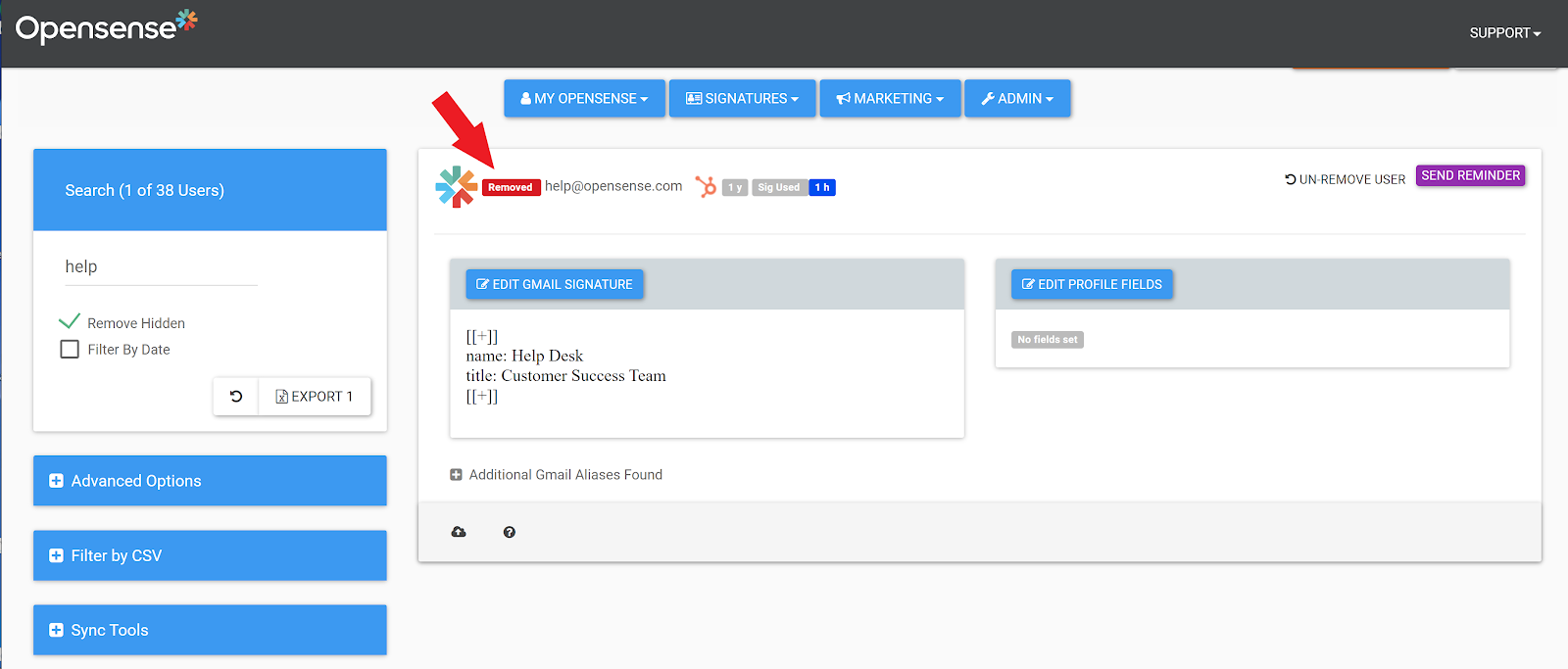
The user is now removed. A **Removed** label at the top of the profile confirms it.
## Showing removed users
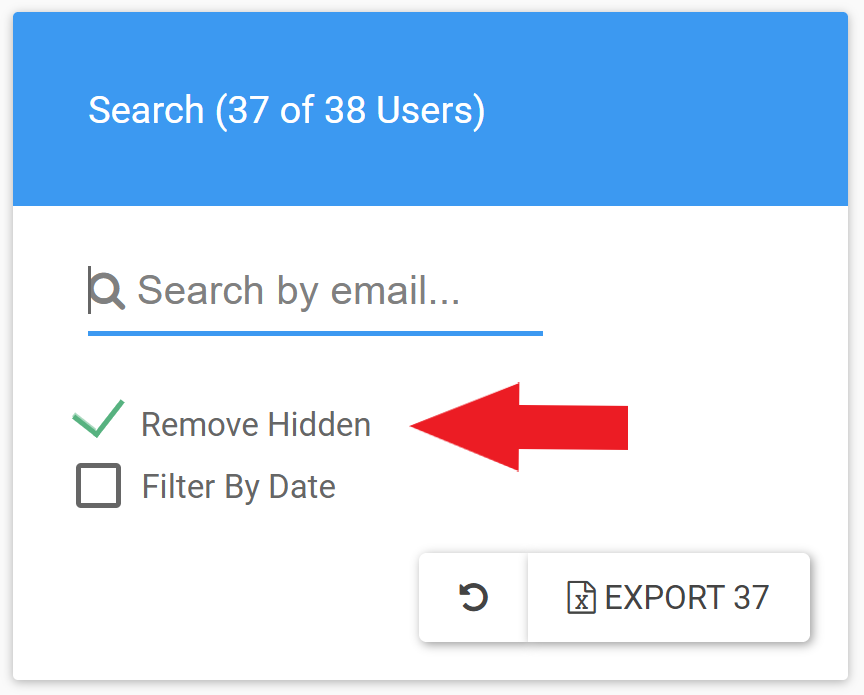
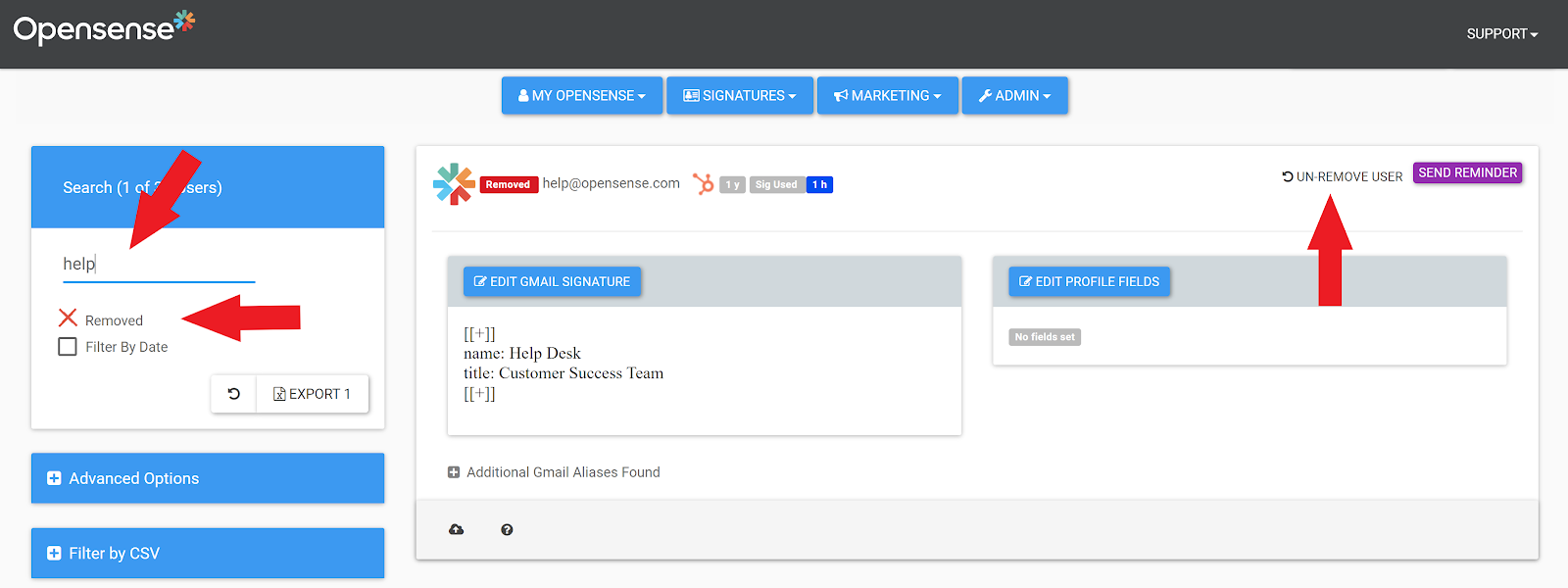
The checkbox under the search box switches between three views. Select it to move to the next view.
- Remove Hidden
- The default view. Removed users are hidden.
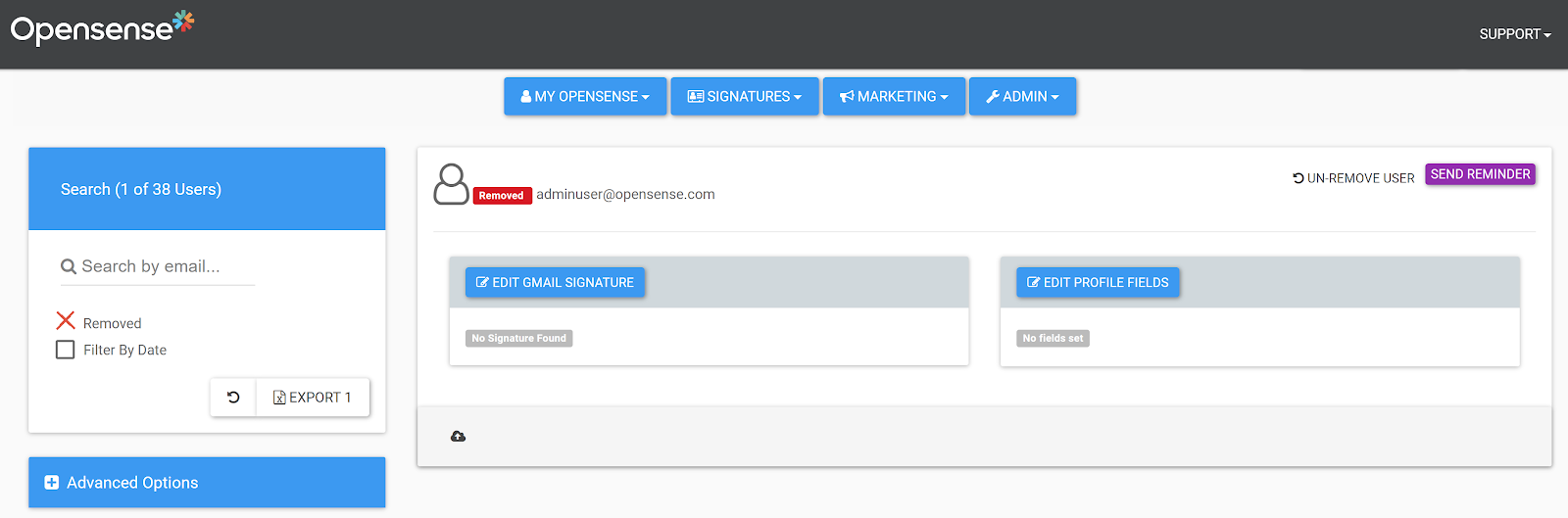
- Removed
- Shows only removed users.
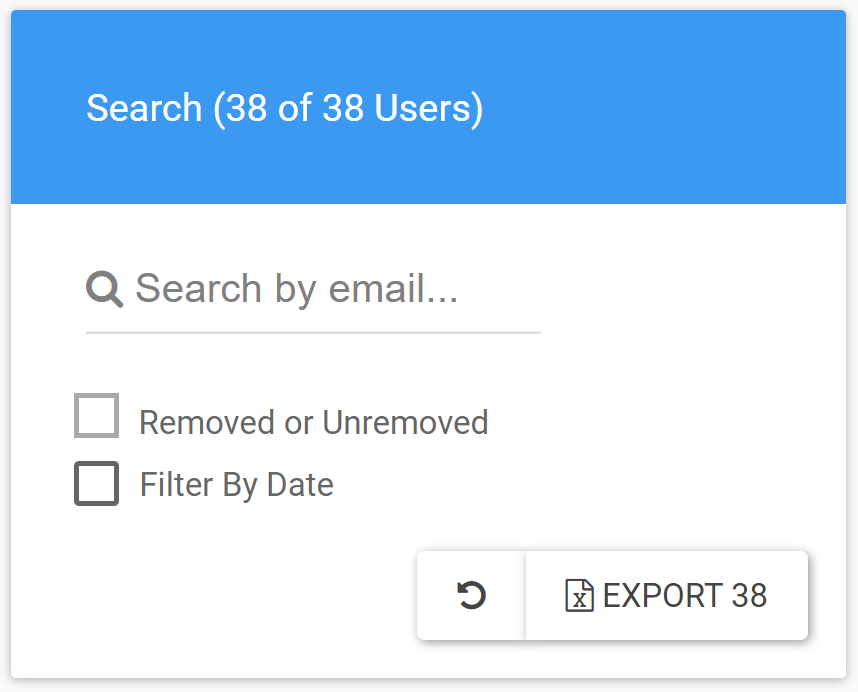
- Removed or Unremoved
- Shows all profiles.
## Un-removing a user
1. Switch to the **Removed** view.
2. Search for the user by email.
3. On their profile, select **Un-Remove User**.
## What's next
- [Choosing how to edit user data](https://help.opensense.com/docs/editing-user-data-guide)
- [Editing one user in Users & Compliance (classic UI)](https://help.opensense.com/docs/individual-edits-in-users-compliance)