---
title: "Assigning Opensense tags with Salesforce Flow Builder"
slug: "salesforce-workflow"
description: "Create a record-triggered Salesforce Flow that sets the Opensense sgentags or sgenads field on contacts and leads, for recipient-based banner targeting."
updated: 2026-10-14T00:00:00.000Z
canonical: "https://help.opensense.com/docs/salesforce-workflow"
---
> ## Documentation Index
> Fetch the complete documentation index at: https://help.opensense.com/llms.txt
> Use this file to discover all available pages before exploring further.
# Assigning Opensense tags with Salesforce Flow Builder
## Overview
This article explains how to create a Salesforce Flow that assigns Opensense custom tags to contacts or leads, for recipient-based banner targeting in email signatures. The steps cover a standard record-triggered flow, and you can extend them for more advanced use cases.
:::note[Before you start]
You need:
- The [Salesforce integration configured](https://help.opensense.com/docs/salesforce-integration-requirements), with the Opensense custom fields (**sgentags**, **sgenads**, or both) added to your Contact or Lead object
- At least one active [banner campaign with tags configured](https://app.opensense.com/beta/marketing/campaigns) in the Opensense portal
- Salesforce admin or Flow Builder access
:::
## Step-by-step guide
### Step 1: Open Flow Builder
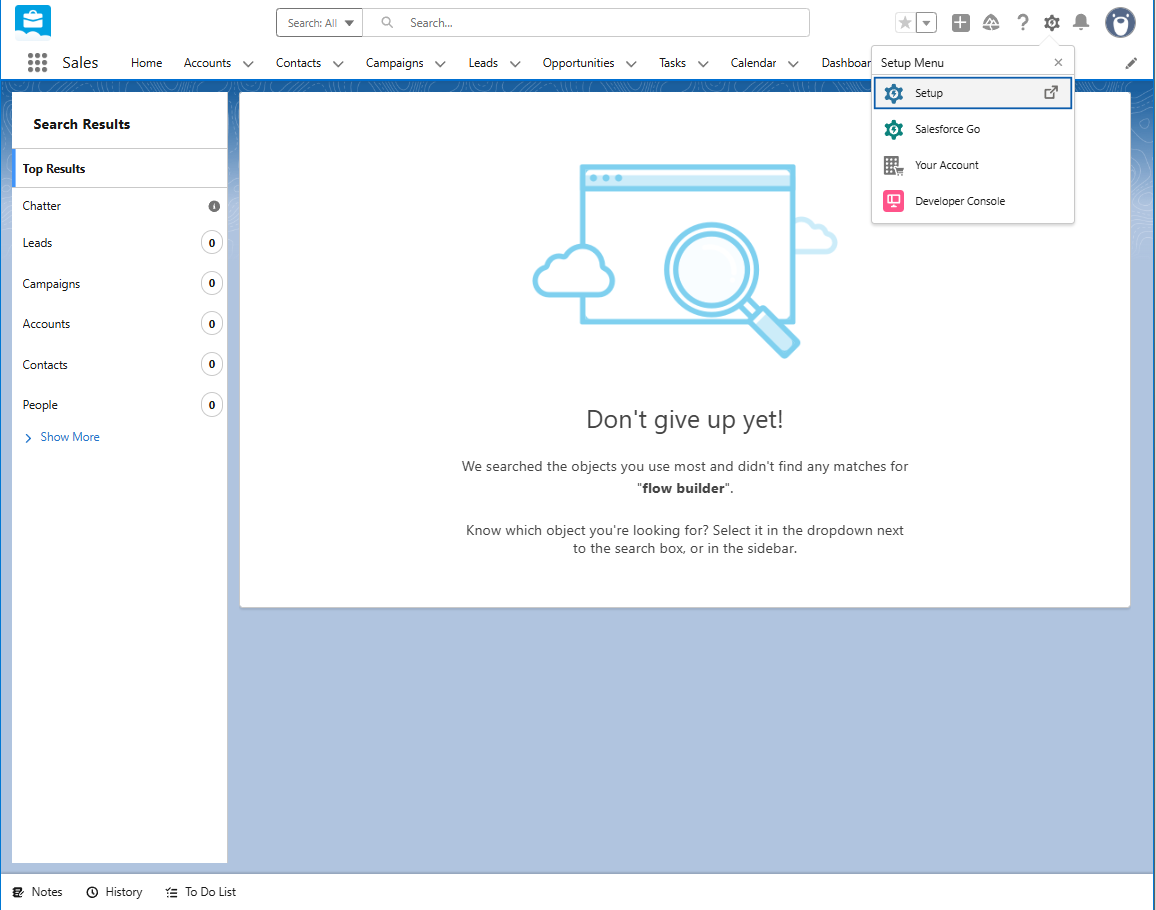
1. In Salesforce, select the gear icon, then **Setup**.
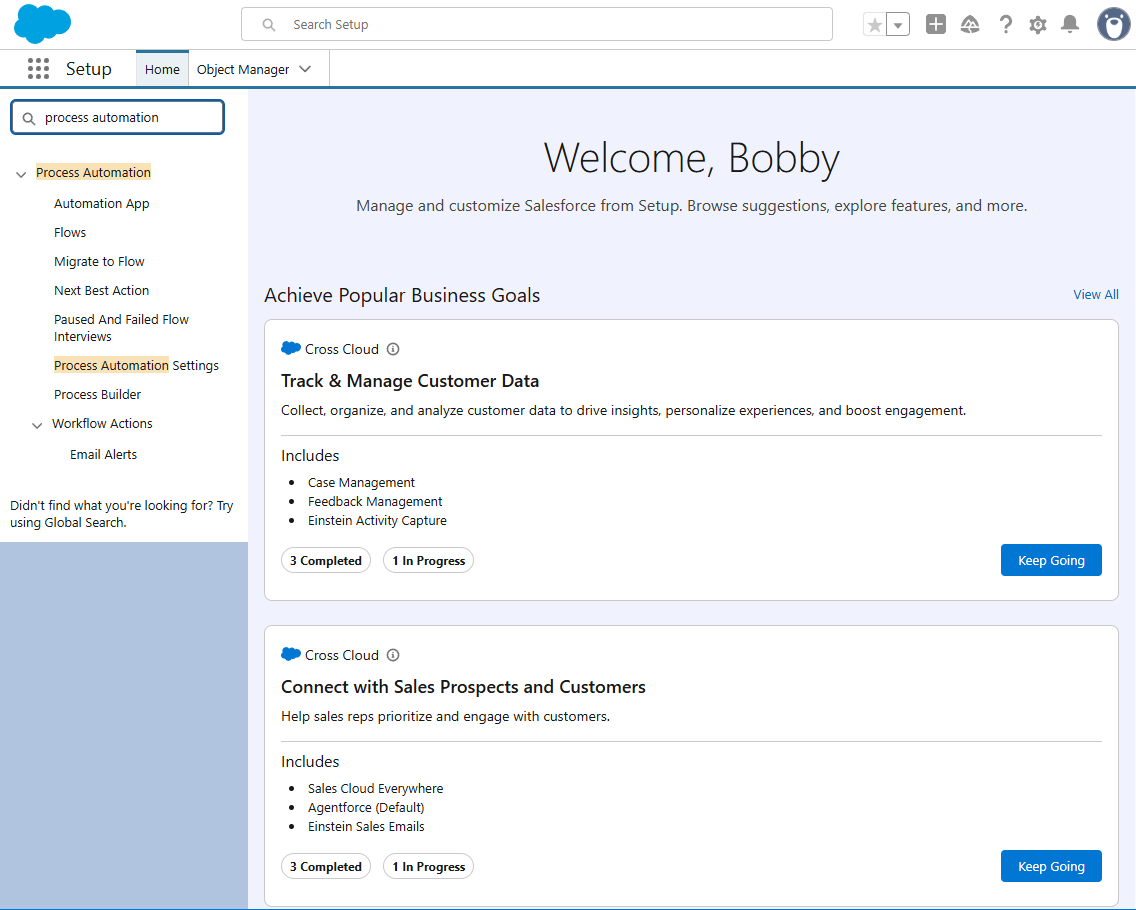
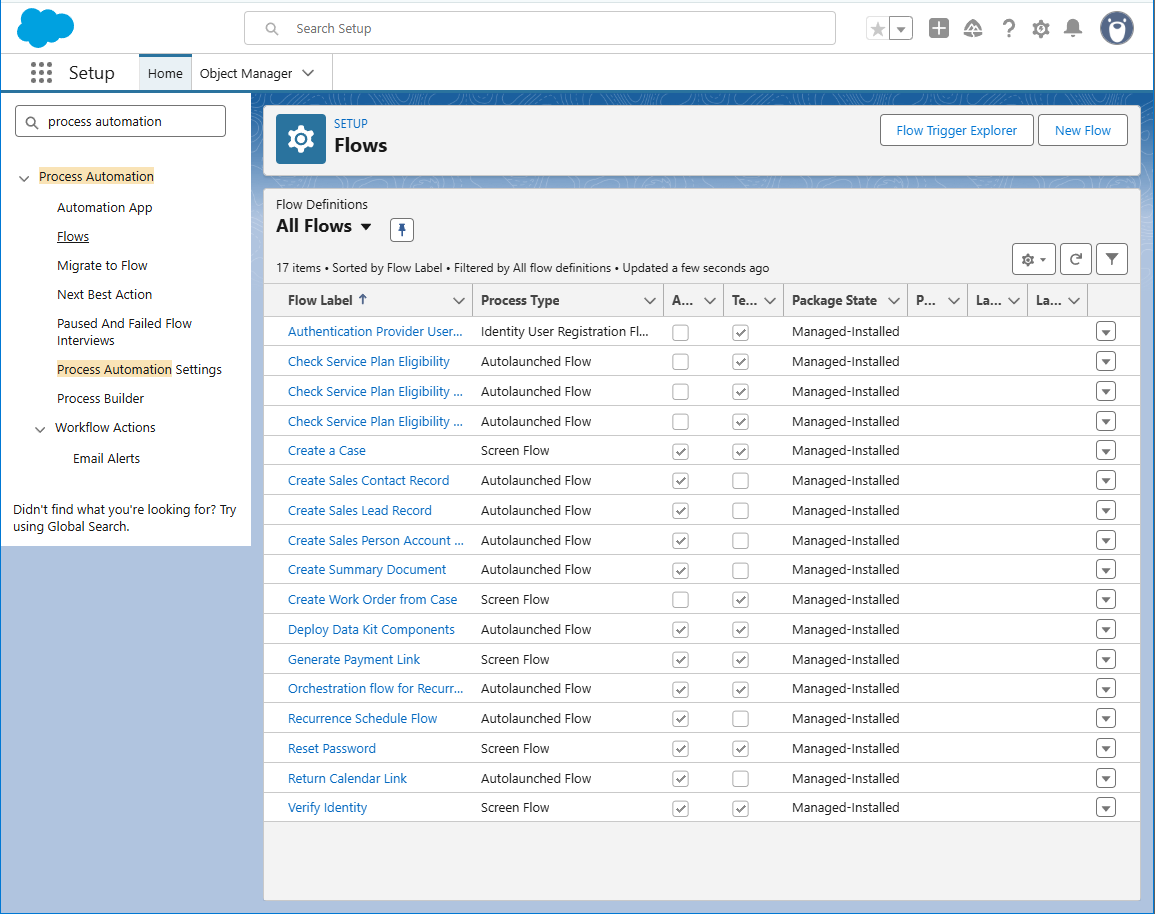
2. In the **Quick Find** box, search for **Flows**, and select **Flows** under **Process Automation**.
3. Select **New Flow**.
### Step 2: Select a flow type
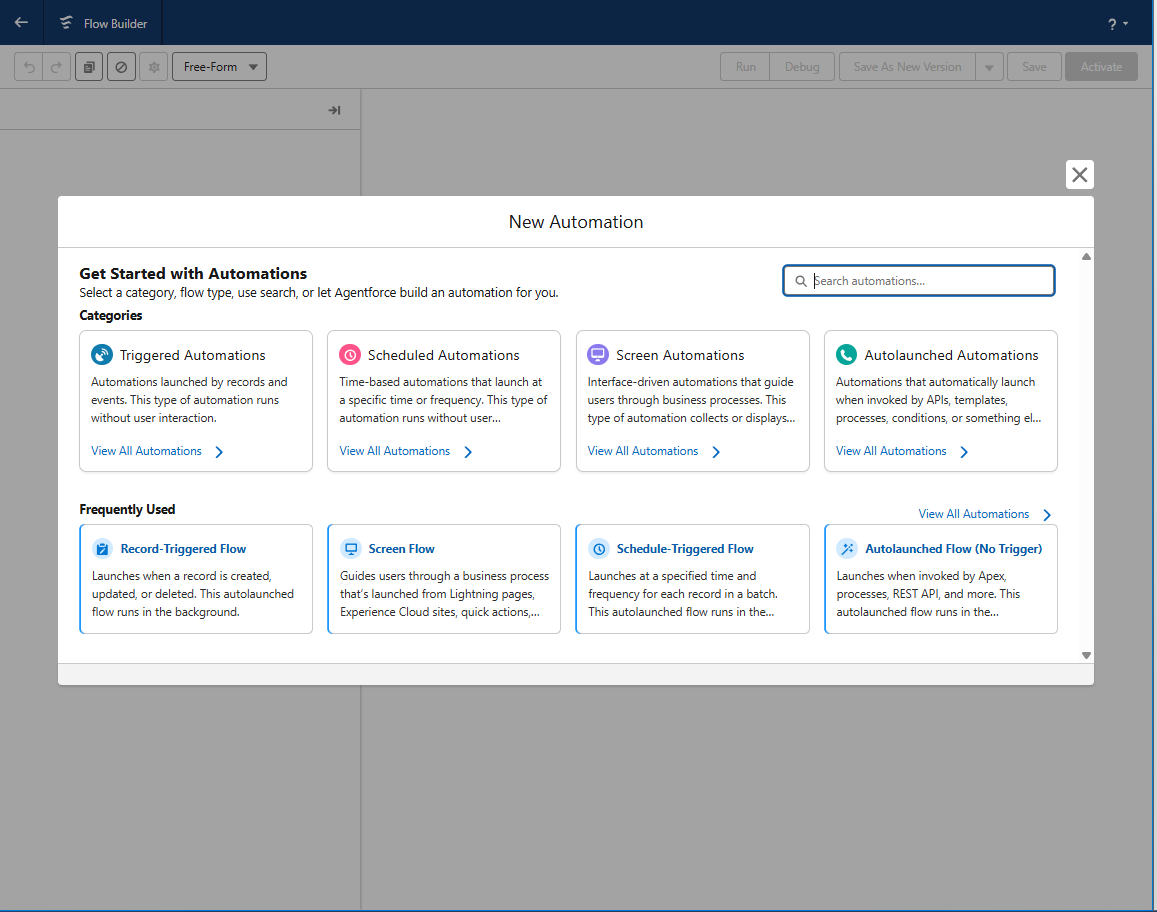
In the **New Automation** window, under **Frequently Used**, select **Record-Triggered Flow**. It updates a record automatically, based on criteria. If your org lists the flow types with a **Create** button instead, select **Record-Triggered Flow**, then **Create**.
:::note[Other flow types]
You can also use a **Screen Flow** or a **Schedule-Triggered Flow**, depending on your use case. Record-Triggered Flow is recommended for assigning tags automatically, based on contact or lead data.
:::
### Step 3: Configure the trigger
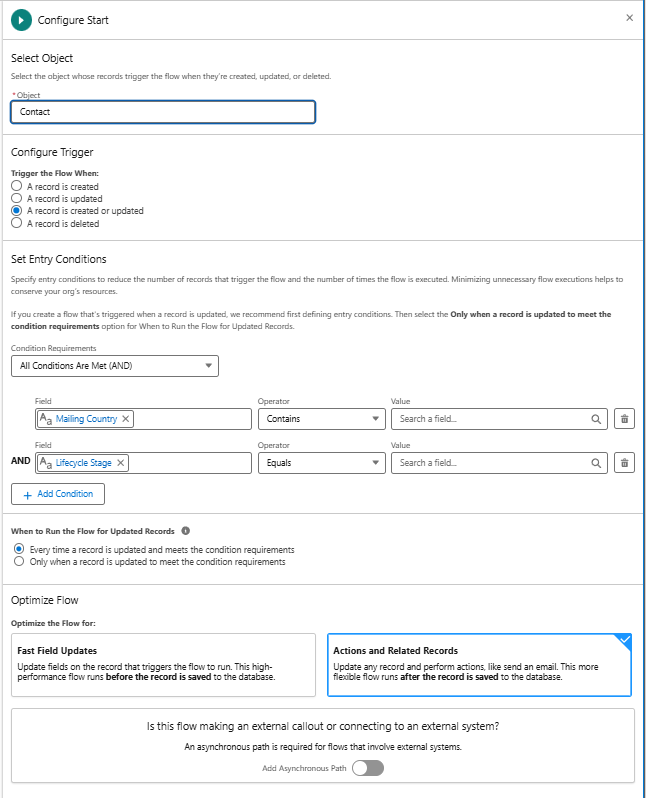
1. Set **Object** to **Contact** (or **Lead**, depending on your setup).
2. Under **Trigger the Flow When**, select **A record is created or updated**.
3. Set the **Entry Conditions** to match the segment you want to target: for example, filter by **Industry**, **Lead Source**, or any other relevant field.
4. Select **Done**.
### Step 4: Add an Update Records element
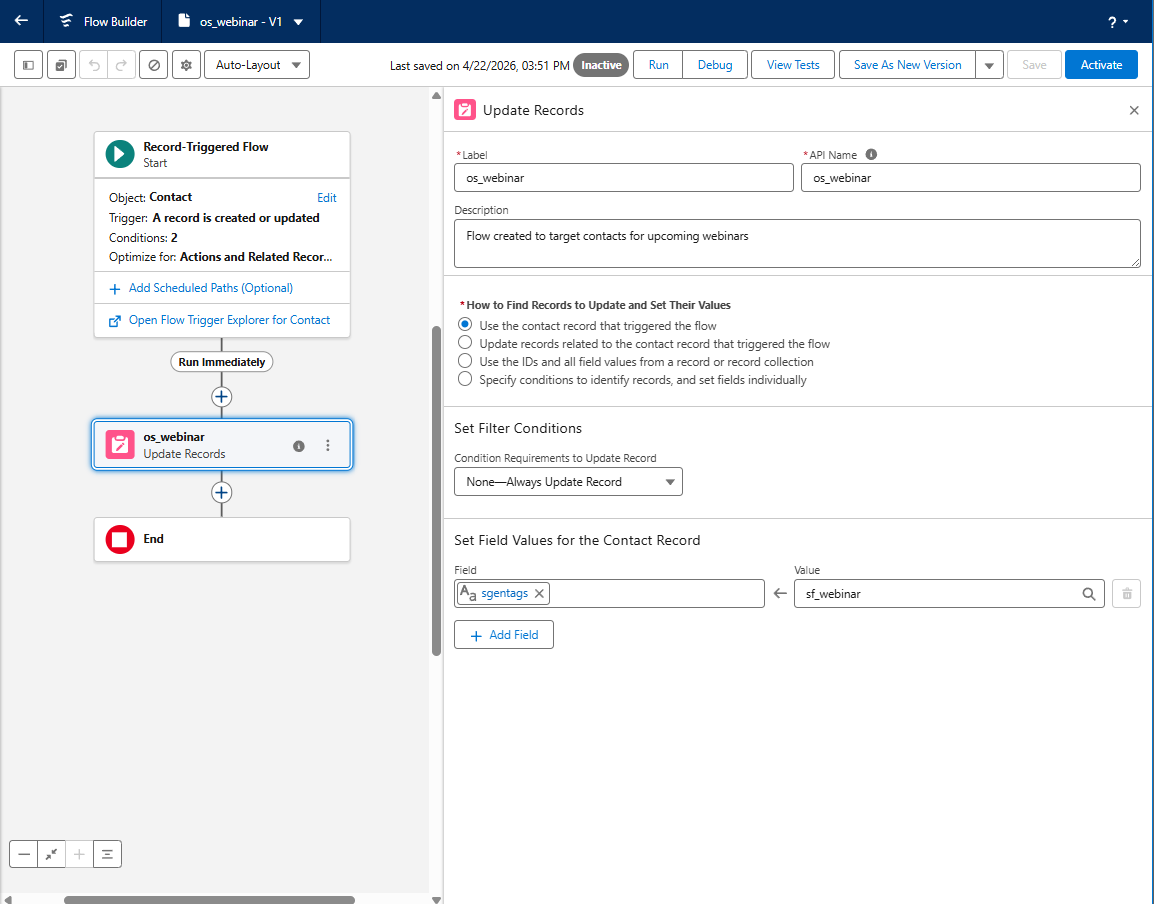
1. On the Flow canvas, select the **+** icon to add an element, and select **Update Records**.
2. In the **Update Records** panel, set these:
- How to find records to update
- Use the record that triggered the flow (the Contact or Lead).
- Filter conditions
- Leave as-is to update the triggering record, or add more conditions as needed.
- Field
- Select sgentags to assign a rotating tag set for banner targeting. Use sgenads to assign a static banner instead.
- Value
- Enter the tag names for your banner campaign, as configured in the Opensense portal.
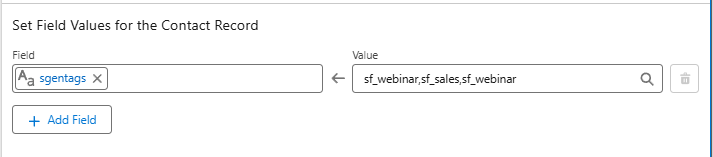
3. Enter the tag values as a plain string. These formats are valid:
- `sales`: a single tag.
- `sales,marketing,sales`: *sales* displays twice as often as *marketing*.
- `sales,marketing,sales,inbound24`: the same weighting, with another tag rotating in.
:::caution[Update Records overwrites existing tags]
The Update Records element replaces the entire **sgentags** value each time the flow runs. Salesforce has no option to keep or append to the existing value. If your contacts or leads may already have tags (for example, from another flow or a previous campaign), add a **Decision** element before Update Records, to check whether **sgentags** is already populated, and handle those records on a separate path.
:::
### Step 5: Save and activate the flow
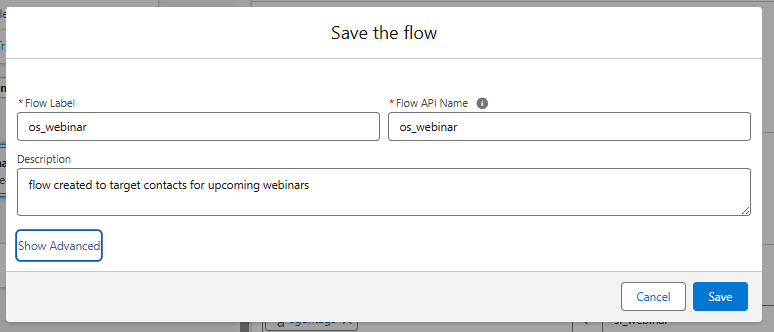
1. Select **Save** in the upper right.
2. Give the flow a descriptive name (for example, `os_webinar`), and select **Save**.
3. Select **Activate**.
:::caution[Check before you activate]
Activate the flow only after you confirm that your entry conditions and tag values are correct. Activating applies the flow to all matching records from then on.
:::
## What's next
- [Creating a banner campaign](https://help.opensense.com/docs/creating-banner-campaign): configure banner campaigns and tags in Opensense.
- [Salesforce integration requirements](https://help.opensense.com/docs/salesforce-integration-requirements)
- [Finding Salesforce field API names to query in Opensense](https://help.opensense.com/docs/how-to-find-fields-you-would-like-to-query)
For further help, contact Opensense Support at [help@opensense.com](mailto:help@opensense.com).