---
title: "Using Outlook voting buttons with Opensense signatures"
slug: "voting-buttons"
description: "Add voting buttons to messages in classic Outlook, and keep Opensense signatures off emails that need them, since voting buttons may not work with a signature."
updated: 2026-10-14T00:00:00.000Z
canonical: "https://help.opensense.com/docs/voting-buttons"
---
> ## Documentation Index
> Fetch the complete documentation index at: https://help.opensense.com/llms.txt
> Use this file to discover all available pages before exploring further.
# Using Outlook voting buttons with Opensense signatures
## Overview
Voting buttons (sometimes called polling buttons) collect data in email messages quickly and easily. They're a Microsoft 365 (Office 365) feature in Outlook, and need a Microsoft Exchange account.
Voting buttons may not work when an Opensense signature is applied. If you need them, see [Keeping Opensense signatures off voting emails](#keeping-opensense-signatures-off-voting-emails).
:::caution[Not in Gmail]
Voting buttons are an Office 365 feature, and don't work directly in Gmail.
:::
## Adding voting buttons in classic Outlook
1. Create an email message, or reply to or forward one.
2. In the message window, select the **Options** tab, and then select **Use Voting Buttons** (in the **Tracking** group).
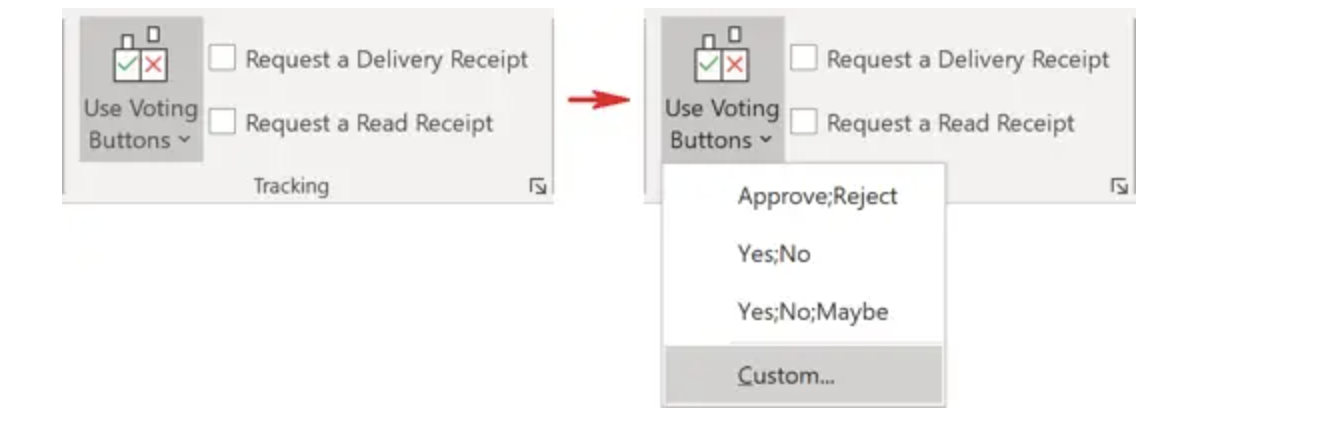
3. Select one of these:
- Approve;Reject
- Approve or reject.
- Yes;No
- The best choice when you want a definite yes or no.
- Yes;No;Maybe
- Gives recipients a third option.
- Custom
- Create your own voting button names.
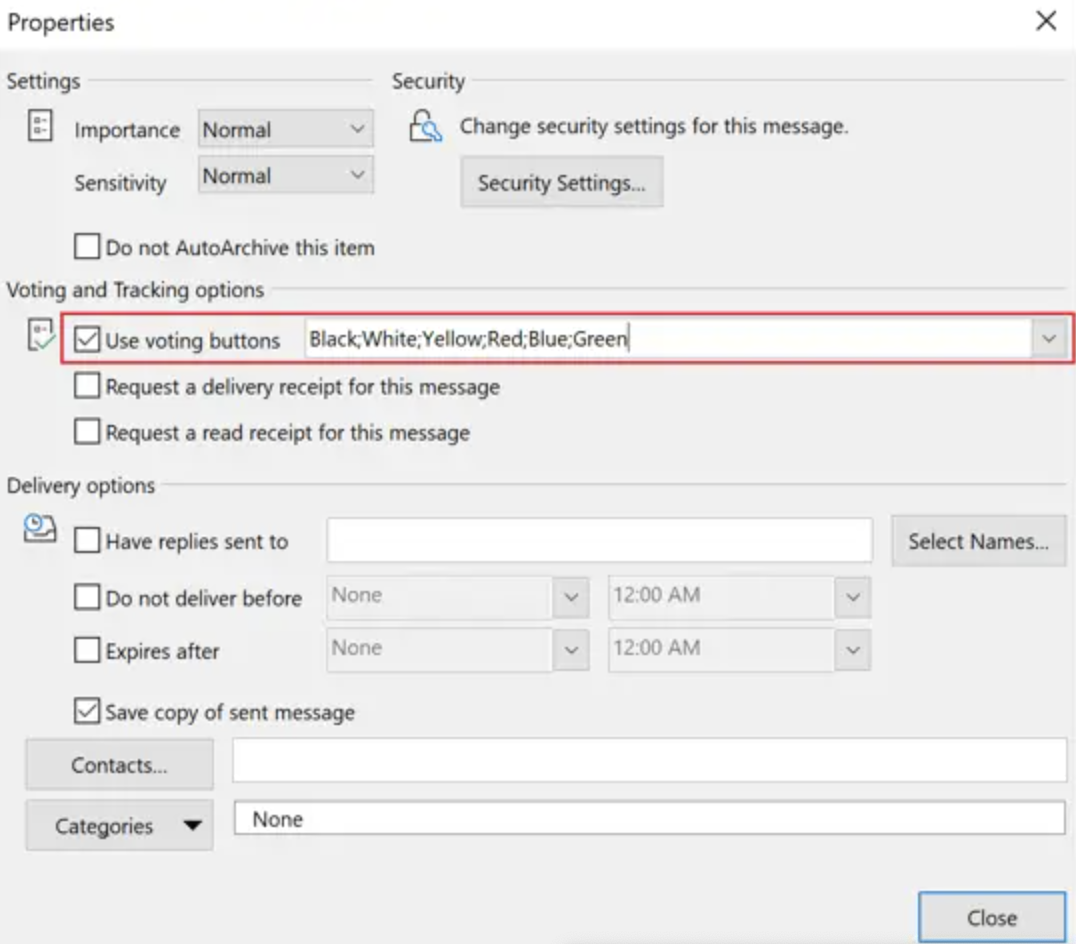
4. If you choose **Custom**, set the properties for the voting buttons in the **Properties** window. Separate the button names with semicolons.
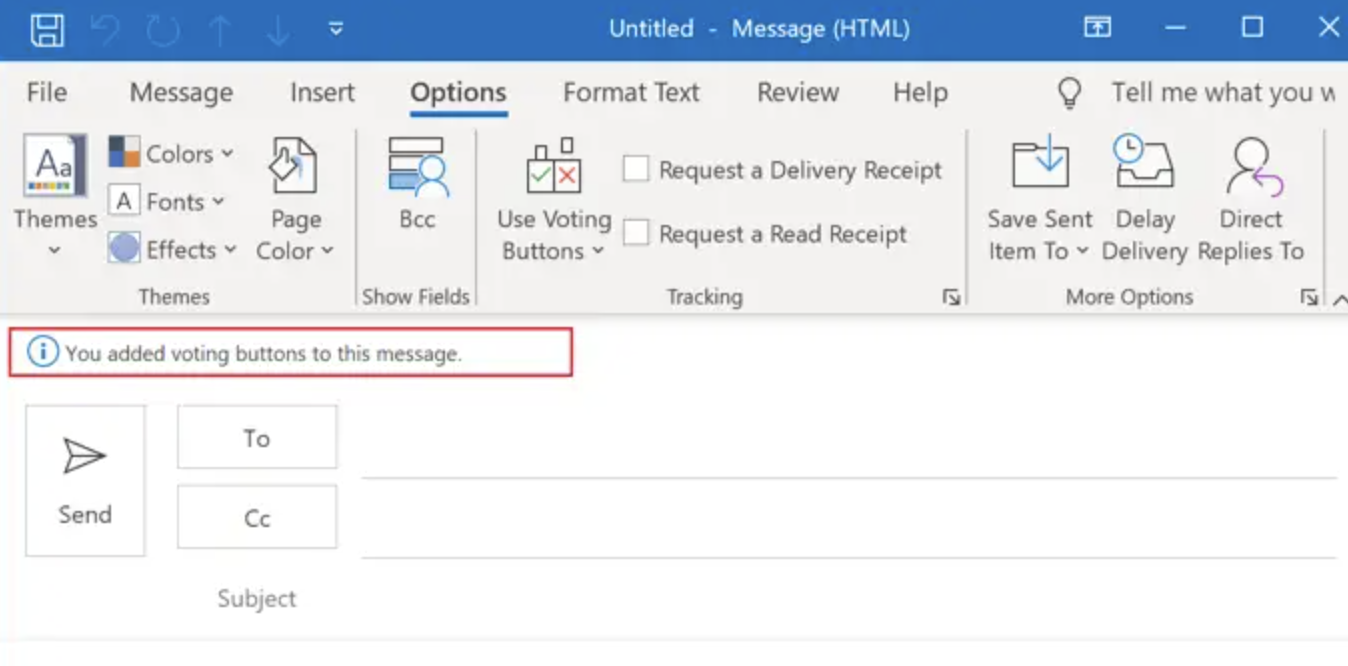
 When you've added voting buttons, a message at the top of the email confirms it: "You added voting buttons to this message."
:::note[New Outlook]
New Outlook for Windows uses polls instead: select the body of the message, go to the **Insert** tab, and select **Polls**. See Microsoft's [Use the voting buttons in Outlook](https://support.microsoft.com/en-us/office/use-the-voting-buttons-in-outlook-a0d622c3-9d3e-454c-bc97-76688a31c863).
:::
## Keeping Opensense signatures off voting emails
Voting buttons may not work when an Opensense signature is applied. If emails need voting or polling buttons, you may be able to add exclusions to the mail flow rules, so Opensense signatures aren't applied to them.
To find the best resolution, contact [help@opensense.com](mailto:help@opensense.com) with any concerns or questions, and get connected with an Implementation Engineer.