---
title: "Setting up Opensense triggers in Zapier"
slug: "zapier-integration"
description: "Start Zaps from Opensense banner clicks, attachment downloads, and new recipients, by connecting the Opensense app in Zapier with your Zapier API key."
updated: 2024-07-24T22:07:05.000Z
canonical: "https://help.opensense.com/docs/zapier-integration"
---
> ## Documentation Index
> Fetch the complete documentation index at: https://help.opensense.com/llms.txt
> Use this file to discover all available pages before exploring further.
# Setting up Opensense triggers in Zapier
## Overview
The Opensense app in Zapier pushes Opensense activity into your Zaps. Each trigger starts a Zap when a recipient clicks a banner, downloads an attachment, or is identified as a new recipient.
:::caution[Before you start]
Contact your dedicated Opensense representative for the application invite link and your unique Zapier API key. You can also ask by email at [help@opensense.com](mailto:help@opensense.com). The validation needs an active banner.
:::
## Creating the Zap
1. In Zapier, select **+ Create**, and choose **Zap**.
2. Select **Trigger**, then search for the **Opensense (1.0.1)** app.
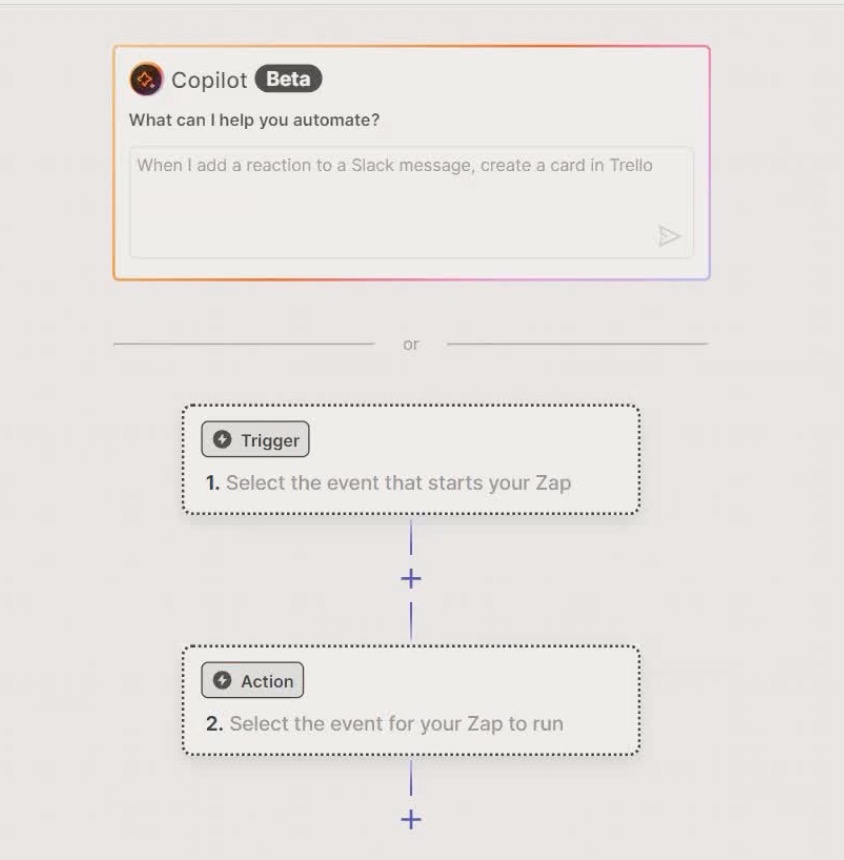 :::note[The app appears only when you create a Zap]
The Opensense app isn't in Zapier's list of all apps. You see it when you create a Zap.
:::
## Setting up the Opensense trigger
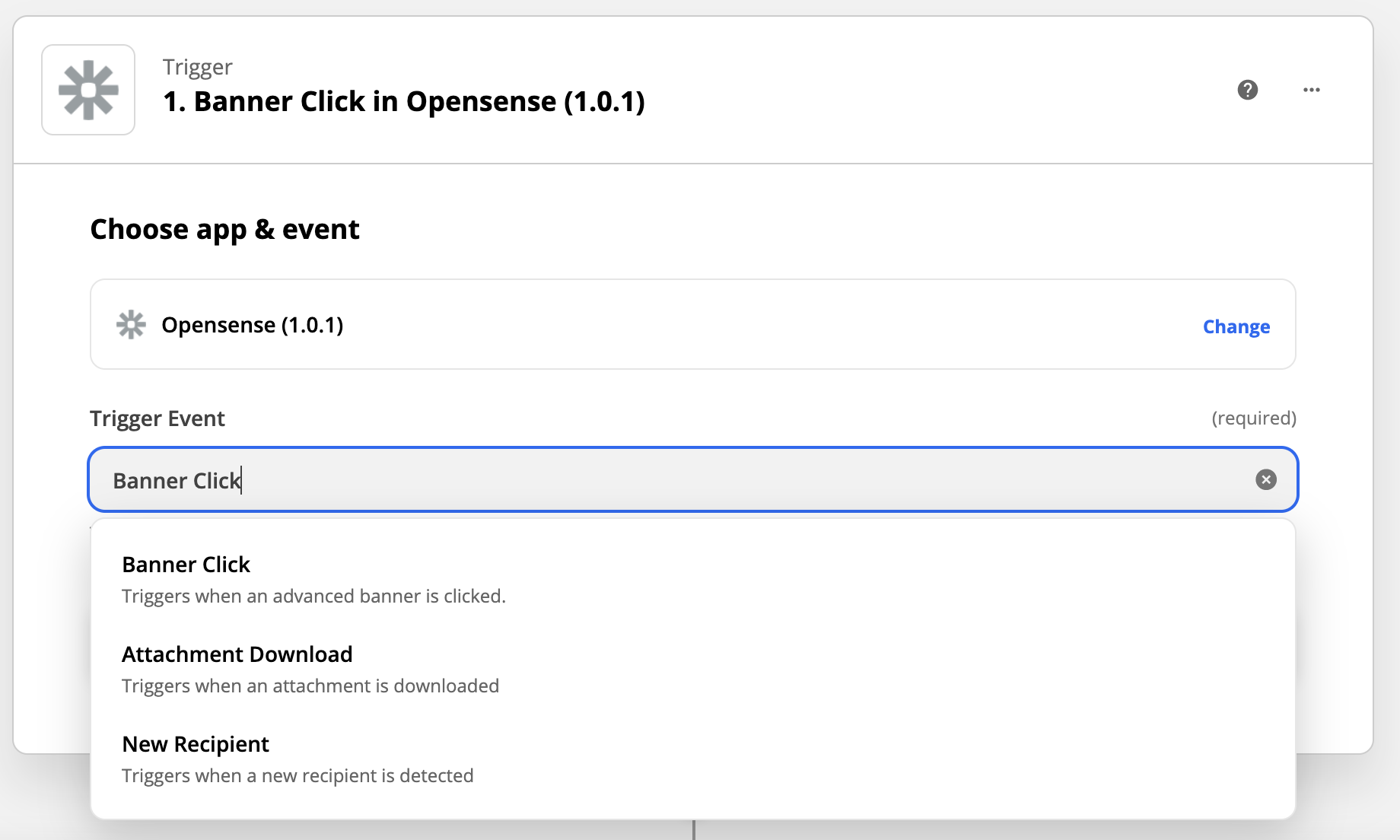
1. Select a **Trigger Event**:
- Banner Click
- Triggers when a recipient clicks a banner.
- Attachment Download
- Triggers when a recipient downloads an attachment.
- New Recipient
- Triggers when a new recipient is identified.
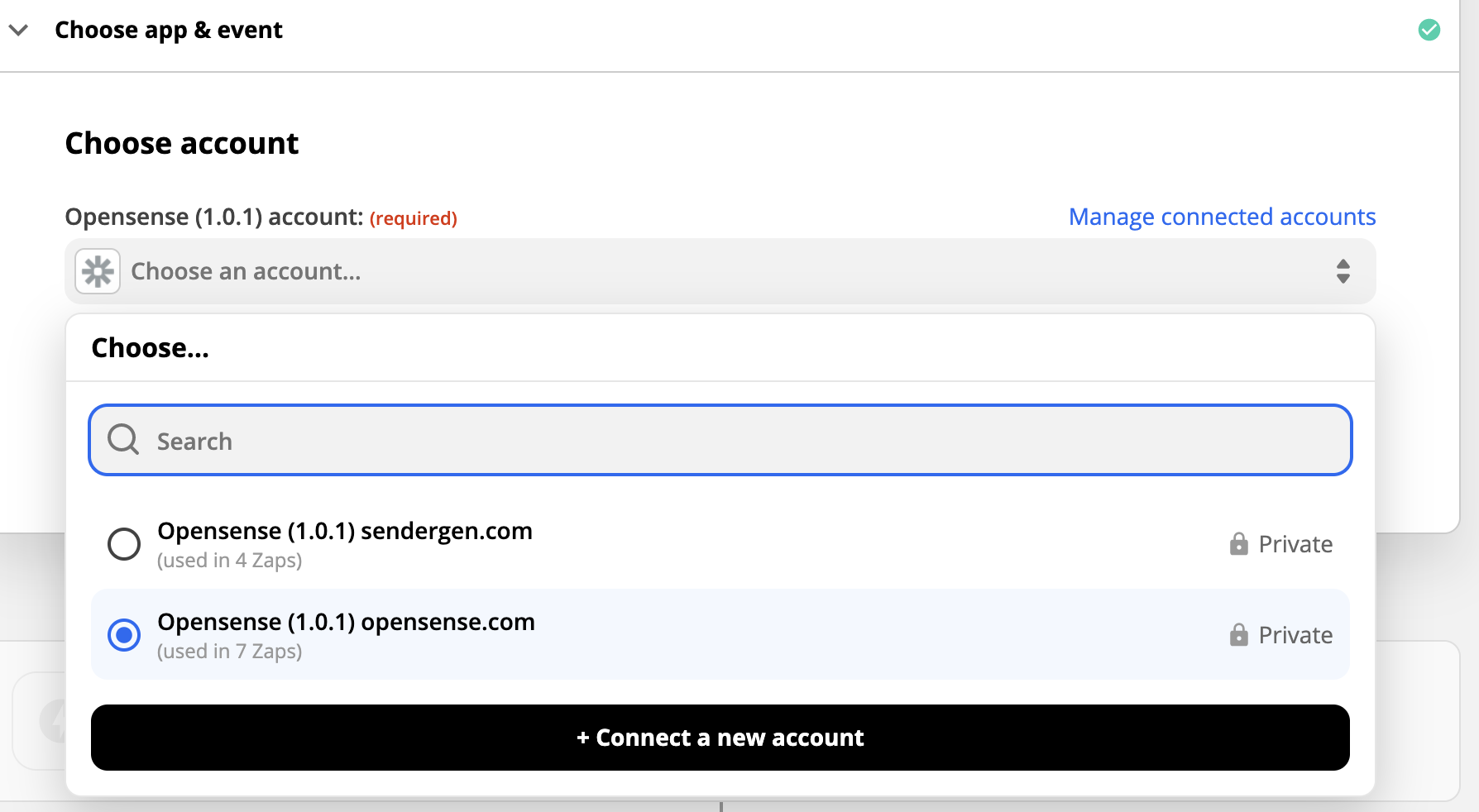
2. Connect your Opensense account: select **Connect a new account**.
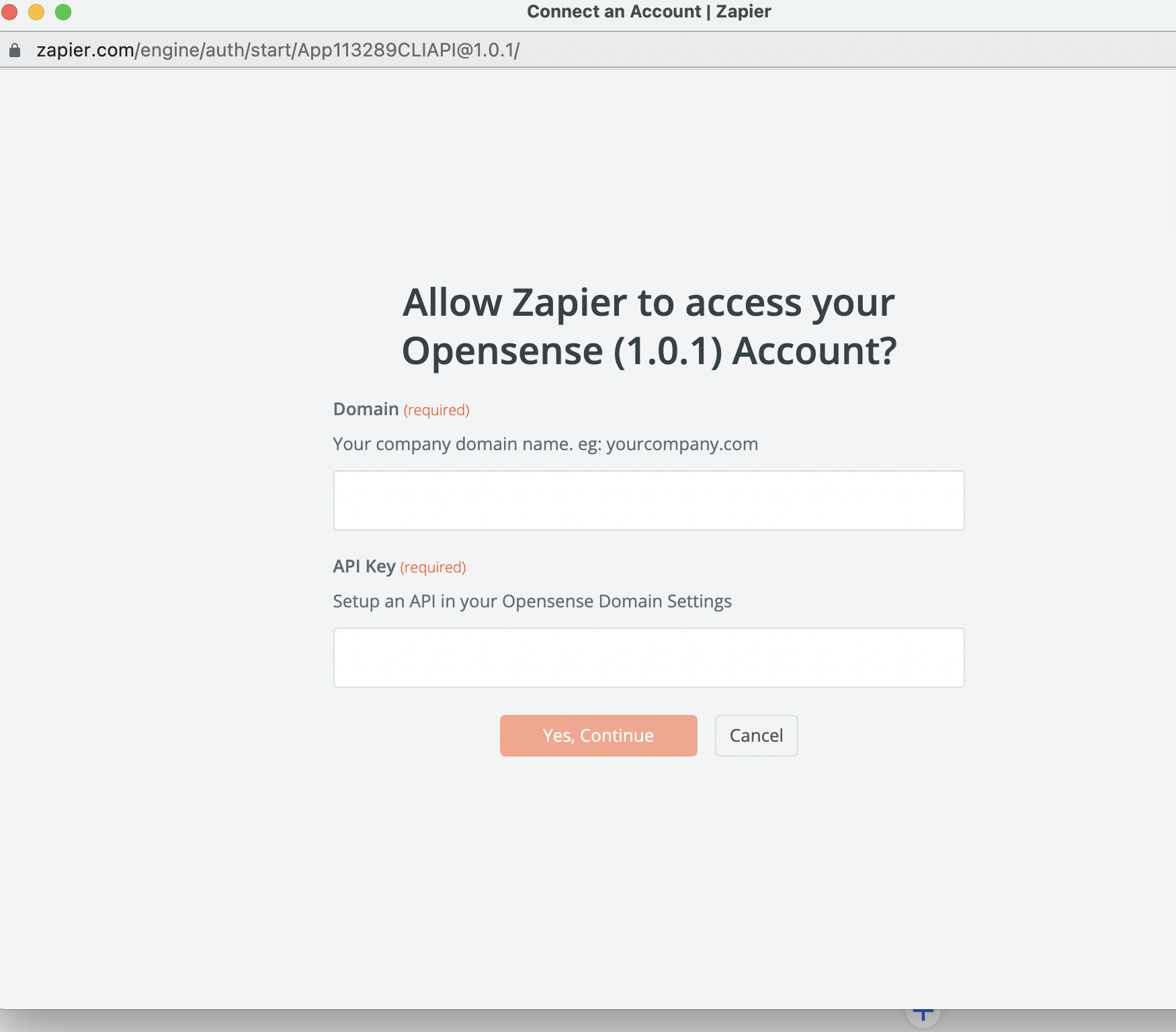
3. Enter your domain and the Zapier API key. An Opensense integration specialist can give you an API key if you don't have one. If you're not sure, ask your Opensense representative, or contact the [Opensense help desk](mailto:help@opensense.com).
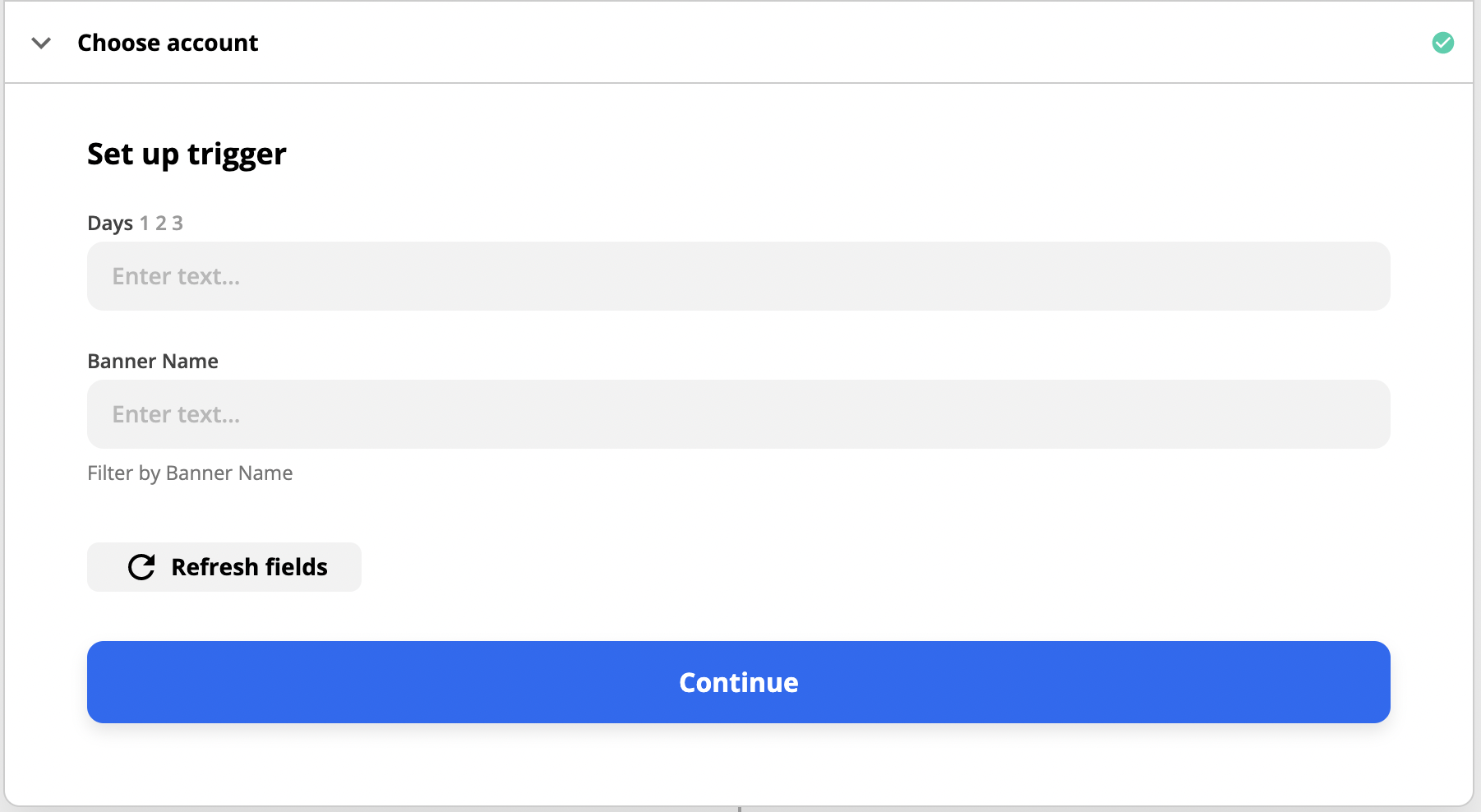
 4. Set up your trigger. By default, leave both fields blank:
- Days (optional)
- Runs the trigger on data from this number of days before. For example, enter 5 to start triggers on data that's 5 days old.
- Banner Name (optional)
- Runs the trigger only for this banner. Enter the banner name from the banner section of the Opensense portal: for
[[ad:new_banner]], enter new_banner.
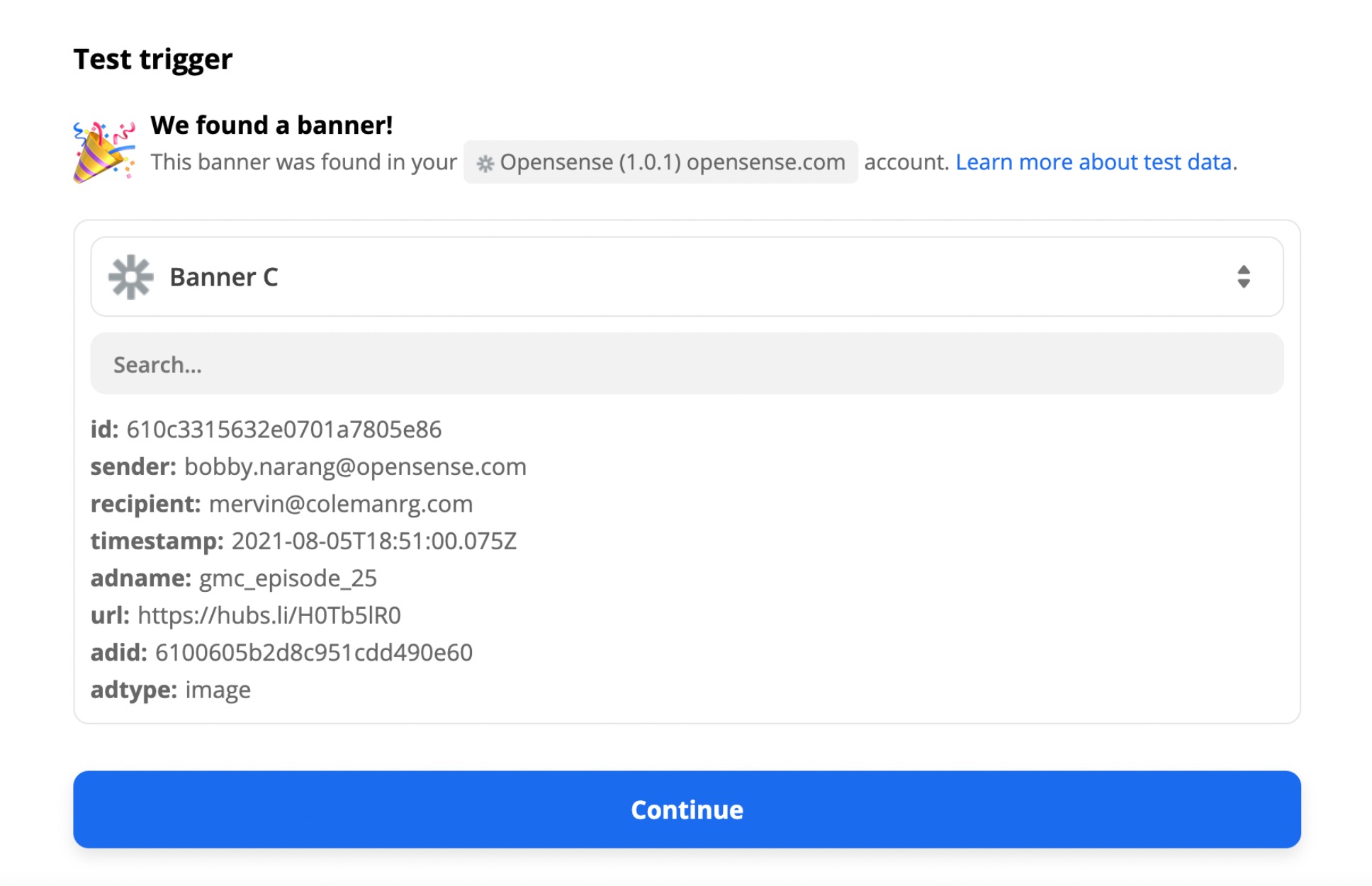
5. Test your trigger. The test returns:
- Sender
- The sender of the email.
- Recipient
- The recipient of the email.
- Timestamp
- The date and time of the engagement.
- Adname
- The name of the Opensense ad served to the recipient.
- URL
- The URL of the ad click.
You're now ready to trigger actions with Zapier.
## What's next
- [Can I find out who my banner campaign was delivered to?](https://help.opensense.com/docs/can-i-find-out-who-my-banner-campaign-was-delivered-to)
- [Targeting with CRM or marketing automation platforms](https://help.opensense.com/docs/targeting-with-crm-or-marketing-automation-platforms)
For further help, contact Opensense Support at [help@opensense.com](mailto:help@opensense.com).