

Assigning a signature template to a department (classic UI)
Creating a department
Section titled “Creating a department”- After you sign in to Opensense, open the Signatures menu, and select Departments.
- Select + Add New Department.
- Name the department.
Add users to a department
Section titled “Add users to a department”Opensense defines who is in which department by each employee’s username. The username is everything before the @ in their email address.
-
After you sign in to Opensense, open the Signatures menu, and select Departments.
-
Select the blue edit icon, in the upper right of the department you’re adding users to.
-
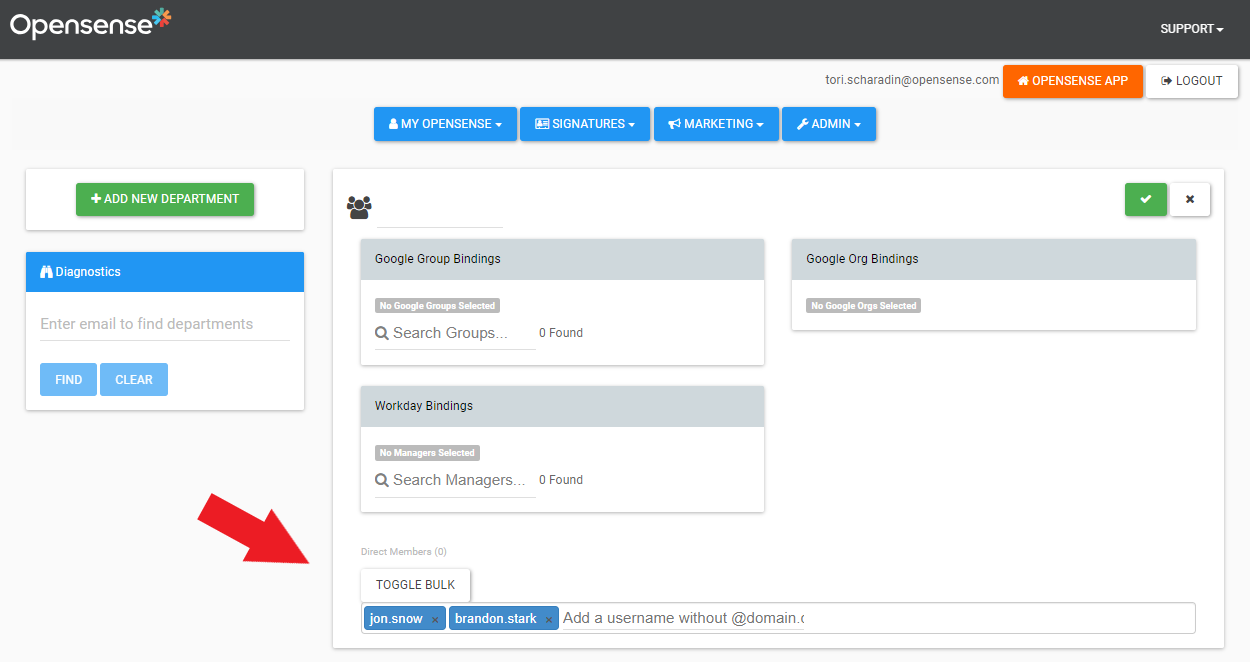
Add users one of two ways:
- Individually
- Type each username into Direct Members. Tip: press Tab after each username.
- In bulk from a spreadsheet
- Select the Toggle Bulk button above Direct Members, then copy and paste the column of usernames you want to add from a spreadsheet.
Binding departments to your company directory
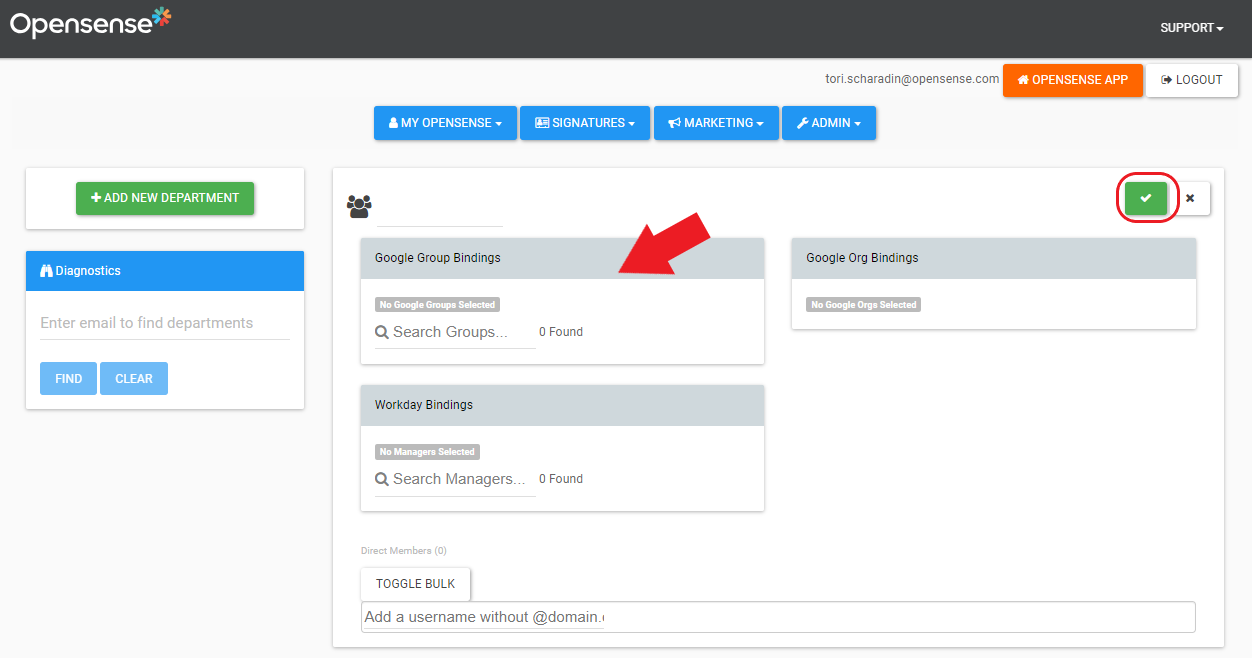
Section titled “Binding departments to your company directory”- Search for groups that exist in your directory.
- Select the green button in the upper right to save.
Assign a signature design to a department
Section titled “Assign a signature design to a department”Create a signature route
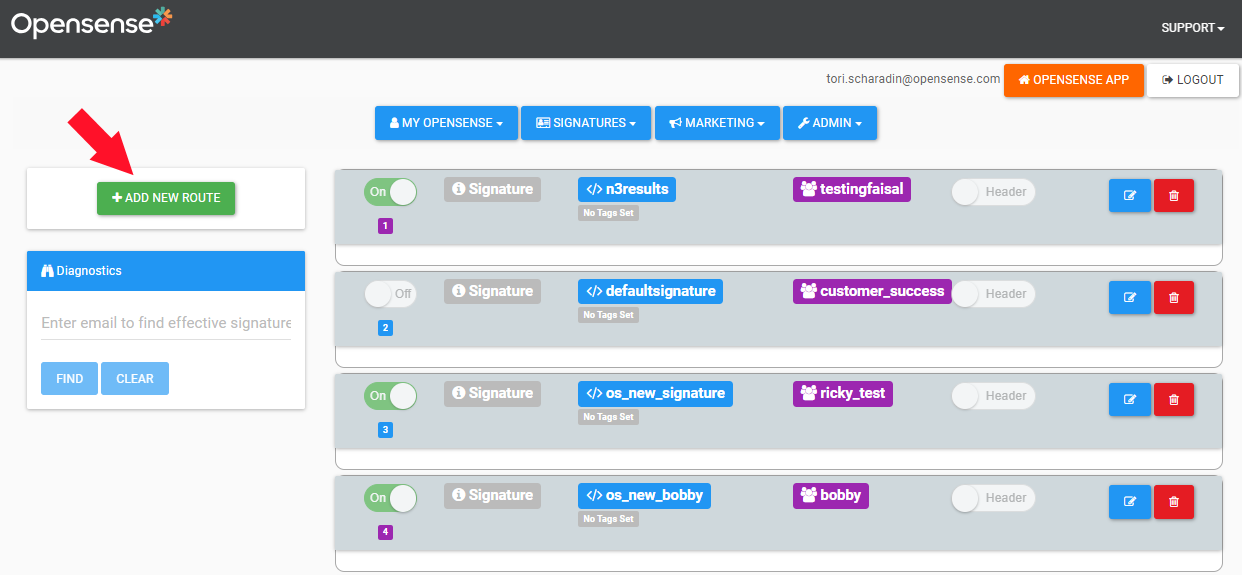
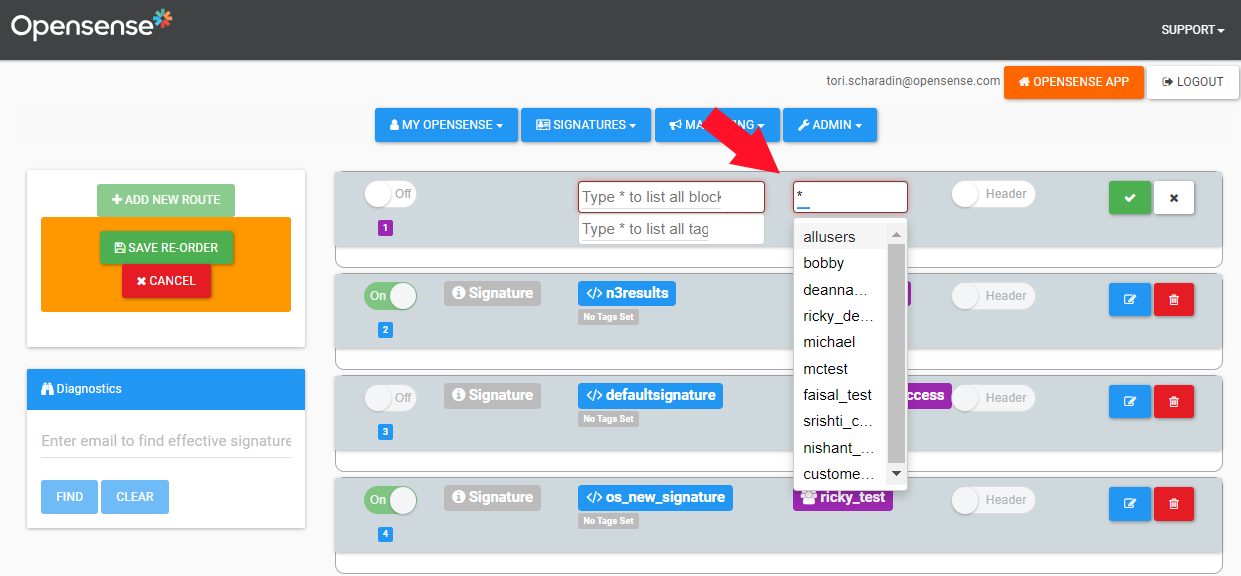
Section titled “Create a signature route”- After you sign in to Opensense, open the Signatures menu, and select Signature Assignment.
- Select + Add New Route, and turn the route On.
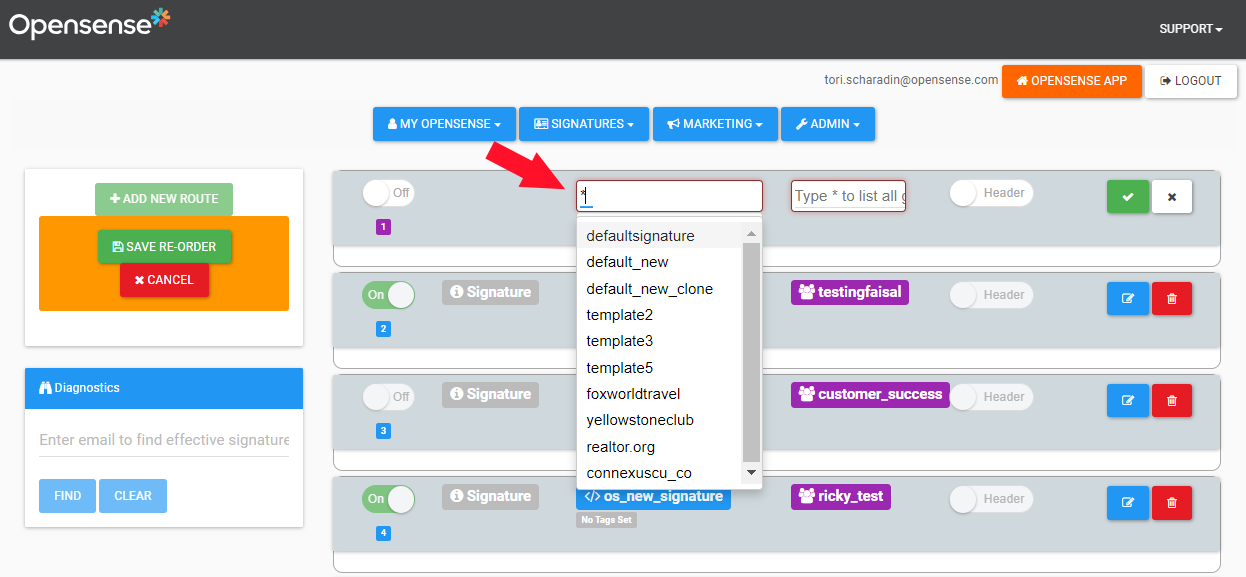
- In the left box (for signature blocks and templates), type the signature template you want to use. You can also type
*to see all your templates, and select one. - In the right box (for groups and departments), type the group or department to assign the signature template to. You can also type
*to see all the departments, and select one from the list. - Select Save, and also select Save Re-Order.
Route priority
Section titled “Route priority”The priority number under each route’s toggle switch shows the route’s priority. Drag and drop the signature routes to change their priority. Users who are in more than one department get the signature template of their highest-priority route.
Activate or deactivate a signature route
Section titled “Activate or deactivate a signature route”- Select Edit on the route you want to turn on or off.
- Turn the route On or Off, and select Save.
What’s next
Section titled “What’s next”For further help, contact Opensense Support at help@opensense.com.