---
title: "Condensing many signatures into one (legacy templates)"
slug: "condensing-many-signatures-into-one"
description: "Combine many signature assignments into one legacy template with conditional fields, department fields, and ABM banner setups."
updated: 2024-01-17T16:18:13.000Z
canonical: "https://help.opensense.com/docs/condensing-many-signatures-into-one"
---
> ## Documentation Index
> Fetch the complete documentation index at: https://help.opensense.com/llms.txt
> Use this file to discover all available pages before exploring further.
# Condensing many signatures into one (legacy templates)
## Overview
This article is for pre-2022 templates, built with our legacy HTML syntax: **use it if your tags are in `$tag;` format.** If you use Liquid templates, see [Condensing many signatures into one (Liquid templates)](https://help.opensense.com/docs/condensing-many-signatures-into-one-new-liquid-templates).
## What's different about each template?
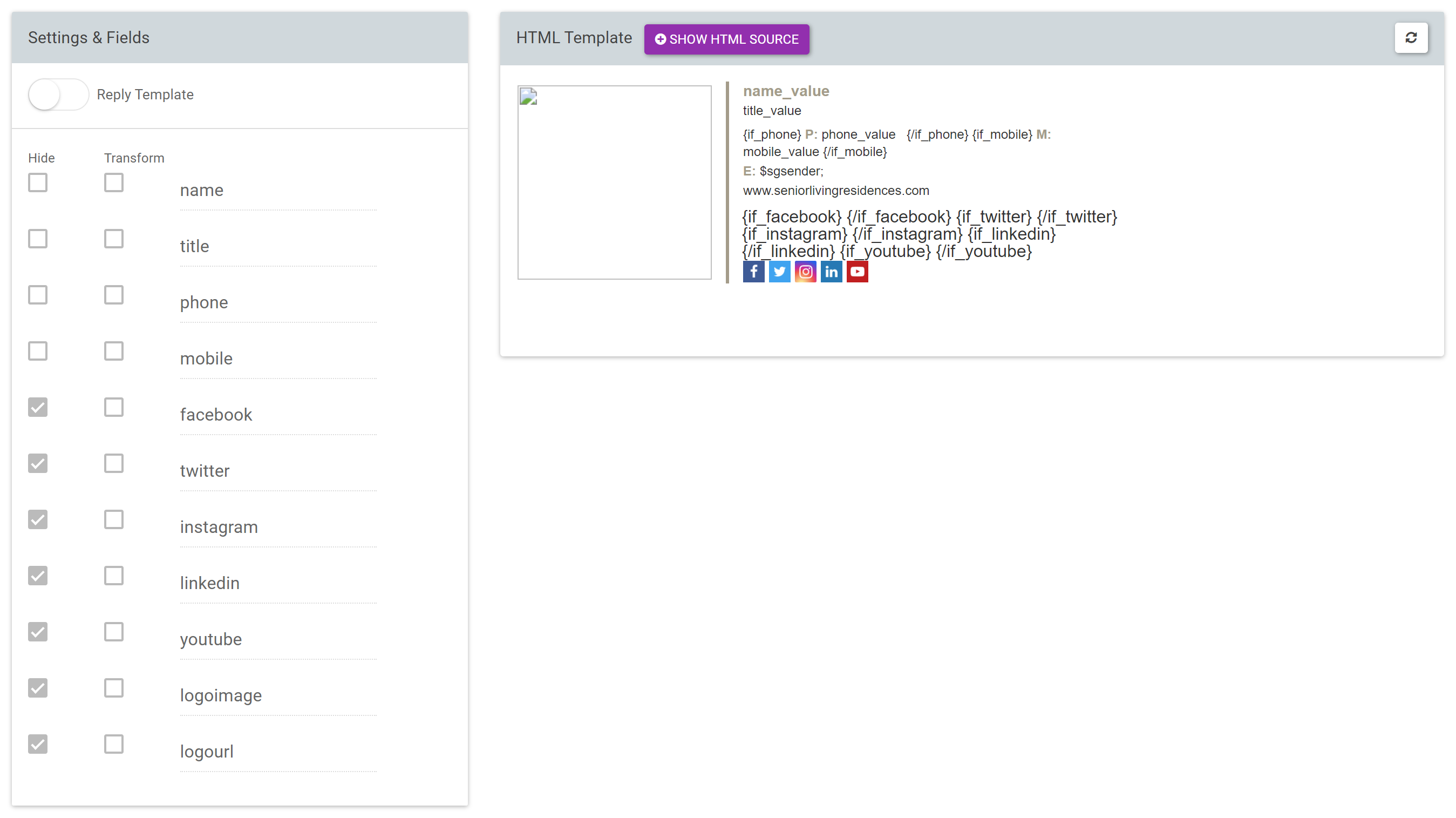
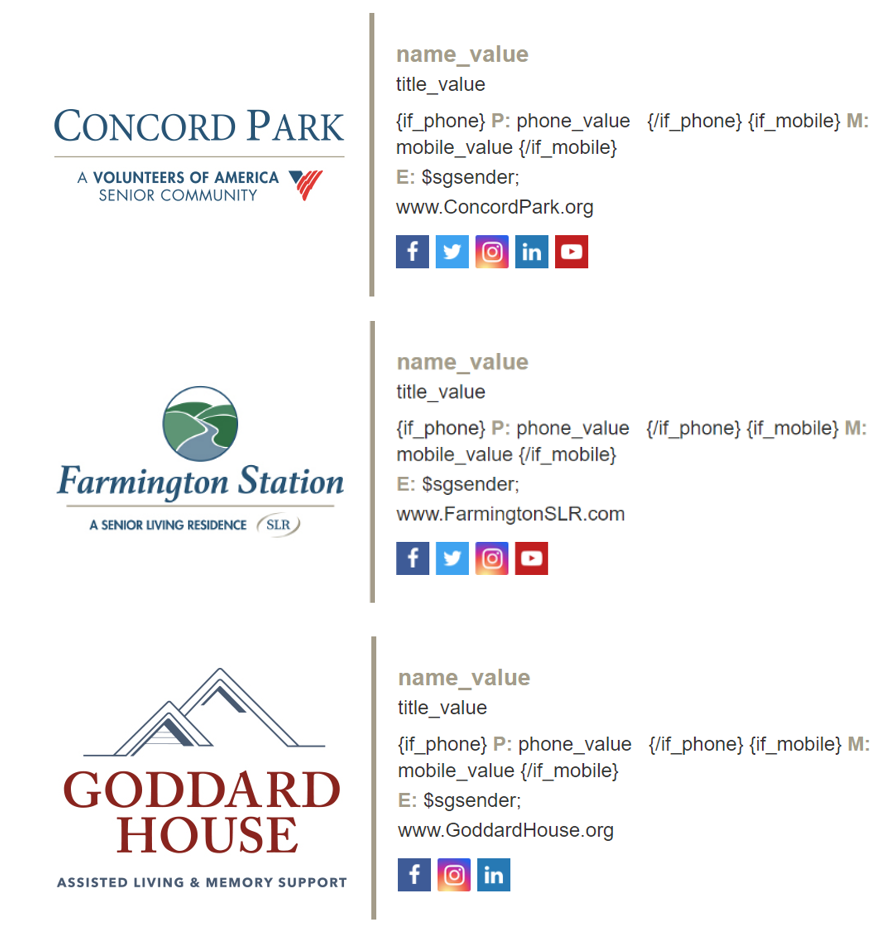
Apart from formatting, the fields, text, images, and banners can all be customized in one signature template. Use conditional fields, department fields, and ABM banner setups to combine many signatures into one:
- Conditional fields
- Customizable at the individual user level. For example: mobile numbers for some users, or calendar links for some users. More examples.
- Department fields
- Customizable at the department level. For example: sub-brand logos, sub-brand social media icon links, department-wide phone numbers, or links to webinars specific to a department. More examples.
- ABM banner setups
- Customizable banners. In your signature template, replace the
[[adtags]] or [[ad]] connection with [[abm]] to connect to your ABM dashboard. In the ABM dashboard, you can assign banners by department and by recipient, for department-specific banners in an easy-to-view dashboard. More examples.
## One signature, many possibilities
## What's next
- [Conditional fields (legacy templates)](https://help.opensense.com/docs/conditional-fields-pre-2022-legacy)
- [Department fields](https://help.opensense.com/docs/department-fields)
For further help, contact Opensense Support at [help@opensense.com](mailto:help@opensense.com).