

Gmail launch guide
Overview
Section titled “Overview”Deploying with Push to Gmail gives users a touchless experience, by pushing signatures into Gmail in the web browser. We’re happy to review the communications your team creates, and make sure they align with the launch strategy. And if you have a launch communication email you’re proud of, we’d love to add it to our knowledge base to help others.
Deployment tips and end-user experience
Section titled “Deployment tips and end-user experience”Push to Gmail
Section titled “Push to Gmail”Best day to deploy: any. It’s usually used at the same time as the email reminder.
- When you push to Google, we write to My Signature in Gmail signature settings, as your branded Opensense Signature Instructions document shows. If My Signature is already in use, what’s there is overwritten.
- Employees may need to refresh the browser page for their new signature to show in their account.
- As an extra check, employees can make sure My Signature is the default for new messages and replies, by following the instructions in the linked document.
- In the Opensense Signature Guide, we share how to stop Google from moving the signature to the bottom of the email thread. This isn’t an Opensense setting, but employees and admins have found our instructions on fixing it useful.
- The default signature appears as plain text, and the recipient always gets a beautiful email signature design that Marketing manages centrally. Your branded Opensense Signature Instructions document explains this transformation.
Push to Email
Section titled “Push to Email”Best day to deploy: early in the week, to encourage adoption through the rest of the week.
- Employees get their customized Opensense signature in their inbox, on every device. They need to do a simple one-time copy and paste of their Opensense signature into every device they send email from. Your branded Opensense Signature Instructions document has setup instructions for the major desktop and mobile devices.
- The default signature appears as plain text, and the recipient always gets the robust, beautiful, highly engaging email signature design that Marketing manages centrally. Your branded Opensense Signature Instructions document shows this transformation.
Communications strategy overview
Section titled “Communications strategy overview”Change for employees is always best paired with effective internal communications. That’s why we help you tell employees their Opensense signatures are on the way, with a tried-and-true strategy and resources:
- Pre-launch announcement
- At least 1 week before the launch. Answers the "why?" question, and includes a screenshot of the design to get everyone excited.
- Launch announcement
- On the day of launch. Tactical instructions for setting up the signature, and a point of contact for internal support, for anyone with more questions or who needs more help.
Before you send
Section titled “Before you send”Good launch communication is the difference between a few support emails and many more than you need. To help you get started, here’s two sample emails, submitted by a customer who launched their email signatures successfully.
- Send launch communications 1 to 3 days before launch day. Bonus points for showing your new company signature even sooner, at an all-hands meeting.
- If you write a launch email you’re proud of, send it to your customer success manager, so it can be added to the knowledge base to help others.
Pre-launch announcement (1 to 3 days ahead of launch)
Section titled “Pre-launch announcement (1 to 3 days ahead of launch)”Dear Employees,
In an effort to present a stronger unified brand to our customers, we will be implementing a standardized email signature for all employees. Using a service called Opensense, the marketing team will now centrally manage the style and format of email signatures, while employee contact information will be synced from our company directory. This ensures that our corporate email communications will have a consistent appearance going forward.
This will also give marketing an opportunity to routinely update email signatures with relevant banners for upcoming webinars, live demos, tradeshow events, etc.
Additionally, this makes your life easier, since you will never have to worry about editing or adding anything to your CompanyName email signature again!
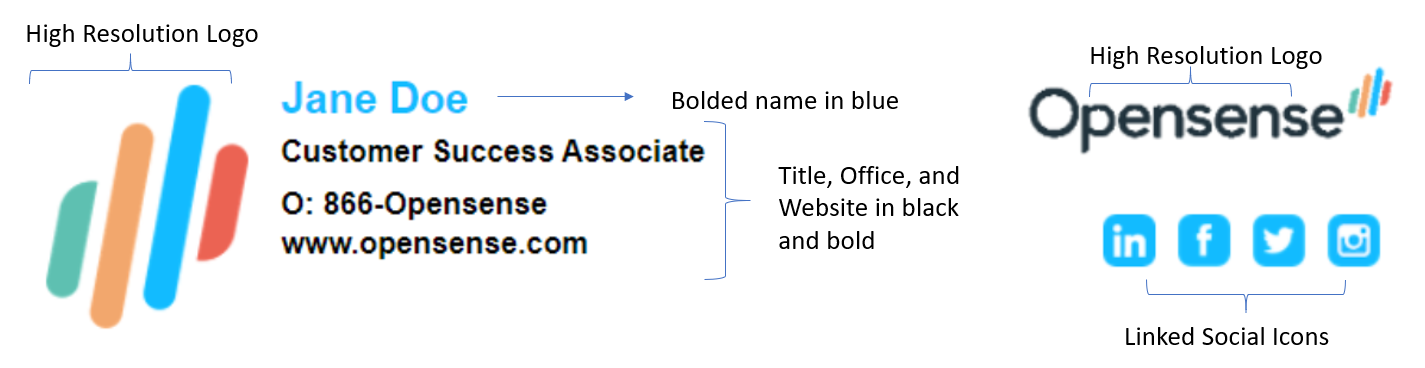
Highlights of the new email signature block are:
You will receive an email from our team on Monday, May 18th with additional instructions on how to set this up for your emails going forward.
If your signature contains incorrect contact information, or you need any other help setting up your email signature, please contact Jane Doe for support: Jane.Doe@ABC.com
Please do not add quotations, tag lines, memes, videos, alternative legal disclaimers, font changes, color changes, logos, etc. If you believe that you have a legitimate case for adding or changing something on your signature block, please reach out to Jane Doe: Jane.Doe@ABC.com, and your request will be reviewed and considered by Marketing.
We greatly appreciate your help in setting up your signatures.
Thank you!
Launch announcement (day of launch)
Section titled “Launch announcement (day of launch)”Hey Team!
We have activated your new signatures in partnership with Opensense, who is helping us present a more unified brand. There are only a few simple steps, which should take less than 5 minutes, to set this up on all your emails going forward.
Gmail on a web browser
- Refresh your web page. When you click Compose, your new email signature should now appear!
- Go to Settings > General, and scroll down to the signature settings.
- Make sure that My Signature is selected as the default for For new emails use and On reply/forward use, for all corporate email addresses (including alias accounts).
- Directly below your signature settings, select the checkbox Insert signature before quoted text.
Mobile devices (phones, tablets, etc.)
- On Monday afternoon, you will receive an email from Opensense (notifications@opensense.com) directing you to copy your new signature.
- You will need to copy this signature “block” one time into each mobile device that you send emails from.
- Different devices have different settings. If you need guidance on how to set this up, see the attached document with step-by-step instructions.
Once Opensense is activated, you will not see your email signature when you hit Send, but it will be added automatically, along with any current featured banner ad. Once we have launched, you can send a test email to your personal email or a colleague to check it out, as it will not show up when you compose an email or in your sent emails.
Using the Pusher tool
Section titled “Using the Pusher tool”See How to use the Opensense Pusher (classic UI) to launch to users with the Pusher tool.
Signature instructions for end users
Section titled “Signature instructions for end users”Your onboarding includes branded signature instructions for your company, to help current and new employees add their new email signature. A generic copy is available here. If you haven’t received your branded copy, contact your customer success manager.
What’s next
Section titled “What’s next”- Gmail launch communications: strategy and sample emails
- Creating a department and adding users (classic UI)
- Assigning a signature template to a department (classic UI)
- Why do email signature elements appear distorted in reply threads?
For further help, contact Opensense Support at help@opensense.com.