---
title: "How does Opensense work with Google Workspace?"
slug: "how-does-opensense-work-with-google-workspace"
description: "How Opensense manages Gmail signatures: Content Compliance routing, the Marketplace app, three deployment methods, the Google Add-on, and dependencies."
updated: 2026-03-20T15:34:24.000Z
canonical: "https://help.opensense.com/docs/how-does-opensense-work-with-google-workspace"
---
> ## Documentation Index
> Fetch the complete documentation index at: https://help.opensense.com/llms.txt
> Use this file to discover all available pages before exploring further.
# How does Opensense work with Google Workspace?
## Overview
Opensense integrates with Google Workspace through Gmail's Content Compliance engine and the Gmail API. Together, they let Opensense manage email signatures centrally, enforcing brand consistency, compliance requirements, and marketing campaigns across outbound email. Depending on your deployment method, signatures are applied server-side after send, pushed into Gmail's native signature settings, or both.
## How the integration works
Opensense connects to Google Workspace through two components, which work together depending on your deployment method:
Content Compliance rules in the Google Admin console
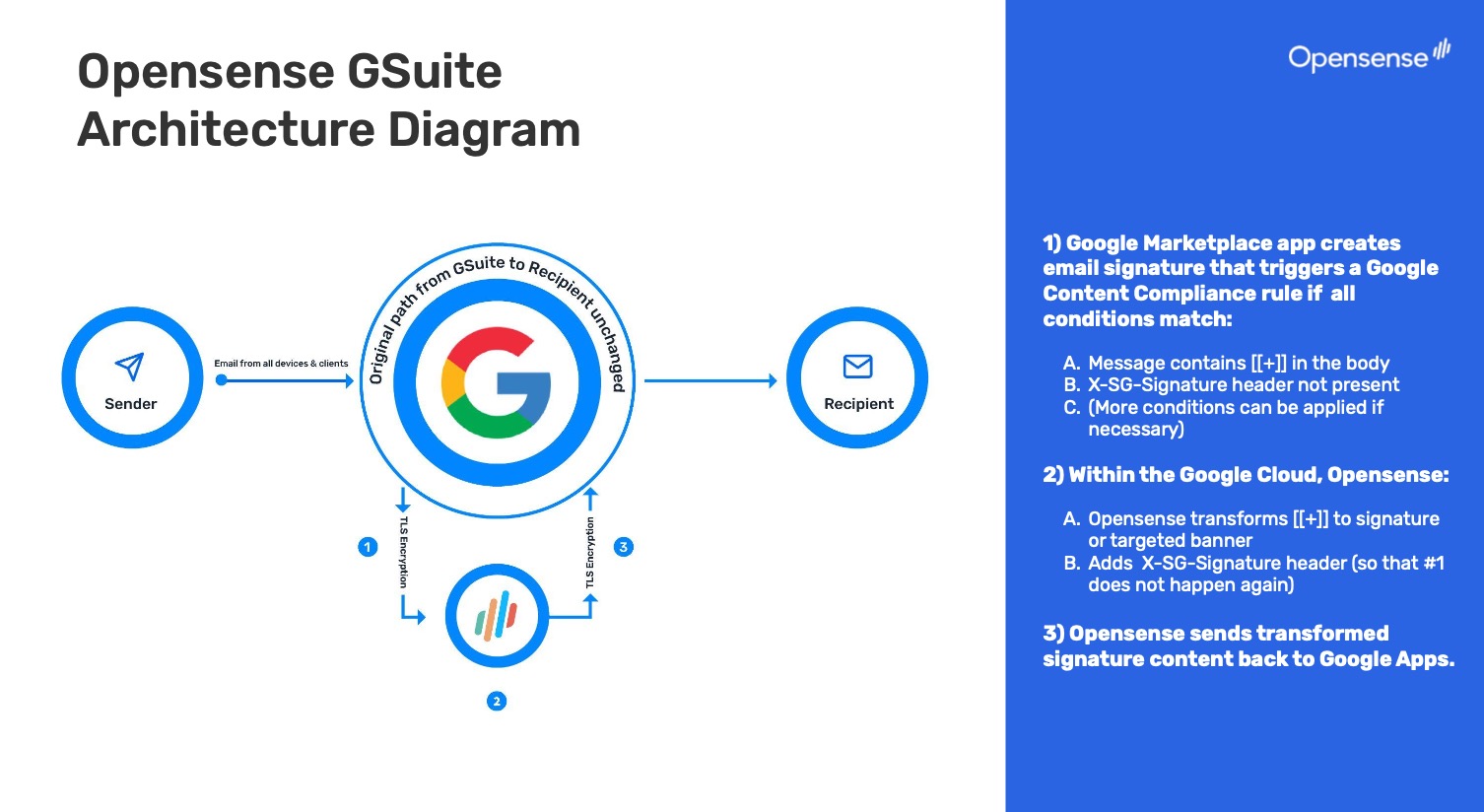
Route qualifying outbound emails from Gmail to Opensense. Opensense applies the correct HTML signature and any configured marketing banners, then returns the email to Gmail through TLS for final delivery. Required for Stamping and Plain Text Block push deployments.
The Opensense Google Workspace Marketplace app
Installed during the integration process. Grants Opensense permission to sync user data from Google Directory and, where applicable, push signatures directly into users' Gmail native signature settings. Opensense never accesses inbox contents. For the full list of permissions granted during installation, see Google Workspace API scopes.
User data, including name, title, phone, and department, comes from Google Directory, and syncs to Opensense to fill in each signature dynamically. The combination of components you use depends on your deployment method.
Google Workspace architecture · Gmail routes qualifying email through Opensense and back
## Deployment methods
Opensense supports three deployment methods for Google Workspace. You can use them on their own, or together.
Server-side, after sendStamping through Content Compliance
A Google Workspace Super Admin configures a Content Compliance rule that routes qualifying outbound emails to Opensense. Opensense applies the full HTML signature and any banners after send, then returns the email to Gmail for delivery.
Works across all devices and email clients, because it operates at the mail flow level
No compose visibility
Full compliance enforcement, recipient-based targeting, and advanced analytics
Pushed, transformed at sendPlain Text Block push
The Opensense Pusher puts a plain text signature block into each user's Gmail native signature settings. When the user sends, a Content Compliance rule routes the email to Opensense, which transforms it into the full HTML signature.
Compose visibility, with server-side control and the full marketing feature set
If the Pusher can't reach a user's environment, the block can be delivered by email instead, or users can save it themselves with MySig
Pushed, no routingVisual Preview push
The Pusher puts the full rendered HTML signature into each user's Gmail native signature settings. The signature is already there client-side, so no routing to Opensense is needed at send time.
Designed for organizations that can't allow third-party mail flow, for privacy or compliance reasons
:::caution[A Visual Preview push is static]
Unlike the Opensense Outlook Add-in, the Google Visual Preview push isn't live in the compose window: it's a static push into Gmail settings. If the signature template changes, or a user's directory data is updated, the signature in Gmail doesn't update automatically. An admin must push again, unless the Google Add-on is installed with auto-push turned on for the group. Then the user can trigger an update themselves, by saving a field change in the add-on. See [Pushing Visual Preview signatures to Gmail with the Pusher](https://help.opensense.com/docs/opensense-pusher-tool-for-google-add-on).
:::
:::tip[Stamping and Plain Text Block together]
Stamping and Plain Text Block push are commonly used together. Stamping covers mobile devices and third-party clients that don't use Gmail's native compose, while the Plain Text Block push gives desktop Gmail users compose visibility.
:::
## The Opensense Google Add-on
The Opensense Google Add-on brings signature field management directly into Gmail. A Google Workspace Super Administrator deploys it centrally, and it appears automatically in the Gmail sidebar. No individual installation is required, and there's no propagation delay.
Users can view their signature fields, edit any unlocked fields, and select **Update Signature** to save their changes. Updates sync immediately to Opensense. When a user edits an unlocked field, the sync between that field and the original directory source (Google Directory, Okta, and so on) is intentionally broken for that field, so the user's input isn't overwritten on the next automatic directory sync.
If auto-push is turned on for the user's group in Opensense, saving a field update pushes the updated signature back to the user's Gmail native signature settings automatically. The push type (Plain Text Block or Visual Preview) is configured per group. Without auto-push, signature updates need an admin to push again.
For full add-on documentation, including auto-push configuration, field locks, Custom Compose Fields, and Signature Fields Only, see the [Google Add-on overview](https://help.opensense.com/docs/google-add-on-info).
## Key integration dependencies
Google Workspace account
Required for all users. Consumer Gmail accounts aren't supported.
Super Admin access
Required to configure Content Compliance rules, and to install the Opensense Google Workspace Marketplace app.
Opensense Google Workspace Marketplace app
Installed during integration. Grants Opensense permission to sync Google Directory data and push signatures to Gmail settings. Push methods need the Gmail manage settings permission scope.
Content Compliance rule
Required for the Stamping and Plain Text Block push methods. Configured in the Google Admin console to route qualifying emails to Opensense.
DNS records
SPF and other DNS entries must be updated for all sending domains, to maintain deliverability.
For the full integration setup requirements, see [Google Workspace integration overview (change request)](https://help.opensense.com/docs/google-workspace-integration-overview).
## What's next
- [Choosing a deployment method](https://help.opensense.com/docs/choose-a-deployment-method)
- [Google Add-on overview](https://help.opensense.com/docs/google-add-on-info)
- [Google Workspace integration overview (change request)](https://help.opensense.com/docs/google-workspace-integration-overview)
- [Google Workspace API scopes](https://help.opensense.com/docs/google-workspace-permissions)
- [MySig for Google Workspace](https://help.opensense.com/docs/mysig-for-g-suite)