

Managing multiple domains (classic UI)
Overview
Section titled “Overview”In Opensense, each domain is managed in its own account. If you have more than one domain, you have more than one Opensense account. Opensense can link these accounts together under one login.
Requesting multi-domain management
Section titled “Requesting multi-domain management”Email help@opensense.com to ask for your accounts to be linked. Give the admin’s primary email address, and the domains the admin needs to access.
Switching between domains
Section titled “Switching between domains”-
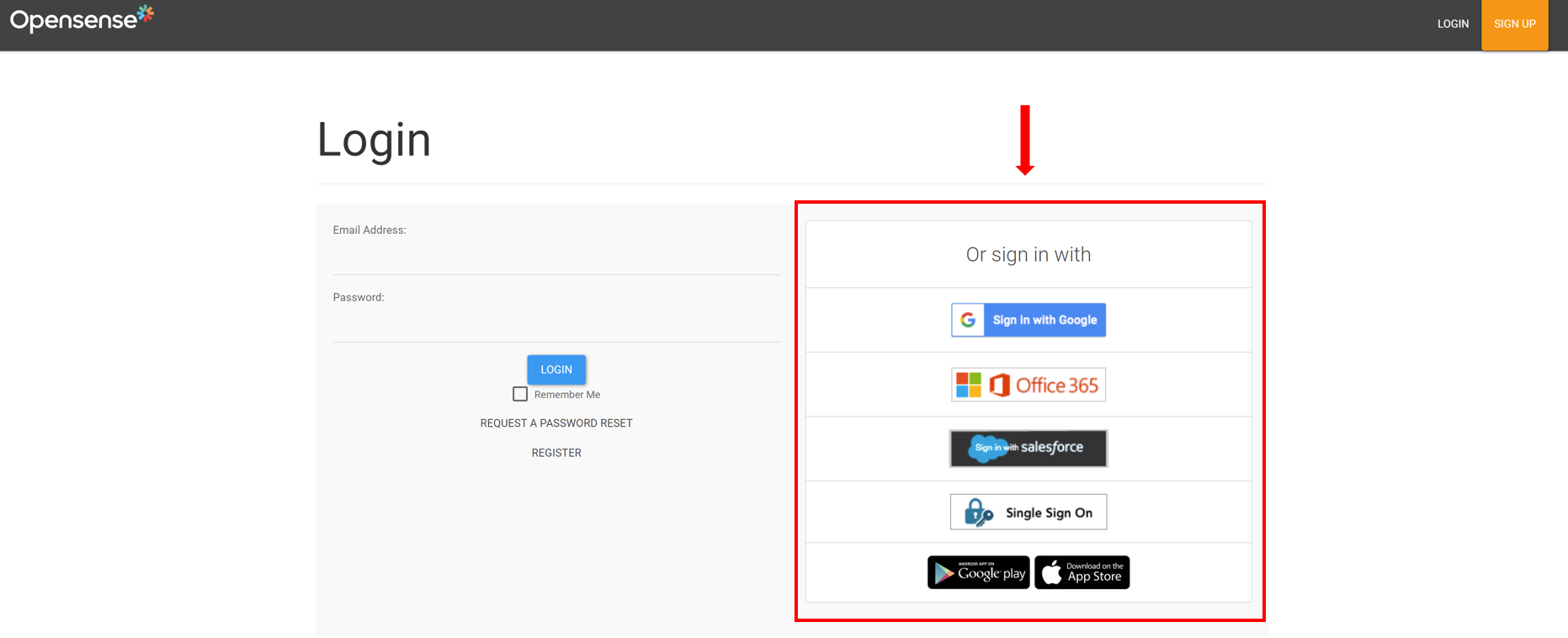
Sign in to Opensense with single sign-on.
-
You’re signed in to the Opensense account that matches your email domain. For example,
jane.doe@happydays.comsigns in to thehappydays.comaccount. -
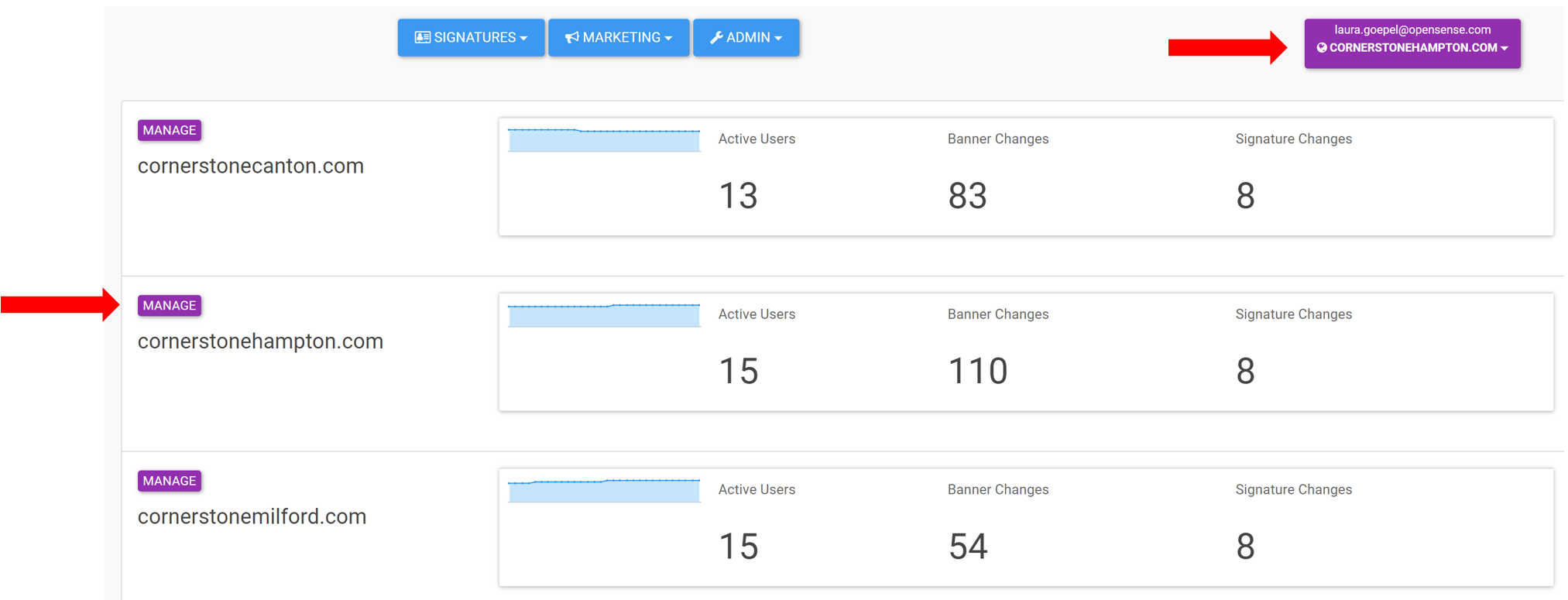
To change accounts, find the purple box in the upper-right corner. Open its menu, and select Switch Domains.
-
The page shows your linked accounts.
-
Select Manage to change accounts. The domain in the purple box changes.
What’s next
Section titled “What’s next”For further help, contact Opensense Support at help@opensense.com.