

Sending more than one signature
Overview
Section titled “Overview”The signature block is made up of fields that fill in a signature template. This gives you flexibility: changing the field data changes the transformed signature.
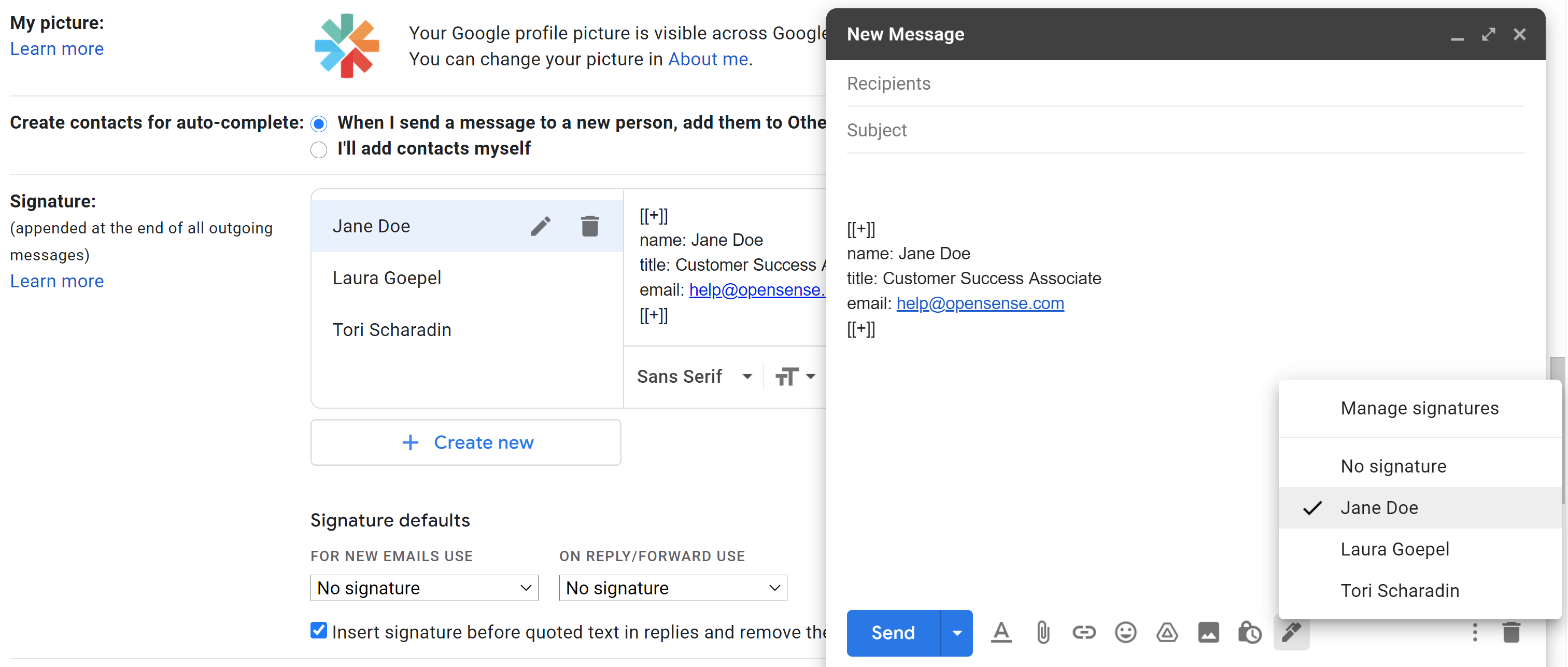
Saving multiple signature blocks with different field data
Section titled “Saving multiple signature blocks with different field data”Saving more than one signature block, each with different field data, lets you:
- Send relevant information to recipients.
- Let more than one user share an inbox.
Changing the template from the signature block
Section titled “Changing the template from the signature block”Opensense offers extensive customization options. This feature lets users apply a signature design template while they compose an email. It’s an advanced feature that can be valuable for certain users.
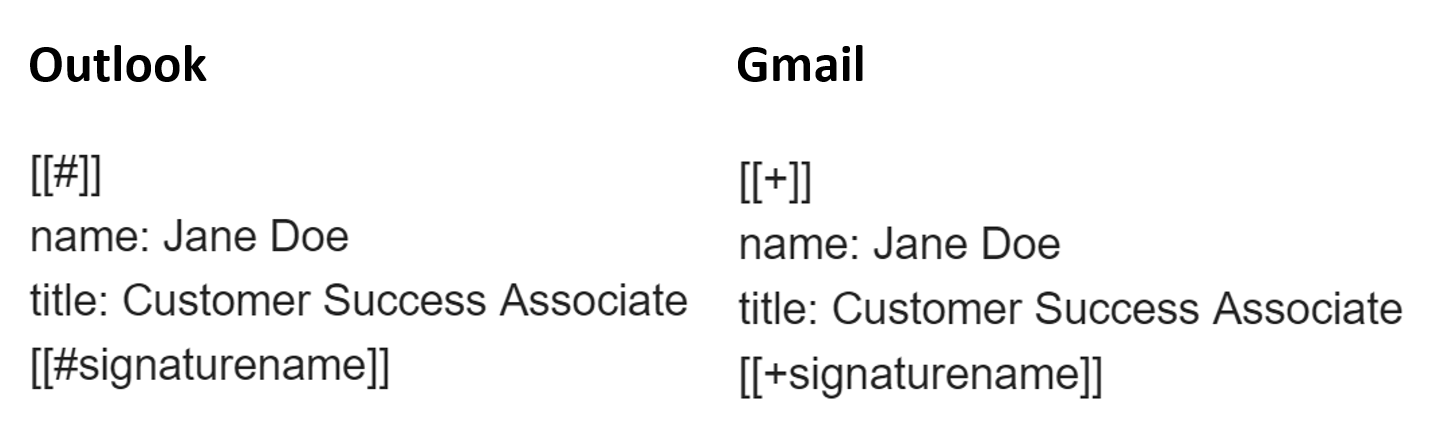
To call a signature template, add its name to the token at the bottom of the signature block:
- Gmail
[[+signaturename]]- Outlook
[[#signaturename]]
Example: one user sending multiple brand signatures
Section titled “Example: one user sending multiple brand signatures”-
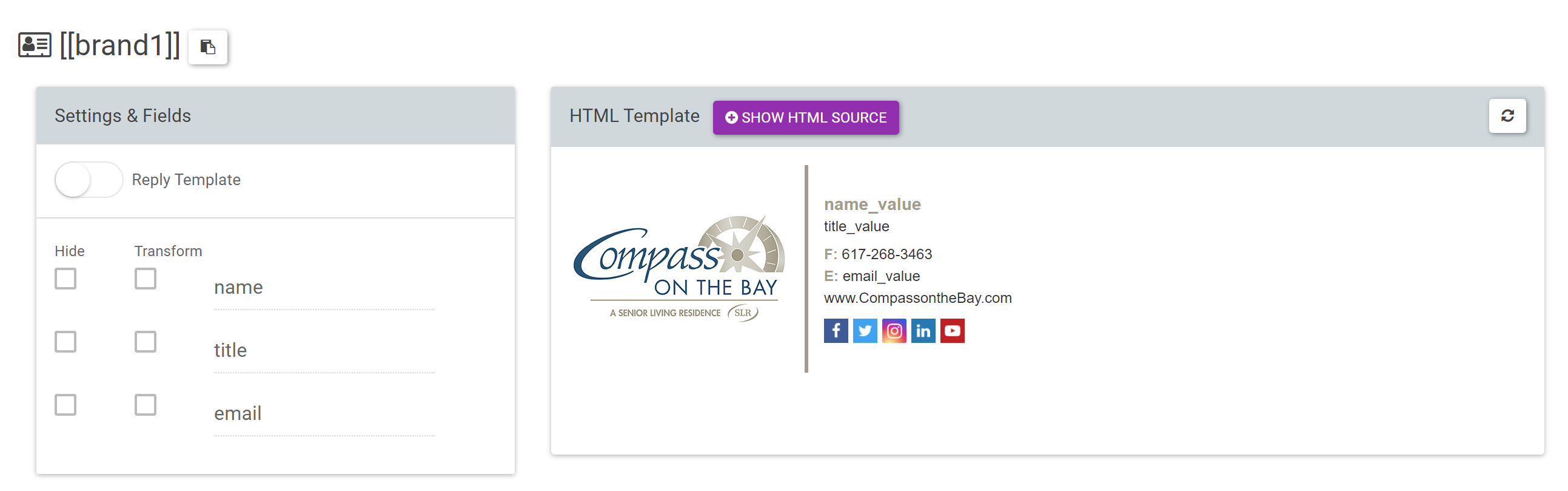
Set up the signature templates for the brands in Designer Studio.
-
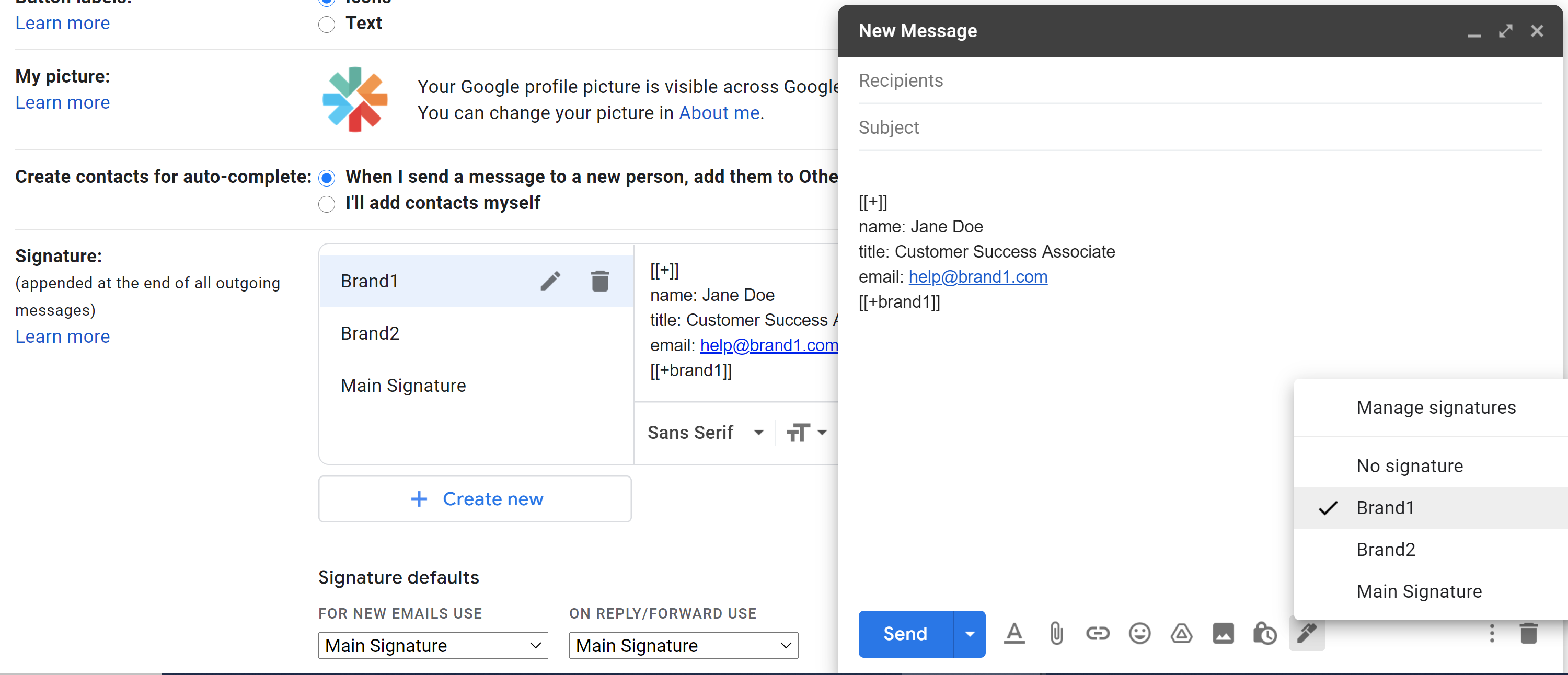
Save the custom signature template in the user’s signature settings. It’s now an option in the compose window.
What’s next
Section titled “What’s next”For further help, contact Opensense Support at help@opensense.com.