

Setting up shared inboxes for Stamping customers
Overview
Section titled “Overview”Shared email boxes also work for Stamping customers. Users of the shared email box use our signature block to override the stamp. Here’s how to set this up.
Step 1: Remove the shared address’s Compliance data
Section titled “Step 1: Remove the shared address’s Compliance data”Opensense uses a data priority system to fill in signature templates. For a shared email address, the field data should come from the user’s signature block, so all competing data must have a lower priority.
-
Go to Compliance (Signatures menu > Compliance).
-
Search for the shared email address.
-
Select Edit User. Delete the data, then unlock all fields and break the sync.
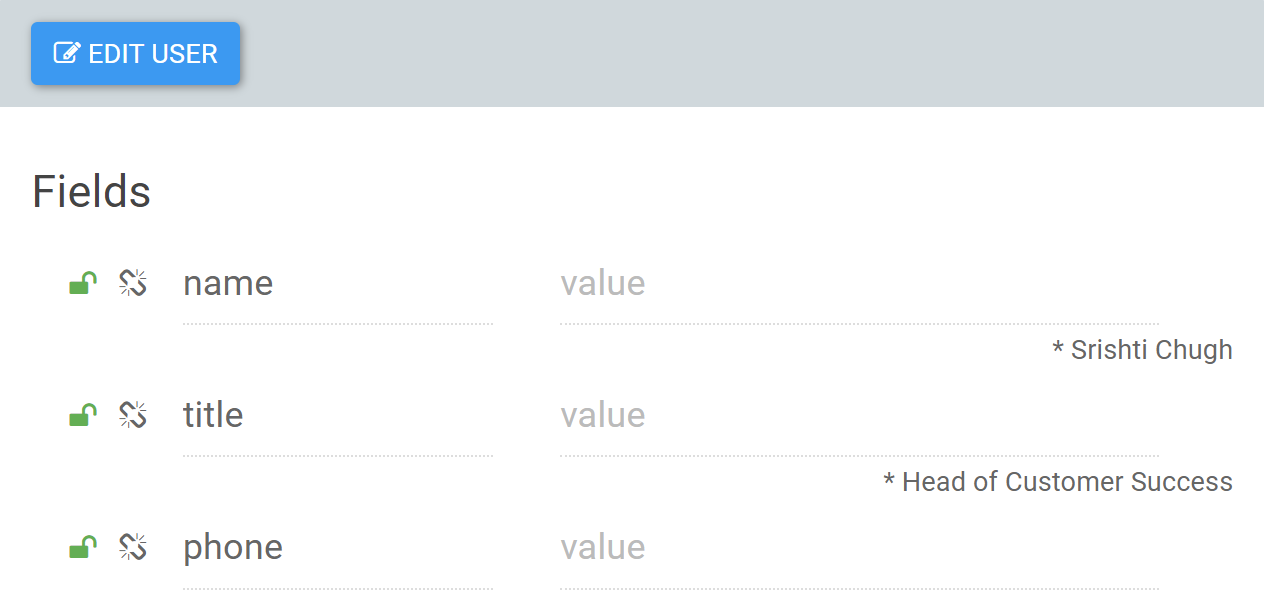
It’s okay if the fields show an asterisk (*) with the old data. The asterisk shows the data in the signature block of the last email sent.
Step 2: Create unique signature blocks
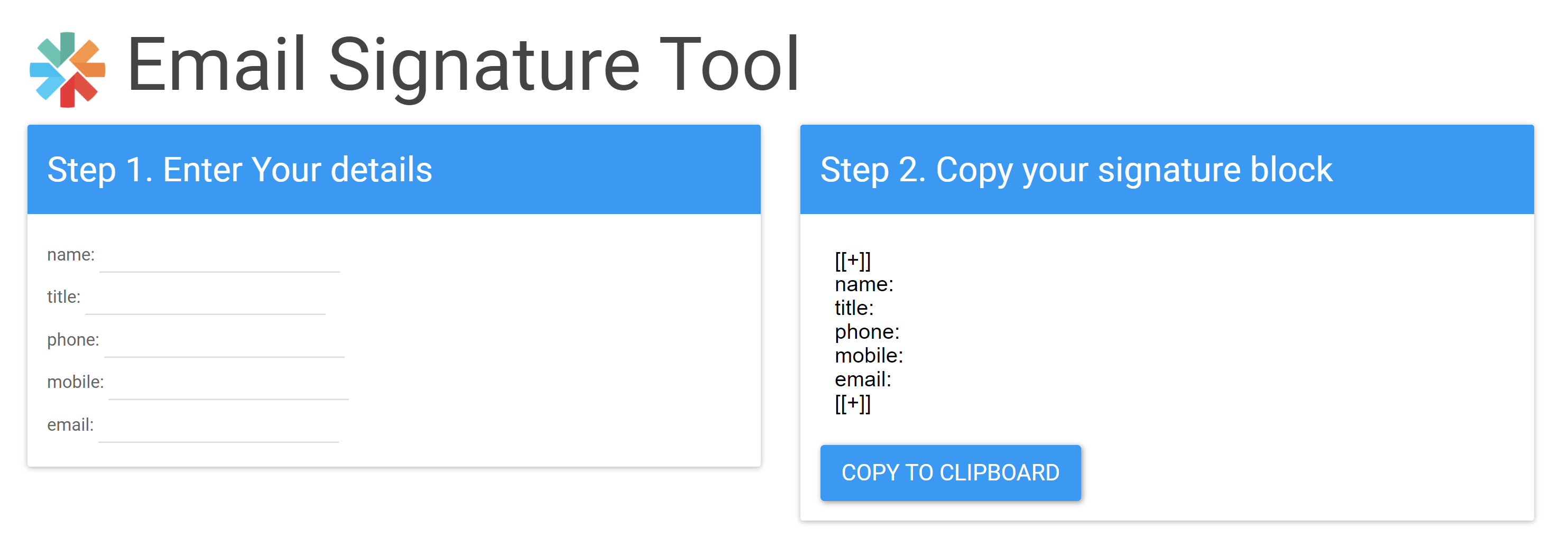
Section titled “Step 2: Create unique signature blocks”With the data in Opensense cleared, the data comes only from the signature block on the email. Ask the users of the shared email address to create their own unique signature block with your MySig tool.
-
Go to MySig, and enter your details.
-
Copy, paste, and save the signature block in the signature settings of the shared email address.
-
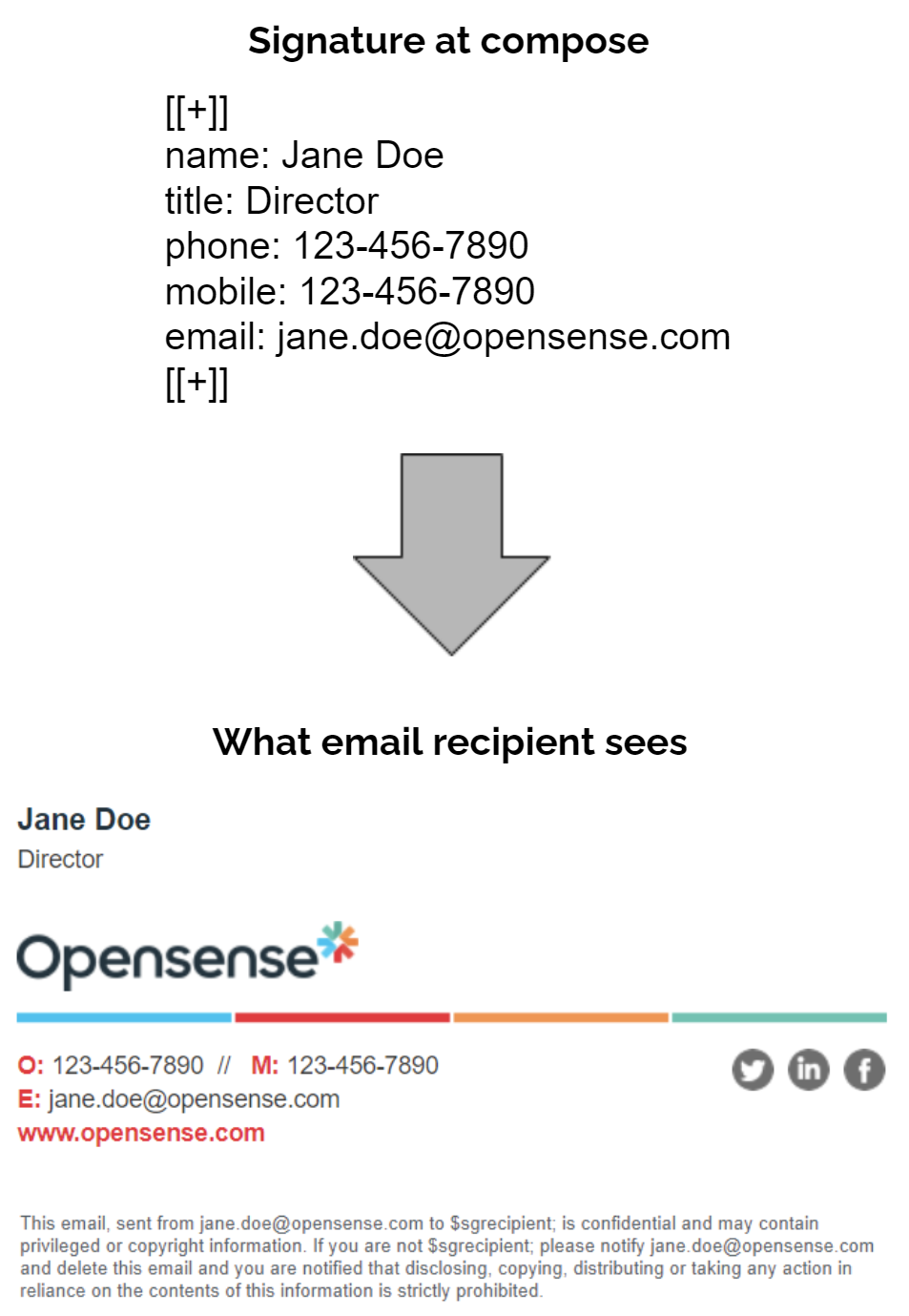
Users select their signature block from the signature selector. The fields fill in the transformed signature, and override the stamped signature.
What’s next
Section titled “What’s next”For further help, contact Opensense Support at help@opensense.com.