

How to use the Pusher for Google Workspace (classic UI)
Overview
Section titled “Overview”Opensense Pusher is a deployment tool that pushes each user’s custom plain text signature block to them. You choose the plain text signature block, upload a CSV file of employee contact information for their signatures, and push the signatures in a notification email, or directly into an integrated app such as Gmail, Outreach, Outlook Web, or Salesforce.
For more information, or for help, contact help@opensense.com.
Step 1: Choose the signature template
Section titled “Step 1: Choose the signature template”- Sign in to the Opensense portal, and select Pusher in the Signatures menu.
- In 1. Signature Template, select the signature you want to roll out.
- For a standard signature push, leave Banner Only and Push Visual cleared.
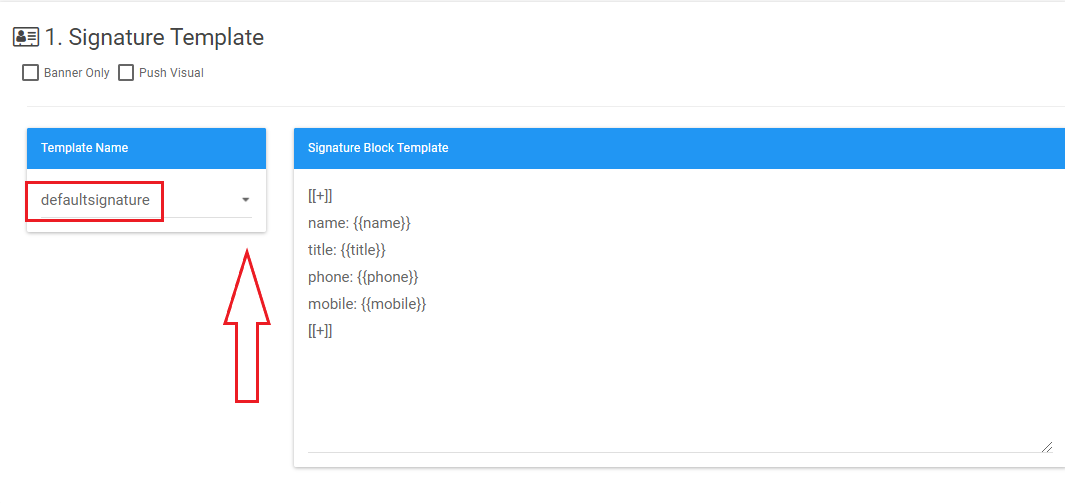
- Banner Only (optional, uncommon)
- Adds only a banner to existing signatures. This may cause inconsistent formatting.
- Push Visual (optional, uncommon)
- Shows a graphic signature in the compose window for individual users. Users can no longer edit their information, and new signature designs don't update automatically.
Step 2: Upload the CSV file
Section titled “Step 2: Upload the CSV file”Before you upload the CSV file, make sure it’s formatted like this:
- Column A, row 1 is always
username. The username is everything before the @ in the person’s email address. Make all of column A lowercase, or the push fails. - The other column headers must match the field names in step 1’s plain text block exactly, character for character. For example,
titleis the column header for employee job titles. - The data merges with the signature template exactly as it’s formatted in the CSV, so formatting matters (for example, firstname lastname and Firstname Lastname show differently).

Then click Choose File, and upload the CSV file with employee information.
Step 3: Preview and push
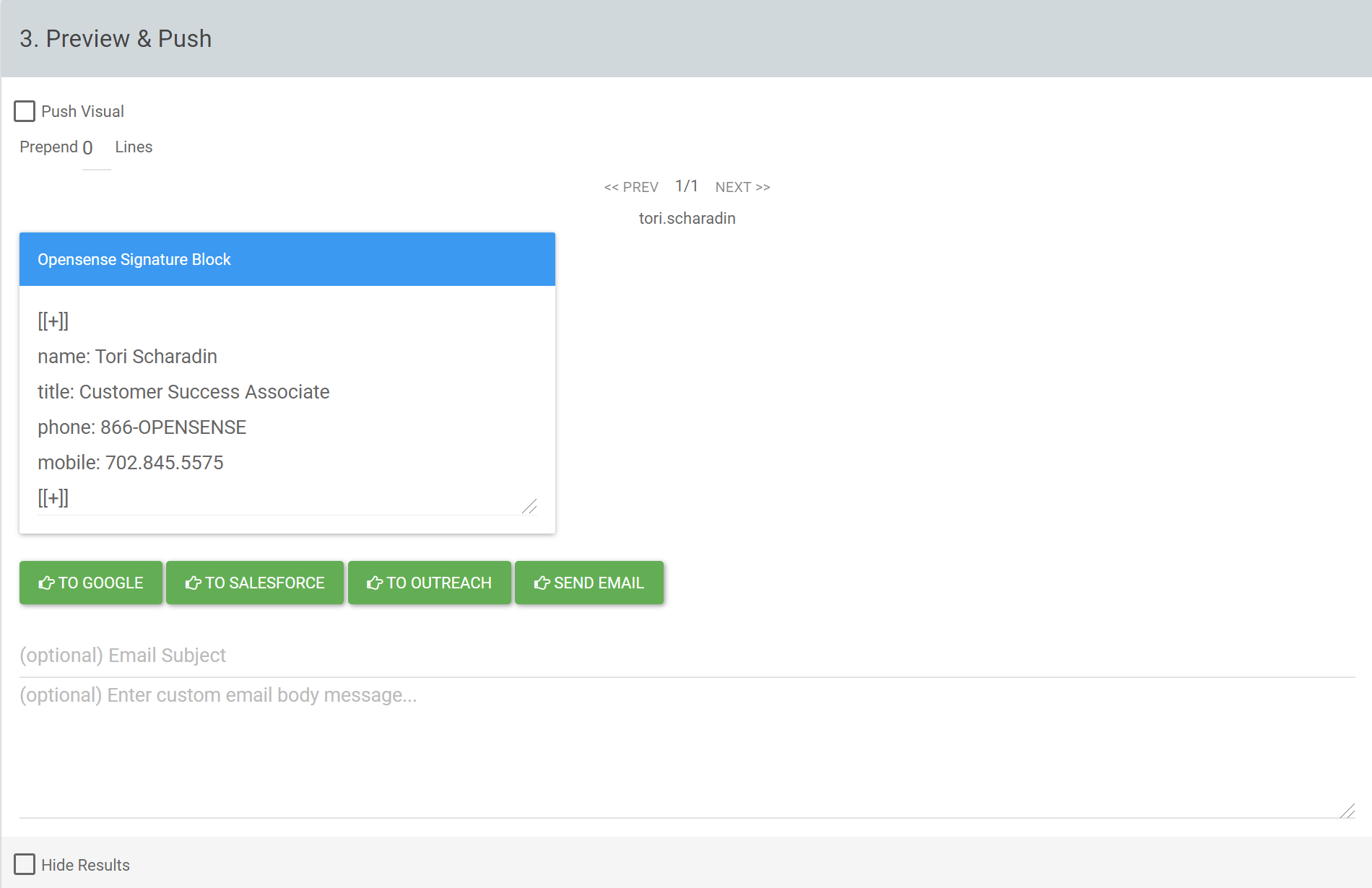
Section titled “Step 3: Preview and push”- Check the preview of every person’s signature before you push.
- Push the signatures to one of these destinations:
- Send Email
- Sends each person an email with their custom plain text signature block. They copy and paste it into the signature settings of any email client they use.
- To Google
- Pushes signatures automatically to each person's Gmail account. Users open a new Gmail window, or refresh, to see the change. Users don't need to do anything else.
- To Salesforce
- Pushes signatures automatically to each person's Salesforce account. Users don't need to do anything.
- To Outreach
- Pushes signatures automatically to each person's Outreach account. Users don't need to do anything.
What’s next
Section titled “What’s next”- How to use the Pusher tool: the Pusher in the New UI.
- Launching Opensense signatures to Gmail users: tips for the launch.
- Fixing a 403 error when pushing signatures to a Gmail alias