

How to use the Pusher tool
Overview
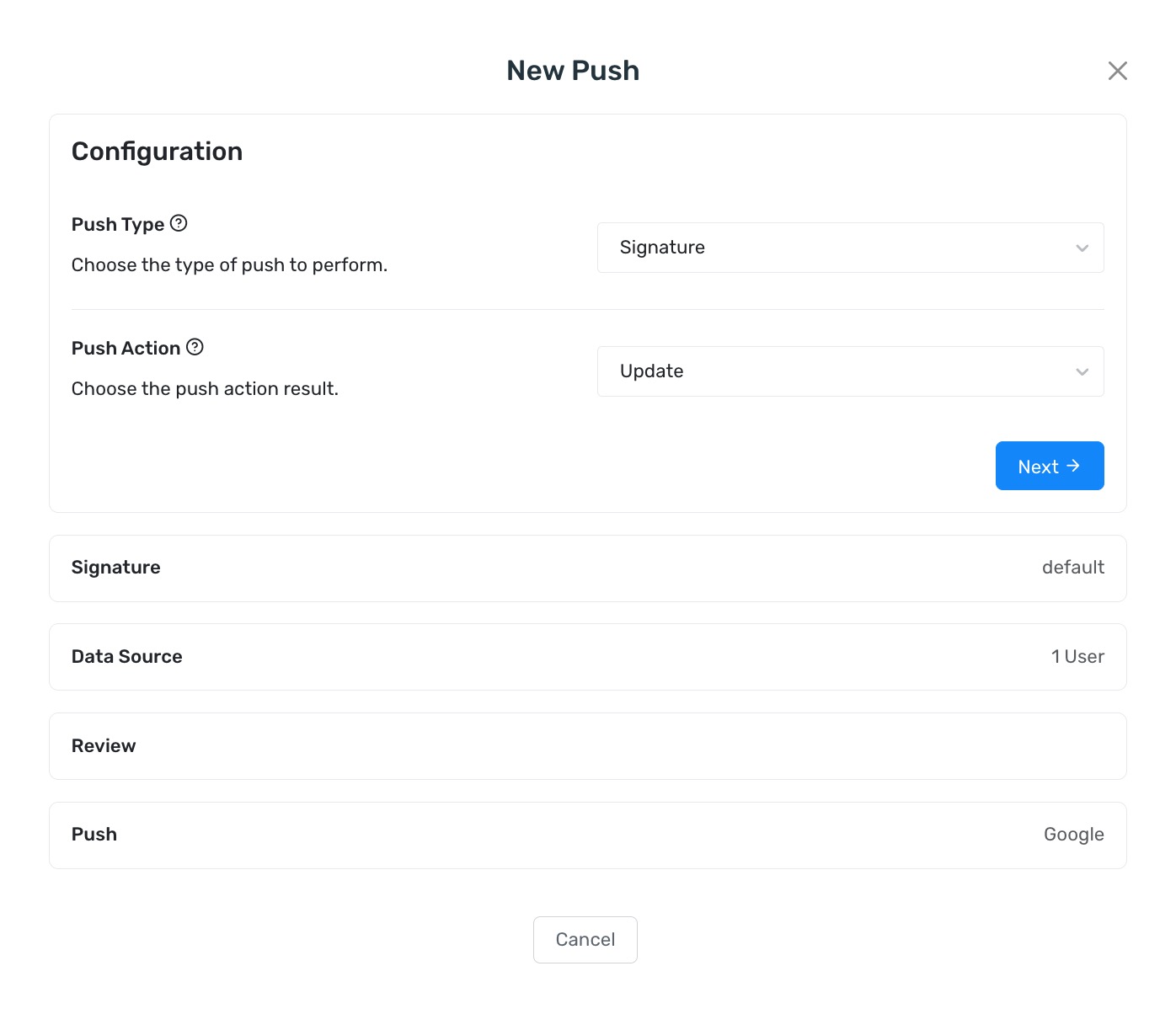
Section titled “Overview”Pusher sends signatures, banners, and custom HTML from Opensense to Google Workspace, Outreach, Salesforce, Front, and other connected apps. You create each push in the New Push window, which has five steps: Configuration, Signature, Data Source, Review, and Push.
If you use Microsoft 365, see How Does Opensense Work with Microsoft 365 instead.
Creating a push
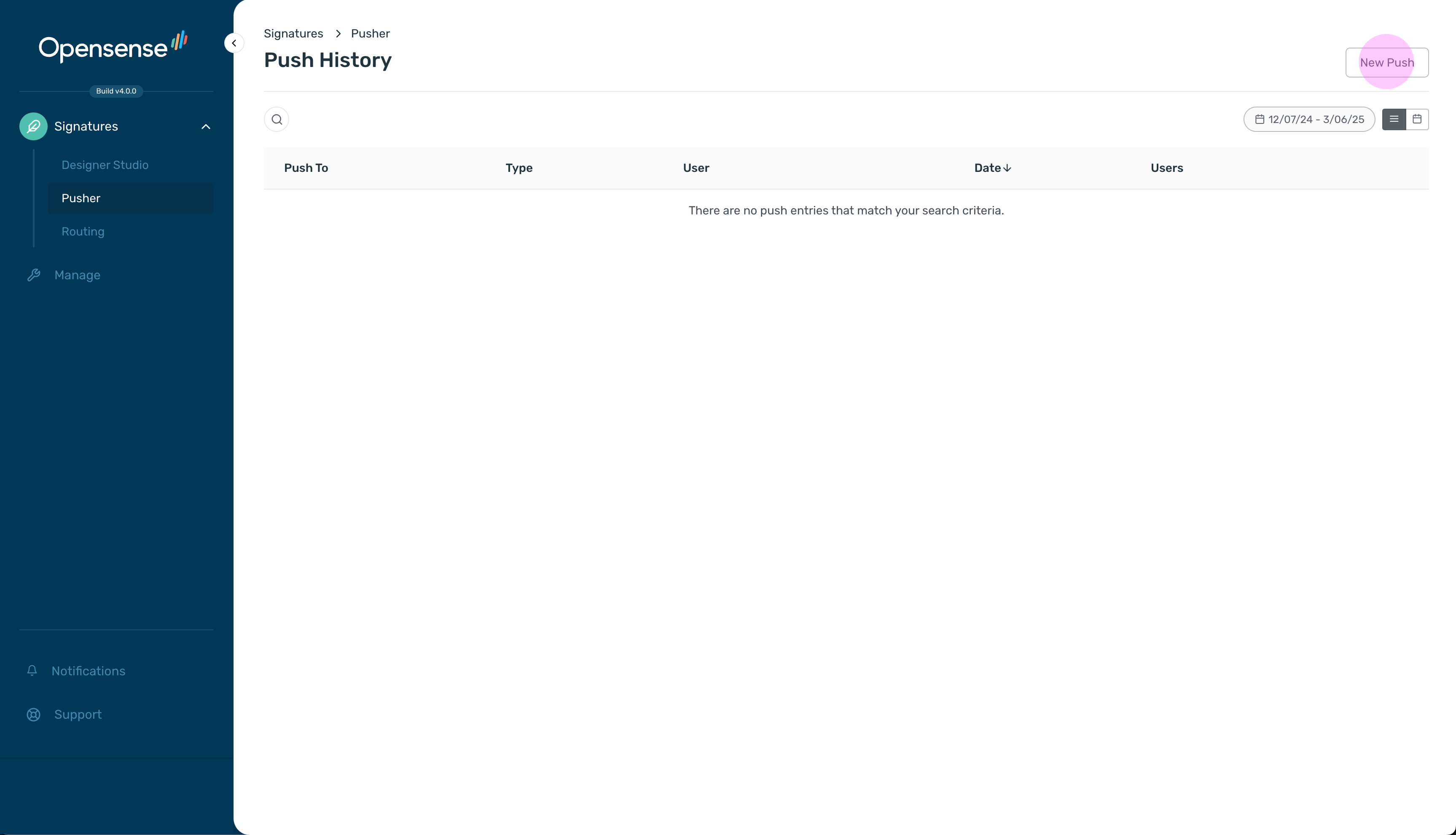
Section titled “Creating a push”- In the navigation pane, select Signatures > Pusher. The Push History page opens.
- Click New Push at the upper right.
Choose the push type and action
Section titled “Choose the push type and action”- On the Configuration step, select a Push Type and a Push Action.
- Click Next.
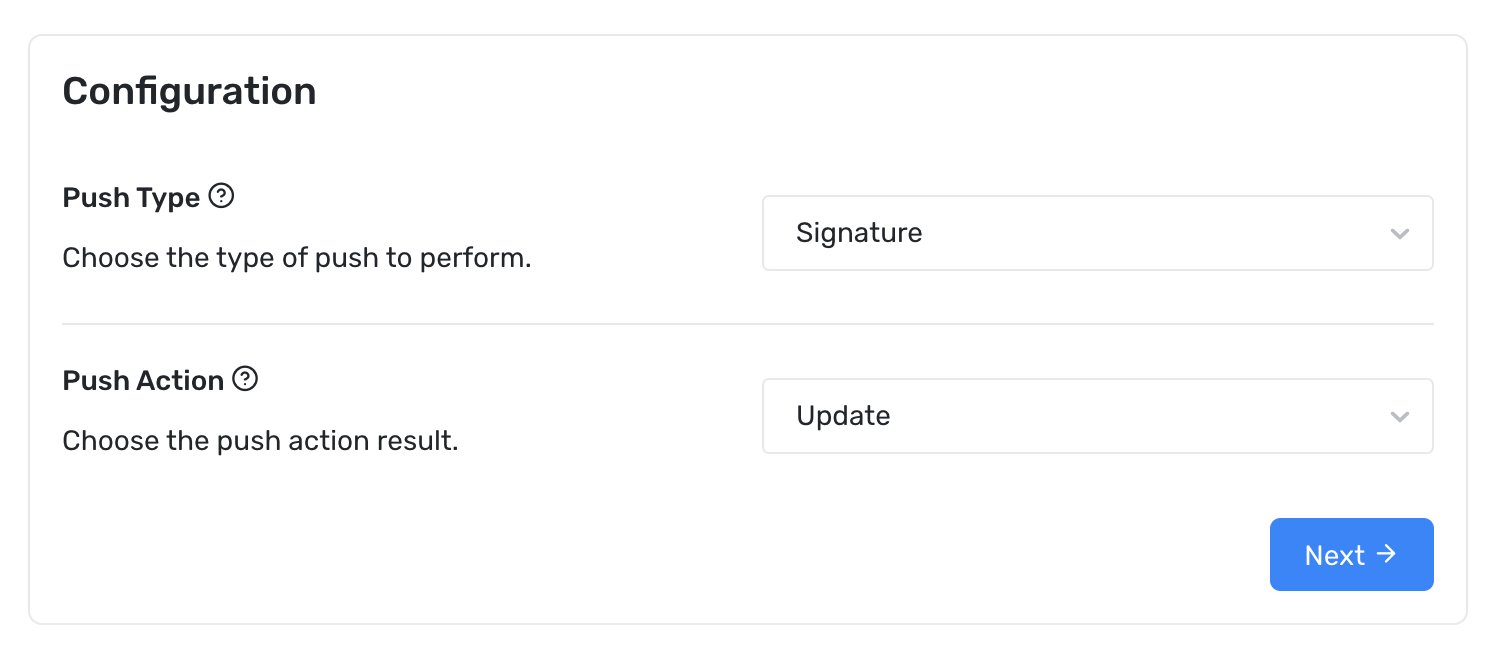
Push Type options:
- Signature
- Pushes the signature into each user's signature settings.
- Banner
- Pushes only the banner, without a full signature.
- Append HTML
- Adds HTML code in some apps. Rarely used.
- Find & Replace
- Uses a regular expression to find text in the current signature and replace it. Rarely used.
Push Action options:
- Update
- Sends the latest signature data from Opensense.
- Delete
- Removes the content that Opensense pushed to the user's default signature, My signature.
Choose the signature
Section titled “Choose the signature”- On the Signature step, select a Signature Type.
- Select a Signature Template.
- Click Next.
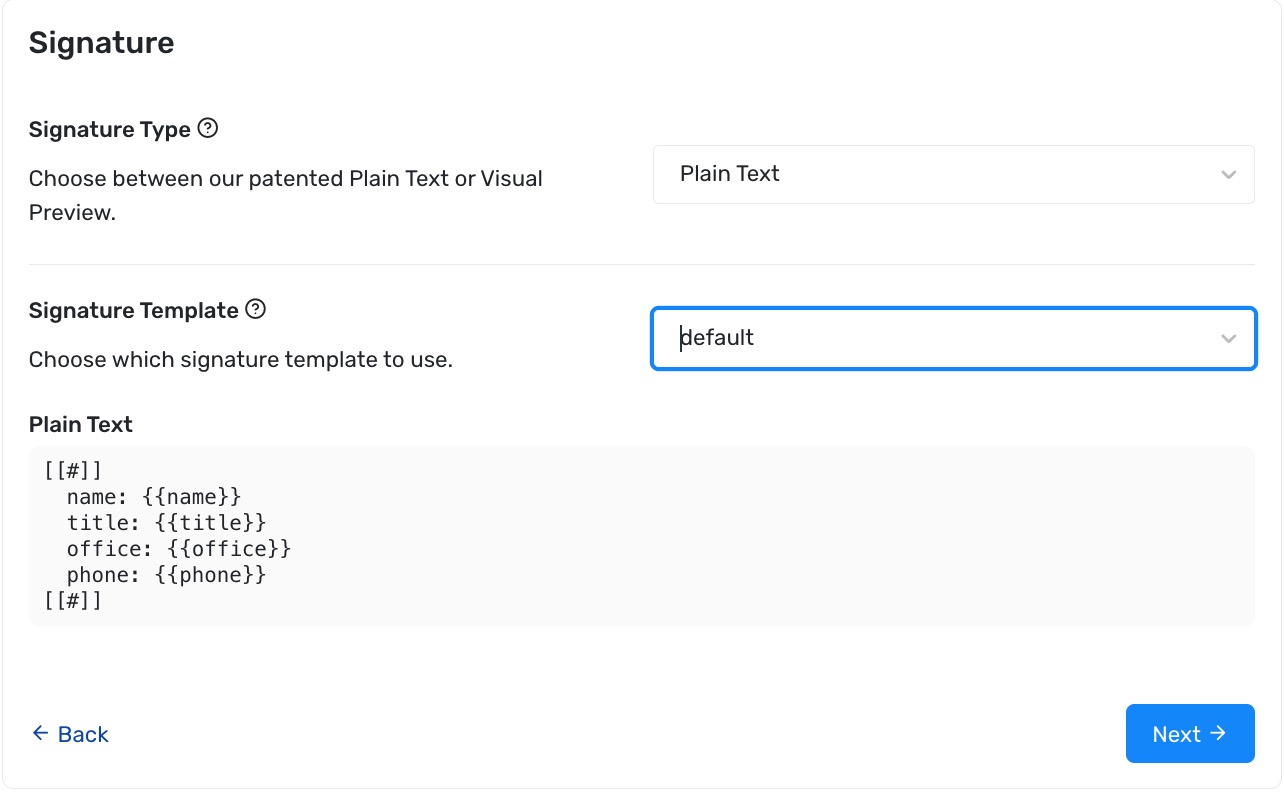
- Plain Text
- Pushes the patented Opensense Plain Text Block (PTP). When a user sends an email, a mail flow rule routes it through Opensense, which adds the signature assigned on the Routing page. The template you select sets the fields in the block. Use Plain Text for all third-party apps, so the signature is always in the right place.
- Visual Preview
- Pushes the fully rendered signature HTML into each user's signature settings. The signature does not update when your data changes, and users can edit it. Opensense ignores the template you select and pushes the signature assigned to each user on the Routing page. Use Visual Preview only for Google Workspace.
Add your users
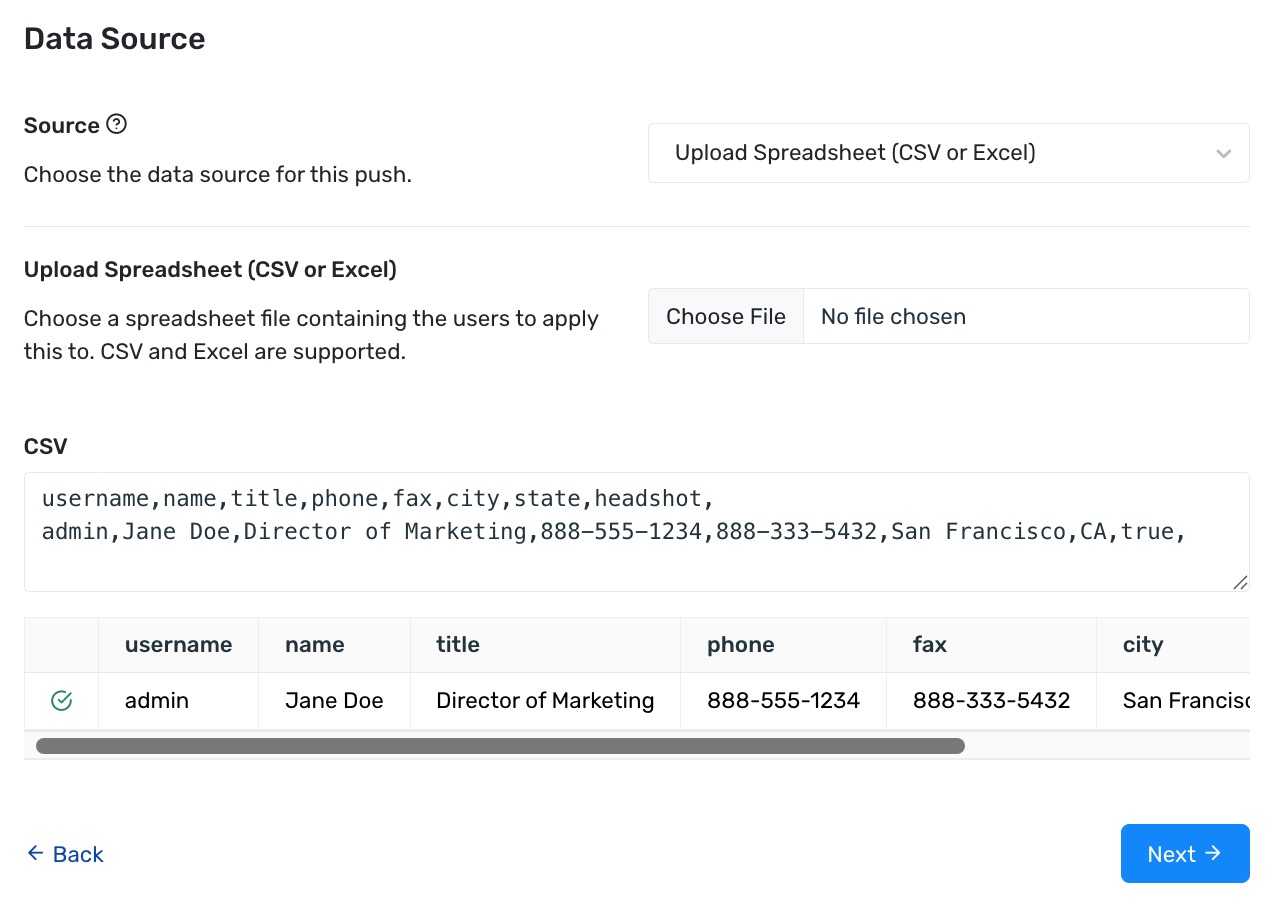
Section titled “Add your users”- On the Data Source step, select a Source:
- Upload Spreadsheet (CSV or Excel): click Choose File and select your file.
- Manual Entry: type or paste comma-separated data into the field.
- Optional: under Group Exclusions, select the Google Groups to leave out of the push.
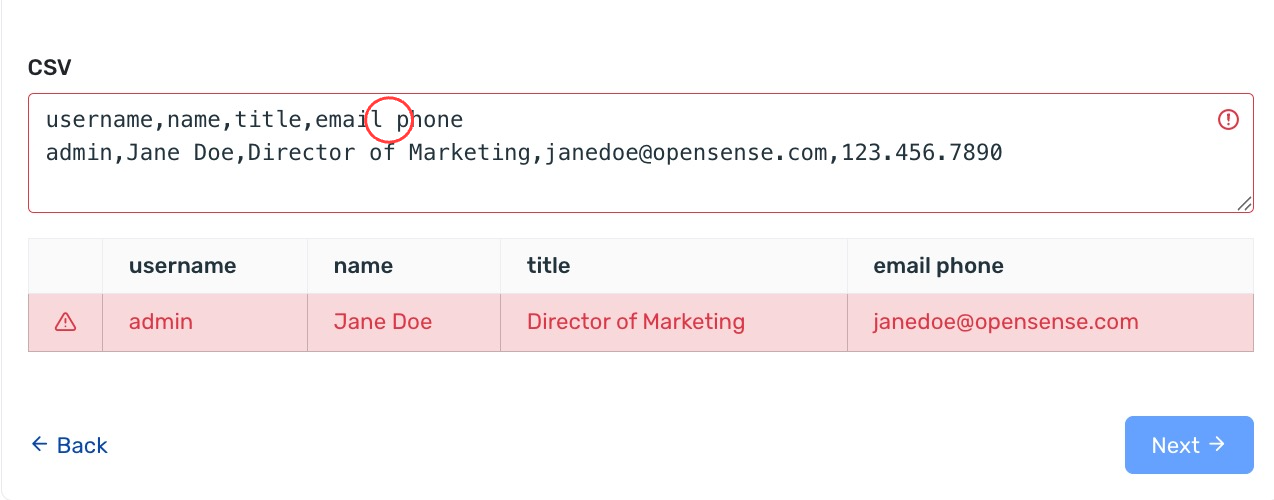
- Check the preview table. Each valid row shows a green check mark. A row with an error turns red, and you cannot continue until you correct it.
- Click Next.
Preparing the user file
Section titled “Preparing the user file”The first row holds the column headers. Each row after it is one user. Separate every value with a comma. The username column holds the part of the email address before the @.
username,name,title,email,phone,mobile,meeting_linkjane.doe,Jane Doe,Director of Marketing,jane.doe@company.com,888-321-7845,888-123-4567,https://meet.google.com/abc-xyzq-pqrDownload the Pusher CSV example (CSV, 179 bytes)
Review the users
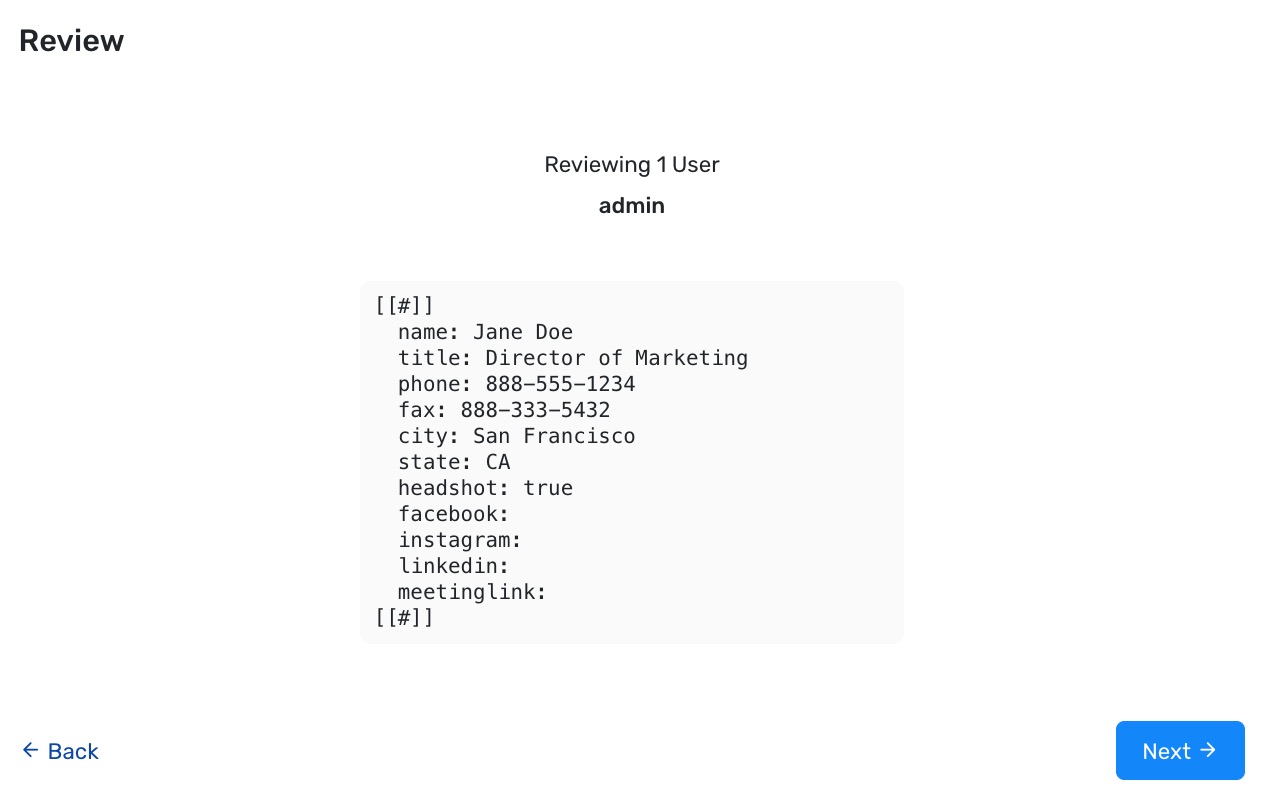
Section titled “Review the users”The Review step shows the data that Pusher will send for each user. If the push includes more than one user, click through the list to check each record. Click Back to make changes, or Next to continue.
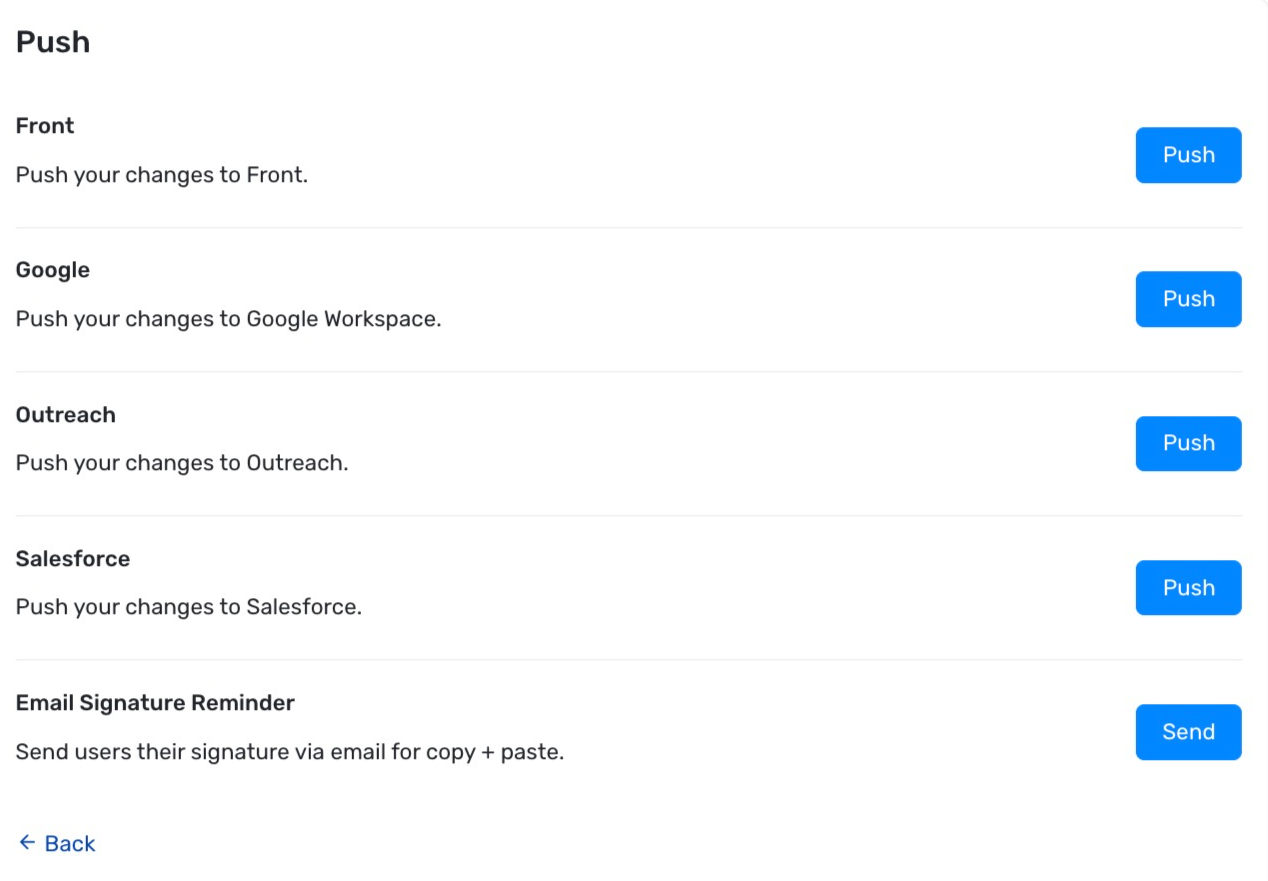
The Push step lists all the destinations connected to your domain, such as Google and third-party apps.
- Click Push next to each destination you want to update.
- Optional: click Send next to Email Signature Reminder. Users get an email with their signature to copy and paste into their email settings.
Repeat push
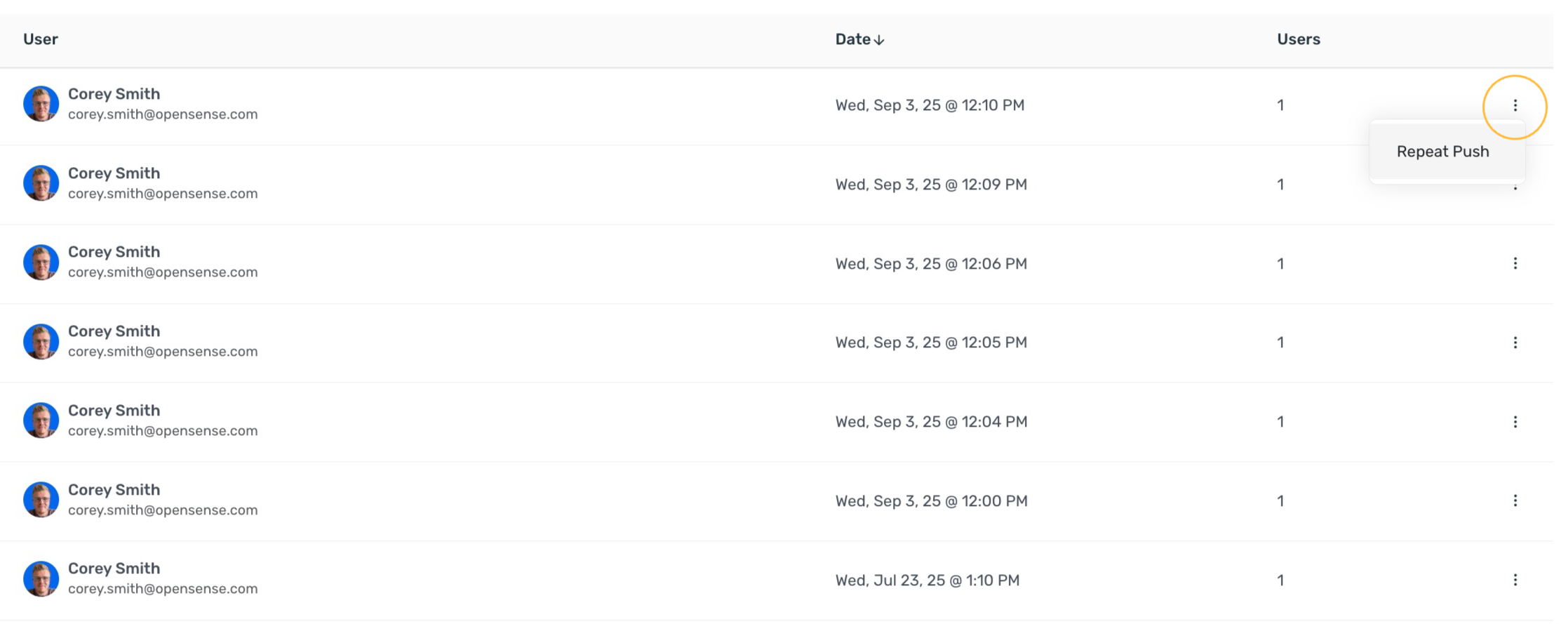
Section titled “Repeat push”Use Repeat Push to send an earlier push again. You can review and change the details before you send it.
- On the Push History page, find the push you want to repeat.
- Click the actions menu (⋮) on its row and select Repeat Push.
- In the New Push window, go through each step. The settings from the earlier push are filled in, and you can change them.
- On the Push step, click Push.
Pushing to Gmail alias accounts
Section titled “Pushing to Gmail alias accounts”Pusher can push signatures to alias accounts. Add the alias addresses to your CSV in the same way as primary accounts. Gmail shows a second signature for the alias in its signature settings, and Pusher usually sets it as the default through the API.
What’s next
Section titled “What’s next”- Introduction to the Pusher tool: what Pusher does and when to use it.
- Pushing Visual Preview signatures to Gmail with the Pusher: a Visual Preview push to Gmail, step by step.
- Opensense portal admin roles: the roles that can use Pusher.