

Using the Performance dashboard
Overview
Section titled “Overview”The Performance dashboard shows analytics for your banner campaigns. By default, it shows all campaigns from the last 60 days, sorted by Reach. Use it to compare campaigns, tags, and categories, see who clicked each banner, and export clicks for retargeting. To open it, select Marketing > Performance in the Opensense portal.
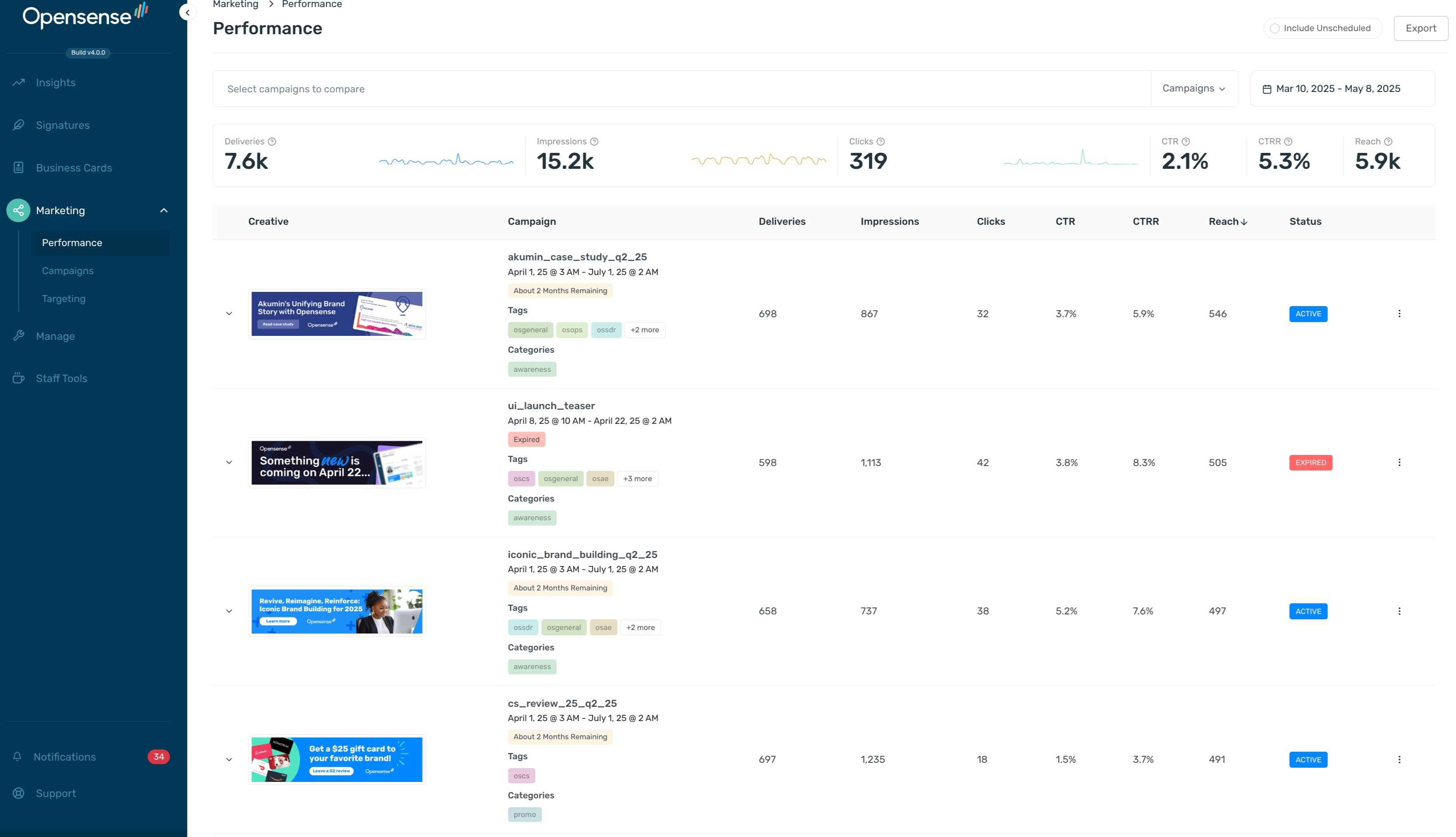
To sort the campaigns, click a column header. To see the data for a specific day, hover over the chart next to Deliveries, Impressions, or Clicks.
Metrics
Section titled “Metrics”- Deliveries
- The number of times a campaign was delivered to its audience.
- Impressions
- The number of views your banners got in the selected time range.
- Clicks
- The number of clicks your banners got in the selected time range.
- Click-through rate (CTR)
- Clicks as a percentage of the emails viewed.
- Click-to-recipient rate (CTRR)
- The percentage of unique recipients who clicked a banner. It shows how well the campaign engages its audience.
- Reach
- The number of unique recipients in the selected time range.
- Status
- The status of the campaign, for example Active or Expired.
Comparing campaigns, tags, and categories
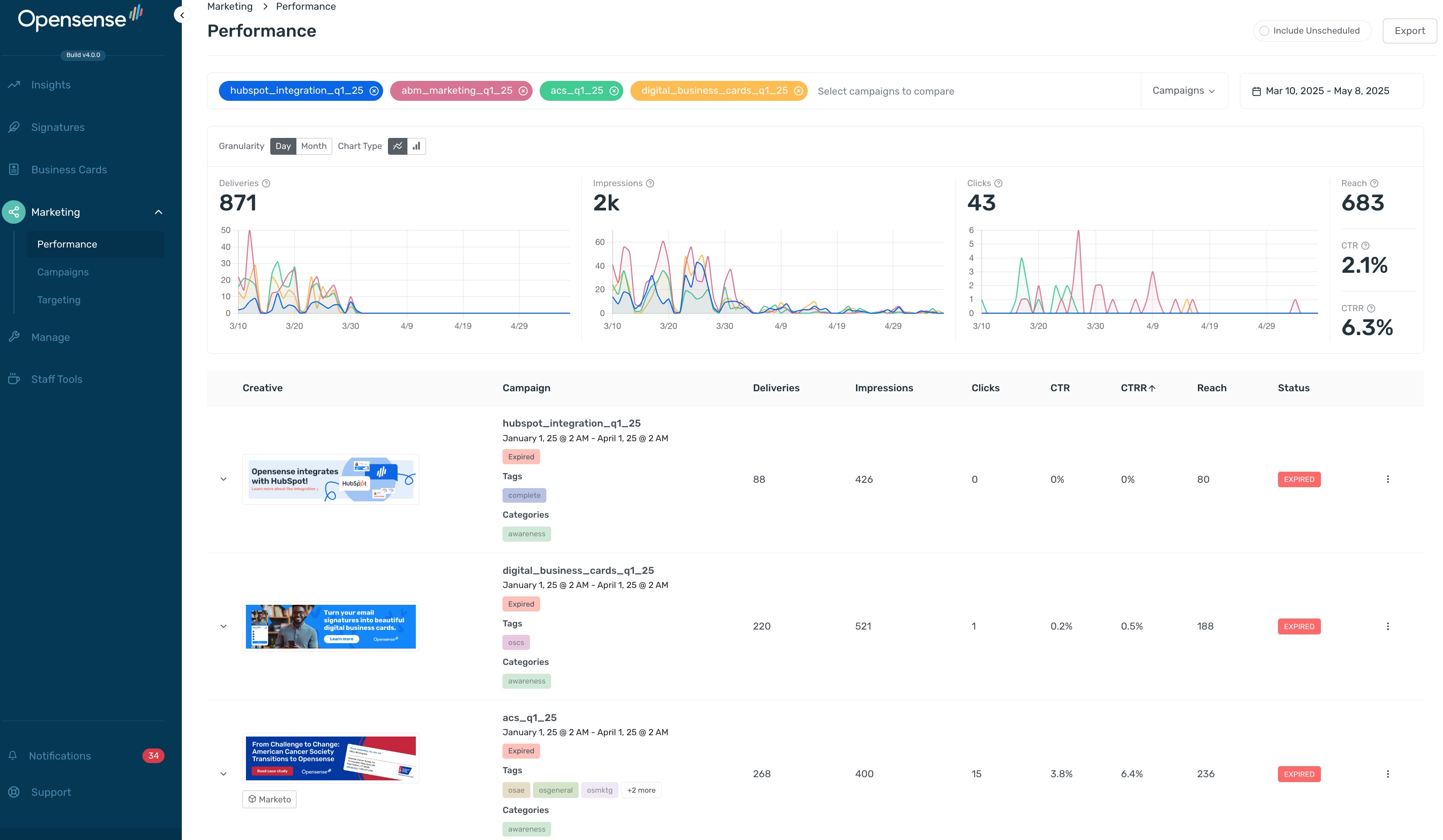
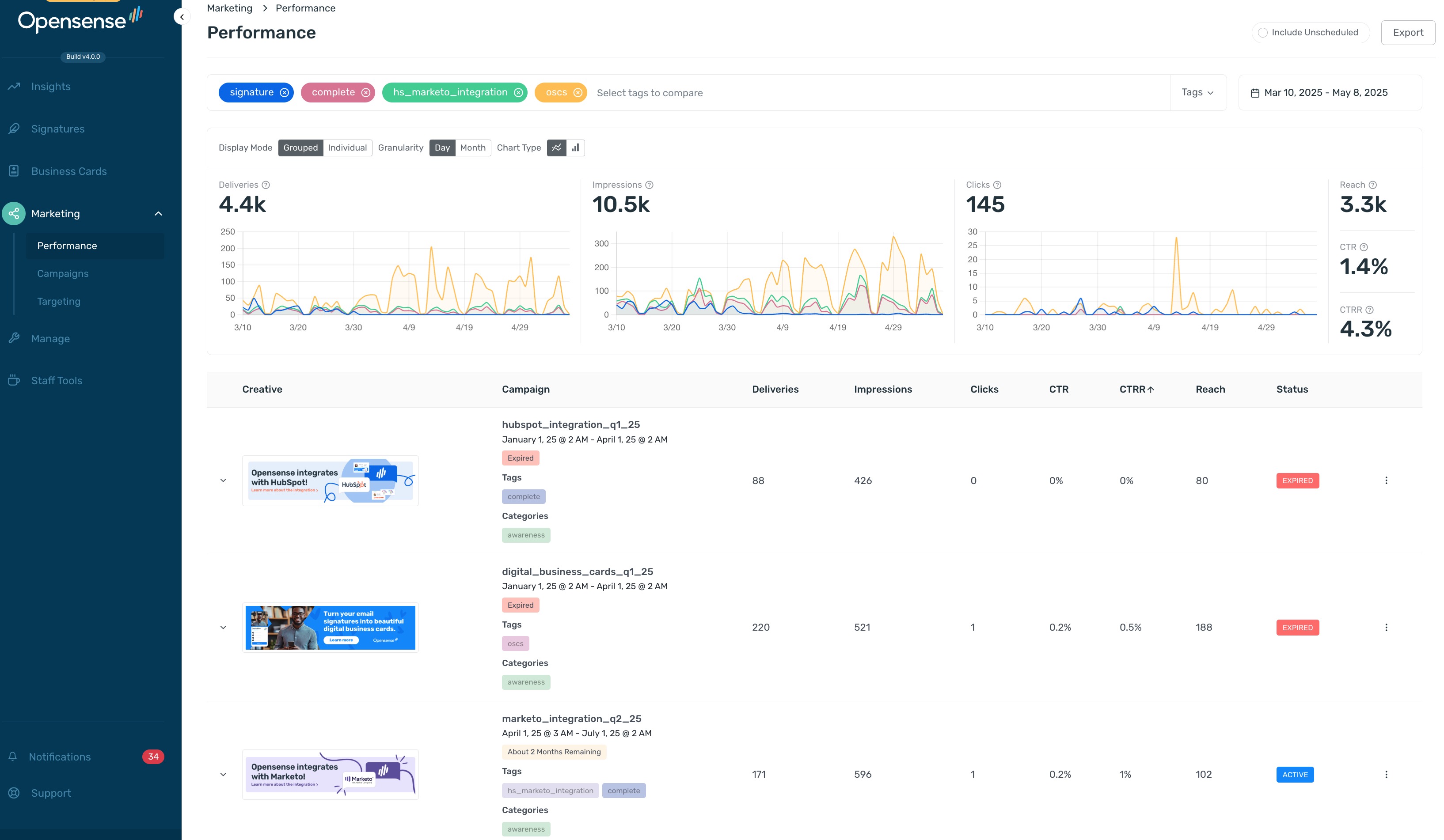
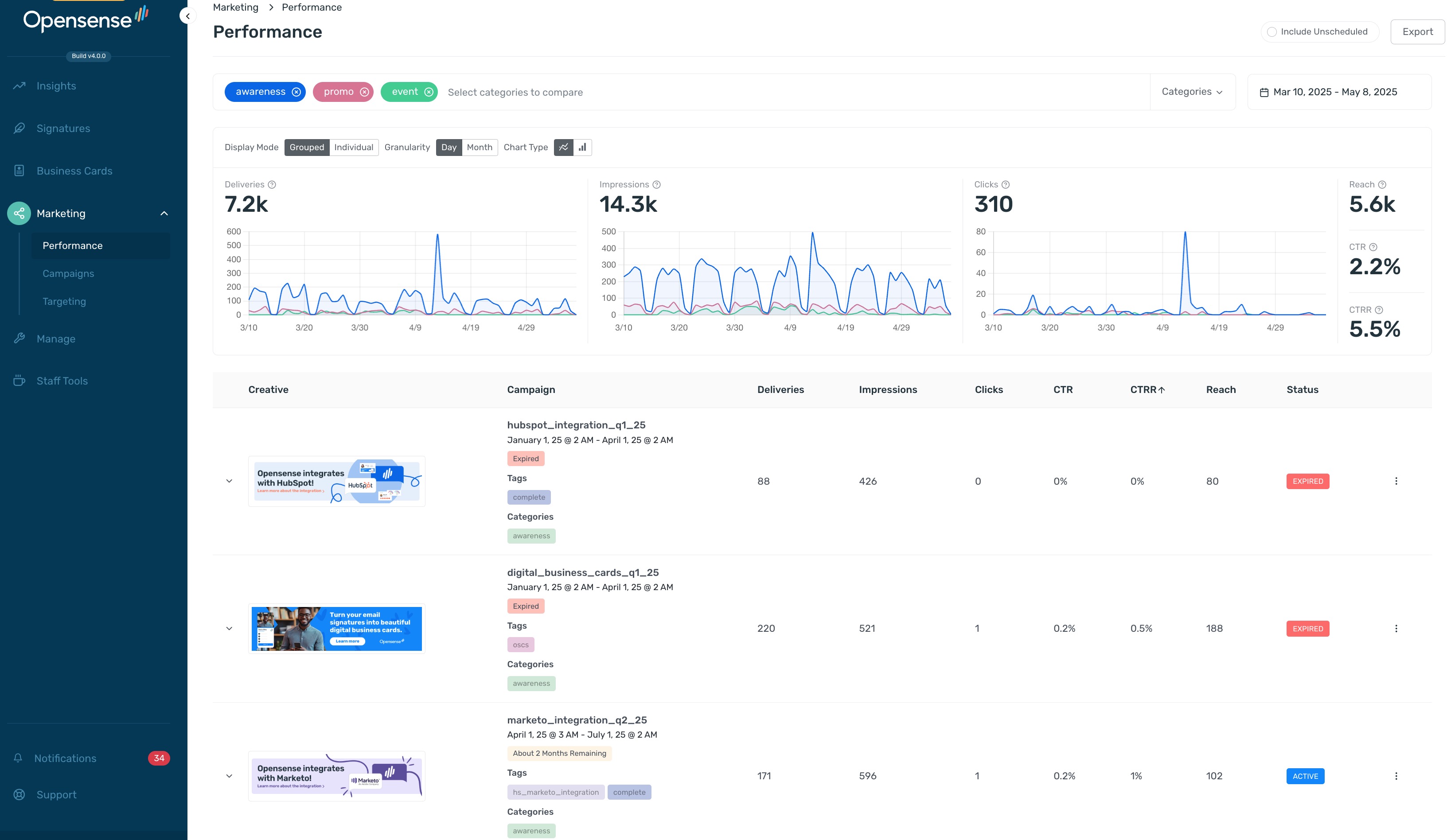
Section titled “Comparing campaigns, tags, and categories”You can compare as many campaigns, tags, or categories as you want.
- In the drop-down list to the right of the search bar, select Campaigns, Tags, or Categories.
- In the search bar, find and select each item to compare.
- Optional: in the date range at the upper right, select a preset period or a custom range.
The charts show each item in its own color. Use Granularity to show the data by Day or Month, and Chart Type to switch between line and bar charts. For tags and categories, you can also set Display Mode to Grouped or Individual.
- Campaigns
- Individual campaigns. Search for a campaign by name.
- Tags
- Labels that your team creates to link related campaigns. For example, apply a
holidayDelaystag to every campaign about slower response times over a holiday. You can create as many tags as you want. - Categories
- Seven preset categories based on email type and industry. Choose the categories that match each campaign's objectives.
Viewing a campaign’s details
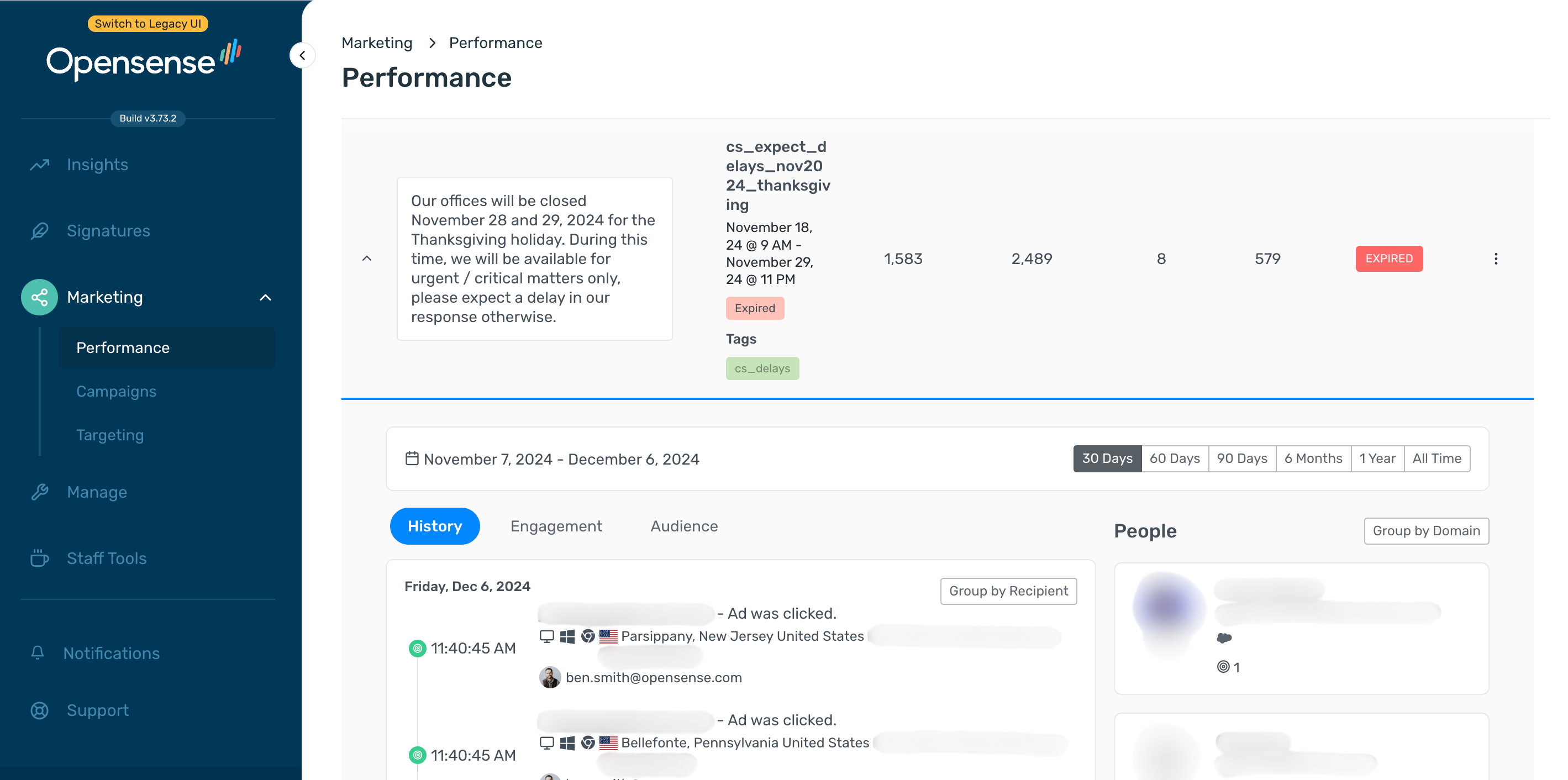
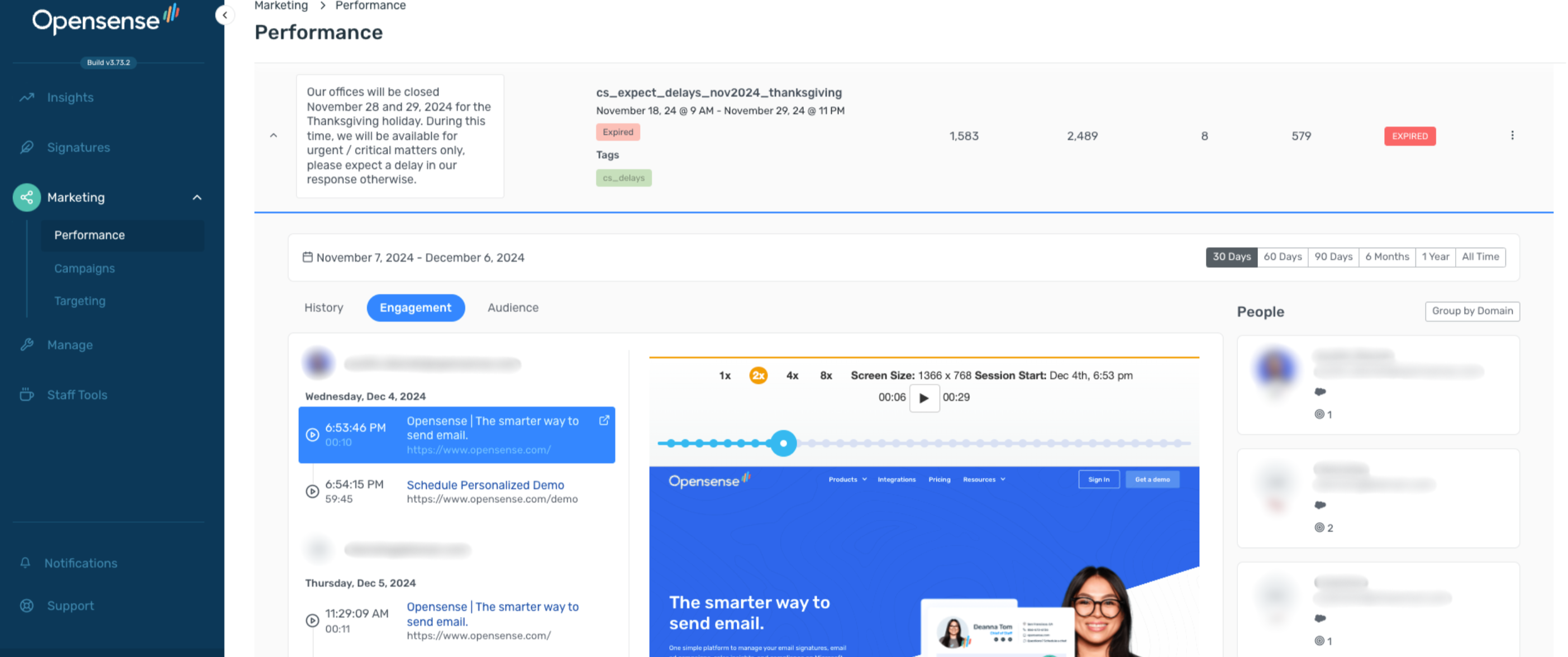
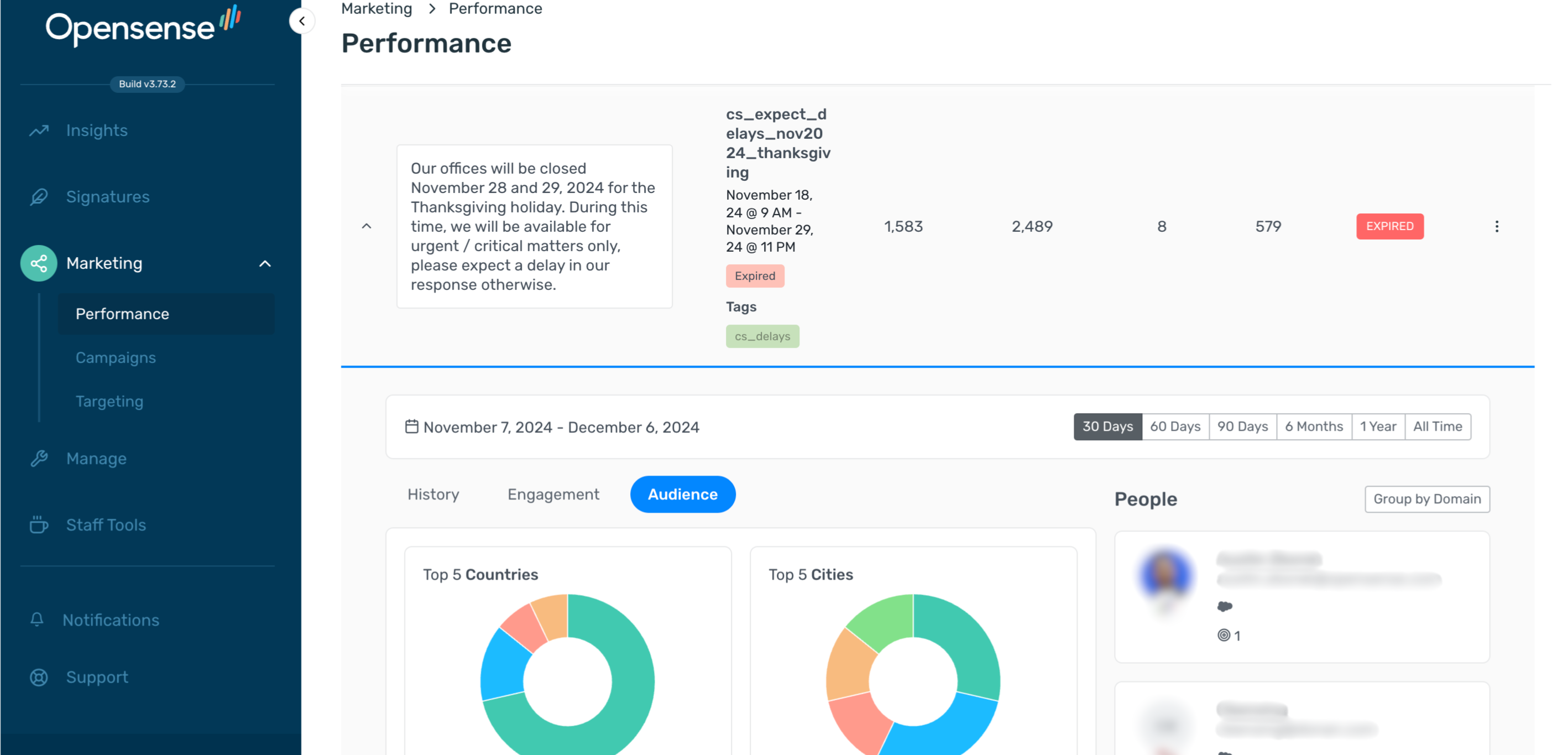
Section titled “Viewing a campaign’s details”To see more about one campaign, click the arrow to the left of its banner. The History, Engagement, and Audience tabs open below it, with the People list on the right. They show the last 30 days by default. To change the period, select 30 Days, 60 Days, 90 Days, 6 Months, 1 Year, or All Time.
- History
- Everyone who clicked the banner, with their email address, the date and time of the click, location, IP address, device type, and browser. Group the clicks by recipient or by domain. To show one recipient only, hover over the contact and click the Filter icon.
- Engagement
- A replay of each contact's visit to the page your banner links to: how long they stayed, and which pages they went to next. Group by domain, or filter to one recipient.
- Audience
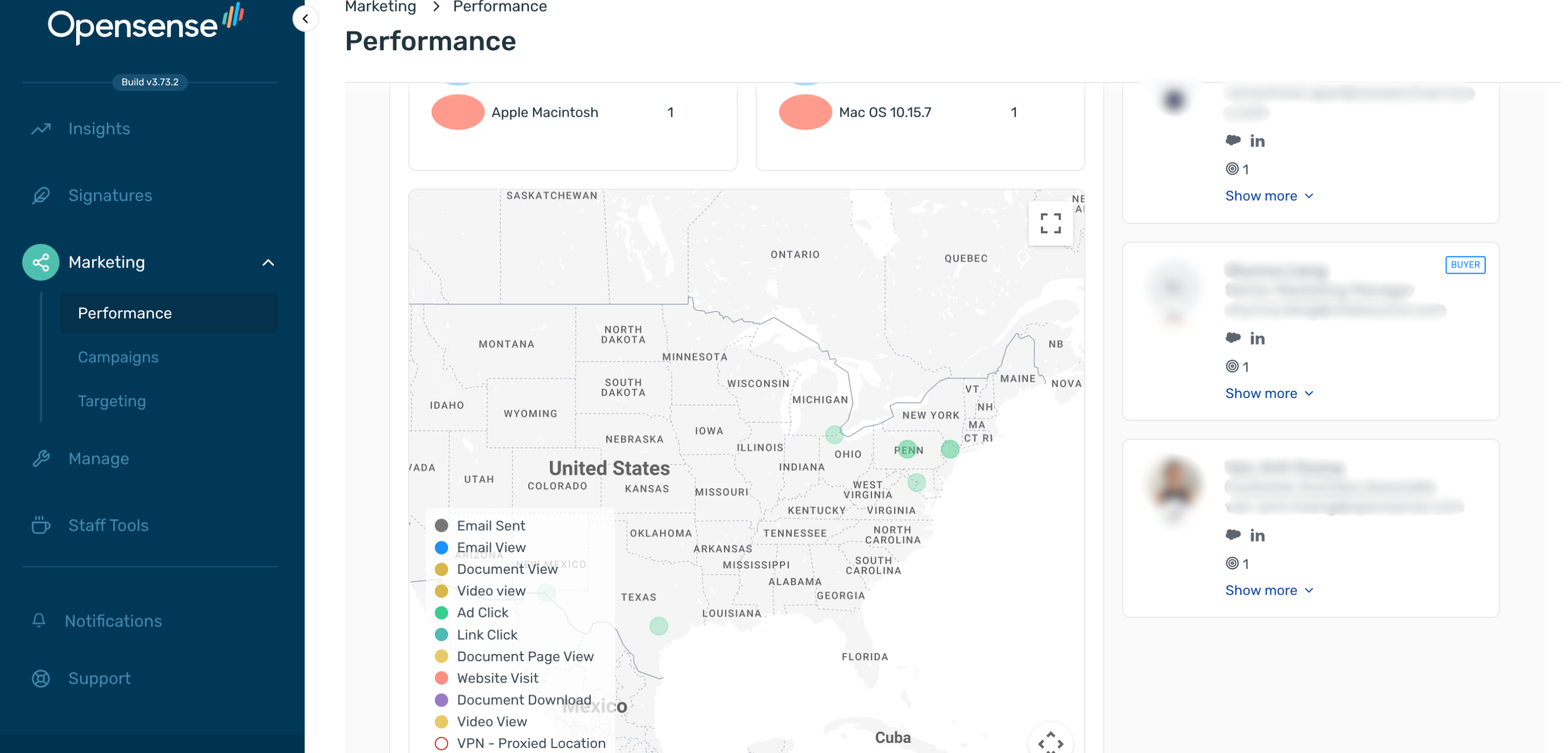
- The top 5 countries, cities, events, browsers, devices, and operating systems. Below them, a map shows the email interactions of everyone in the People list: email sent, email view, document view, video view, ad click, link click, document page view, website visit, document download, video download, and VPN-proxied location.
Exporting click data for retargeting
Section titled “Exporting click data for retargeting”Export the clicks of a campaign to retarget those recipients with a different banner.
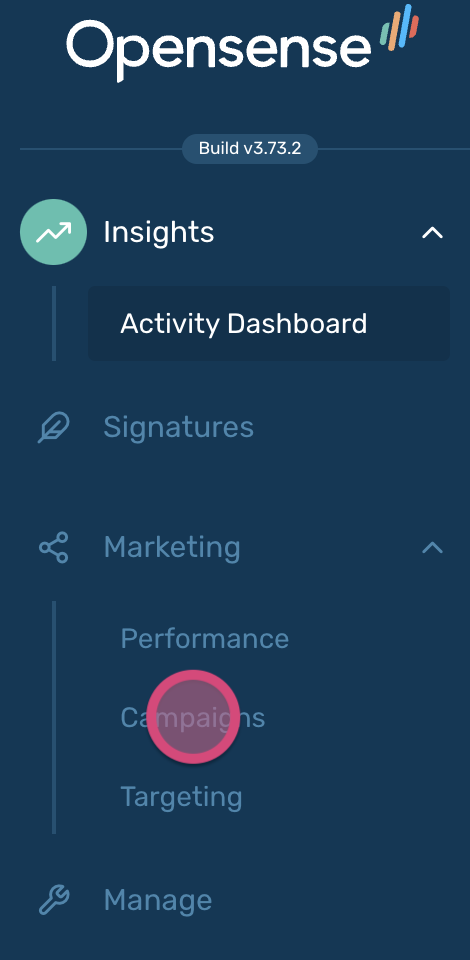
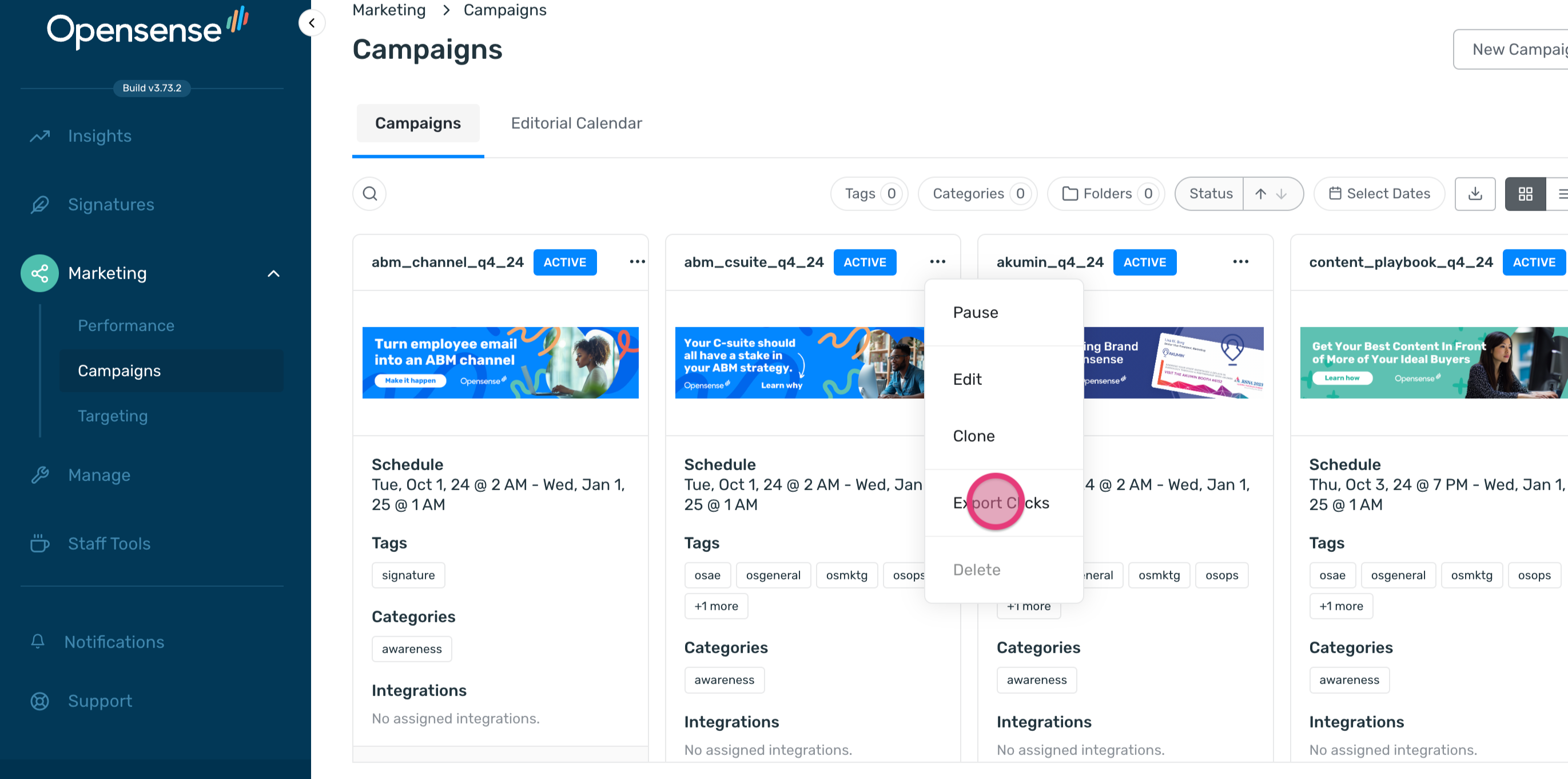
- In the navigation pane, select Marketing > Campaigns.
- On the campaign, click the actions menu and select Export Clicks. The menu is ⋮ in list view and ··· in grid view.
To retarget the list, upload the CSV file to your CRM, create an automation that targets the list, and set up a new banner for it. See Targeting with CRM or marketing automation platforms.
What’s next
Section titled “What’s next”- Finding campaign analytics: where analytics appear for all campaigns and for one campaign.
- Naming and organizing banners: name your campaigns, tags, and banners so your analytics stay easy to compare.
- A/B testing banners: ideas for banner tests.