

Designing business cards in Designer Studio
Overview
Section titled “Overview”Use the Business Cards Designer Studio page to set up your company branding and create business card templates. You can also search, sort, edit, clone, and delete your templates. To open it, select Business Cards > Designer Studio in the Opensense portal.
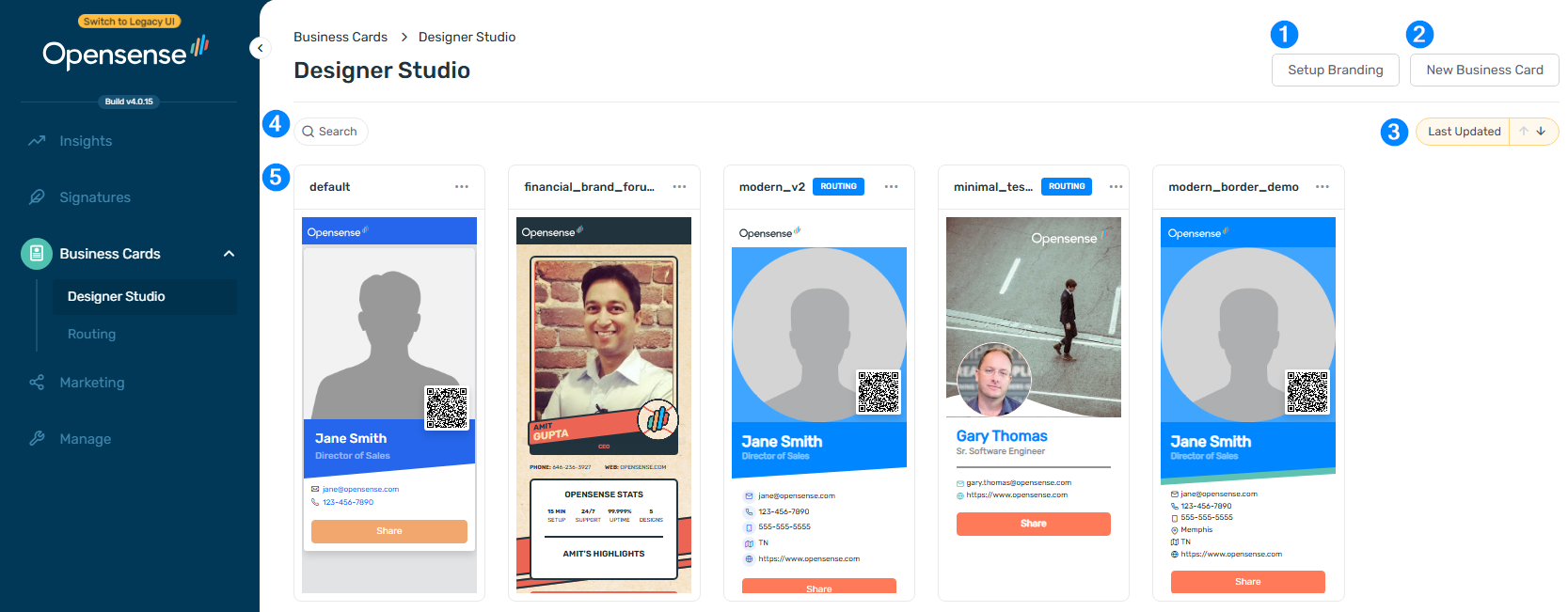
- Setup Branding: set the company information, colors, fonts, and images for your cards.
- New Business Card: create a card from a template style.
- Sort menu: order templates by Last Updated, Name, or Status.
- Search: find a template by name or keyword.
- Card templates: each template shows a preview and an actions menu.
Setting up branding
Section titled “Setting up branding”Branding sets the colors, fonts, and images that your business card designs use. The Preview pane on the right shows each change as you make it.
- Click Setup Branding at the upper right of Designer Studio.
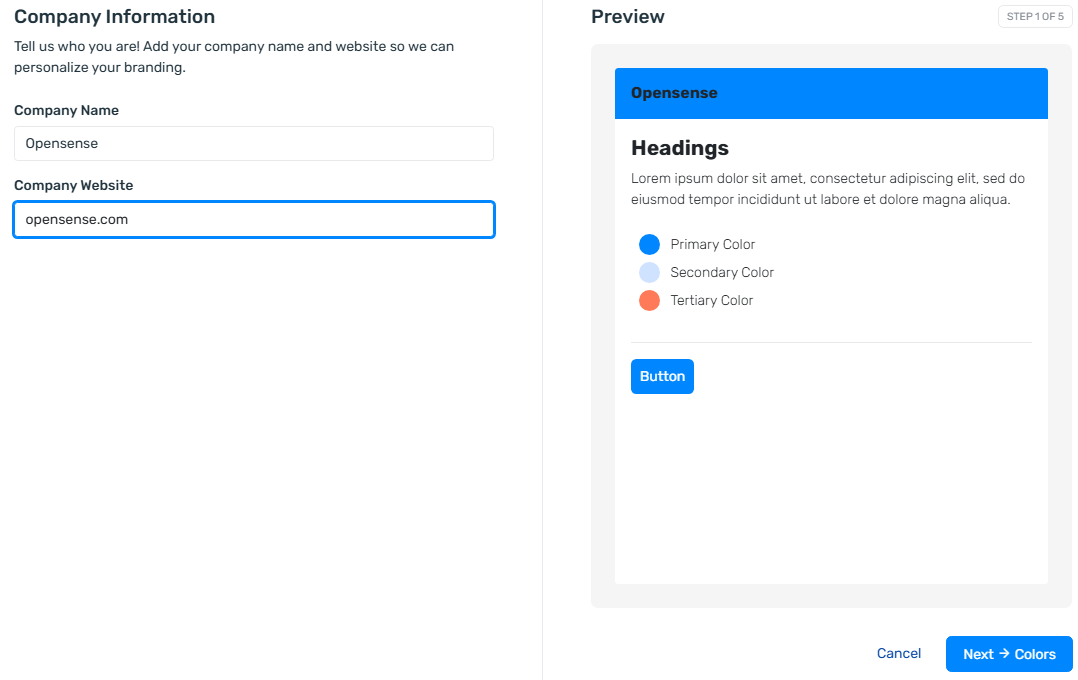
- On Company Information, enter your Company Name and Company Website. Click Next.
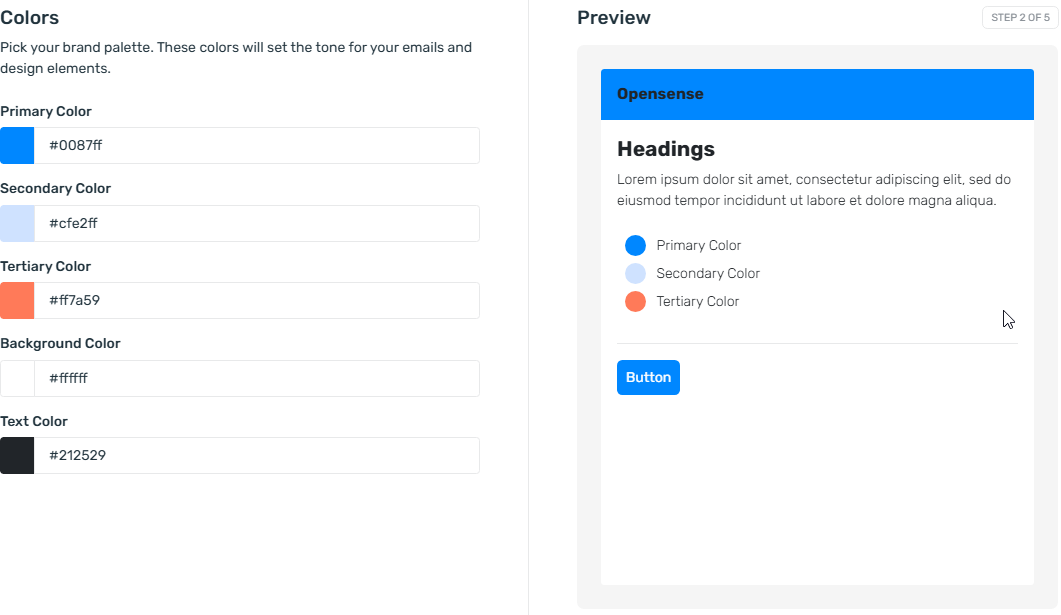
- On Colors, enter your Primary, Secondary, and Tertiary colors, and your Background and Text colors. Use the values from your brand guidelines. Click Next.
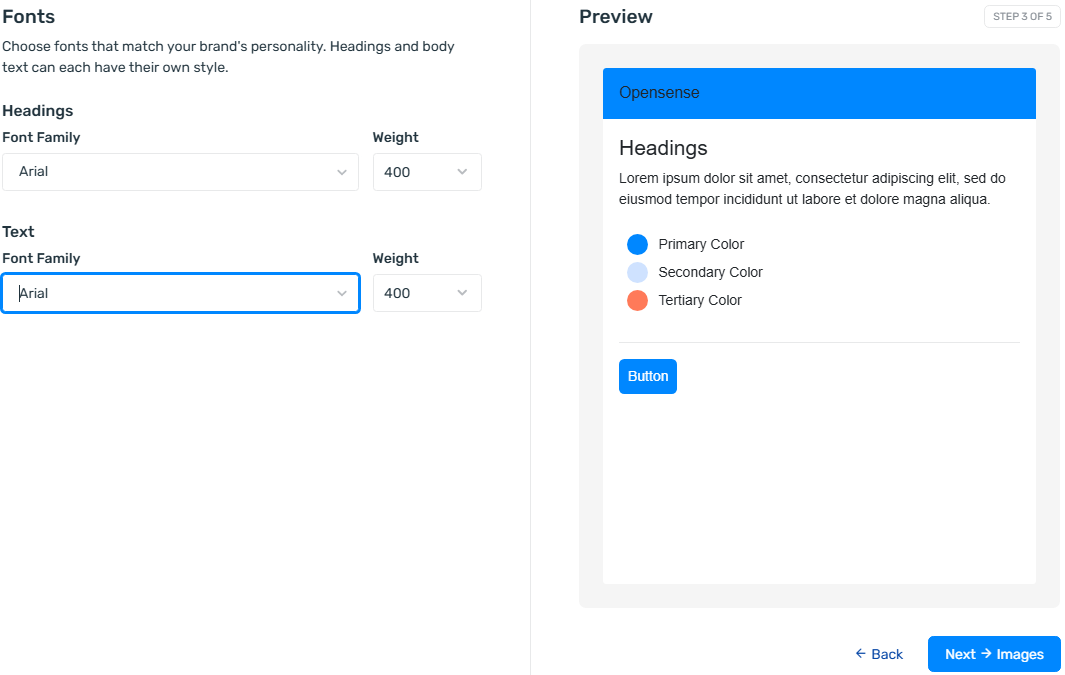
- On Fonts, select a font family and weight for Headings and for Text. Click Next.
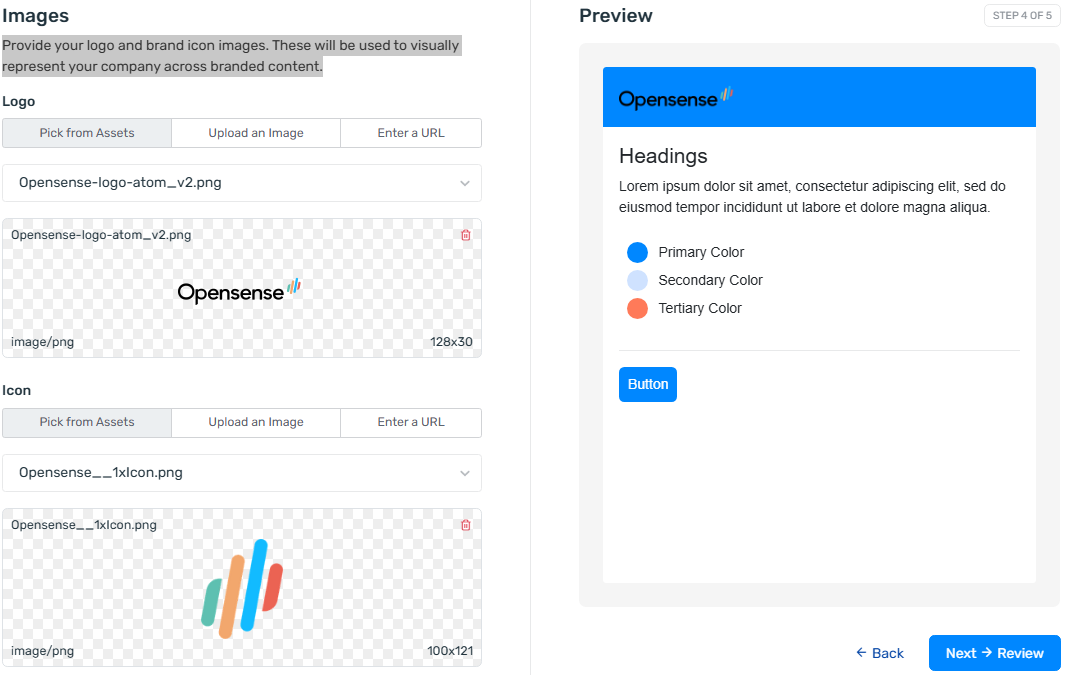
- On Images, add your company Logo and brand Icon. For each one, pick a file from your assets, upload an image, or enter a URL. Click Next.
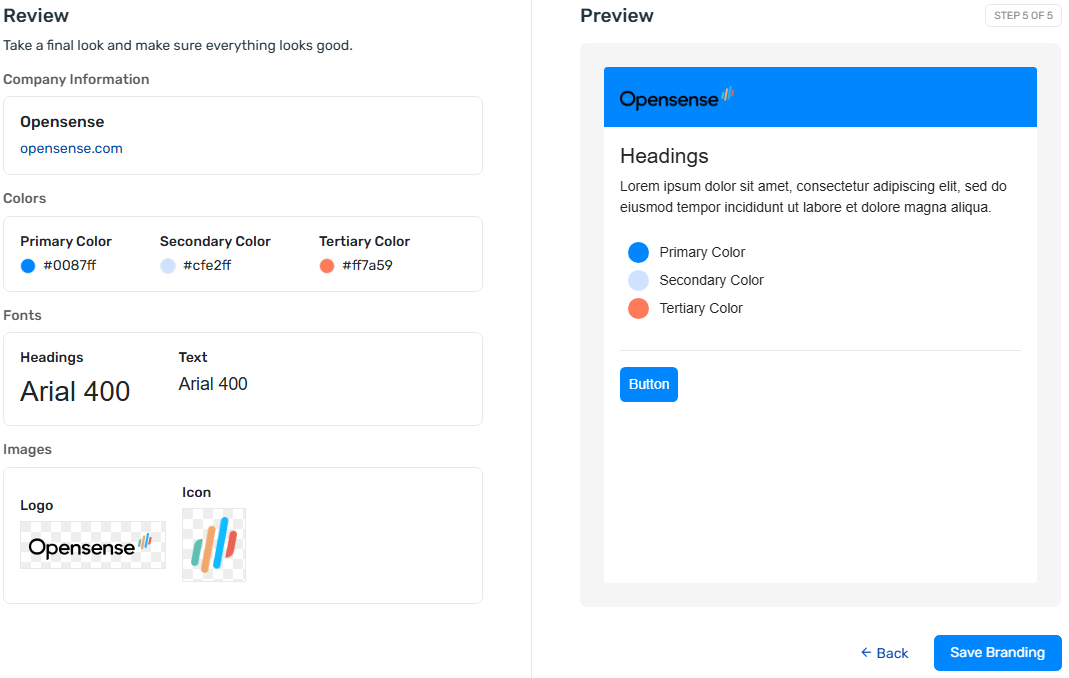
- On Review, check your entries. Click Save Branding.
Creating a business card
Section titled “Creating a business card”- Click New Business Card at the upper right of Designer Studio.
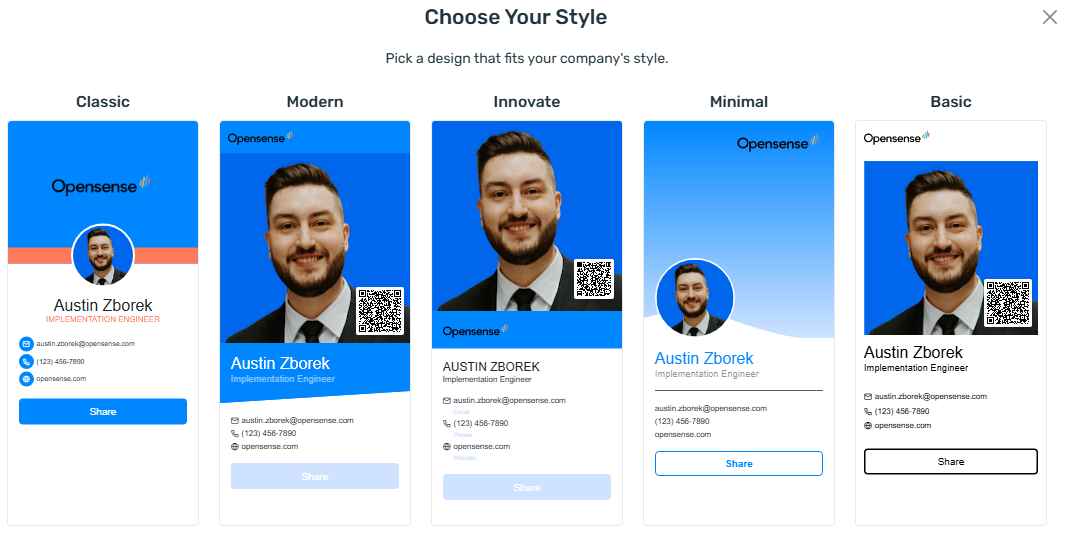
- In the Choose Your Style window, select a template style: Classic, Modern, Innovate, Minimal, or Basic.
Managing card templates
Section titled “Managing card templates”Designer Studio shows each business card template as a card with a preview of the design. A Routing tag on a card means that the template is assigned to a route. To assign templates, see Assigning business cards in Routing.
To manage a template, click the actions menu (···) on its card and select an option:
- Edit
- Change the template design or details.
- Clone
- Make a copy of the template to use as a starting point.
- Delete
- Remove the template permanently.
What’s next
Section titled “What’s next”- Assigning business cards in Routing: assign card templates to groups of users and set route priority.
- Business card overview: what digital business cards do and their benefits.