

Turning off Opensense for an organizational unit in Google Workspace
Overview
Section titled “Overview”You may have your Opensense signature landing page posted in a company forum, but prefer to stop contractors and partners from using any licenses. This article explains how to turn off signature usage for an organizational unit (OU) in the Google Admin console.
Turn off Opensense for an organizational unit
Section titled “Turn off Opensense for an organizational unit”-
In the Google Admin console, go to Apps > Google Workspace > Gmail > Compliance.
-
On the left, select the organizational unit you want to exclude.
-
Scroll to Content compliance.
-
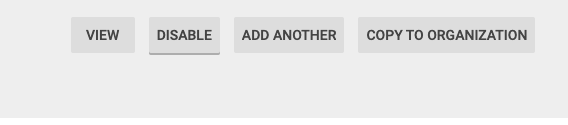
Hover over the Opensense Stamp rule, and select Disable on the right.
-
Select Save at the bottom of the page.
The Opensense Stamp rule is now turned off for that OU, and the plain text signature doesn’t transform. To exclude more organizational units, repeat these steps for each one.
Older versions of the Admin console showed this setting under Apps > G Suite > Settings for Gmail > Advanced settings, with Content compliance in the Compliance section.
What’s next
Section titled “What’s next”- Google Workspace integration overview (change request): the Opensense Content Compliance rules.
- How does Opensense work with Google Workspace?