

Uploading images to Opensense (classic UI)
Overview
Section titled “Overview”Opensense has an image repository built for all signature design assets. Using Opensense image bucket images in your signature designs prevents the impact that third-party images have on your email spam score.
Add an image
Section titled “Add an image”-
In Opensense, go to the image bucket: open the Marketing menu, and select Images.
-
Select the green + Add New Image button in the upper left.
-
In the box that appears, select the purple Upload Image button.
-
Upload your image. You can make images inline. Need help deciding? See Inline vs. hosted images. We recommend inline images for Microsoft 365 (formerly Office 365) customers.
-
When it’s uploaded, select the green Save button.
-
The image now appears in your image bucket.

-
Select the Copy URL to Clipboard button to copy the image URL.
Bulk upload images
Section titled “Bulk upload images”-
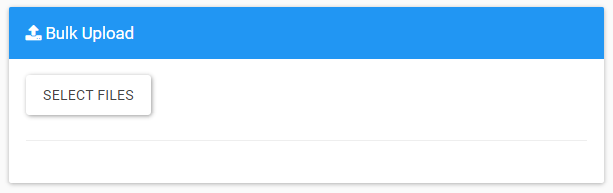
To upload multiple images at once, select the Select Files button under Bulk Upload.
-
When you’ve selected and uploaded the images, select Reload Images to see them in the image bucket.
-
Select Copy URL to Clipboard to copy the URL of any image, to use in signature design templates in Designer Studio.
What’s next
Section titled “What’s next”For further help, contact Opensense Support at help@opensense.com.