

Fixing missing or duplicate Outlook signatures (roaming signatures)
Overview
Section titled “Overview”Missing, outdated, or duplicate signatures in Outlook for Windows are most likely caused by Outlook roaming signatures. This Microsoft feature stores signatures in the mailbox instead of on the device, so they’re available on every device where the account is set up. It applies to Outlook for Windows (build 2303 or later) with Microsoft 365 mailboxes, and it directly affects the signature settings in Outlook for Windows.
To fix the problem and restore missing signatures, turn off roaming signatures, and then recreate the missing signatures by copying their contents.
Symptoms
Section titled “Symptoms”You see at least one of these issues with email signatures in Outlook for Windows:
- Your email signatures have suddenly disappeared.
- You see signatures you set up long ago, instead of your current ones.
- Other users’ signatures are synced, and set as the default for a mailbox that you use. This most often affects shared mailboxes.
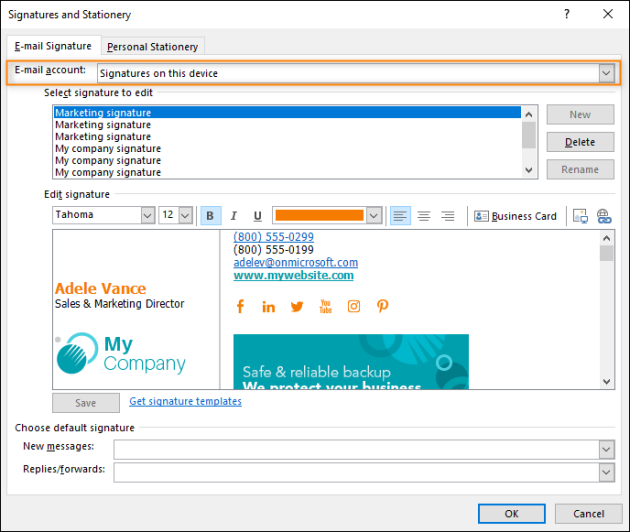
- Your signatures are listed under Signatures on this device, but you can’t use them with any email account, or apply them to new emails, replies, or forwards as usual. In some cases, the signatures are duplicated.
How to fix it
Section titled “How to fix it”
Disable Outlook roaming signatures
Section titled “Disable Outlook roaming signatures”You turn off roaming signatures in the Windows registry, by creating a DWORD value named DisableRoamingSignatures and setting it to 1. Where you create it depends on who you are:
- Users, on their own PC
- In the registry, under
HKEY_CURRENT_USER\.Software\ Microsoft\ Office\ 16.0\ Outlook\ Setup - IT admins, for many PCs
- Remotely and centrally, with a Group Policy Object (GPO), under
HKEY_CURRENT_USER\.SOFTWARE\ Policies\ Microsoft\ Office\ 16.0\ Outlook\ Setup
For Microsoft’s instructions, see Outlook roaming signatures. After you turn off the feature, restart Outlook for Windows to restore the missing signatures. Then go on to the next step.
Recreate missing signatures by copying their contents
Section titled “Recreate missing signatures by copying their contents”You recreate missing signatures from the signature files on your PC, which you open in File Explorer.
-
In Outlook for Windows, go to File > Options.
-
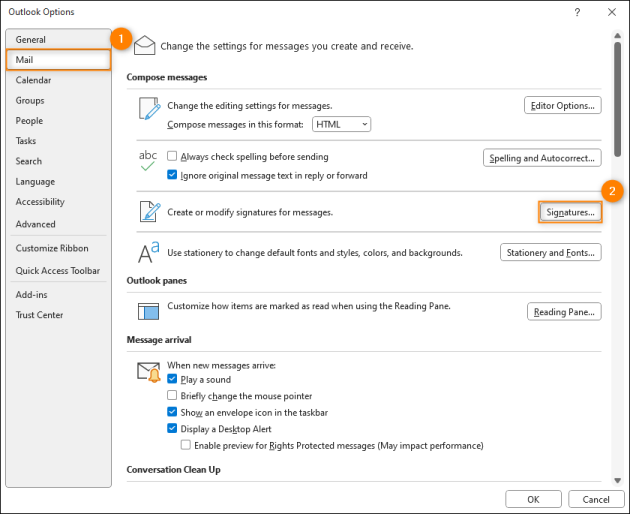
In the Outlook Options window, go to the Mail tab, hold down Ctrl, and select Signatures. The folder with your signatures opens in File Explorer.
-
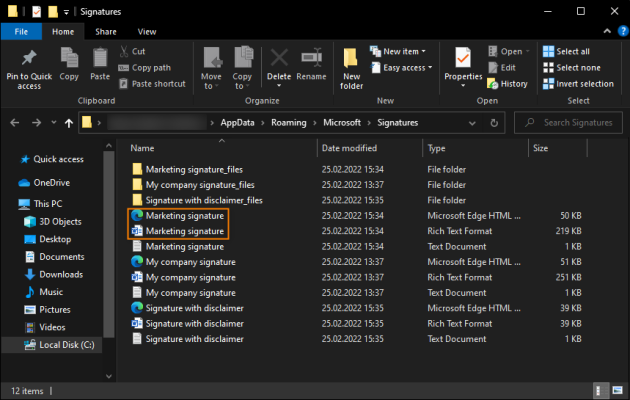
Open either the RTF or the HTML file of one of your signatures. Either one works.
-
In the file that opens, select all of the signature content (Ctrl + A), and copy it (Ctrl + C).
-
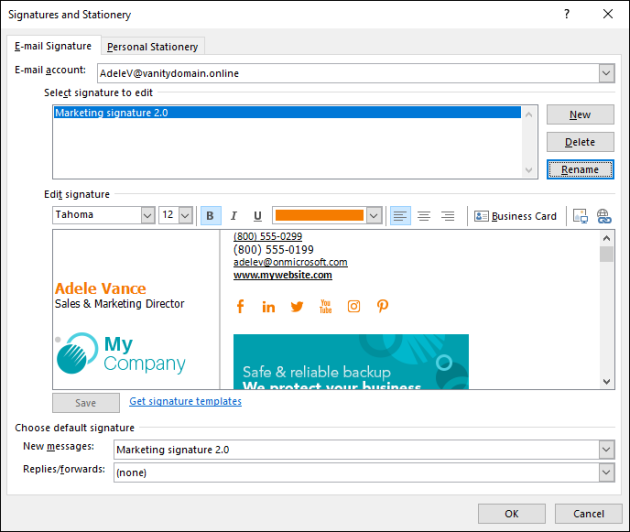
Go back to Outlook for Windows, and select Signatures again, this time without holding down Ctrl. If you closed Outlook, repeat steps 1 and 2, without holding down Ctrl when you select Signatures.
-
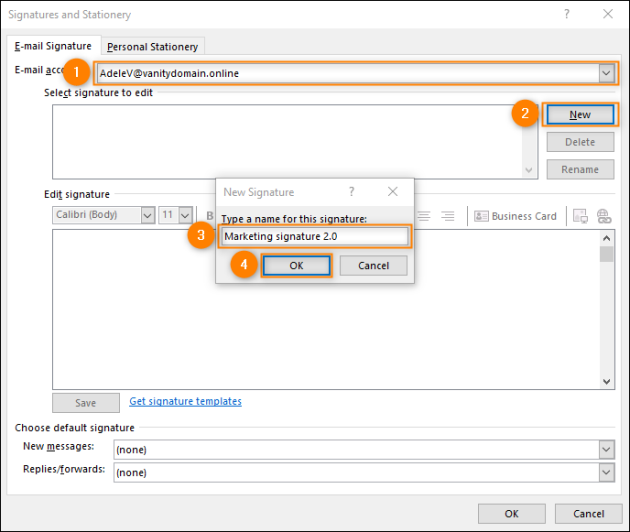
Choose your email account (if you use multiple accounts in Outlook), select New, name the signature, and select OK. You can’t give two signatures the same name, so name the new signature differently from the old (missing) one.
-
In the Edit signature box, paste the signature content you copied in step 4 (Ctrl + V), and then select Save, just below the box.
-
Set the signature as the default for new messages, replies and forwards, or both, as you prefer (at the bottom of the window).
-
Repeat steps 3 to 8 to recreate your other missing signatures.
-
Select OK to close the Signatures and Stationery window and apply your changes.
You can now use your email signatures as usual, just as you did before Outlook roaming signatures.