

Email notification launch guide
Overview
Section titled “Overview”To set up a plain-text email signature through an email reminder, employees paste the signature into their settings, for consistent and attractive email signatures across devices and applications. This is a one-time setup.
How Push to Email works
Section titled “How Push to Email works”- Deliver the Opensense signature straight to your employees’ inboxes with the Pusher.
- A one-time copy and paste into their signature settings is all it takes for consistent email signatures across all devices and applications.
Deployment tips and best practices
Section titled “Deployment tips and best practices”For the best deployment: choose early in the week, to encourage adoption through the rest of the week.
End-user experience
Section titled “End-user experience”- Employees get their customized Opensense signature in their inbox, in an email from notifications@opensense.com.
- A one-time copy and paste into signature settings completes the signature setup. This covers every device the employee sends email from. Your branded Opensense Signature Instructions document has setup instructions for the major desktop and mobile applications.
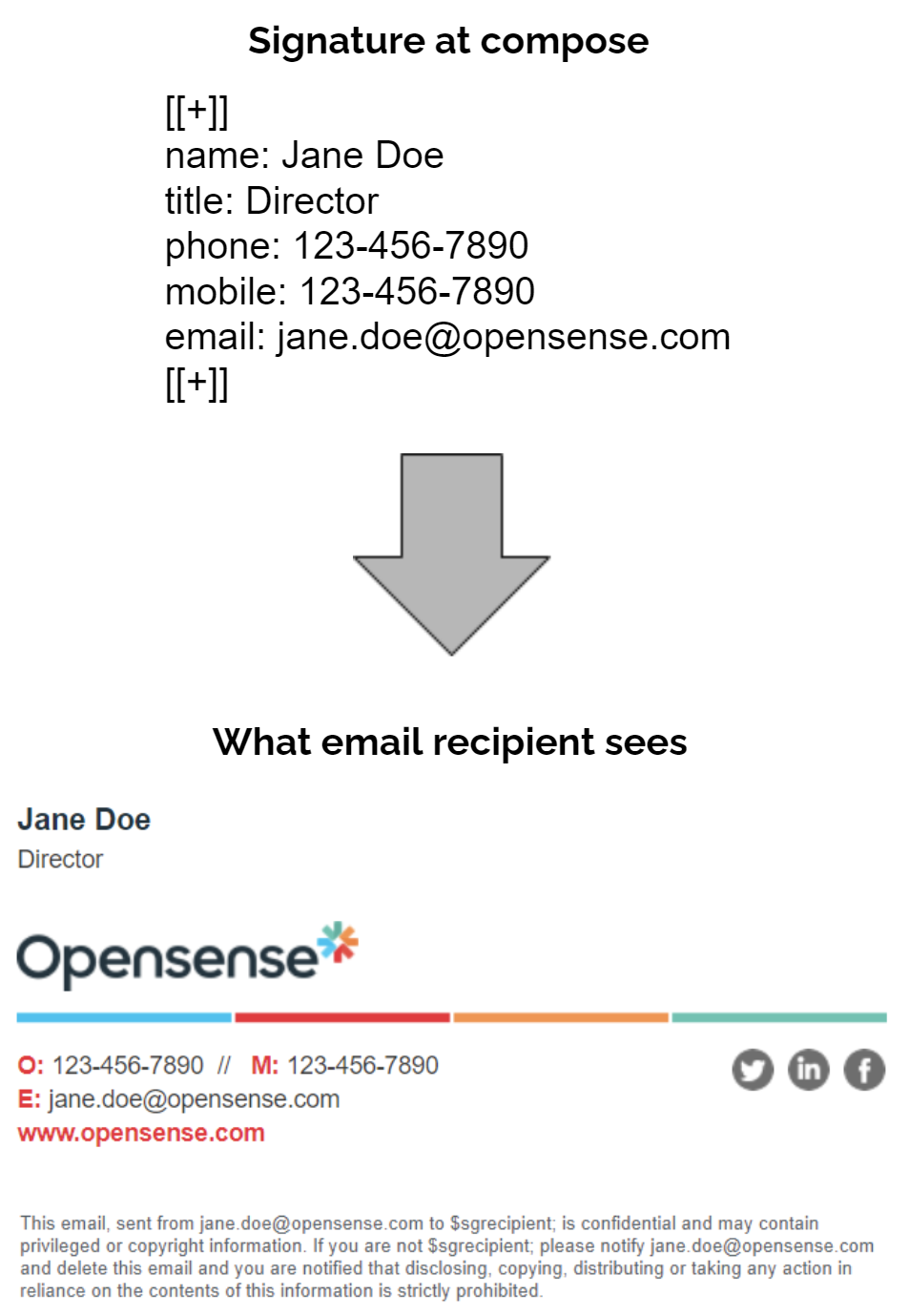
- The pasted signature appears as plain text, and the email recipient gets the beautiful email signature design that Marketing manages centrally. Your branded Opensense Signature Instructions document shows this transformation.
Internal launch communications
Section titled “Internal launch communications”Before you send
Section titled “Before you send”Good launch communication is the difference between a few support emails and many more than you need. To help you get started, here’s two sample emails, submitted by a customer who launched their email signatures successfully.
- Send launch communications 1 to 3 days before launch day. Bonus points for showing your new company signature even sooner, at an all-hands meeting.
- If you write a launch email you’re proud of, send it to your customer success manager, so it can be added to the knowledge base to help others.
Send 3 days before launch (email announcement 1 of 2)
Section titled “Send 3 days before launch (email announcement 1 of 2)”All Company Employees
Date
Dear Team,
In an effort to present a stronger unified brand to our customers, we will be implementing a standardized email signature for all employees. Using a service called Opensense, the marketing team will now centrally manage the style and format of email signatures, while employee contact information will be synced from our company directory. This means your email signature on all emails from any device will be beautiful and up to date with all of the latest messaging, and best of all, there is very little required on your end!
Highlights of the new email signature block are:
You will receive an email from our team on Monday, May 18th with additional instructions on how to set this up for your emails going forward.
If your signature contains incorrect contact information, or you need any other help setting up your email signature, please contact Jane Doe for support: Jane.Doe@abc.com
Please do not add quotations, tag lines, memes, videos, alternative legal disclaimers, font changes, color changes, logos, etc. If you believe that you have a legitimate case for adding or changing something on your signature block, please reach out to Jane Doe: Jane.Doe@abc.com, and your request will be reviewed and considered by Marketing.
We greatly appreciate your help in setting up your signatures.
Thank you!
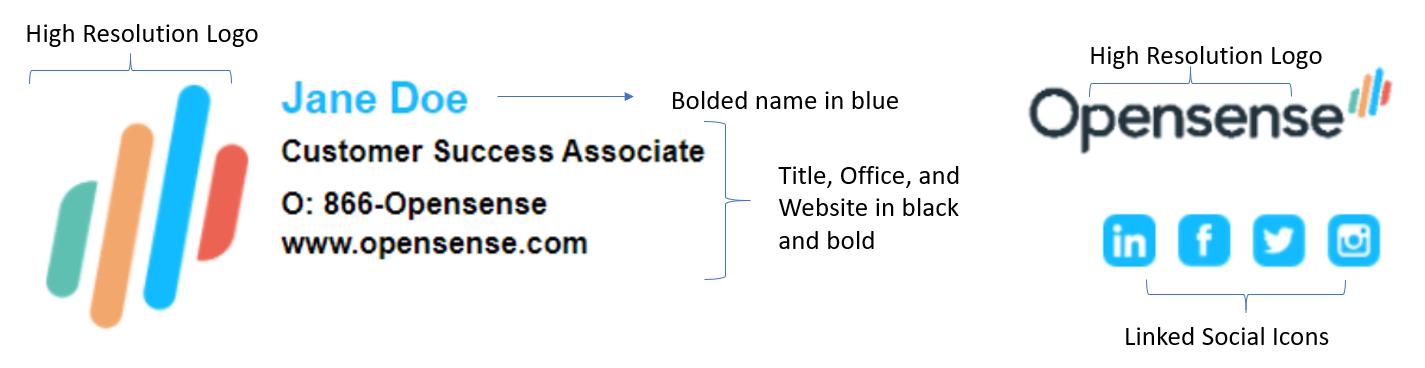
- Announce it at an all-hands meeting, for an engaging launch.
- Support requests tend to subside a week or so after launch.
Send on launch day (email announcement 2 of 2)
Section titled “Send on launch day (email announcement 2 of 2)”To: All Company Employees
Subject: Corporate Email Signature Launch Today
You will receive an email from Opensense today with a personalized email signature block. Please take a moment to read the attached document to set up this new signature block on your corporate devices. It contains step-by-step instructions for a variety of email clients, including Outlook, Outlook on the web, iPhone, and Android. The document contains frequently asked questions, and also shows the transformation of your email signature, seen below:
Because contact information is synced with our company directory, any changes made directly to your signature block will be overwritten by directory information when you send email. If your signature contains incorrect information, or you need any other help setting up your email signature, please contact our IT Helpdesk for support: help@ABC.com
The signature will appear as plain text when you send an email, and the recipient will always receive the branded email signature design that is centrally managed by Marketing. You can send a test email to your personal email or a colleague to confirm it’s working as expected before you send an external email.
Change requests
Section titled “Change requests”To set expectations for changes, you can add this paragraph to the email:
Do not add quotations, tag lines, former acquired company names, memes, videos, alternate legal disclaimers, font changes, color changes, manufacturer logos, certifications, etc. If you believe that you have a legitimate case for adding or changing something on your signature block, please get approval from your manager, and place an IT service ticket stating what you want. Your request will be reviewed by Marketing for consideration. Do not make changes on your own. Thanks for your cooperation.
Signature instructions to give employees
Section titled “Signature instructions to give employees”
What’s next
Section titled “What’s next”- Finding your active user count, for adoption monitoring
- Editing one user in Users & Compliance (classic UI)
- Saving your signature block in Microsoft 365 email apps
For further help, contact Opensense Support at help@opensense.com.